Phishing Awareness Training
Configure how INKY handles simulated phishing emails from your security awareness training platform so tests reach users without interference—while keeping your SOC queue clean.
Written By Matt Sywulak
Last updated About 2 months ago
Configuring phishing simulation support requires two steps:
Whitelist in Microsoft 365 — Ensure simulation emails bypass M365's native protection and reach INKY
Configure in INKY — Tell INKY how to handle simulations (banners, link rewriting, reporting)
For BullPhish ID and INKY PhishTest, both steps can be completed from within the INKY dashboard. For other platforms, you'll configure M365 manually and then set up INKY below.
Step 1: Microsoft 365 Advanced Delivery
For Microsoft 365 environments, simulation emails must be whitelisted in M365's Advanced Delivery settings. Without this, M365 may block simulations before they reach INKY.
Automated Configuration (BullPhish ID, more coming soon…)
INKY can automatically configure M365 Advanced Delivery during Team Setup or from the License Status page:
Navigate to Tenant Operations - INKY
Configure Phishing Simulation Override
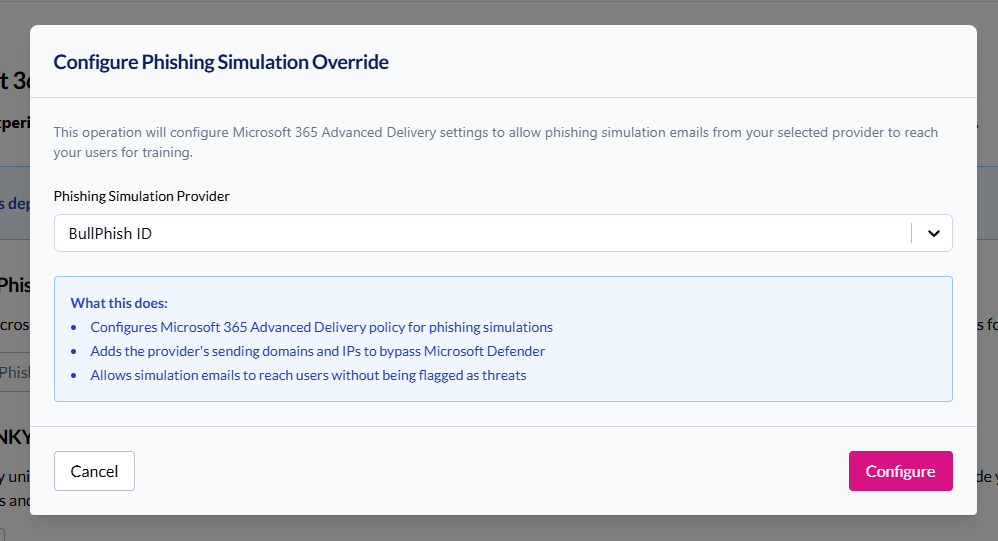
The configuration assistant will add the required IP addresses and domains to M365
Monitor the real-time logs to confirm success
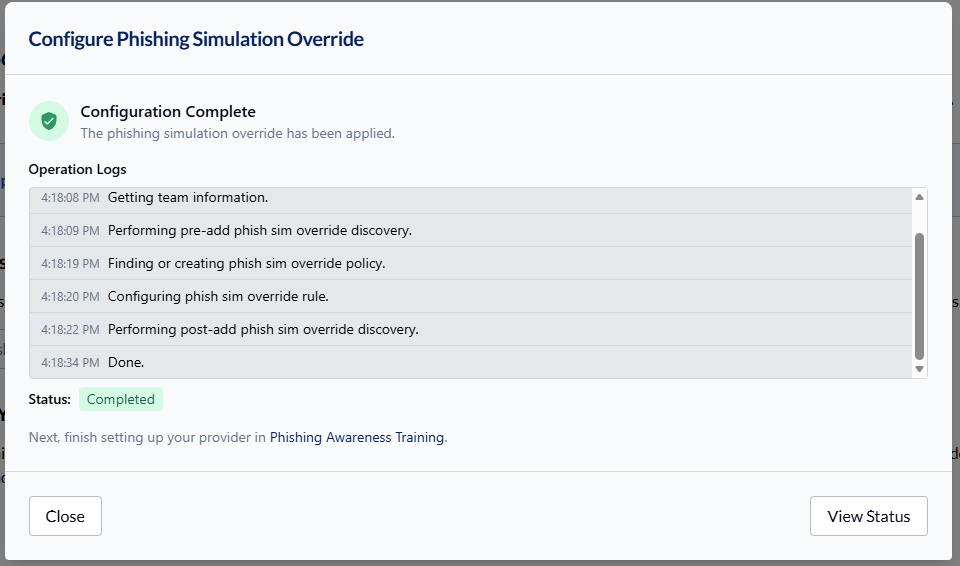
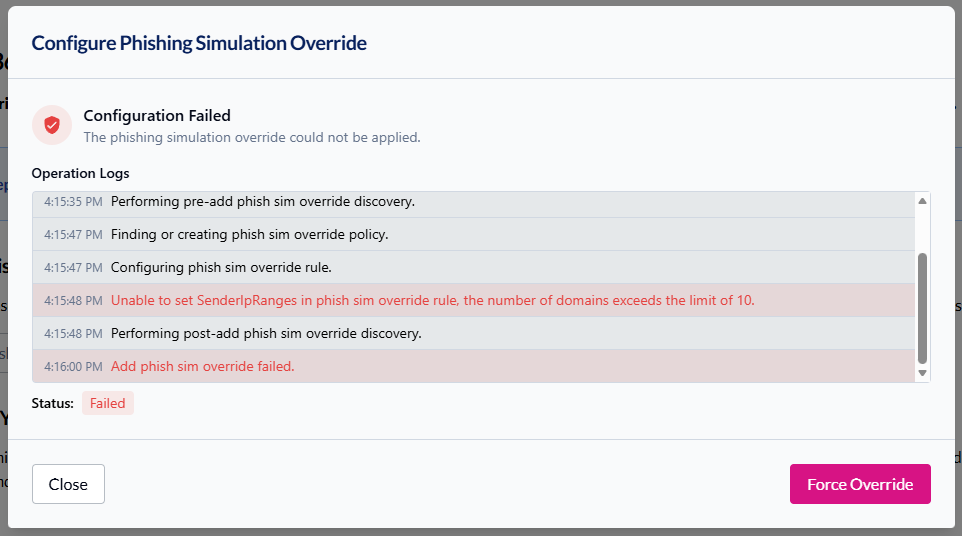
If settings already exist, you can use Force Override to replace them with INKY's recommended configuration.
Manual Configuration (Other Platforms)
For platforms without automated configuration:
Select the Phishing simulation tab
Add your simulation vendor's sending IPs and domains
Contact your simulation vendor for the correct IP addresses and domains to whitelist.
You must always add the INKY IP addresses and domain, as well as, your vendors information.
IPs: 100.24.129.5, 3.132.222.232, 100.21.157.149
Domain: phishtest.inkyphishfence.com
EU/UK IPs: 3.121.161.229, 34.249.87.65
Domain: phishtest.inkyphishfence.com
Step 2: INKY Configuration
Navigate to: Dashboard > Admin Center > Phishing Awareness Training
Select Your Platform
Choose your phishing simulation vendor from the Platforms list.
INKY supports 40+ platforms including BullPhish ID, KnowBe4, Proofpoint, and Cofense.
If your platform isn't listed, select Custom and contact INKY support for configuration.
Custom Banner
Control what banner users see on simulation emails:
No special treatment — INKY analyzes normally. Simulations may get flagged as actual phishing.
Neutral — Gray banner, no threat indicators. Users see it is external mail but nothing suspicious.
Caution — Yellow Banner, helps see what the user would do if there was a clue.
Danger — Red Banner, see if the users would interact with a danger banner or understand it's phishing.
Additional Options
Bypass link rewriting — Simulation links stay intact so click tracking works. Note: Users may notice only simulation emails have unrewritten links.
Always deliver to Inbox — Overrides your delivery settings to ensure simulations reach the inbox even if they'd normally quarantine. Only applies if using INKY's Delivery Settings.
Do not attach raw messages to reports — Prevents ticketing systems from auto-clicking simulation links when processing user reports.
Send reports to different addresses — Route user reports of simulated phishing to a separate address (or nowhere) to keep them out of your SOC queue. Leave the email field empty to suppress notifications entirely.
KnowBe4 Phish Alert Integration
If you use KnowBe4's Phish Alert Button, enter your License Key from KnowBe4's Account Settings page. This enables two-way integration: INKY notifies KnowBe4 when users identify simulations via Report This Email, and forwards real phishing reports to your custom addresses configured in KnowBe4.
Supported Platforms
ACA Aponix, Adaptive Security, Arctic Wolf, Barracuda PhishLine, Beauceron Security, BreachSecure, BullPhish ID, Can I Phish, Cofense PhishMe, Cyber Aware, CyberHoot, CyberLearn, CybeReady, CybSafe, Goldphish, Hoxhunt, Huntress Managed SAT (Formerly Curricula), INFIMA, Infosec IQ / PhishSim, INKY Security Awareness Training (Powered by Wizer), IRONSCALES, Keepnet Labs / NINJIO (old platform), KnowBe4, LUCY Security, MediaPRO, Nimblr, NINJIO, Outkept, Phin Security, Phished (phished.io), PhishingBox, Phishing Tackle, Phishr, PIIGuard360, Proofpoint Wombat / ThreatSim, SANS Institute, Sophos Phish Threat, Symbol Security, Terranova Security, Trend Micro Phish Insight, usecure, Webroot, Wizer
Platform not listed? Select Custom and contact INKY support for configuration.
Some platforms send more than one kind of mail — attack-based simulations and training or course assignments — and INKY identifies both. For CyberHoot, simulations arrive from its dedicated relays while training assignments relay through Amazon SES, so INKY matches those on an authenticated cyberhoot.com sender rather than the shared SES addresses. For Nimblr, simulations and course invitations share the same sending domains, so INKY separates them by sender address.
Still need help? Ask the team