Configure BullPhish ID Integration
Written By Matt Sywulak
Last updated 2 months ago
Allow phishing simulation emails to bypass security filtering so they reach end users for training purposes. You can configure BullPhish ID integration using either the automated dashboard method or manual Microsoft 365 settings.
Automated Configuration (Recommended)
INKY can automatically configure Microsoft 365 Advanced Delivery settings for BullPhish ID and INKY PhishTest simulations. This method is faster and ensures correct configuration.
Access the Configuration Tool
The BullPhish prerequisite configuration is available in two locations:
Team Setup Flow: When setting up a new team with BullPhish ID or PhishSim licenses
Tenant Operations Page: https://app.inkyphishfence.com/settings/tenant-operations
Configure M365 Advanced Delivery Settings
When you configure Advanced Delivery Settings, INKY will:
Check your current Microsoft 365 Advanced Delivery configuration
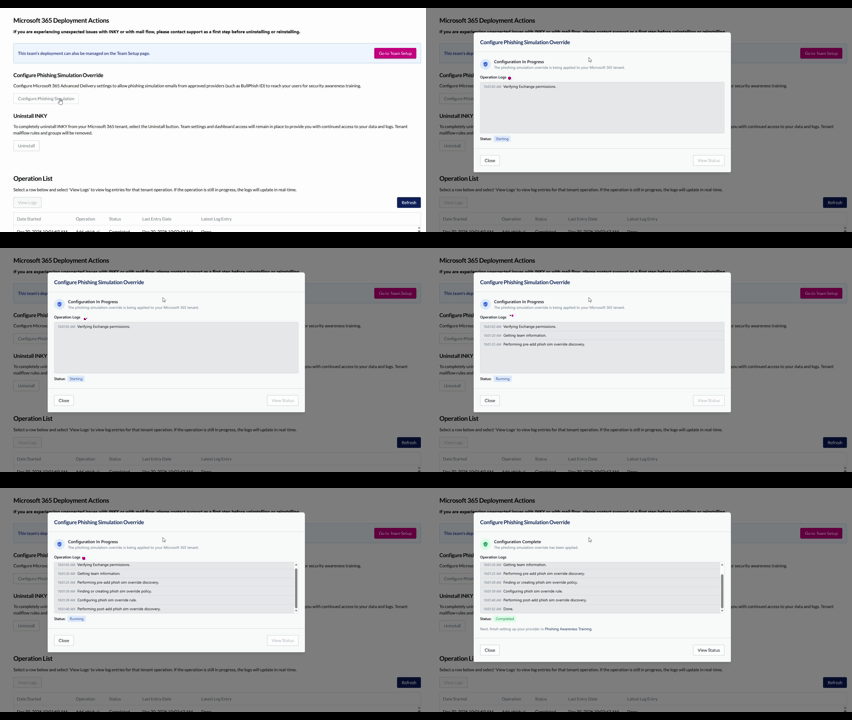
Display a modal showing which settings need to be added or updated
Provide real-time operation logs as the configuration is applied
Monitor Configuration Progress
The modal displays live status updates for each operation:
Pending: Operation queued but not yet started
In Progress: INKY is currently configuring the setting
Complete: Setting successfully applied
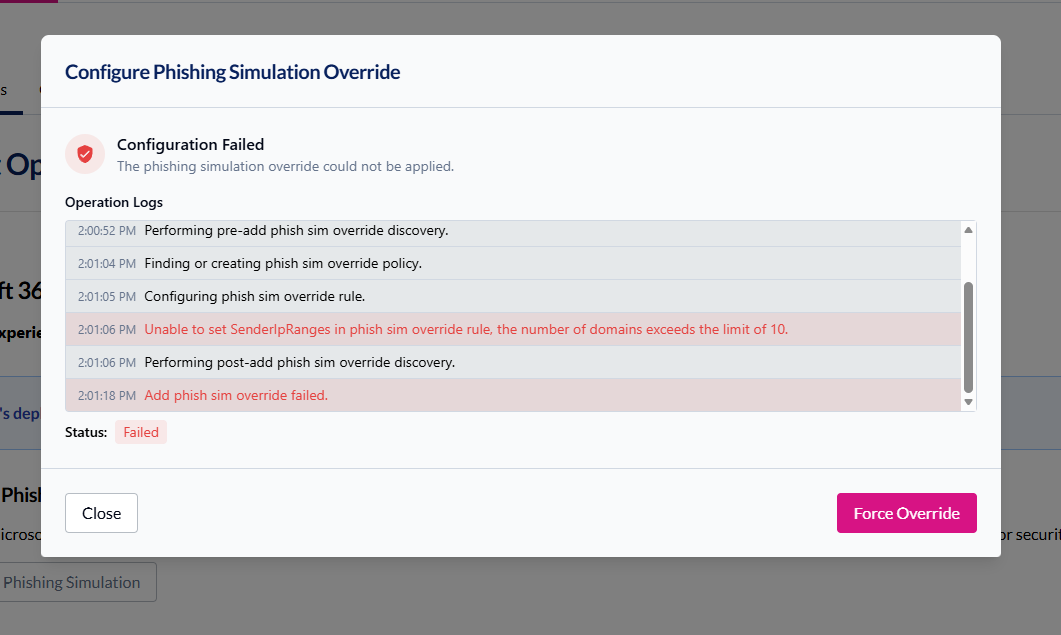
Failed: Error occurred (view logs for details)
The operation logs provide detailed information about each step, making it easy to troubleshoot any issues.
Force Override Existing Configuration
If there are settings in the Microsoft PhishSim configuration already then you may need to force the INKY/Bullphish configuration.
When to use Force Override:
You’re given the Force Override Option
You have too many IP address or domains already configured in Microsoft
Note: Force override will replace existing settings. If you want to manually resolve you can use the manual configuration below.
Manual Configuration
If you prefer to configure Advanced Delivery settings manually, or if your organization requires manual M365 changes, follow these steps:
Microsoft 365: Go to Advanced Delivery Settings and add:
INKY
IPs:
100.24.129.5,3.132.222.232,100.21.157.149Domain:
phishtest.inkyphishfence.com
BullPhish ID
IPs:
34.237.252.20,168.245.13.192Domain:
bullphish.com
Note: When configuring manually, double-check all IP addresses and domains for accuracy. Any typos will prevent simulation emails from bypassing security filters.
Still need help? Ask the team