Company Information & Call-to-Action Links
Set up core company details, website links, and promotional calls-to-action that appear across all email signatures, ensuring consistent branding and messaging for your entire organization.
Written By Matt Sywulak
Last updated 12 months ago
Company Information Fields
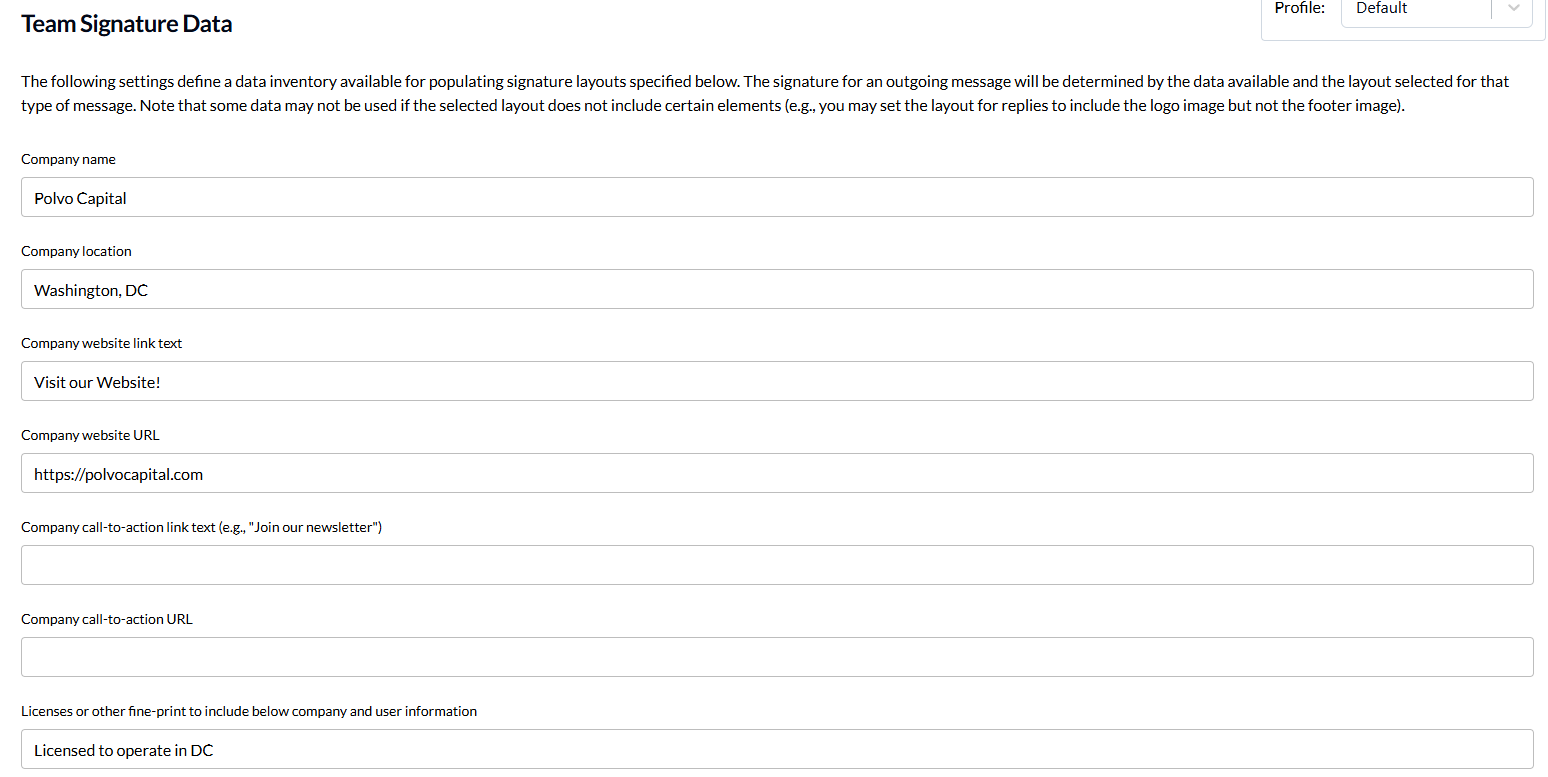
Company name: Your organization's legal or brand name. This typically appears at the top of signatures or near your logo.
Company location: Physical address for your headquarters or primary office. Use the full address (street, city, state/province, postal code, country) for professional signatures. Shorter versions like "San Francisco, CA" work for minimalist designs.
Company website link text: The clickable text for your website link, typically "Visit our website," your domain name, or just "Website."
Company website URL: The full URL to your company website. Include the protocol (https://www.example.com) for proper linking.
Call-to-Action Links
Drive engagement from email signatures by adding clickable calls-to-action that direct recipients to landing pages, booking calendars, resources, or promotional content.
Company call-to-action link text: The clickable text that appears in the signature, like "Schedule a demo" or "Join our newsletter."
Company call-to-action URL: The destination URL where recipients go when they click the CTA, like https://calendly.com/yourcompany or https://www.yourcompany.com/newsletter.
Effective CTA Link Text
Use action-oriented, benefit-focused language that tells recipients exactly what happens when they click.
Good examples:
"Schedule a demo" (clear action, clear benefit)
"Download our guide" (specific value proposition)
"Join 10,000+ subscribers" (social proof + action)
"Get 20% off" (immediate benefit)
"Book a free consultation" (removes friction)
"See our portfolio" (clear destination)
Avoid:
"Click here" (vague, not descriptive)
"Learn more" (too generic, overused)
"Visit our website" (use company website link instead)
Long phrases (more than 4-5 words becomes cumbersome)
Common CTA Strategies
Sales teams: "Schedule a demo," "Request a quote," "Book a discovery call"
Marketing teams: "Download our ebook," "Join our webinar," "Subscribe to our newsletter"
Support teams: "Visit our help center," "Submit a ticket," "Book support time"
Recruiting: "View open positions," "Join our team," "See our culture deck"
Events: "Register for [Event Name]," "Save your spot," "See you at [Conference]"
Product launches: "Try [Product] free," "Explore new features," "Get early access"
CTA URL Best Practices
Use dedicated landing pages: Don't link to your homepage. Create specific landing pages optimized for the CTA's purpose.
Include tracking parameters: Add UTM codes to measure signature CTA performance:
https://www.example.com/demo?utm_source=email&utm_medium=signature&utm_campaign=sales_outreachRemove friction: Link directly to booking calendars (Calendly, Chili Piper), newsletter signup forms, or resource downloads—not multi-step processes.
Keep URLs evergreen: Avoid time-sensitive URLs that expire. Update CTAs when campaigns end rather than leaving broken links.
Test destination pages: Ensure the landing page loads quickly, works on mobile, and delivers on the CTA promise.
Use HTTPS: Always include the full protocol (https://) for security and proper linking.
How These Fields Work
Company information and CTA fields are admin-defined and organization-wide—every user's signature displays the same company data. This ensures brand consistency and prevents individual users from accidentally misrepresenting company information.
These fields populate into signature layouts based on your configuration in the Signature Layout Builder. If you add "Company Address" to your layout, it pulls from the "Company location" field. If you don't include it in your layout, the data is simply ignored.
The CTA link appears in signatures when you add "Company Call-To-Action Link" to your layout configuration. You can position it anywhere in your signature—typically after contact information but before social links or footer elements.
Best Practices for Company Information
Company name: Use your official brand name as it appears on your website and marketing materials. Avoid abbreviations unless that's your formal brand (like "IBM" rather than "International Business Machines").
Company location:
Multiple offices: Use your headquarters address or primary location
Remote-first companies: Consider using "Remote" or your incorporation location
International teams: Include country for clarity
Privacy concerns: Some organizations use city/state only without street addresses
Website link text: Keep it simple and actionable:
✅ "www.acmecorp.com" (clear, professional)
✅ "Visit our website" (action-oriented)
❌ "Click here to learn more about our services" (too verbose for signatures)
Website URL: Always include the full protocol (https://) to ensure proper linking in all email clients. Test the link to confirm it goes directly to your intended landing page.
When to Use CTAs
Use CTAs when:
You have a clear, specific action you want recipients to take
The CTA aligns with your role (sales: demo links, marketing: content downloads)
You can measure and optimize CTA performance
The destination page provides real value to recipients
Skip CTAs when:
You don't have a compelling offer or destination
Your industry/role makes promotional content inappropriate (legal, executive)
Signatures are already cluttered with too many elements
You want minimalist, traditional signatures
Rotating CTAs
Quarterly updates: Change CTAs seasonally to promote current campaigns, events, or initiatives.
Team-specific CTAs: Consider creating multiple signature profiles (if using that feature) with different CTAs for sales teams, marketing, and support.
Campaign alignment: Update CTAs when launching major campaigns to drive traffic to new landing pages.
Common Configurations
Corporate standard: Full company name, complete headquarters address, domain as link text, no CTA
Sales-focused: Company name, website with CTA-style link text, "Schedule a demo" CTA, city/state only
Marketing-driven: Company name, headquarters address, "Download our guide" CTA, newsletter signup link
Minimalist: Company name only, website link as domain name, no physical address, no CTA
Compliance-required: Full legal name, complete registered address, official website, no promotional CTAs
When Fields Appear Empty
If you configure a signature layout that includes company fields but you haven't filled them in this section, those elements simply won't appear in the signature—no blank spaces or placeholders.
For example, if your layout includes "Company Call-To-Action Link" but you haven't entered link text or URL, that element is omitted from the final signature.
Updating Company Information
Changes to company information and CTAs apply to all signatures across your organization immediately after saving. This is useful when:
Your company moves offices
You rebrand or change your company name
You want to redirect website traffic to a new landing page
You launch a new campaign and need to update CTAs organization-wide
You need to update contact information across all signatures
Users cannot override company information or CTA fields—these remain consistent across all signatures regardless of individual preferences or User Center settings.
Measuring CTA Performance
UTM tracking: Add UTM parameters to measure clicks in Google Analytics. Compare signature CTAs to other traffic sources.
Conversion tracking: Monitor how many signature clicks convert to demos booked, downloads completed, or other goals.
Email client limitations: You can't track individual clicks from specific emails, but you can measure aggregate signature-driven traffic.
Iterate based on data: If a CTA drives low engagement, test different link text, different destinations, or remove it entirely.
Still need help? Ask the team