Autotask Ticketing Integration
Written By Matt Sywulak
Last updated 19 days ago
Autotask Smart Ticketing creates a ticket in your Autotask PSA whenever INKY detects a qualifying email security event.
Security and navigation
INKY NAVIGATION: Admin Center > Integrations > Autotask.
INKY PERMISSIONS: Super Admin role required.
Autotask NAVIGATION: Autotask's own sign-in and application-approval screen (reached via the Authorize step in INKY).
Autotask PERMISSIONS: An Autotask account with permission to approve third-party application access.
Prerequisites
Your organization must be a Kaseya-provisioned MSP or MME partner. Legacy INKY accounts are not eligible and must migrate to a Kaseya SKU first. Contact your account team to start that process.
Setup must be done from that partner's root team or its associated customers' container. Child teams see a message that the integration is managed at the partner level instead of the setup wizard.
Autotask Smart Ticketing must be enabled for your account. If you don't see the Autotask card on the Integrations page, or the card reads Not available for this account, contact your Kaseya representative.
About this integration
Autotask Smart Ticketing is a one-way integration that creates a ticket in your Autotask PSA whenever INKY detects one of two kinds of qualifying email security events:
User reports: When an end user reports an email as Safe, Spam, or Phishing.
Account-takeover detections: When INKY opens a brand-new account-takeover enforcement. If that same enforcement is later escalated, INKY does not open an additional ticket for it.
Note: Account-takeover detection is available only with the INKY Pro license. For example, if an MSP has configured account-takeover detection but one of their customer teams has an Advanced license, that team won't have account-takeover detection capabilities.
When either event occurs, INKY checks whether ticketing is turned on for that alert type, determines which Autotask company the ticket belongs to, and creates the ticket with the category, priority, issue type, and sub-issue type you configured during setup.
The Category, Priority, Issue Type, and Sub-Issue Type options shown in the setup wizard are read live from your Autotask instance, so they always reflect your current Autotask configuration.
Setup consists of a three-step wizard on the Integrations page:
Authorize: Sign in to Autotask to authorize INKY in Autotask. Authentication occurs directly between your account and Autotask. INKY does not access or store your Autotask credentials. It receives only the authorization token required to establish the connection.
Ticket Creation: Select which alert types create tickets and configure the corresponding Category, Priority, Issue Type, and Sub-Issue Type values. These options are retrieved directly from your Autotask instance.
Company Mapping: Map each INKY team to the appropriate Autotask company. You can also specify a default company for teams that are not explicitly mapped.
What INKY sends to Autotask
INKY sets these fields on every ticket it creates:
Title and Description: a summary of the alert and a link to it in INKY.
Company: from your company mapping, or your default company.
Ticket Category and Priority: the values you selected.
Status: New.
Issue Type and Sub-Issue Type: if you selected them.
INKY doesn't set the Queue or Source. Autotask fills them in from the default values of the Ticket Category you select, along with any other field INKY doesn't set. Where INKY does set a field, such as Priority, INKY's value is used instead of the category's default.
INKY doesn't set the Contact or Configuration Item. Your technicians can fill them in during intake.
Use case
Without this integration, MSPs running email security through INKY have no automated way to route INKY alerts into the PSA ticketing workflow they already use for everything else. Someone must notice the alert in INKY and create the ticket manually.
Autotask Smart Ticketing closes that gap for user-reported phishing, spam, and safe reports, and for account-takeover detections, so those alerts create tickets without manual work or custom integration effort.
How to...
Authorize INKY connection to Autotask
To authorize the connection, complete the following steps:
Select Admin Center > Integrations.
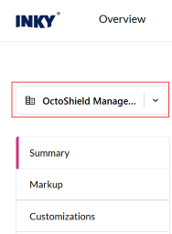
In the Team selector field, select the root organization (building icon), if not already selected.
Click the Autotask card.
Click Authorize with Autotask.
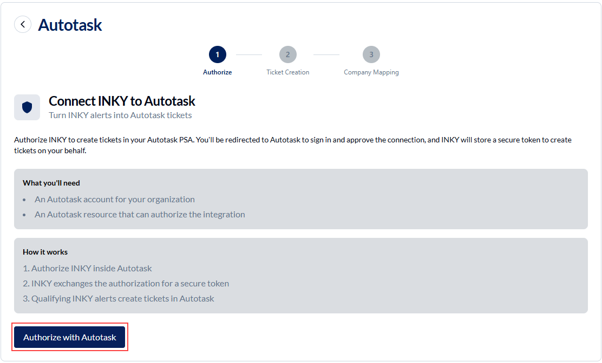
You're redirected to Autotask's own sign-in and approval screen. Sign in and approve access. INKY exchanges the resulting authorization code for a secure connection token and runs a validation check.
The Autotask connection status changes to Connected.
Configure ticketing
You can enable either alert type independently, or both.
Note: INKY doesn't set a queue on the tickets it creates. Autotask files each ticket in the default queue of the Ticket Category you select, and takes its Source from the same category. To control where INKY tickets land, select Admin > Admin Categories > Features & Settings > Service Desk (Tickets) > Ticket Categories in Autotask, hover over the menu icon next to the category, click Edit, set its default Queue and Source on the Details tab, and click Save & Close.
Category and queue names often look alike, for example a 100 Issues category and a 100 SD-Issues queue. The list in INKY shows ticket categories only, and a category named like a queue still files tickets in its own default queue.
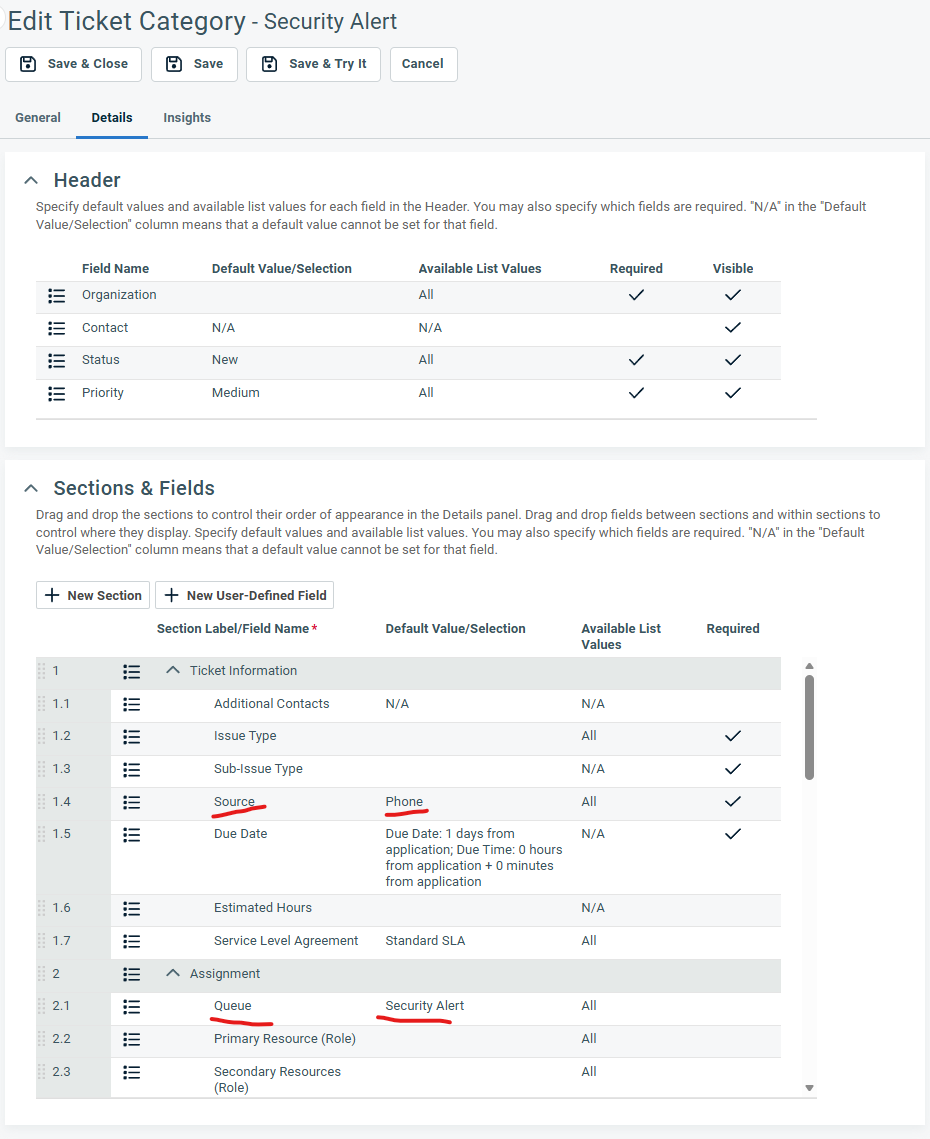
To choose which alerts create tickets and how they're categorized, complete the following steps:
Select the User Reports check box to create tickets when your users report email, then choose which report types should create tickets. Safe, Spam, and Phishing each have their own toggle, so you can ticket only the report types you act on — a phishing-only configuration, for example.
Reports of your recognized phishing simulations do not create tickets unless you select Also create tickets for reports of your recognized phishing simulations. It is off unless you turn it on.
Complete the following fields. Unless otherwise noted, all fields are required. Available values are retrieved from your Autotask instance.
Ticket Category
Issue Type (optional)
Sub-Issue Type (optional)
A priority for each report type you enabled — Safe Report Priority, Spam Report Priority, Phishing Report Priority. A priority is required only for the report types you turned on.
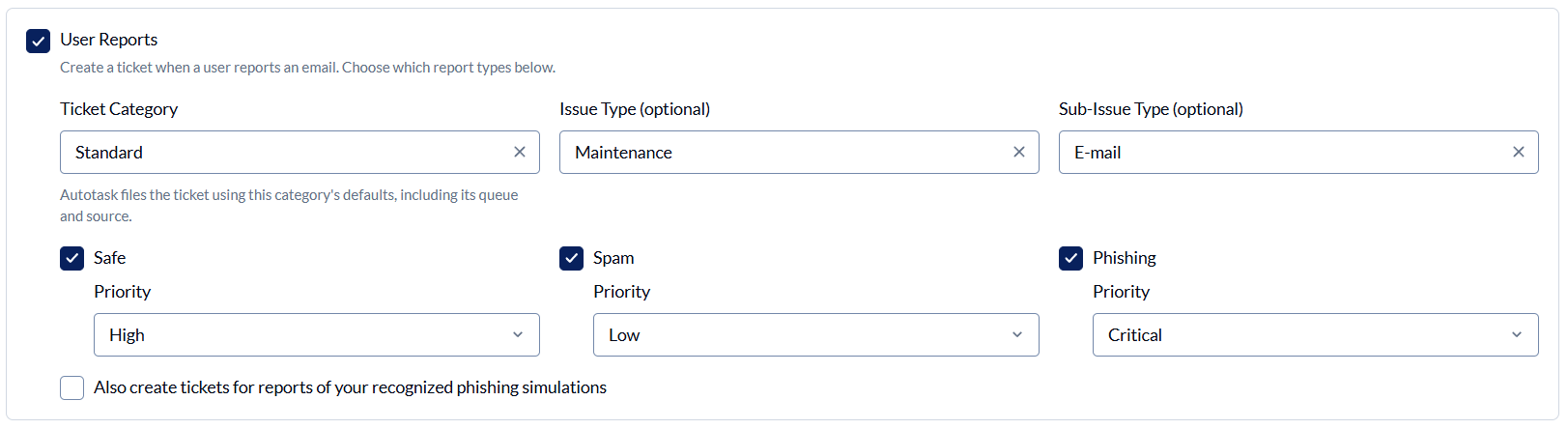
Note: Safe, Spam, and Phishing are all selected until you clear one. Connections configured before these check boxes existed also have all three selected, so the tickets you receive do not change until you edit the configuration.
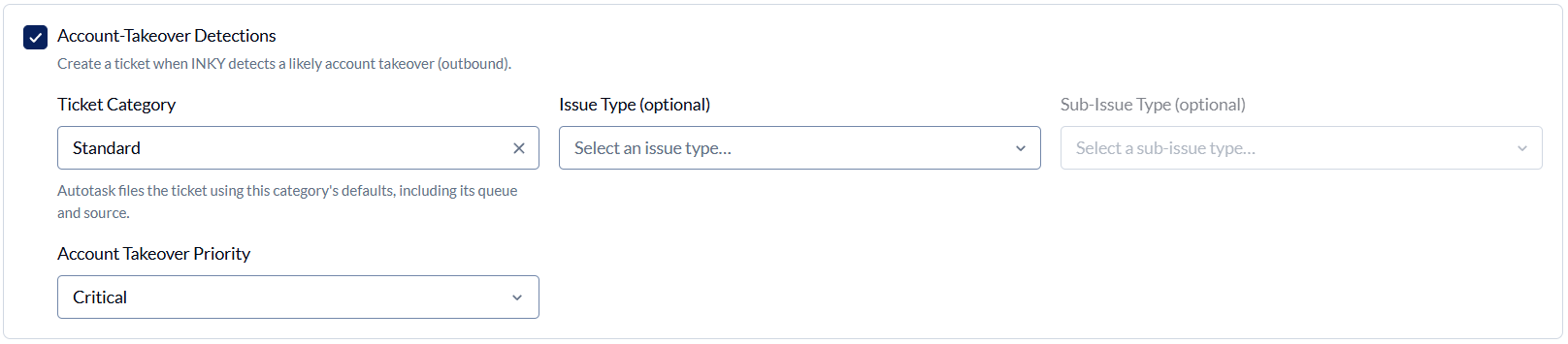
Select the Account-Takeover Detections check box to create a ticket when INKY detects a potential account takeover.
Complete the following fields. Unless otherwise noted, all fields are required. Available values are retrieved from your Autotask instance.
Ticket Category
Issue Type (optional)
Sub-Issue Type (optional)
Account Takeover Priority
Under Teams Without a Company Mapping, select what happens when an alert comes from a team that isn't mapped to an Autotask company. This setting also applies to teams added later.
Use a default company. File those tickets under one Autotask company that you select.
Don't create a ticket. Skip ticket creation for unmapped teams.

Click Save settings. If a required field is missing for an enabled alert type, INKY displays an inline validation message and prevents the settings from being saved until the issue is resolved. To discard your edits instead, click Revert changes.
Map INKY teams to Autotask companies
To make sure each team's tickets land in the right Autotask company, complete the following steps:
Click Manage mappings.
Map each INKY team to the corresponding Autotask company by selecting a company in the right column. Each mapping is saved automatically when selected. Use Search teams to find a specific team, or Show unmapped only to narrow the list. A counter at the top shows how many of your teams are mapped.
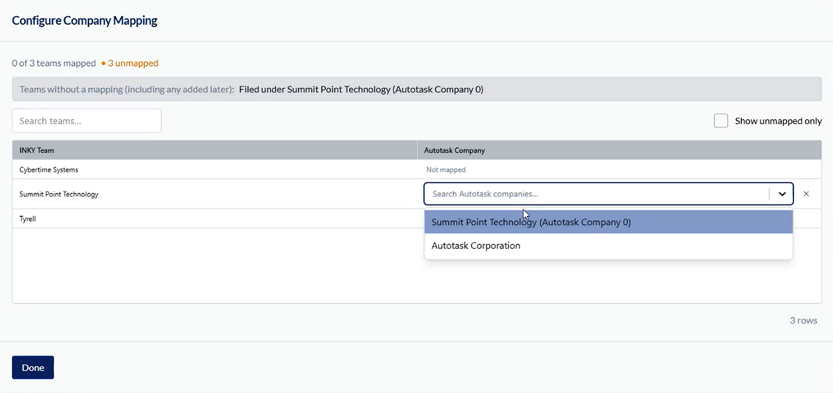
When finished mapping, click Done.
Click Save settings.
Once mapping is complete, qualifying alerts automatically create tickets in the correct Autotask company. No further action is needed.
Note: If any INKY team isn't mapped to an Autotask company, step three of the wizard stays incomplete.

Disable, reconnect, or disconnect the integration in INKY
The following options are available on the Integrations page once you're connected:
Disable: Pauses ticket creation going forward. Your connection, category and priority selections, and team-to-company mappings are all kept. Re-enabling resumes ticket creation immediately, with no need to reauthorize. Tickets already created in Autotask are not changed.
Reconnect: Re-runs the authorization if the connection stops working. Your ticket settings and team mappings are not changed.
Disconnect: Requires confirmation. Clears the stored connection, and the integration shows as Not Connected. Your team mappings and ticket-creation settings are kept, so re-running the Authorize step restores your prior configuration without repeating the whole wizard.
Choose Disable to temporarily pause the integration. Choose Disconnect to remove INKY's connection to Autotask.
FAQ
Will I get duplicate tickets for the same alert?
No, not under normal circumstances.
INKY builds a consistent title for each alert. If Autotask receives a matching title within its own duplicate-detection window, it collapses the new ticket into a note on the existing ticket instead of creating a second one. INKY relies on this built-in Autotask behavior rather than tracking duplicates itself.
What if a ticket doesn't get created?
First check whether the selected Category or Priority still exists in Autotask.
If one of those was renamed or removed in Autotask after setup, ticket creation for that alert type stops working without notifying you. Return to the Ticket Creation step and reselect the affected fields to restore it. A removed Issue Type or Sub-Issue Type doesn't stop ticket creation; the ticket arrives without it.
INKY also skips a ticket on purpose when:
The report type (Safe, Spam, or Phishing) isn't selected under User Reports.
The report is of one of your recognized phishing simulations, and Also create tickets for reports of your recognized phishing simulations isn't selected.
The team isn't mapped to an Autotask company, and Teams Without a Company Mapping is set to Don't create a ticket.
An account-takeover enforcement was escalated. INKY opens a ticket only for a new enforcement.
Why are INKY tickets landing in the wrong queue?
INKY doesn't choose a queue.
Autotask files each ticket in the default queue of the Ticket Category you selected in INKY. In Autotask, select Admin > Admin Categories > Features & Settings > Service Desk (Tickets) > Ticket Categories, hover over the menu icon next to that category, click Edit, and check its default Queue on the Details tab. If it's blank or set to a different queue, update it, then submit a test report to confirm. Also check whether any Autotask workflow rules move new tickets after they're created.
Why are the Source, Contact, and Configuration Item fields blank?
INKY doesn't set them.
Source comes from the default of the Ticket Category you selected in INKY, so set a default Source on that category in Autotask. INKY doesn't fill in Contact or Configuration Item. Your technicians can fill them in during intake.
Why was a ticket filed under the wrong Autotask company?
The ticket most likely came from an INKY team that isn't mapped to an Autotask company.
Tickets from unmapped teams are filed under the default company you chose under Teams Without a Company Mapping. To fix it, click Manage mappings, select Show unmapped only, and map the team to the correct company. New tickets from that team then go to the right company. Tickets already created aren't changed.
If you'd rather not create tickets for unmapped teams at all, select Don't create a ticket under Teams Without a Company Mapping.
How will I know if a ticket was created from an INKY alert?
Tickets created from INKY alerts can be identified by their title, which begins with either [INKY Report: followed by the report type, or [INKY ATO].
Each ticket also includes a link to the alert in INKY: the reported message for a user report, or the account-takeover details for an account-takeover detection.
Can I route INKY tickets with Autotask workflow rules?
Yes.
Because every INKY ticket title begins with [INKY Report: or [INKY ATO], you can build workflow rules that match on the title, for example Ticket Title contains "[INKY Report", to move, assign, or update INKY tickets.
If your rule also filters on priority, it applies only to tickets at those priorities. For example, a rule limited to High and Critical priority skips Safe reports set to Low. To route every INKY ticket, match on the title alone.
Can I turn off ticket creation for all my customers at once?
Yes.
The connection is set up on your root team and covers every customer team under it. Click Disable on the Integrations page at your root team to pause ticket creation for all of them. Your connection, settings, and mappings are kept.
I'm an existing INKY customer. Can I use Autotask Smart Ticketing?
Only on a Kaseya SKU.
Autotask Smart Ticketing is available to Kaseya-provisioned MSP and MME partners. If your account predates that model, you must migrate to a Kaseya SKU before the integration becomes available. Your account team can explain what that involves.
Is this the same as the Autotask integration used for billing and usage reporting?
No, they're unrelated.
Autotask Smart Ticketing doesn't share any tokens, data, or configuration with any other Autotask-named integration used for billing or usage reporting.
Does INKY see or store my Autotask login credentials?
No.
You sign in directly on Autotask's own sign-in screen. INKY receives and stores only the resulting connection token. It never receives your username or password.
Was this helpful?
Still need help? Ask the team