Configure Notification Settings
Control what information appears in OMP notifications sent to senders and approvers.
Written By Matt Sywulak
Last updated 12 months ago
Access Settings
Navigate: Admin Center → Outbound Protection Settings → Notifications
Notification Options
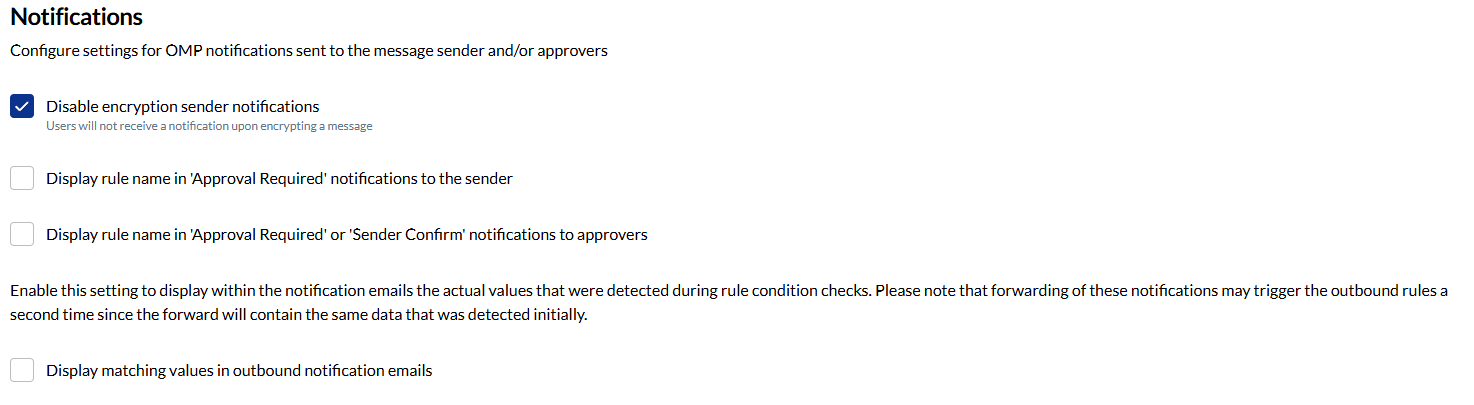
Display Rule Name in Notifications
To Senders:
Check Display rule name in 'Approval Required' notifications to the sender
Senders see which rule triggered the approval
Helps users understand why approval is needed
To Approvers:
Check Display rule name in 'Approval Required' or 'Sender Confirm' notifications to approvers
Approvers see which rule triggered
Provides context for approval decisions
Display Matching Values
Option: Display matching values in outbound notification emails
What it does:
Shows actual detected values (credit card numbers, SSNs, etc.)
Helps senders and approvers see exactly what triggered the rule
Critical warning: Forwarding these notifications may trigger outbound rules again, since forwarded emails contain the same detected data.
Best practice: Enable only if approvers won't forward notifications.
Disable Encryption Sender Notifications
Default: Users receive confirmation when message is encrypted
Enable to:
Stop sending encryption confirmations to senders
Reduce notification volume for frequent encryption users
Simplify workflow for power users
Configuration:
Check Disable encryption sender notifications
Users no longer receive confirmation when encrypting
Messages still encrypt normally
Notification Workflow
Sender Notifications
Self-Approval Required:
Notification explains what was detected
Links to approve or deny
Shows rule name (if enabled)
Shows detected values (if enabled)
Other Approval Required:
Informational notification that message is pending
Shows who the approver is
Link to view status in Workflow Portal
Approval Decision:
Confirmation when approver makes decision
Message approved or denied
Next steps if approved
Approver Notifications
Approval Request:
Summary of why approval is needed
Rule name (if enabled)
Detected values (if enabled)
Approve/Deny links in Email Assistant
Link to view full message in portal
Best Practices
Start with rule names visible - Helps users learn which rules exist
Be cautious with matching values - Only show if approvers understand security implications
Educate approvers - Explain not to forward approval notifications
Monitor feedback - Ask users if notifications are helpful or overwhelming
Available in: INKY Advanced
Still need help? Ask the team