Bypass INKY Protection for Specific Email in Microsoft 365
Skip INKY analysis for trusted senders or specific email types by creating Exchange transport rules. Useful for calendar invites, internal newsletters, or automated system emails.
Written By Matt Sywulak
Last updated About 1 year ago
When You'd Use This
Most organizations bypass INKY for:
Calendar invitations from scheduling tools (Calendly, Zoom, etc.)
Internal newsletters sent from marketing platforms
Automated notifications from trusted business systems
Encrypted email from secure communication platforms
Service accounts that send legitimate bulk mail
Security note: Only bypass emails from verified, trusted sources. Each bypass rule reduces your protection layer.
How It Works
Exchange transport rules add a special header (X-IPW-Ignore: True) to matching emails before they reach INKY. When INKY sees this header, it lets the message through without analysis or modification.
The rule applies based on sender, recipient, subject line, or message properties you specify. INKY never sees the original message content when bypassed.
Find Your Existing Bypass Rule
Before creating a new bypass rule, you need to locate the reference rule that INKY created during installation. This determines the naming convention and priority for your new rule.
Go to Exchange Admin Center → Mail Flow → Rules and look for:
New installations (2024+): INKY - Annotation - Ignore Recall Reports
Legacy installations: IPW Filter - Encrypted or other IPW Filter - rules
Note the rule name and priority number. You'll use this as your reference point.
Can't find either? Contact INKY Support to verify your installation has the base bypass rule configured.
Create a Bypass Rule
Step 1: Access Exchange Rules
Log into the Exchange Admin Center and navigate to Mail Flow → Rules.
Step 2: Create the Rule
Click + Add a rule then select Create a new rule.
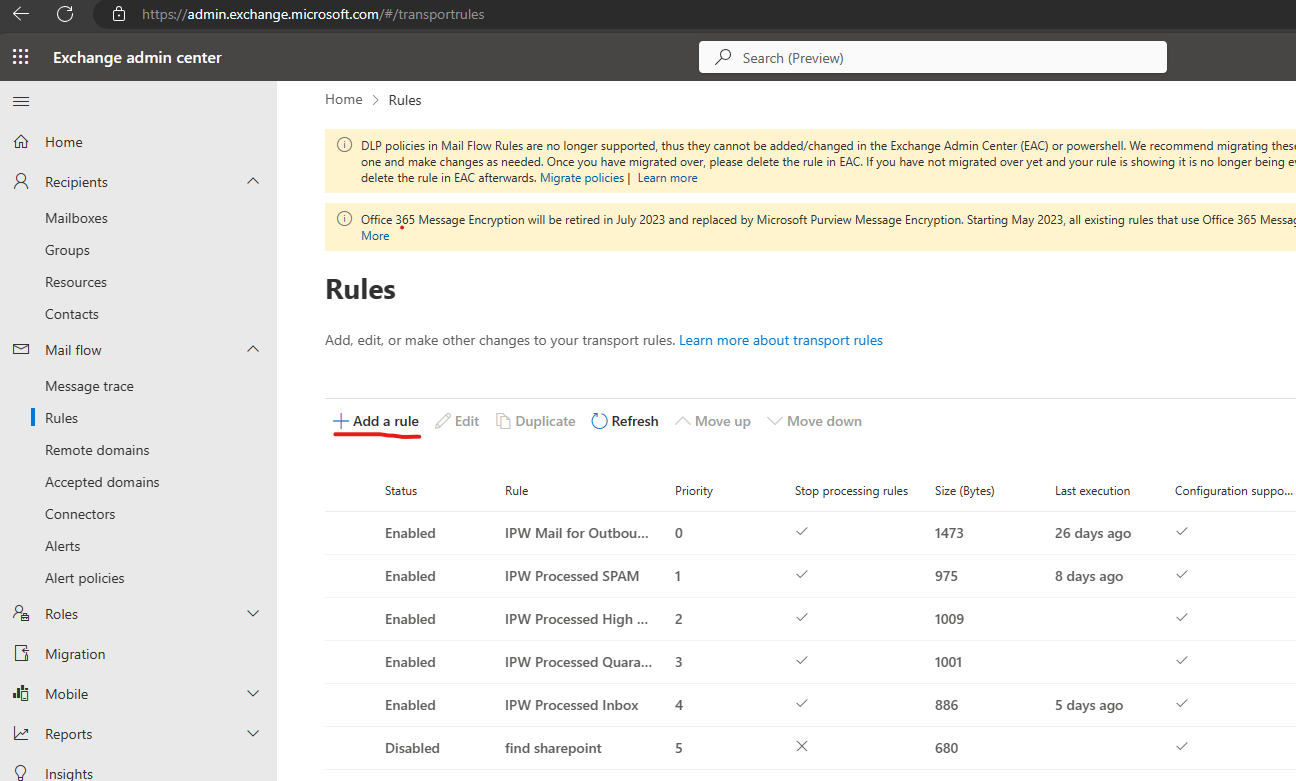
Configure these settings:
Name your rule: Match your installation's naming convention:
New installations:
INKY - Annotation - [Description]
Example:INKY - Annotation - Calendly InvitesLegacy installations:
IPW Filter - [Description]
Example:IPW Filter - Marketing Newsletter
Apply this rule if: Choose the condition that identifies the email to bypass.
For calendar invitations, select The message → message type is → Calendaring
For specific senders, select The sender → is this person
Do the following:
Select Modify the message properties → set a message header
Set the header name:
X-IPW-IgnoreSet the header value:
True
Exceptions (optional): Add conditions where the rule should NOT apply, even if the main criteria match.
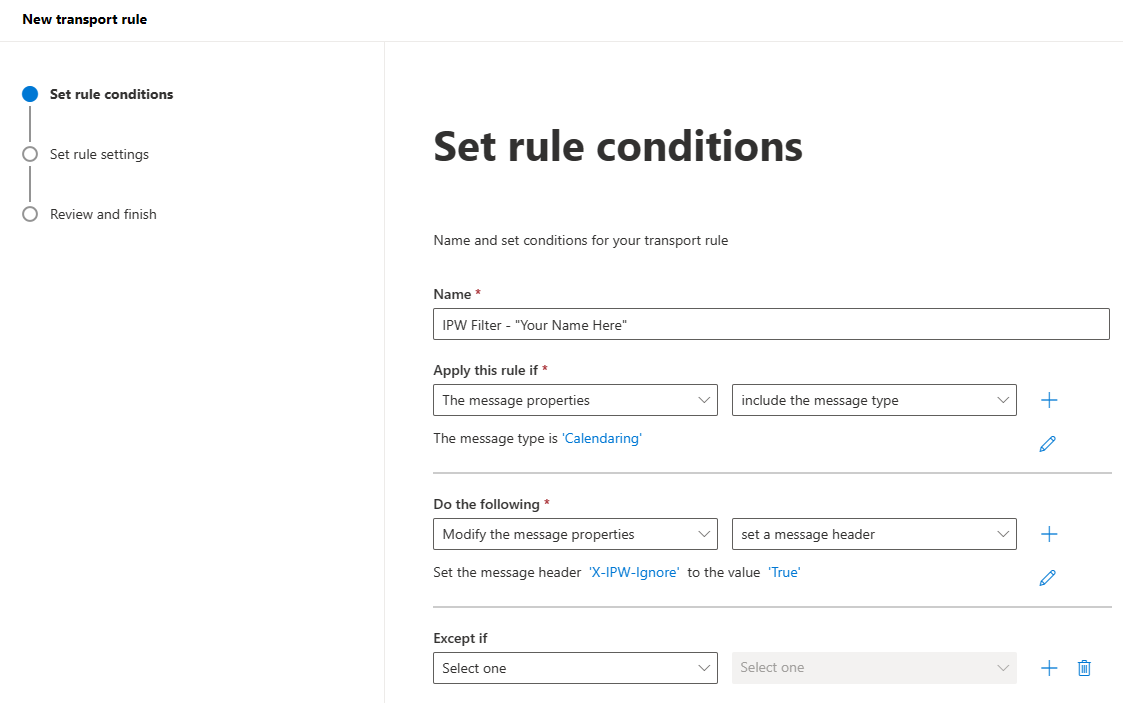
Step 3: Configure Sender Matching
Click Next and choose how Exchange identifies the sender:
Header - Matches the "From" field users see. Least secure because headers can be spoofed.
Envelope - Matches the actual sending mail server. Most secure but may miss legitimate email.
Header or envelope - Matches either. Broadest coverage but inherits header spoofing risk.
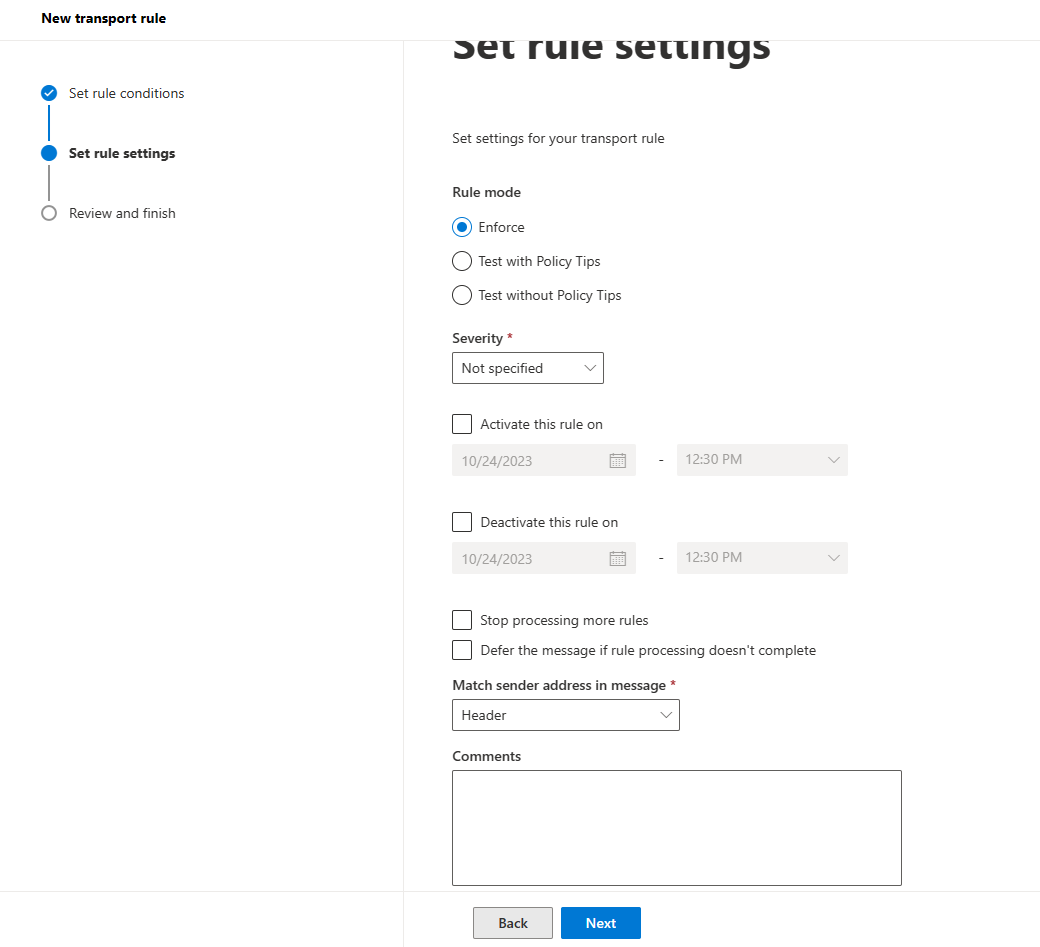
Recommended: Use Envelope for external senders, Header or envelope for internal tools.
Click Next → Finish.
Step 4: Set Rule Priority
Find your new rule in the list and click Edit Rule Settings.
Set the priority number to one number after your reference INKY bypass rule:
If
INKY - Annotation - Ignore Recall Reportsis priority 8, set your rule to 9If
IPW Filter - Encryptedis priority 11, set your rule to 12
This ensures all bypass rules process together in the correct order.
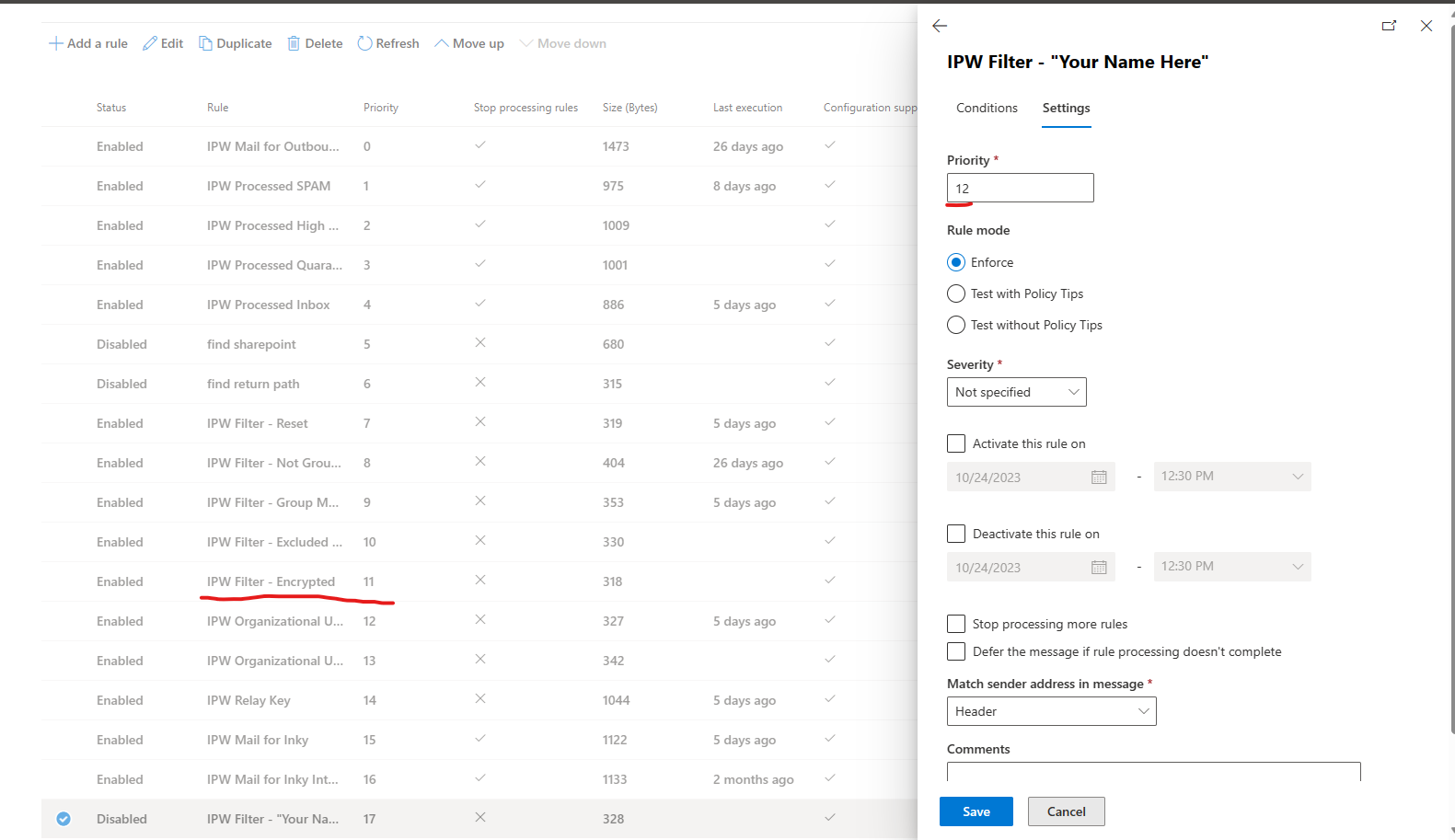
Click Save.
Verify It's Working
Send a test email that matches your rule criteria. The message should:
Arrive without an INKY banner
Not appear in INKY reporting
Skip link rewriting
If the rule isn't working, check that your conditions correctly match the email properties and that the rule priority is set after the INKY reference rule.
Security Best Practices
Minimize bypass rules. Each rule creates a potential blind spot. Review bypass rules quarterly and remove any that are no longer needed.
Use specific conditions. Match exact sender addresses rather than domains when possible. Avoid wildcards unless absolutely necessary.
Prefer envelope matching. When bypassing external senders, use envelope-based matching to prevent spoofing attacks.
Document your rules. Add notes explaining why each bypass exists and who requested it. This helps during security audits.
Monitor bypassed traffic. Periodically review emails that match bypass rules to ensure they remain legitimate.
Troubleshooting
Can't find the reference rule: Your INKY installation may not have the base bypass rule configured. Contact INKY Support to add it before creating custom bypass rules.
Rule doesn't work: Verify the priority is set correctly and the rule is enabled. Check that your conditions match the actual email properties (view message headers to confirm).
Some emails still get analyzed: The rule may not match all variations. Check if the sender uses multiple domains or sending addresses.
Security team concerned: Work with your security team to narrow bypass conditions and add specific exceptions for high-risk content types.
Questions? Contact INKY Support with your Exchange transport rule configuration and example message headers.
Still need help? Ask the team