Organization outbound rules and inheritance
Written By Matt Sywulak
Last updated 20 days ago
Overview
Organization outbound rules let an organization own an outbound rule and apply it to every team beneath it. You set a policy once instead of repeating it on every team.
Organization outbound rules are a beta feature, and INKY turns them on per organization. Once they are on, the organization's Outbound Protection page opens on Migrate to Organization Rules until you migrate, and shows a Tenant Rules section after that. If the page shows neither, organization rules are not on for it yet.
For outbound rules in general, see Outbound Mail Protection.
Moving your teams to organization rules
Select the organization, open Settings, then Outbound Protection. The page opens on Migrate to Organization Rules. The migration creates the default outbound rules on the organization and removes the matching copies from its teams, so your teams follow one set of rules that the organization owns.
Org Default Rules. Choose which default rules the organization creates, and whether each one starts enabled. The defaults offered depend on the organization's products: Encrypt, Personally Identifiable Information and Business Related Information. Encrypt is set to start enabled, and the others to start disabled. Then select Next: Review Team Rules.
Migrate Team Rules. Each team is a row you can expand. INKY ticks Remove for every team rule whose conditions and actions exactly match a default, whether that rule is on or off. Rules your teams wrote, and defaults that were edited, are not ticked, and you can tick any rule yourself. Select a rule's name to see its summary. For each default the organization is creating, choose whether each team inherits it from the organization, or has it On or Off. Then select Start Migration.
Migration. INKY runs the migration and shows progress for the organization's default rules and for each team, as Pending, In progress, Done or Failed. If any team fails, Retry Failed runs the failed teams again. When it finishes, Finalize Migration switches the page to the normal rules view.
What the migration changes:
Team rules you tick are removed. Team rules you leave unticked stay on the team and keep running alongside the organization's rules.
The organization's rules apply to its teams as soon as the organization's default rules are created, before you select Finalize Migration.
Your choices are saved when you select Start Migration. If you leave the page before then, the wizard starts again from the first step. After that, the migration keeps running if you close the page, and the wizard reopens on its progress.
For a Kaseya partner's customer container, the page asks you to migrate the parent organization first. Once the parent is migrated, the container shows its normal outbound settings.
Creating an organization rule
After the migration, Add Rule in the organization's Outbound Protection Rules list creates a rule the organization owns. Every team beneath the organization inherits it.
How a team sees an inherited rule
The team's own rules list groups inherited rules under an Inherited from header that names the organization. The team's own rules come last, under This team's rules.
An Org Status column shows the state of each rule at the organization.
Rules from the top of the hierarchy come first.
Working with an inherited rule
A team admin can't edit, duplicate or remove a rule the organization owns. They can turn it on or off for their team, or take an editable copy.
Turning it on or off for a team
Turning an inherited rule on or off affects that team only. The organization's rule doesn't change, and other teams keep whatever they had.
A pin icon marks a rule whose state was set on this team. Its tooltip reads "State is pinned for this team, ignoring parent state". If an organization further up pinned the state, the rule names that organization.
When you turn the rule back to the state the organization has it in, INKY asks you to choose. Inherit from parent organization means the team follows the organization from now on. Pin rule state for this team keeps the team's state whatever the organization does.
Taking an editable copy
To change what an inherited rule does, use Clone to Team. It creates a copy that the team owns and can edit.
When you save the copy, INKY turns off the organization's rule for that team, so the two don't both apply.
The copy starts disabled. Turn it on when you're ready.
You can turn the organization's rule back on at any time.
Workflow approvers
Workflow approvers set on the organization also apply to its teams. INKY looks for a matching approver on the team first, then on the organization. On a team's Outbound Protection page, inherited approvers are grouped under an Inherited from header that names the organization.
Managing your teams' rules from the organization
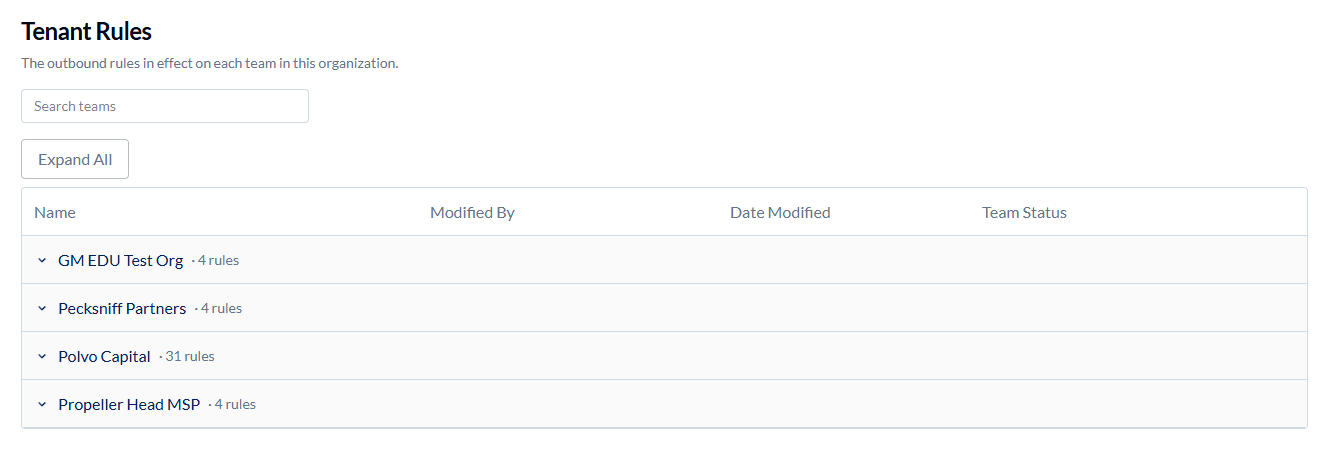
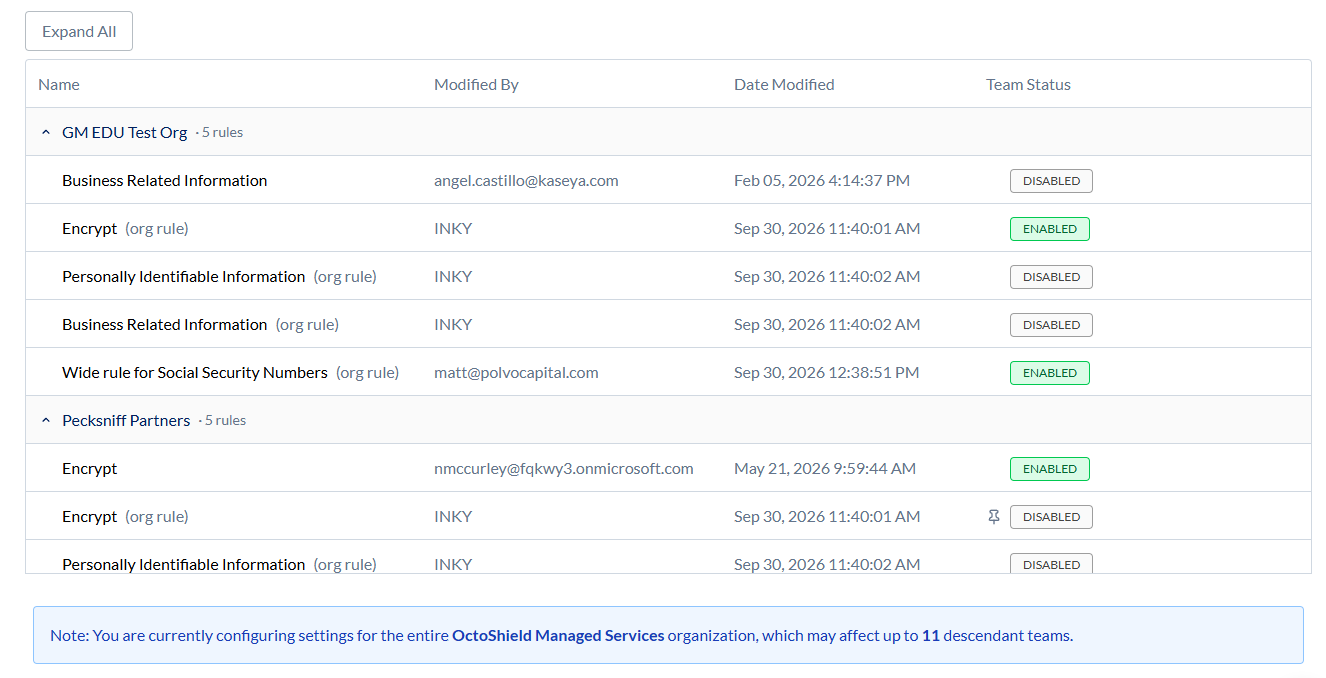
The organization's Outbound Protection page has a Tenant Rules section below its own rules list. It shows the outbound rules in effect on each team, so you can act on them without switching teams.
Each team with outbound rules is a row, 20 teams to a page. Expand a row to see that team's rules, or use Expand All to open every team on the page. Search teams finds a team by its team ID.
Rules the team inherits from the organization are marked "(org rule)", and a pin icon shows where the team pinned the state.
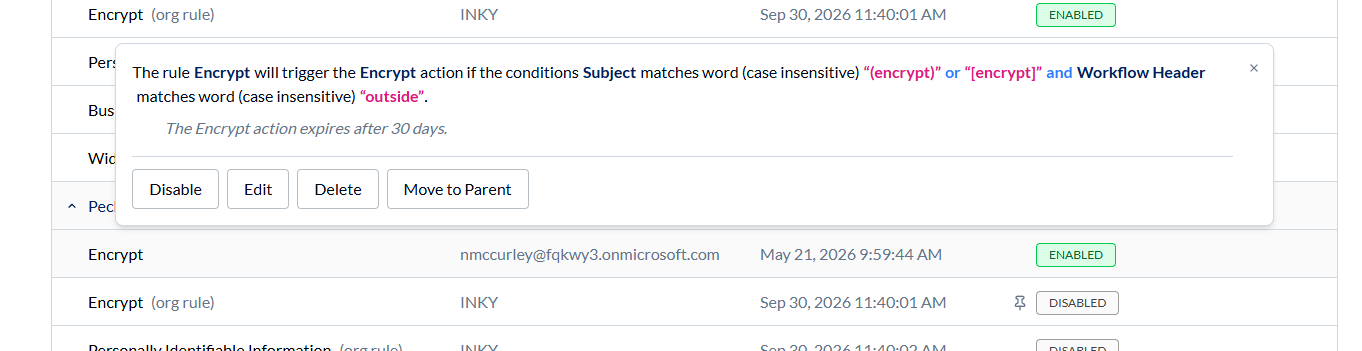
Select a rule to open its summary. You can turn any rule on or off. For an organization rule, this asks the same inherit or pin question as the team's own page.
For a rule the team owns, you can also Edit it in the same rule editor the team uses, Delete it, or Move to Parent.
Move to Parent copies the rule to the organization, applies it to all of the organization's teams, and removes the team's copy.
Was this helpful?
Still need help? Ask the team