Run a Message Trace in Microsoft 365
Message tracing shows you the complete journey of an email through Microsoft 365, including every stop, rule, and decision made along the way. When messages aren't arriving, landing in the wrong folder, or bouncing back, a message trace tells you exactly what happened and where things went wrong.
Written By Matt Sywulak
Last updated 17 days ago
Message tracing shows you the complete journey of an email through Microsoft 365, including every stop, rule, and decision made along the way. When messages aren't arriving, landing in the wrong folder, or bouncing back, a message trace tells you exactly what happened and where things went wrong.
When you need a message trace
You'll run a message trace when troubleshooting delivery issues with INKY support or investigating mail flow problems on your own. The trace shows whether messages reached INKY for analysis, which transport rules fired, and where Microsoft 365 ultimately delivered the message. This information is essential when a user reports missing email or suspects a phishing message slipped through.
Run a basic trace
Start by logging into the Microsoft 365 Exchange Admin Center and navigating to Mail Flow > Message Trace. Click Start a Trace to begin searching.
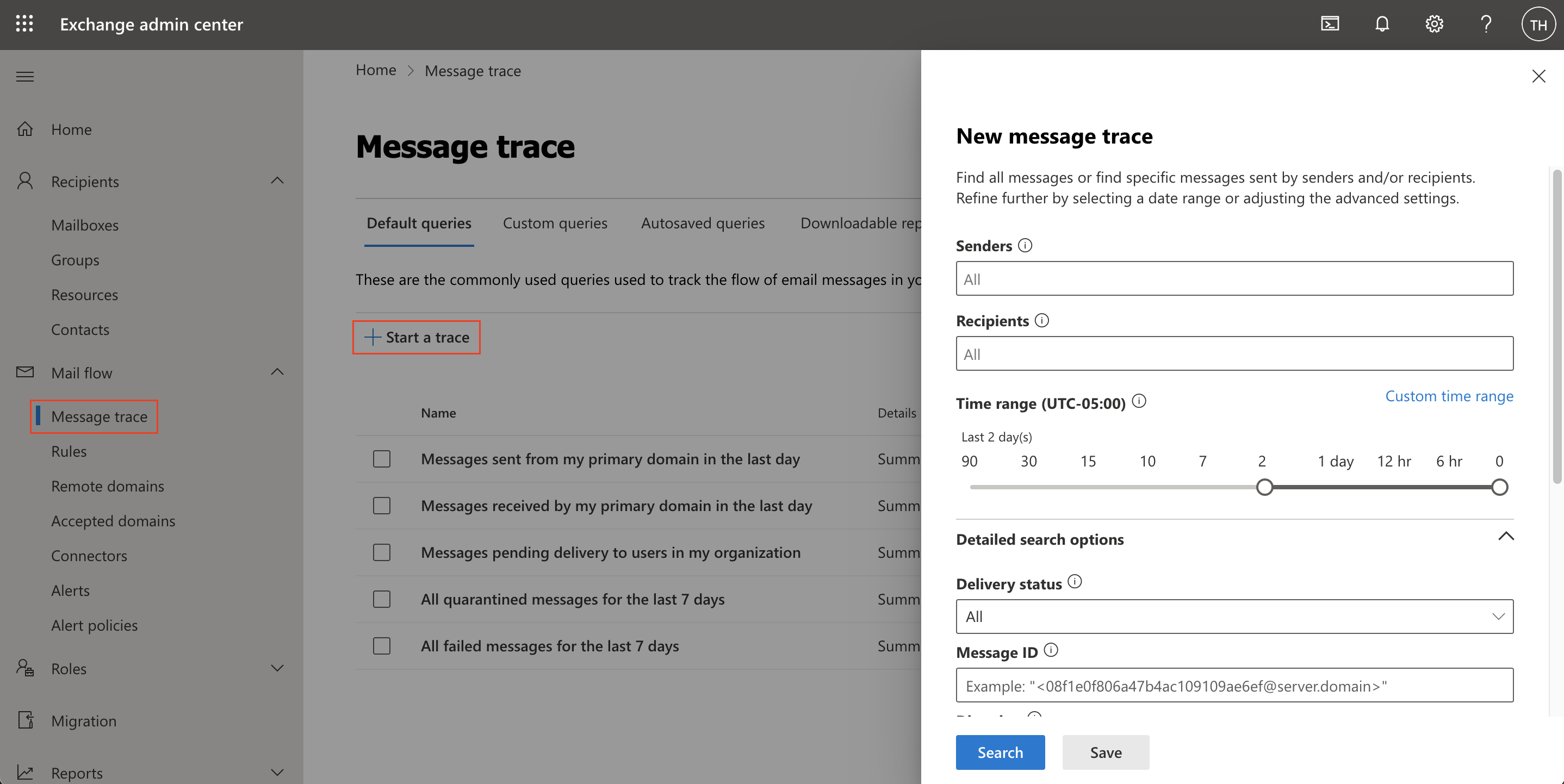
You can search using the sender's address, recipient's address, or the message ID (found in email headers). For most troubleshooting, searching by sender and recipient within the last 24-48 hours gives you the information you need. For older messages or more complex investigations, use the message ID for precise results.
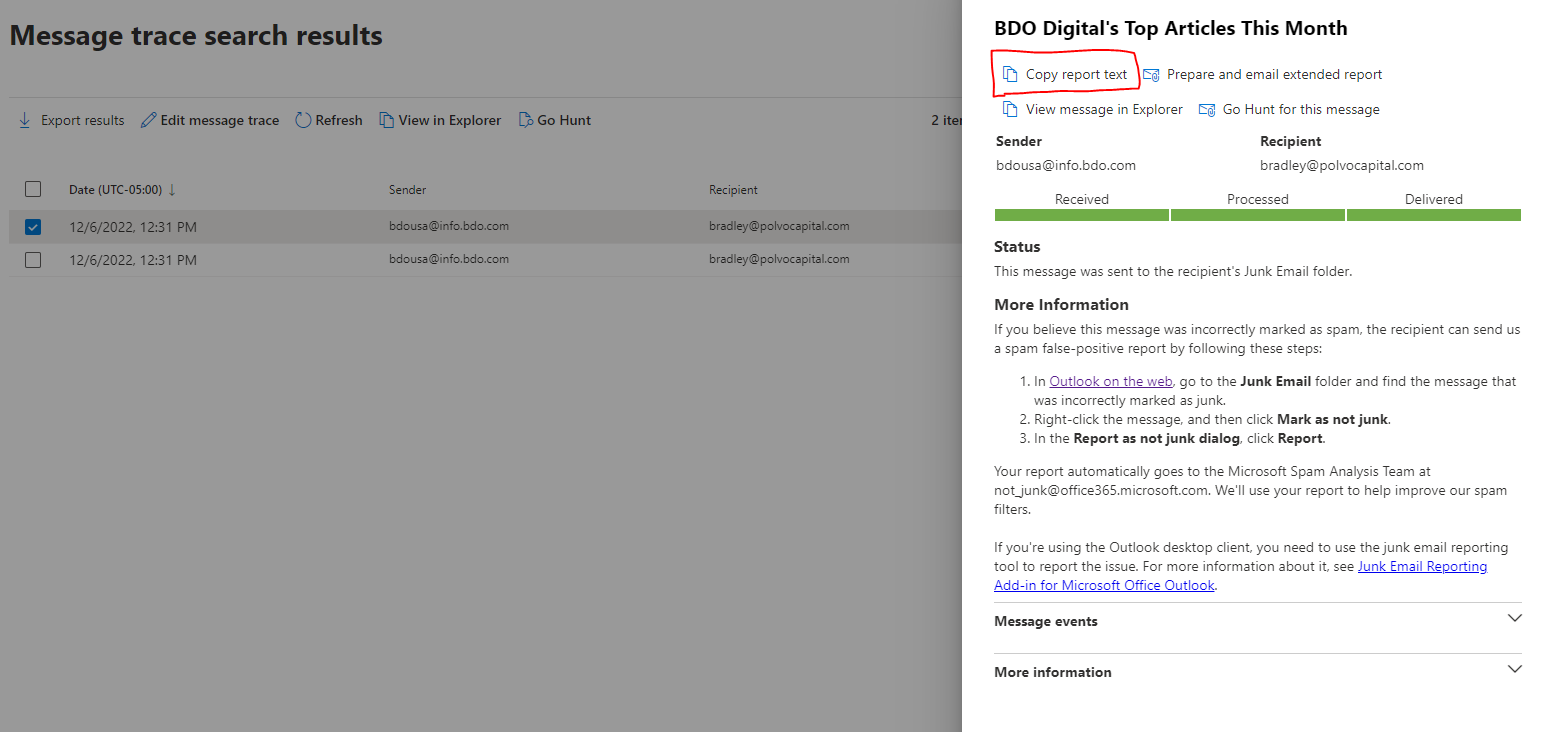
For every result that comes back in the “Message trace search results” select them and in the side panel that opens select “Copy report text”

Once you find the message in the search results, select it and click Copy report text in the side panel. This captures the full trace data that INKY support needs to diagnose issues.
Understanding trace results
A message trace shows every event that occurred as Microsoft 365 processed the email. You'll see events like "Receive," "Transport rule," "Spam," and "Deliver" with timestamps showing the exact sequence.
The status line at the top summarizes what happened - whether the message was delivered normally, sent to Junk Email, blocked, or routed through an external connector (which is how INKY receives messages for analysis). Pay attention to transport rules with names like "IPW Mail for Inky" or "IPW Processed SPAM" - these show INKY's involvement in processing the message.
What INKY support needs
When you contact INKY support about a delivery issue, provide the complete message trace text. The trace shows whether the message reached INKY's servers, what threat analysis occurred, and how Microsoft 365 handled the message afterward.
Look for two key patterns in traces for INKY-protected organizations. First, you should see the message being sent to INKY's servers through a connector (the "Send external" event with INKY's smart host address). Second, you'll see the message being received again from INKY after analysis, often with transport rules indicating INKY processed it as spam, phishing, or clean mail.
Reading INKY transport rules
Transport rules in the trace show INKY's processing decisions. Rules like "IPW Processed SPAM" indicate INKY identified the message as a threat and marked it accordingly. "IPW Mail for Inky" shows the message being routed to INKY for analysis. "IPW Filter - Reset" and other filter rules control how different user groups and organizational units receive INKY protection.
If you don't see these INKY-related transport rules, the message may have bypassed INKY analysis due to a configuration issue or exception rule.
Example trace breakdown
Here's what a typical trace looks like for a message INKY processed as spam:
First journey (to INKY): The message arrives at Microsoft 365, triggers the "IPW Mail for Inky" transport rule, and gets sent to INKY's servers for analysis.
Subject: BDO Digital's Top Articles This Month
Sender: bdousa@info.bdo.com
Recipient: bradley@polvocapital.com
Received -> Processed -> Delivered
Status: This message was sent to the recipient's Junk Email folder.
More information: <div>If you believe this message was incorrectly marked as spam, the recipient can send us a spam false-positive report by following these steps:<ol><li>In <a href='https://outlook.office365.com/owa/' target='_blank'>Outlook on the web</a>, go to the <b>Junk Email</b> folder and find the message that was incorrectly marked as junk.</li><li>Right-click the message, and then click <b>Mark as not junk</b>.</li><li>In the <b>Report as not junk dialog</b>, click <b>Report</b>.</li></ol>Your report automatically goes to the Microsoft Spam Analysis Team at not_junk@office365.microsoft.com. We'll use your report to help improve our spam filters.<br /><br />If you're using the Outlook desktop client, you need to use the junk email reporting tool to report the issue. For more information about it, see <a href='http://go.microsoft.com/fwlink/p/?LinkId=299247' target='_blank'>Junk Email Reporting Add-in for Microsoft Office Outlook</a>.</div>
Date (UTC-05:00) | Event | Detail |
------------------------------------
12/6/2022, 12:31 PM | Receive | Message received by: IA0PR02MB9220.namprd02.prod.outlook.com using TLS1.2 with AES256
12/6/2022, 12:31 PM | Transport rule | Transport rule: 'IPW Processed SPAM', ID: ('AE9B2C61-C9C5-4AA4-B249-24D6334EBBAA'), DLP policy: '', ID: (00000000-0000-0000-0000-000000000000).
12/6/2022, 12:31 PM | Transport rule | Transport rule: 'IPW Processed SPAM', ID: ('AE9B2C61-C9C5-4AA4-B249-24D6334EBBAA'), DLP policy: '', ID: (00000000-0000-0000-0000-000000000000).
12/6/2022, 12:31 PM | Transport rule | Transport rule: 'IPW Processed SPAM', ID: ('AE9B2C61-C9C5-4AA4-B249-24D6334EBBAA'), DLP policy: '', ID: (00000000-0000-0000-0000-000000000000).
12/6/2022, 12:31 PM | Defer | Reason: 400 4.7.721 Advanced Threat Protection scanning in progress.
12/6/2022, 12:32 PM | Spam | No detail information available.
12/6/2022, 12:32 PM | Deliver | The message was delivered to the Junk Email folder.
More information
Message ID:<1213727060.579554359.1670347881891@sjmktmail-batch1m.marketo.org>
Message size | From IP | To IP
226.16 KB | 192.28.158.140 | nullSecond journey (from INKY): INKY analyzes the message, determines it's spam, and returns it to Microsoft 365. The "IPW Processed SPAM" transport rule fires, and Microsoft 365's spam filter confirms the assessment, delivering the message to the user's Junk Email folder.
Subject: BDO Digital's Top Articles This Month
Sender: bdousa@info.bdo.com
Recipient: bradley@polvocapital.com
Received -> Processed -> Sent
Status: Office 365 used one of your organization's connectors to send the message to an external address. An admin in your organization set up a mail flow rule to route messages through that connector. Here are the details:<br /><br /><b>Connector name:</b> IPW<br /><b>External address:</b> bradley@polvocapital.com<br /><b>Destination IP:</b> 44.225.179.230<br /><b>Destination smart host:</b> ipw-mta-o365-prod-b3d65134e94c6bdc.elb.us-west-2.amazonaws.com<br /><b>Mail flow rule:</b> IPW Mail for Inky
More information: <div>You can view your organization's connector settings on the <a href='https://admin.exchange.microsoft.com/#/connectors' target='_blank'>connectors</a> page, and the mail flow rule settings on the <a href='https://outlook.office365.com/ecp/?p=transportrules' target='_blank'>rules page</a>.</div>
Date (UTC-05:00) | Event | Detail |
------------------------------------
12/6/2022, 12:31 PM | Receive | Message received by: SA0PR02MB7403.namprd02.prod.outlook.com using TLS1.2 with AES256
12/6/2022, 12:31 PM | Journal | Message was journaled. Journal report was sent to journal@dev.inkyphishfence.com. Message ID of Journal Report: <f7b15f08-65c3-4580-a403-f7233abdde3b@journal.report.generator>.
12/6/2022, 12:31 PM | Transport rule | Transport rule: 'IPW Filter - Reset', ID: ('67A46A94-5782-4980-9037-80BA4B573636'), DLP policy: '', ID: (00000000-0000-0000-0000-000000000000).
12/6/2022, 12:31 PM | Transport rule | Transport rule: 'IPW Relay Key', ID: ('8BF00282-03BB-4002-84E1-8C84F2044EAE'), DLP policy: '', ID: (00000000-0000-0000-0000-000000000000).
12/6/2022, 12:31 PM | Transport rule | Transport rule: 'IPW Mail for Inky', ID: ('6D58F53B-A39E-4349-A0C3-9EF201CD8FEF'), DLP policy: '', ID: (00000000-0000-0000-0000-000000000000).
12/6/2022, 12:31 PM | Transport rule | Transport rule: 'IPW Mail for Inky', ID: ('6D58F53B-A39E-4349-A0C3-9EF201CD8FEF'), DLP policy: '', ID: (00000000-0000-0000-0000-000000000000).
12/6/2022, 12:31 PM | Transport rule | Transport rule: 'IPW Mail for Inky', ID: ('6D58F53B-A39E-4349-A0C3-9EF201CD8FEF'), DLP policy: '', ID: (00000000-0000-0000-0000-000000000000).
12/6/2022, 12:31 PM | Transport rule | Transport rule: 'IPW Filter - Group Member', ID: ('CDB481B1-5C10-4E92-9C33-EBAA77D11FFE'), DLP policy: '', ID: (00000000-0000-0000-0000-000000000000).
12/6/2022, 12:31 PM | Transport rule | Transport rule: 'IPW Organizational Unit', ID: ('5A8AEA0C-DB70-4C41-933F-EECC0CDF04D8'), DLP policy: '', ID: (00000000-0000-0000-0000-000000000000).
12/6/2022, 12:31 PM | Send external | Message sent to ipw-mta-o365-prod-b3d65134e94c6bdc.elb.us-west-2.amazonaws.com at 44.225.179.230 using TLS1.2 with AES256
More information
Message ID:<1213727060.579554359.1670347881891@sjmktmail-batch1m.marketo.org>
Message size | From IP | To IP
121.95 KB | 192.28.158.140 | 44.225.179.230This two-journey pattern is normal for INKY-protected organizations and shows the email security stack working correctly.
Troubleshooting with traces
If messages aren't being analyzed by INKY, check whether the trace shows the "Send external" event to INKY's servers. Missing this event means mail flow rules aren't routing messages to INKY properly.
If users report false positives (legitimate mail blocked or marked as spam), the trace shows which system made the final delivery decision - INKY's processing rules, Microsoft 365's spam filter, or user-configured inbox rules. This information helps determine where to adjust settings.
For messages that disappeared entirely, traces reveal whether the message was blocked, quarantined, or delivered to an unexpected location like a shared mailbox or distribution list.
Still need help? Ask the team