Switching Teams & Time Ranges
Control which team's data you're viewing and the timeframe for all dashboard metrics.
Written By Matt Sywulak
Last updated 8 months ago
Team Selector
Located in the top-right of the dashboard. Click to switch between teams and organizations.
The selector uses distinct icons to help you quickly identify what you're selecting:
Globe icon — "All Teams" view (aggregates data across all accessible teams)
Building icon — Organizations (parent-level views that aggregate data from child teams, common for MSPs)
People icon — Individual teams (customer environments or departments)
Search Teams
Type in the search box to find teams by:
Team name
Team ID
Domain (e.g., "example.com")
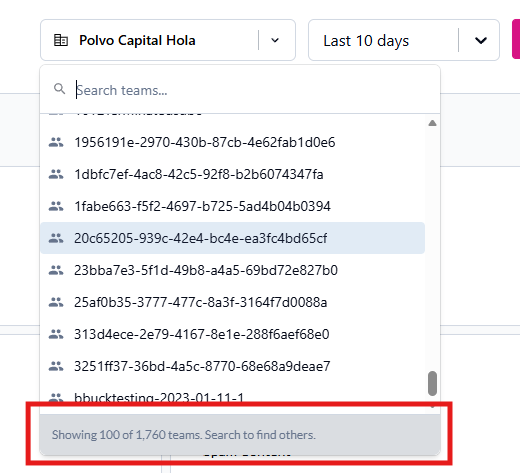
For large organizations: The selector displays up to 100 teams at a time for faster loading. Use search to find additional teams beyond the initial list. Your recently accessed teams appear first for quick navigation.
The search field remains available as long as you have access to more than one team, even if filters reduce the visible list to one team. This ensures Partner Center users and others with filtered views can always search across all available teams.
Time Range
Select from preset ranges:
Today
Yesterday
Last 7 days
Last 10 days
Last 30 days
Last 90 days
Last 6 months
Custom dates (choose start and end dates)
All dashboard widgets update to reflect the selected timeframe.
Still need help? Ask the team