Offboard and Uninstall a Client
This process completely removes a team from INKY and unredeems their license. Use this when a customer cancels their subscription or you need to fully remove INKY from their environment.
Written By Matt Sywulak
Last updated 3 months ago
⚠️ Warning: The team will lose all protection and configuration settings. Make sure you have customer approval before proceeding.
Important: Uninstalling a client removes all of the team's domains. INKY does not provide a direct self-service option to remove just one domain. If you want to remove a single domain from a team without fully offboarding, contact INKY Support and request removal of the specific domain.
When to Use This Guide
Use this full offboarding process when:
A customer cancels their INKY subscription
You need to completely remove INKY from a client's environment
A license needs to be freed up for reassignment
Don't use this guide if you're just:
Updating an existing installation → Use Tenant Operations instead
Performing a reinstall → Use Tenant Operations instead
Prerequisites
Before you start, make sure you have:
Admin access to INKY Admin Console
Customer approval to proceed with offboarding
Backup of any custom configurations you need to preserve
Notification sent to the customer about service interruption
For Google Customers prior to completing these steps remove all users from ipw groups and disable Inky content compliance rules
Important: Once you begin this process, the customer will stop receiving INKY protection immediately.
Step 1: Uninstall the Team
Start by uninstalling INKY from the customer's environment.
Navigate to the team's Installation Card in the Admin Console
Click the Uninstall button
Confirm the uninstall in the popup modal

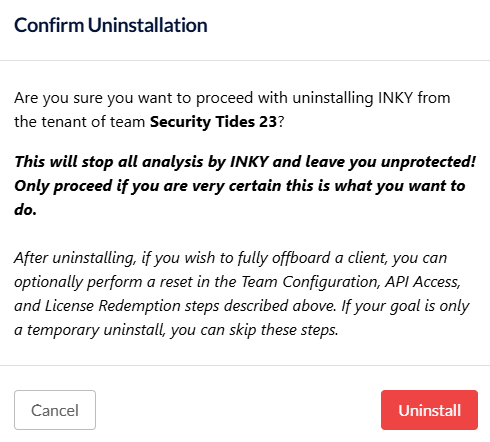
What happens next: The uninstall process runs automatically and takes several minutes. You'll see progress updates in the Latest Logs section at the bottom of the screen.
Monitoring the process: If the logs stop updating, click the blue "Updates have been paused..." banner to resume the live feed.
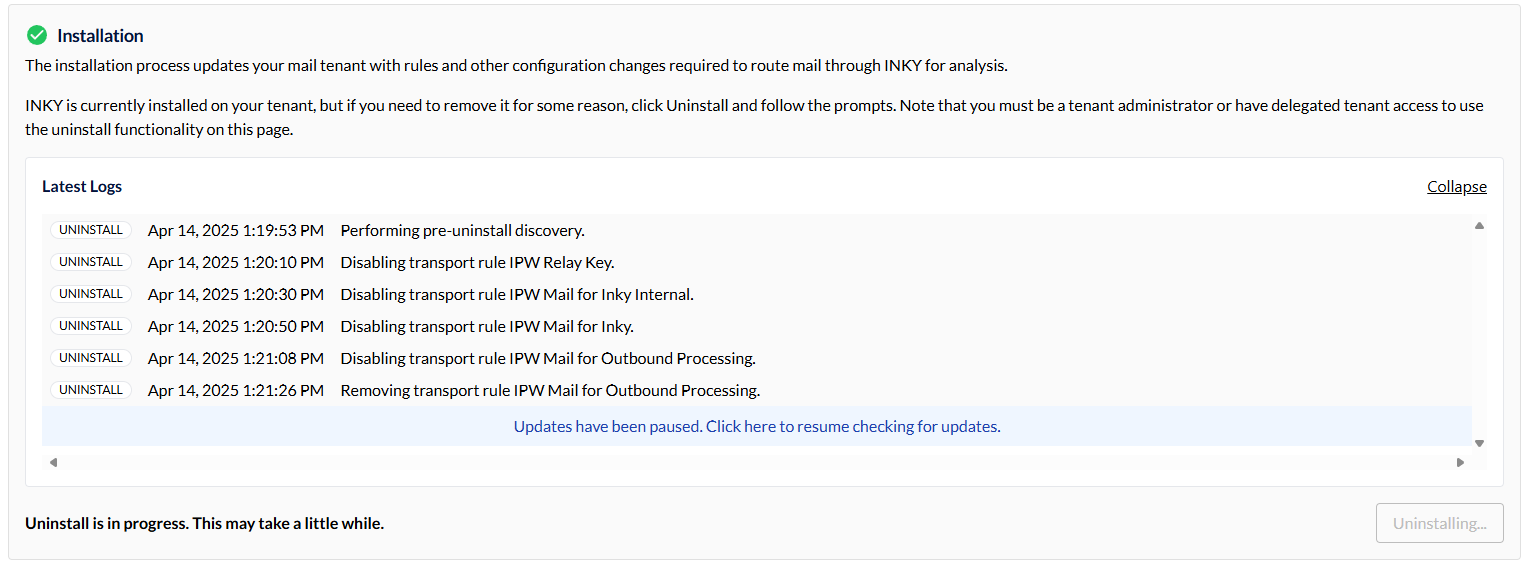
When complete, the green installation checkmark changes to an incomplete icon. You can then move to the next step.
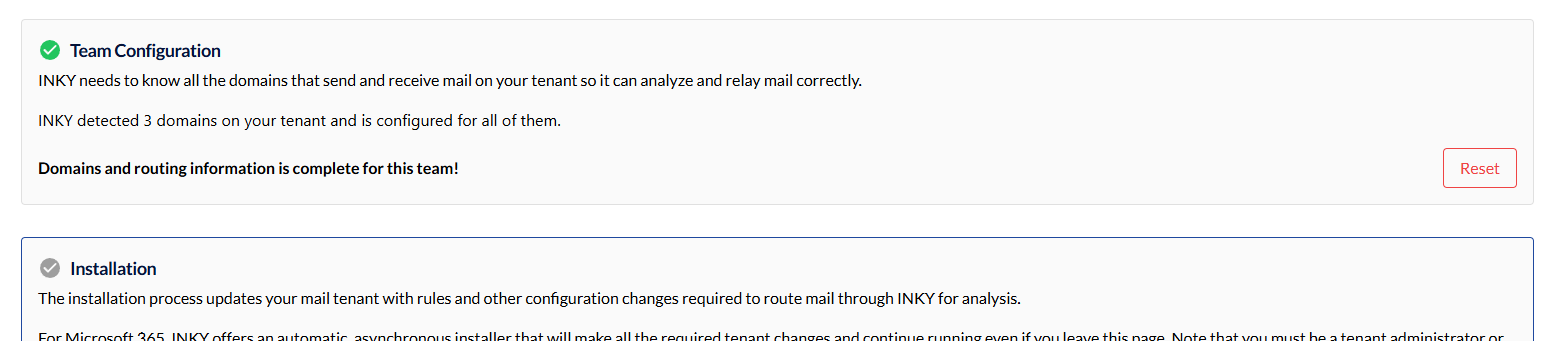
Step 2: Reset Team Configuration
This step removes the customer's domains from INKY's routing database.
After uninstalling completes, click Reset Team Configuration
Confirm the reset in the popup modal
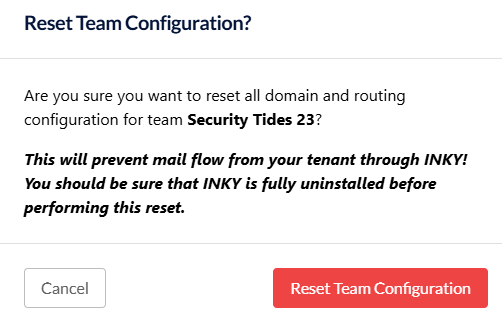
What this does: Clears all domain routing entries from INKY's system. The customer's mail will no longer route through INKY servers.
Step 3: Reset API Access
Remove the API credentials that connected INKY to the customer's email platform.
Click Reset API Access
Confirm the reset in the popup modal

What this does: Revokes INKY's access to Microsoft 365 or Google Workspace. INKY can no longer read or modify the customer's mail settings.
Step 4: Unredeem the License
The final step frees up the license for reassignment.
Click Reset License
Confirm using the Reset License option in the modal

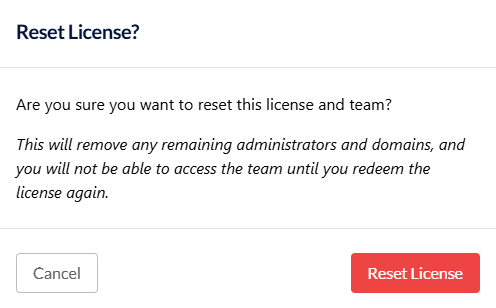
What this does: Unredeems the license and returns the team to its original state. The license is now available for a new customer.
Verification
After completing all steps, verify the offboarding:
Installation Card shows no active installation
Domains section is empty
API Access shows disconnected status
License shows as unredeemed
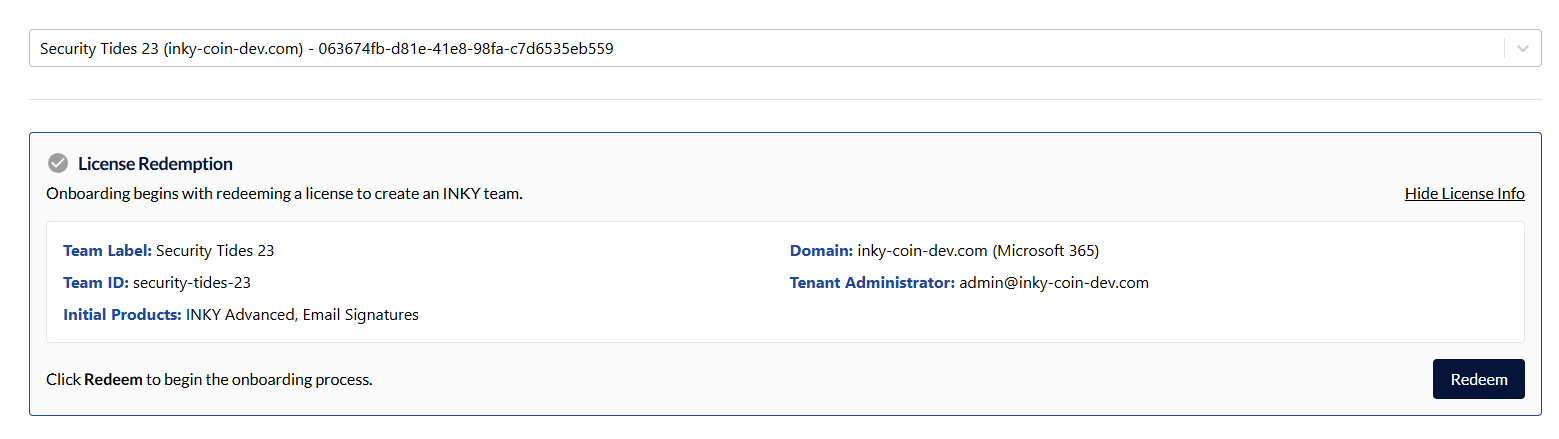
Optional: Remove License from Partner Center
After unredeeeming the license, you can optionally remove it from the Partner Center license list for cleaner record-keeping.
Navigate to Partner Center Licenses
Find the unredeemed license in the list
Click Remove next to the license entry
This step is optional. The license is already unredeemed. Removing it from the Partner Center just cleans up your license list view.
Billing Note
⚠️ Important: Unreedeeming the license (Step 4) is the only way to remove a team from billing. Simply uninstalling INKY or resetting configurations does not stop billing charges.
To stop billing, you must:
Complete Step 4: Unredeem the License
This immediately removes the team from your billing cycle
No further charges will accrue for this customer
Removing the license from Partner Center (this optional step) does not affect billing - only Step 4 does.
Still need help? Ask the team