Advanced Signature Features
Advanced signature management features for enterprise deployments. Delegate signature administration to non-IT staff, display signatures in users' Sent Items folders (Microsoft 365), and automatically convert plain-text emails to HTML for proper banner and signature formatting. Available with Email Signatures add-on.
Written By Matt Sywulak
Last updated 12 months ago
What They Do
Power features for enterprise signature management: delegate administration to non-IT staff, show signatures in sent folders, and ensure banners display properly.
Signature Managers
Delegate signature administration to marketing, HR, or department leads without granting full dashboard access.

What Signature Managers Can Do
Modify all signature settings
Upload logo and footer images
Configure signature layouts and profiles
Add or remove other signature managers
What They Cannot Access
Other INKY dashboard sections (unless separately granted admin roles)
Security settings, reporting, or threat analysis
Billing or user management
Setup
Navigate to Email Signatures > Signature Managers
Click Edit Signature Managers
Add email addresses directly or select groups (if Directory API enabled)
Click Save
Signature managers can be from outside your organization - they must have Microsoft or Google OAuth login credentials.
Common Use Cases
Marketing team updates campaign banners
HR manages new hire signature templates
Regional managers control local office signatures
Third-party agency manages signatures without dashboard access
Sent Items Folder Update
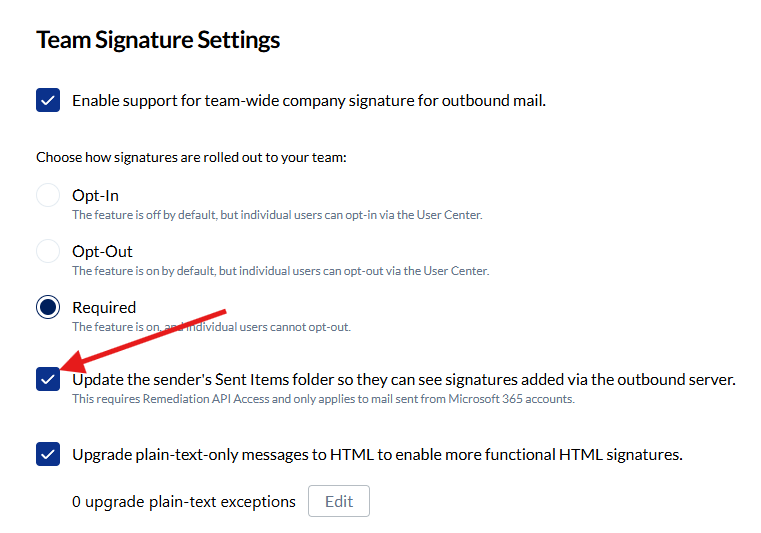
Show applied signatures in the sender's Sent Items folder (Microsoft 365 only).
What It Does
After INKY adds a signature to outbound email, the signature appears in the sender's Sent Items folder. Without this feature, senders only see their original email without the applied signature.
Requirements
Microsoft 365 only (not available for Google Workspace)
Remediation Access API must be granted
Setup
Navigate to API Access in INKY Admin Center
Grant Remediation Access to INKY
Enable Sent Items Update checkbox in Email Signatures settings
Signatures now appear in Sent Items folder automatically
How It Works
INKY updates the sent message on the server to include the signature. In new Outlook clients, INKY creates a temporary subfolder in Sent Items to force the client to refresh and show the updated message with signature.
Troubleshooting
Problem: Sent items not updating with signature
Solutions:
Verify Remediation Access granted at API Access page
Check Email Signatures feature enabled
Wait for Microsoft 365 cache to refresh (can take a few minutes)
Try switching folders and back to force refresh
Still not working? Contact support@inky.com with test email attached.
Plain-Text to HTML Upgrade
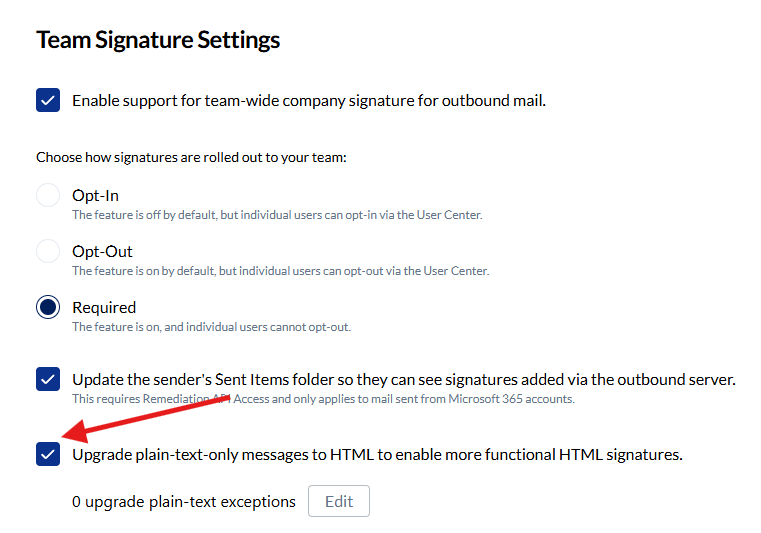
Automatically convert plain-text emails to HTML format for proper signature and banner display.
What It Does
Upgrades plain-text-only emails to HTML so INKY banners and signatures display correctly. Plain-text emails cannot show formatted signatures or warning banners.
Why It's Needed
Plain-text emails don't support images, colors, or formatting
INKY banners require HTML to display warning colors and links
Signatures with logos and formatting need HTML
Default Behavior
Enabled by default - INKY automatically upgrades plain-text messages to HTML when adding signatures or banners.
Configuration
Navigate to Markup Settings > Message Transformations
Options:
✅ Upgrade plain-text-only messages to HTML (default, recommended)
❌ Disabled (messages stay plain-text, signatures/banners won't display properly)
Exceptions
Add senders or domains that should bypass plain-text upgrading.
Common use cases:
Recipients who cannot receive HTML email (rare)
Legacy systems requiring plain-text only
Specific automated systems
To add exceptions:
Navigate to Markup Settings > Message Transformations > Plain-Text Upgrade Exceptions
Add email addresses or domains (CSV format or manual entry)
Click Save
Related Setting: HTML Sanitization
INKY also sanitizes HTML to remove dangerous JavaScript and dynamic content. This works alongside plain-text upgrading to ensure safe, functional signatures and banners.
Best Practices
Signature Managers
Grant access only to trusted individuals
Use groups instead of individual emails for easier management
Document who has signature manager access
Review managers quarterly
Sent Items Update
Enable for user confidence (they see what recipients see)
Educate users about slight delay in Sent Items refresh
Required API access: Remediation Access
Plain-Text Upgrade
Keep enabled unless specific technical reason to disable
Use exceptions sparingly (most recipients support HTML)
Test with pilot group before disabling organization-wide
Still need help? Ask the team