Signature Layout Builder Guide
Build custom email signature layouts that automatically populate with user and company data. The Layout Builder lets you control exactly which fields appear in signatures, how they're arranged, and when they're displayed.
Written By Matt Sywulak
Last updated 12 months ago
Understanding Layout Types
INKY applies different signature layouts based on email type:
New mail uses your "Full company and user details" configuration. This is your complete signature with all branding elements—perfect for first impressions and external communications.
Replies and Forwards use your "Minimal company and user details" configuration. These streamlined versions prevent signature bloat in long email threads while maintaining professional identification.
Each layout can include logos, photos, footer images, and footer text (configured in earlier steps), but the field layout controls the text-based information that appears.
Building a Field Configuration
Adding Fields
Click Add field to open a dropdown menu of available fields. The fields you see depend on what you configured in the User Field Configuration section:
Fields marked "User Modifiable" or "Read-Only" appear in the dropdown
Fields marked "Unused/Hidden" don't appear (and show in red if already added)
API-imported fields automatically populate when available
Common field categories:
Personal information: Employee Name, Job Title, Pronouns, Primary Email
Contact details: Work Phone, Mobile Phone, Fax Number
Location: Employee Address, Company Address
Links: User LinkedIn Link, Custom Link, Company Website Link, Social Media Links, Company Call-To-Action Link
Additional: User-Specific Licenses, Department, Custom Attributes (if Exchange custom attributes enabled)
Organizing Fields
Fields appear in your signature in the order you add them. Each field occupies one line by default.
Add new line: Click this button to insert a blank line for visual spacing. Use blank lines to group related information (like separating contact details from social links).
Remove fields: Click the X or delete icon next to any field to remove it from the layout.
Reorder fields: Drag and drop fields to rearrange them (if your interface supports it), or remove and re-add fields in your desired order.
Single-Column vs. Two-Column Layouts
Single-Column Layout (Default)
All fields stack vertically in one column. This creates a simple, mobile-friendly signature:
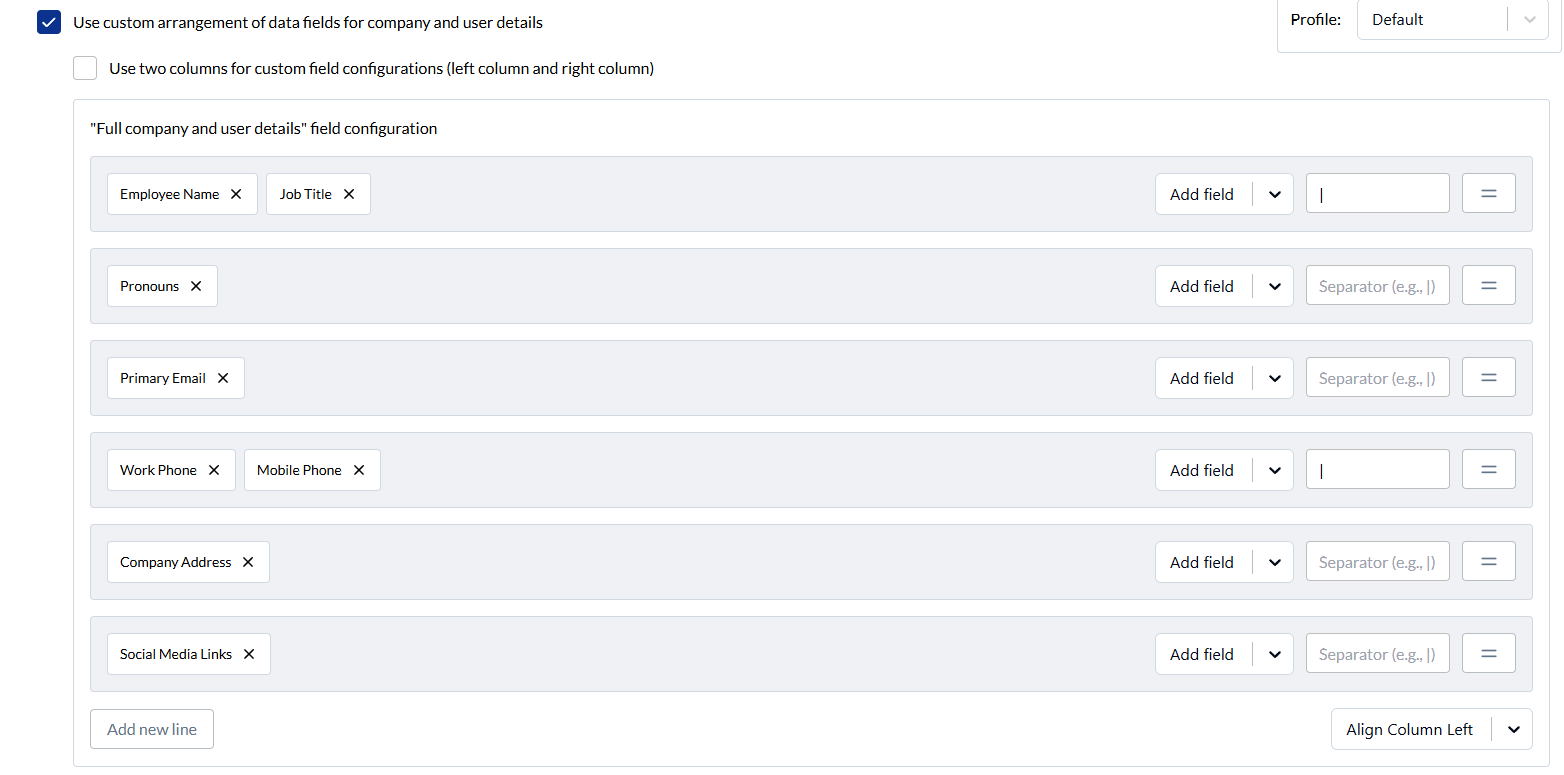
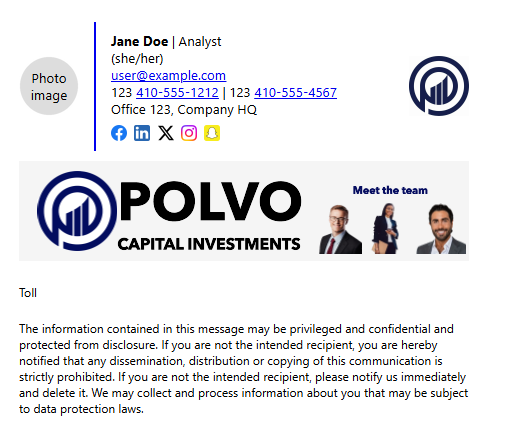
Best for: Simple signatures, mobile-first organizations, or when you have fewer than 6 fields.
Two-Column Layout
Enable "Use two columns for custom field configurations" to split information across left and right columns. This creates a more compact, visually balanced signature.
How it works:
Configure left column fields first
Configure right column fields separately
Columns appear side-by-side in the final signature
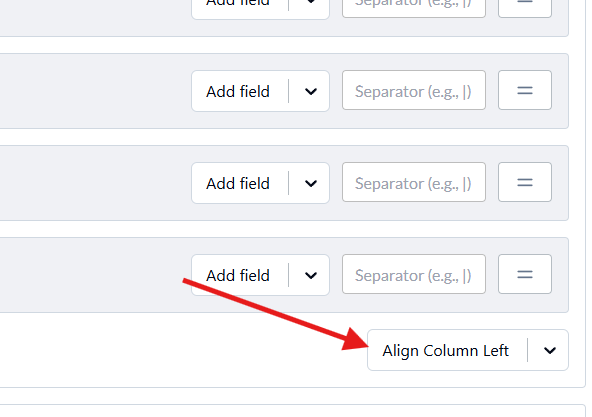
Each column can be independently aligned (left or right)
Example two-column layout:
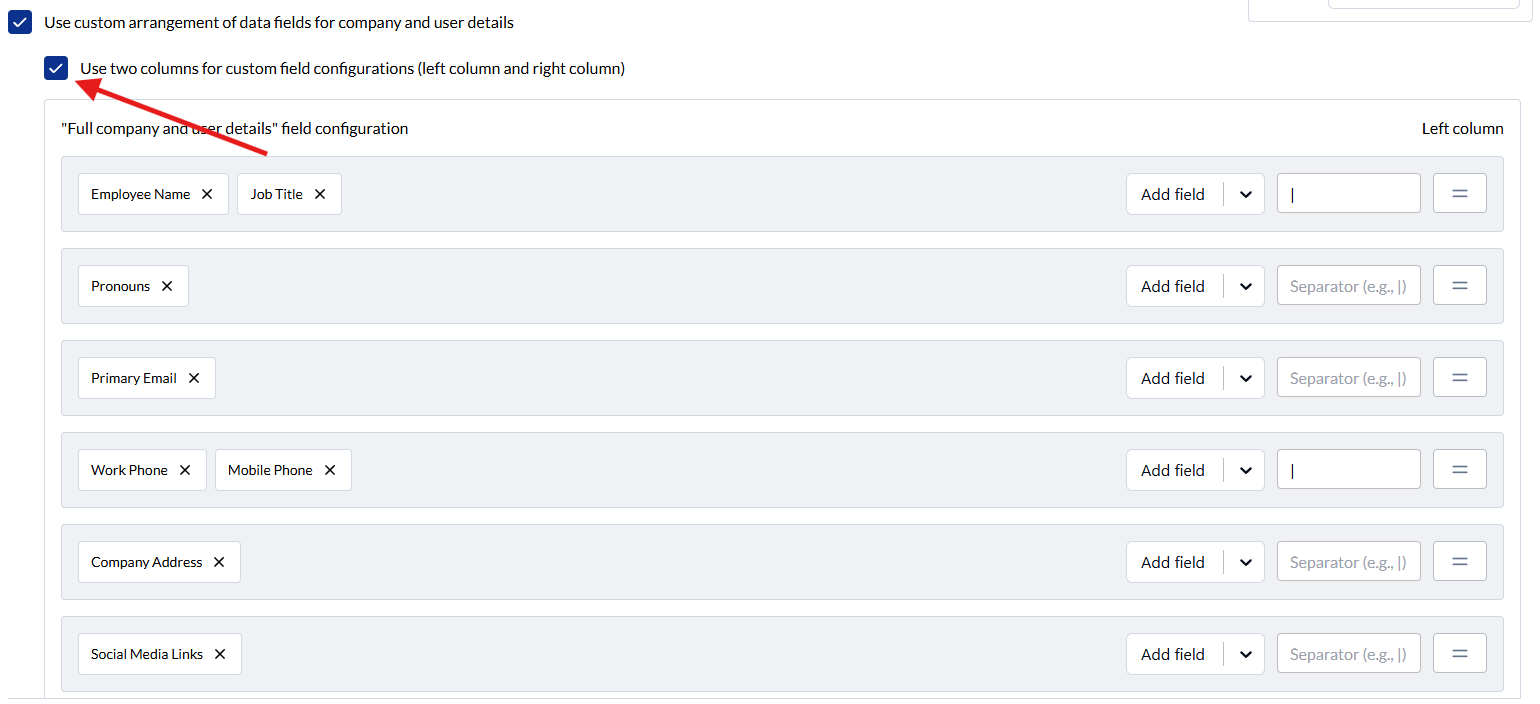
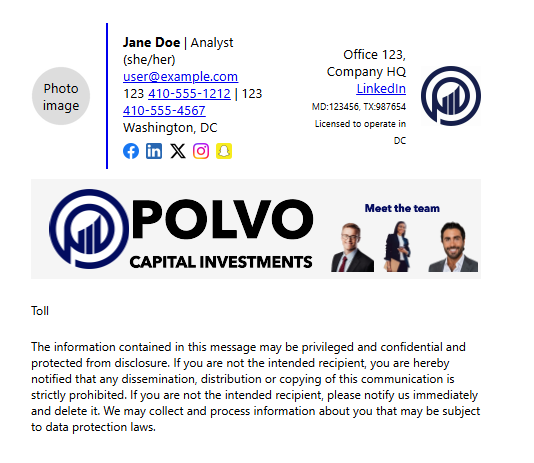
Best for: Professional signatures with 7+ fields, executive-level signatures, or when you want to highlight specific information (like putting a photo or logo on one side with contact details on the other).
Column Alignment
Align Column Left: Text in that column aligns to the left edge (standard for most signatures).
Align Column Right: Text aligns to the right edge. Use this for the right column when you want fields like addresses or secondary contact info to align opposite the main details.
Building Effective Signatures
Full Details Configuration (New Mail)
This is your primary signature. Include everything recipients need to contact you and learn about your company.
Recommended structure:
Essential information (always include):
Employee Name
Job Title
Primary Email
Work Phone (or Mobile Phone)
Company branding:
Company Address
Company Website Link or Call-To-Action
Social Media Links
Optional additions:
Pronouns (if your organization supports this)
Secondary phone numbers
Employee Address (for remote workers or multiple offices)
LinkedIn Link
User-specific licenses/certifications
Example full configuration:
Left Column:
- Employee Name
- Job Title
- Pronouns
- Primary Email
- Work Phone
- [blank line]
- Company Address
- Social Media Links

Right Column:
- Employee Address
- User LinkedIn Link
- User-Specific Licenses
Minimal Details Configuration (Replies/Forwards)
Strip down to essentials. Recipients already have your full information from the initial email.
Recommended structure:
Must-have:
Employee Name
Primary Email
One phone number (Work or Mobile)
Optional:
Job Title (helps recipients remember your role)
LinkedIn Link (for easy networking)
Company Website (if it's a critical CTA)
Example minimal configuration:
Left Column:
- Employee Name
- Job Title
- Primary Email
- Work Phone
Right Column:
- User LinkedIn Link
- Company Website Link
Field Behavior and Data Sources
How Fields Populate
API-imported fields: Automatically pull from your Microsoft 365 or Google Workspace directory if "Import From API" is enabled for that field.
User-modifiable fields: Start with API data (if available) but users can override through the User Center.
Read-only fields: Display API data; users cannot change these values.
Empty fields: If a field has no data (not in API, not entered by user), it simply doesn't appear in the signature—no blank lines or placeholders.
Address Override Logic
Standard behavior: If a user sets "Company Address Override" in their User Center, it replaces the admin-specified "Company Address" field automatically.
Exception: If you add the "Employee Address" field to your custom configuration, INKY treats both address fields as independent. Both appear exactly where you placed them with no automatic override logic.
Use case example: A company with multiple offices might want "Company Address" in the left column (showing HQ) and "Employee Address" in the right column (showing the user's specific office location).
Troubleshooting
Fields Appearing in Red
Problem: A field shows in red in your layout configuration.
Cause: You marked that field as "Unused/Hidden" in the User Field Configuration section, but it's still added to a layout.
Solution: Either (1) remove the field from the layout, or (2) change the field's status in User Field Configuration to "User Modifiable" or "Read-Only."
Fields Not Appearing in Signatures
Check these common issues:
No data source: The field isn't imported from API and the user hasn't entered data in the User Center
API access disabled: "Use Directory API Access" isn't enabled in User Signature Settings
Field marked as hidden: Check User Field Configuration settings
Wrong rollout strategy: User signatures may be in "Opt-In" mode but users haven't opted in yet
Inconsistent Field Display
Problem: Some users have certain fields, others don't.
Cause: User data varies in your directory, or users have opted out/customized their settings.
Solution:
Audit your directory to ensure all users have complete profiles
Set rollout strategy to "Required" if consistent signatures are mandatory
Mark critical fields as "Read-Only" to prevent user customization
Best Practices
Keep it scannable: Don't exceed 8-10 fields in full signatures. More information reduces readability.
Prioritize contact methods: Put your primary contact method (usually email) near the top. Phone numbers should be easily findable.
Use visual hierarchy: Group related fields together with blank lines. Separate contact info from branding/social links.
Test on mobile: Two-column layouts can stack oddly on mobile devices. Review signatures on phones before rolling out.
Consider email clients: Some email clients strip formatting or images. Your text fields should still be useful without logos or photos.
Match your brand: If your company uses specific style guides for business communications, mirror that structure in signatures.
Update regularly: Audit signatures quarterly to remove outdated fields (like old social platforms) and add new ones (like emerging channels).
Advanced Tips
Executive signatures: Use two columns with photo on the left, contact details on the right. Include links to thought leadership or company news.
Sales team signatures: Prioritize call-to-action links, calendar booking links, or product demo links. Consider including upcoming availability.
Support team signatures: Include support ticket systems, knowledge base links, or help center URLs. De-emphasize personal contact info.
International teams: Consider adding country codes to phone numbers, time zones, or preferred contact hours for global teams.
Legal/Compliance: If your industry requires disclaimers, configure them in footer text rather than as fields to ensure consistency.
Still need help? Ask the team