Social Media Links
Add social media profiles to email signatures with customizable display options. Recipients can click these links to connect with your team on professional and social platforms.
Written By Matt Sywulak
Last updated 12 months ago
How It Works
Enable "Include block of social media links" to add a section displaying your organization's social media profiles. These links appear in signatures based on your layout configuration—typically at the bottom of full signatures for new mail.
Social links can pull from company-wide settings (like your corporate Twitter or LinkedIn page) or from individual user profiles if configured in the User Field Configuration section.
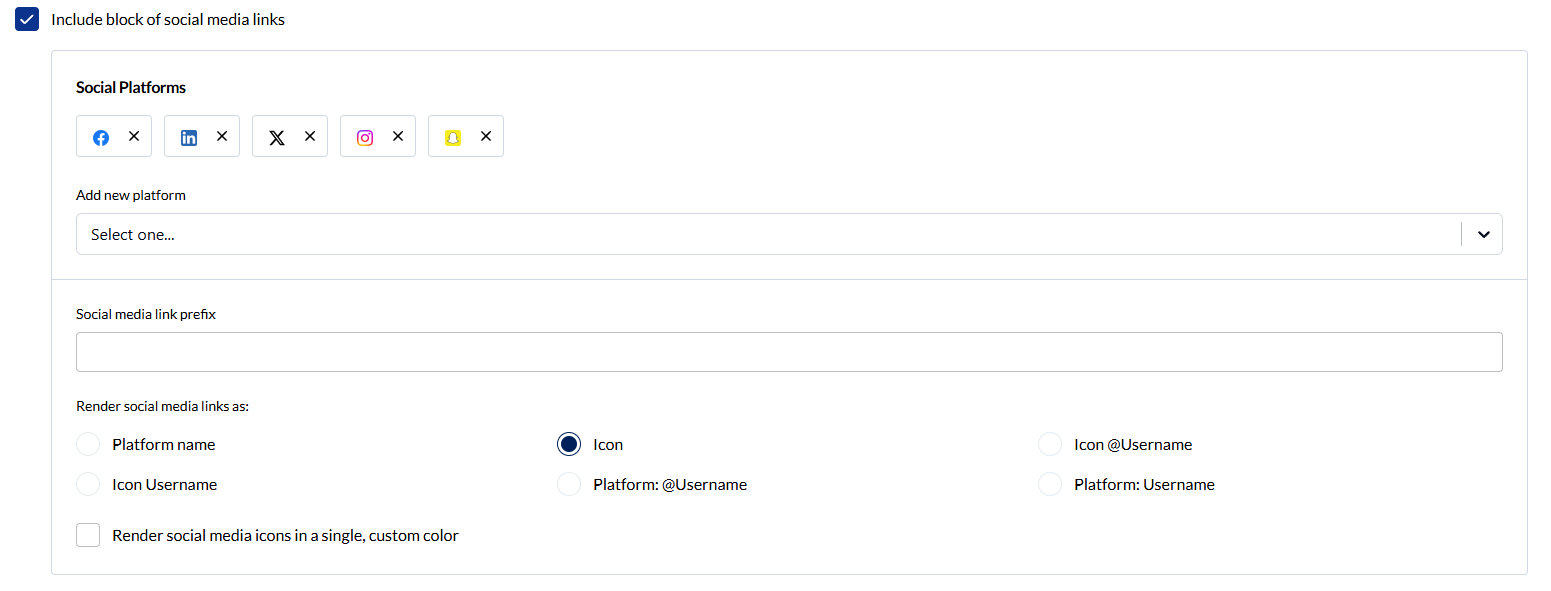
Adding Social Platforms
Click "Add new platform" to open a dropdown menu of supported social networks. Common platforms include:
LinkedIn
Twitter (X)
Facebook
Instagram
YouTube
GitHub
TikTok
And many others
After selecting a platform, you'll enter the profile URL or username. Add as many platforms as your organization actively uses.
Social media link prefix: Use this field to add a common prefix to all social links, like your company name or brand handle. For example, if your prefix is "AcmeCorp", individual platform links might display as "AcmeCorp LinkedIn" or "AcmeCorp Twitter."
Display Options
Choose how social media links appear in signatures. The rendering style affects both visual design and how much space the links occupy.
Platform Name (Text Only)
Displays the platform name as clickable text:
LinkedIn | Twitter | FacebookBest for: Text-only email environments, maximum compatibility, or minimalist signatures. Some email clients strip images, making text links the most reliable option.
Pros: Works everywhere, loads fast, accessible Cons: Less visually engaging, harder to scan quickly
Icon Only
Shows platform icons without text:
[LinkedIn icon] [Twitter icon] [Facebook icon]Best for: Clean, modern signatures with limited space. Icons are universally recognized and create visual interest.
Pros: Space-efficient, professional appearance, visually scannable Cons: Requires image support, may not display in all email clients
Icon @Username
Displays icon followed by the @ symbol and username/handle:
[LinkedIn icon] @JaneSmith [Twitter icon] @JaneSmith [Facebook icon] @AcmeCorpBest for: Personal branding, social media-focused roles (marketing, community management), or when individual handles matter more than company profiles.
Pros: Shows personal identity, encourages direct connections Cons: Takes more space, may look cluttered with many platforms
Icon Username
Shows icon with username (no @ symbol):
[LinkedIn icon] JaneSmith [Twitter icon] JaneSmith [Facebook icon] AcmeCorpBest for: Professional signatures where you want to identify the specific account but keep formatting cleaner than the @Username option.
Pros: Balanced between identification and space efficiency Cons: Still requires more space than icons alone
Platform: @Username
Text-based format showing platform name, colon, and @username:
LinkedIn: @JaneSmith | Twitter: @JaneSmith | Facebook: @AcmeCorpBest for: Maximum clarity, formal communications, or when you need to ensure recipients know exactly which platform each link goes to.
Pros: Crystal clear, works without images, accessible Cons: Takes the most space, can look verbose
Platform: Username
Same as above but without the @ symbol:
LinkedIn: JaneSmith | Twitter: JaneSmith | Facebook: AcmeCorpBest for: Professional contexts where handles don't typically use @ symbols (like LinkedIn) or when you want a cleaner text-only appearance.
Pros: Clear and professional, no image dependencies Cons: Uses significant vertical or horizontal space
Custom Icon Colors
Enable "Render social media icons in a single, custom color" to override default platform colors and use your brand color instead.
Default behavior: Each platform displays in its brand colors (LinkedIn blue, Twitter/X black, Facebook blue, etc.).
Custom color behavior: All icons render in the single color you specify, creating a unified, branded appearance.
When to use custom colors:
Match your company's brand palette
Create monochromatic signatures for formal industries (legal, finance)
Improve visual consistency across all signature elements
Ensure icons work with specific email signature backgrounds
When to keep default colors:
Platform recognition is more important than brand consistency
Your brand colors conflict with readability
You want social links to feel distinct from other signature elements
Best Practices
Limit platforms: Include only 3-5 actively maintained social profiles. More platforms create visual clutter and dilute engagement.
Prioritize by audience: B2B companies should prioritize LinkedIn. B2C or creative industries might emphasize Instagram or TikTok.
Keep profiles updated: Only include platforms your organization actively monitors. Dead or inactive profiles damage credibility.
Test display options: Preview signatures in multiple email clients before rolling out. Icon-based options may not render properly in some clients (like Outlook with images disabled).
Company vs. personal profiles: Decide whether signatures link to corporate accounts or individual employee profiles. Mixing both can confuse recipients.
Mobile compatibility: Icon-only or Icon Username options work best on mobile devices where space is limited.
Accessibility: If using icon-only display, ensure your email signature HTML includes alt text for screen readers (handled automatically by INKY).
Common Configurations
Corporate standard (company profiles only):
Display: Icon only
Platforms: LinkedIn, Twitter, YouTube
Custom "whitespace-normal break-words">Sales team (personal profiles):
Display: Icon @Username
Platforms: LinkedIn, Twitter
Default colors for platform recognition
Executive signatures (minimal, company only):
Display: Platform name (text)
Platforms: LinkedIn, Company blog
Placed in footer for subtle presence
Marketing team (multi-channel presence):
Display: Icon Username
Platforms: LinkedIn, Twitter, Instagram, TikTok, YouTube
Custom color for brand consistency
Support team (community-focused):
Display: Platform: Username
Platforms: LinkedIn, Twitter (for @support handle), Community forum
Default colors for clarity
Troubleshooting
Icons not displaying: Check that recipient's email client allows images. Provide a text-based fallback option in signature settings if icons are critical to your communication.
Links not clickable: Verify that URLs are complete and properly formatted. Some platforms require full URLs (https://linkedin.com/company/example) rather than just usernames.
Inconsistent spacing: Different rendering options create different spacing patterns. Preview signatures before deployment and adjust layout configuration if needed.
Wrong profiles appearing: Check whether links are pulling from company settings or individual user settings. Verify User Field Configuration if some users should have personal profiles while others use corporate accounts.
Still need help? Ask the team