Usage & Billing Dashboard for Partners
Monitor mailbox usage, contract status, and product allocation across all your managed customer teams from the INKY Partner Center.
Written By Matt Sywulak
Last updated 2 days ago
The Usage & Billing dashboard gives MSP partners a centralized view of mailbox counts, contract health, product allocation, and team-level usage — all from within the INKY Dashboard. Navigate to Partner Center → Usage to access it.
https://app.inkyphishfence.com/partner-center/usage
https://app.eu.inkyphishfence.com/partner-center/usage
Overview
The Usage page pulls data from a nightly snapshot — a batch process that records your mailbox counts each night. The "Data As Of" date at the top of the page shows when the snapshot was last taken. Any changes to group membership or team configuration are reflected in the next nightly snapshot.
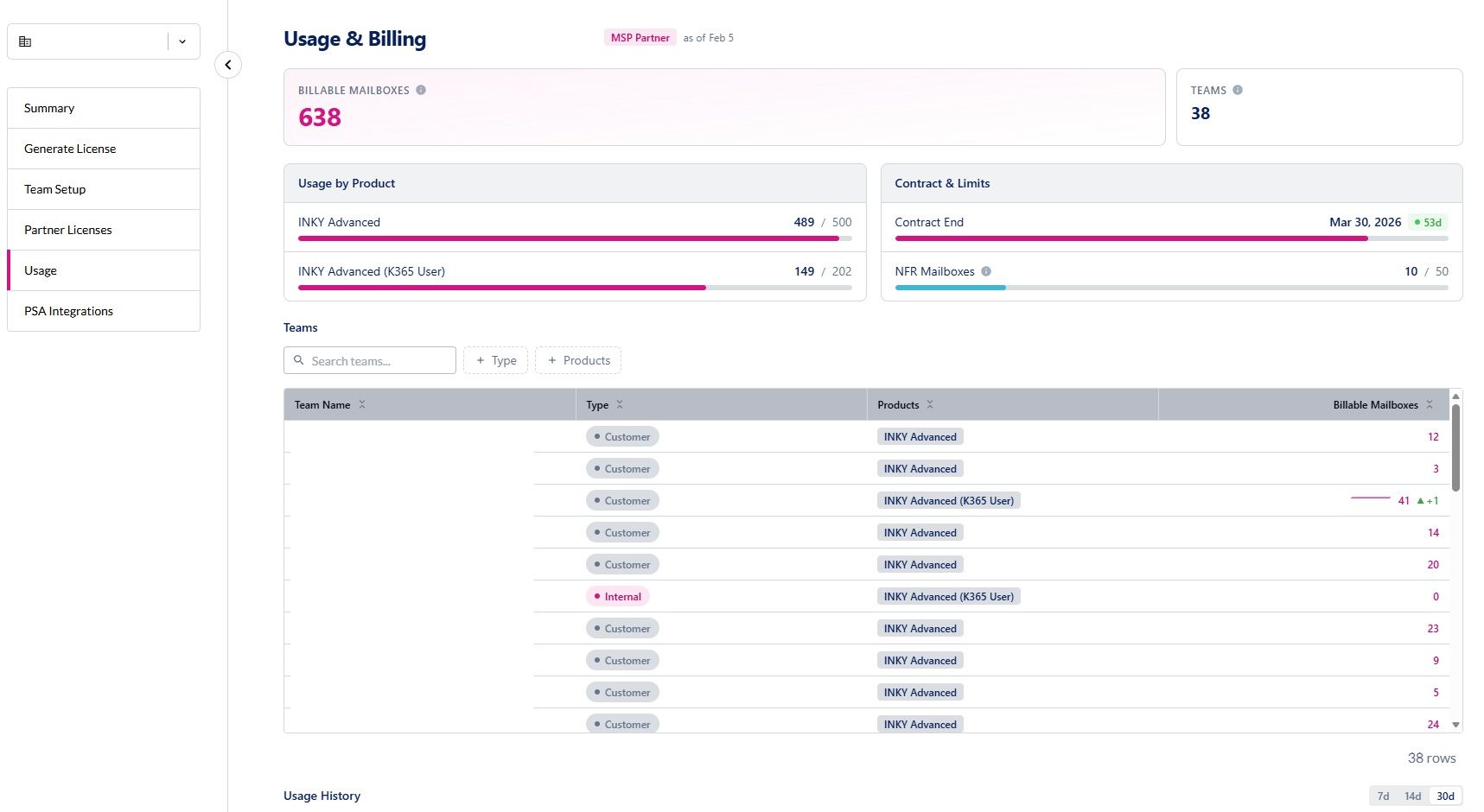
Billing Metrics
At the top of the page, you'll see key metrics for your account:
Usage by Product
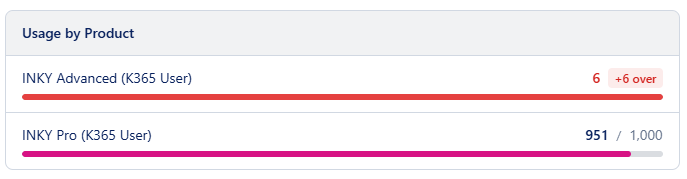
The Usage by Product panel shows your current mailbox count for each subscribed product compared to your committed quantity. Each product displays a progress bar:
Within limits: The bar shows your current usage relative to your commitment
Over committed: The bar turns red and shows the overage amount (e.g., "+15 over")
This helps you quickly identify whether any products are approaching or exceeding their committed quantities, which affects overage billing.
Contract & Limits
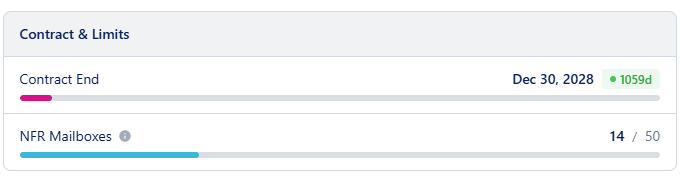
The Contract & Limits panel shows:
Contract End Date — Your contract expiration date with a status indicator:
Active (green) — More than 30 days remaining
Expiring (amber) — 30 days or fewer remaining
Expired (red) — Past the contract end date
Ended, with a No subscription badge — Your subscription has ended and there is no current contract
NFR Mailboxes — Your internal mailbox count relative to the 50-seat NFR cap
If your contract shows as Expiring, Expired, or Ended, contact your account manager or Kaseya support to discuss renewal.
→ Learn more about NFR Licenses for Partners
Migration Teams
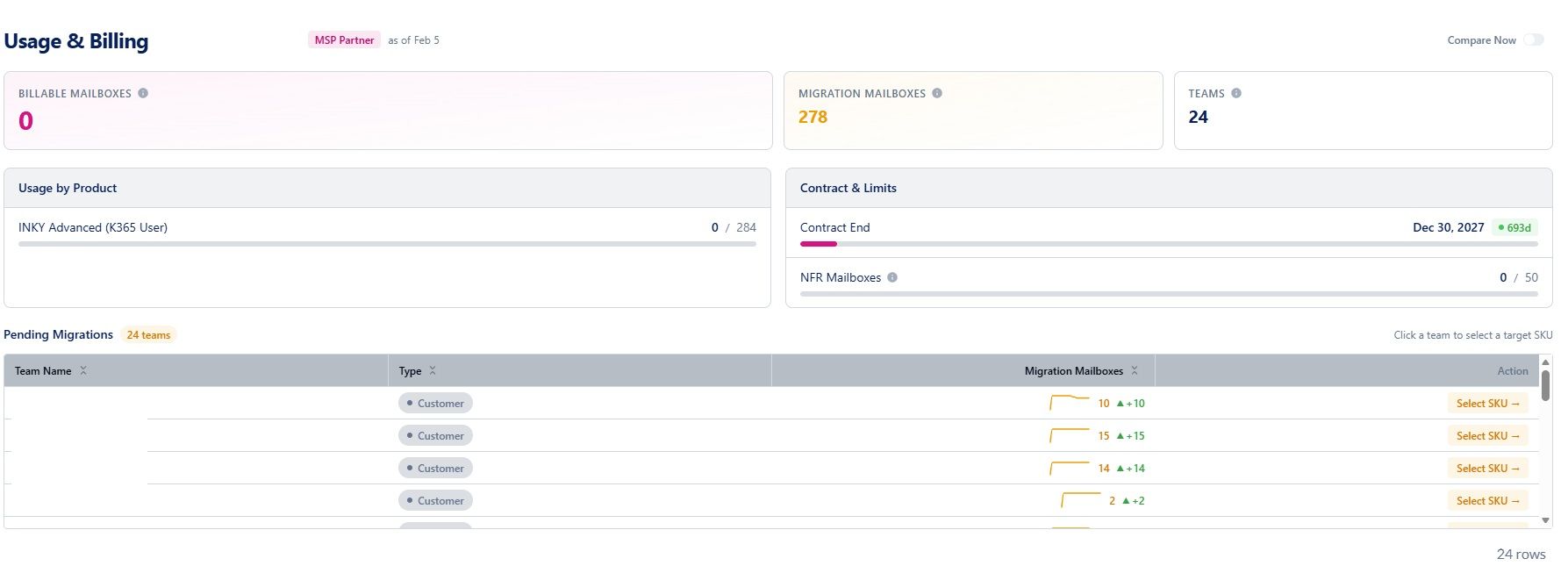
If your account has teams that haven't yet migrated to your current contract, they appear in the Migrations table. These teams are transitioning from a prior INKY product and need to be assigned a product under your current contract.
Each row shows the team name, type, and migration mailbox count. Click a team row to open the team detail panel where you can assign a product.
Once all teams have been migrated, this section no longer appears.
Teams Table
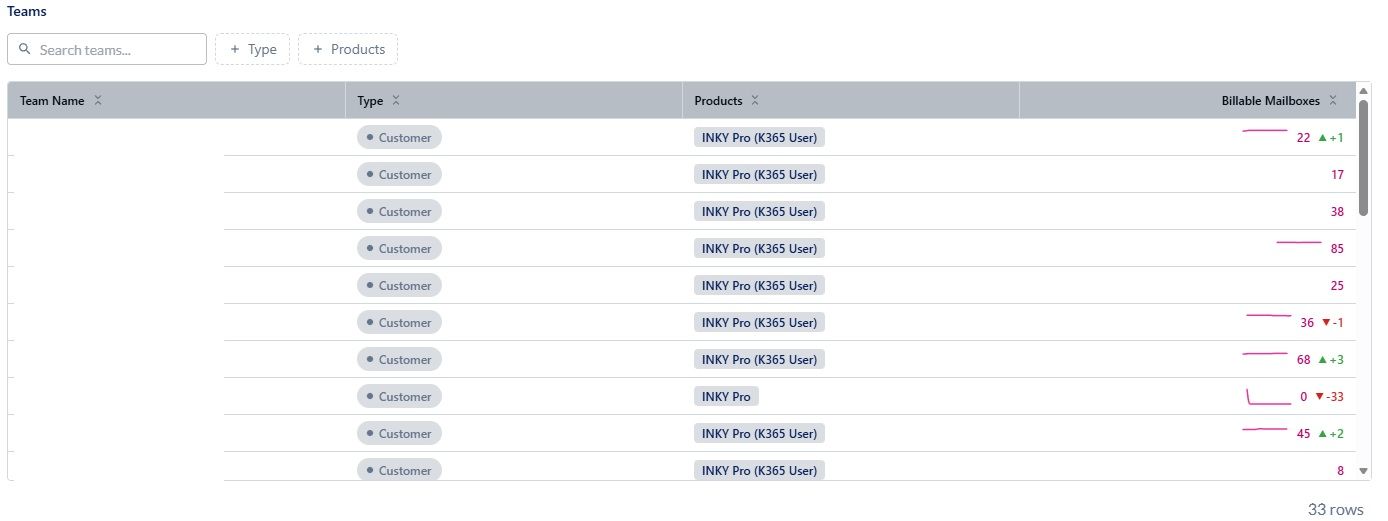
The main teams table lists every customer team under your account. Each row includes:
Team name
Type — "Internal" (your own organization) or "Customer"
Products — The product assigned to this team
Billable Mailboxes — Current count with a sparkline showing the recent trend
Use the toolbar to:
Search for teams by name
Filter by Type — Internal or Customer teams
Filter by Products — Show only teams on a specific product
Reset — Clear all filters
A team assigned a product that your subscriptions don't cover shows a Not licensed pill next to its product. This includes your own (Internal) team.
Click any team row to open the team detail panel.
Team Detail Panel
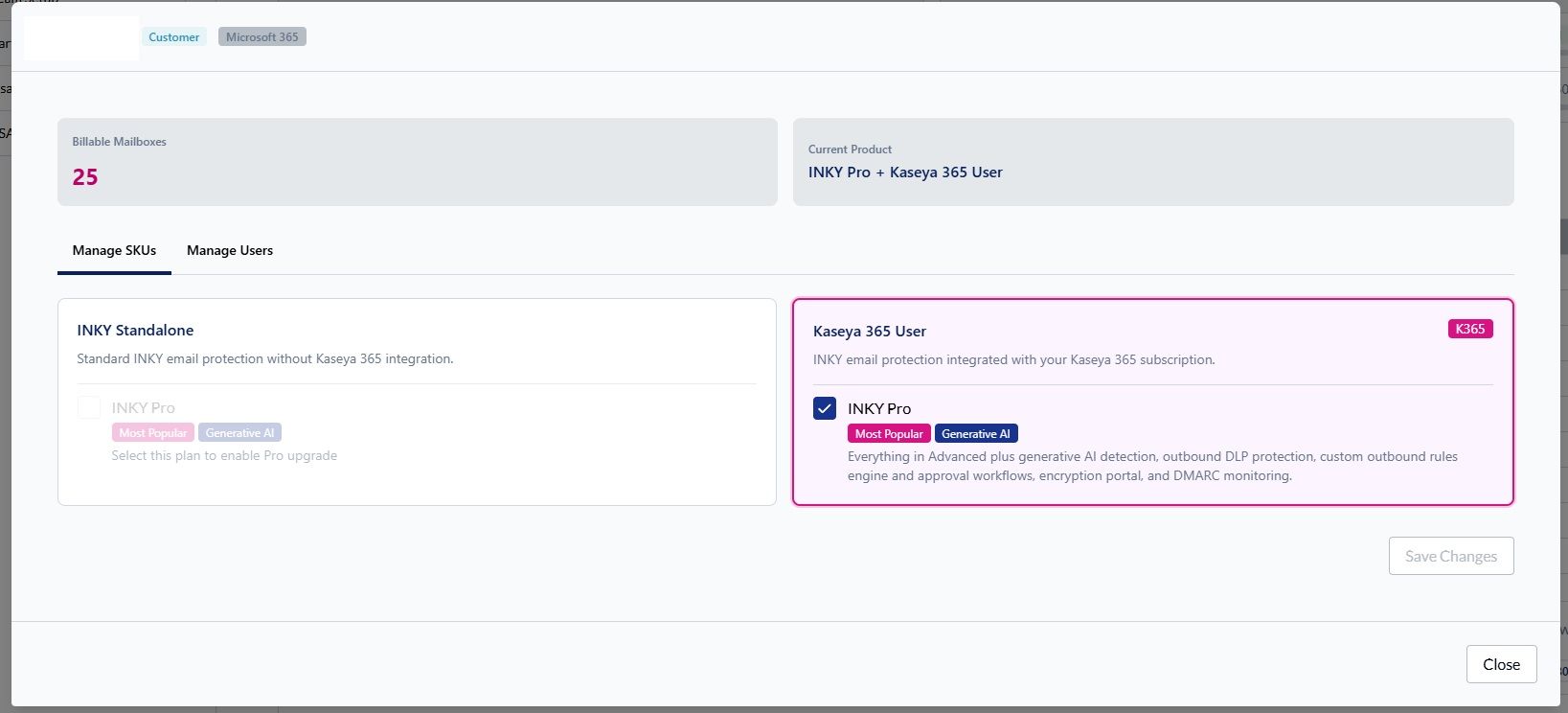
Clicking a team row opens a detail panel with two tabs:
Manage Products
View and change the product assigned to this team. Select a new product from the dropdown and click Save to apply the change.
Your own (Internal) team's products are managed by INKY, so this tab doesn't offer a product change for it. Contact your Kaseya Account Manager to change them.
Manage Users
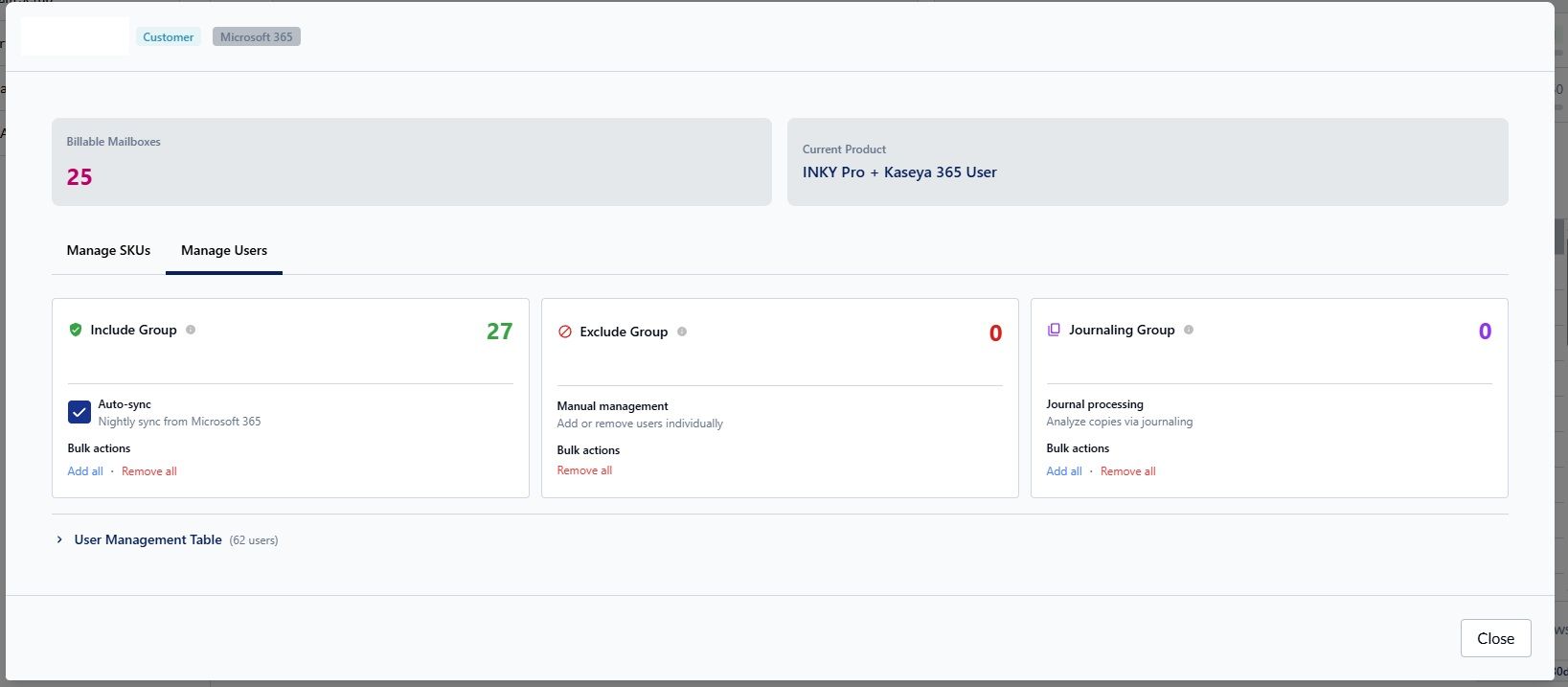
View and manage which users are protected by INKY for this team. The options depend on the team's email platform:
Microsoft 365 — Manage Include, Exclude, and Journal group membership directly from the panel
Google Workspace — User management is done through the Google Admin Console
→ Adjust Billable Users in Microsoft 365
→ Adjust Billable Users in Google Workspace
Historical Trends
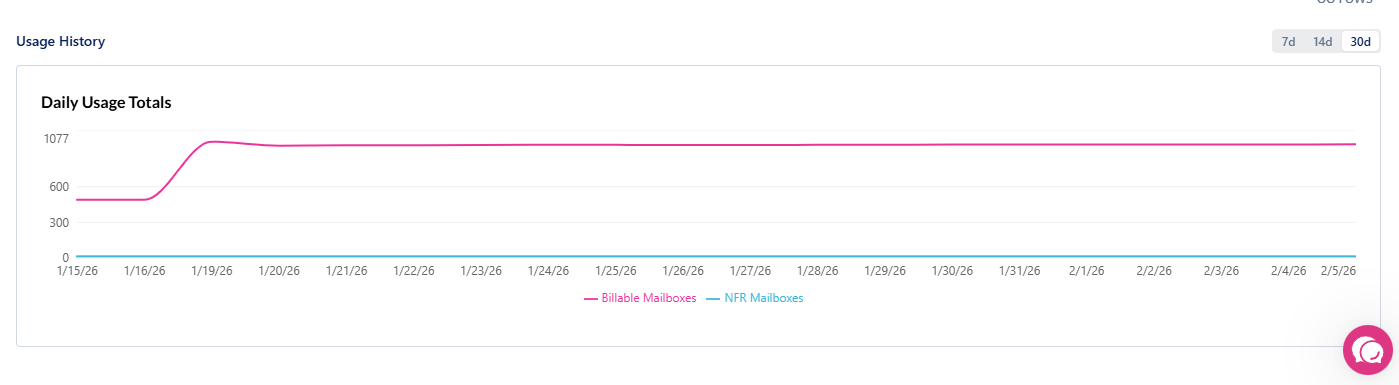
At the bottom of the page, a line chart shows your daily usage over time. You can toggle between 7-day, 14-day, and 30-day views.
The chart displays separate lines for:
Billing — Total billable mailboxes
NFR — Internal (Not For Resale) mailboxes
Migration — Mailboxes pending migration (if applicable)
Use this chart to spot trends — for example, a steady increase in billable mailboxes as you onboard new customers, or a decrease in migration mailboxes as teams complete their transition.
Common Questions
How often is usage data updated? Usage data is captured nightly. The "Data As Of" date at the top of the page shows when the most recent snapshot was taken.
Why don't I see the Usage page? The Usage page is available to accounts with an active Kaseya contract. If you don't see it, contact your account manager to verify your account configuration.
What are migration mailboxes? Migration mailboxes belong to teams that are transitioning from a prior INKY product to your current contract. These teams need to be assigned a product. Once migrated, they move to your regular billing count.
My product usage shows an overage — what happens? Overages beyond your committed quantity are billed in arrears on your next invoice. → Understanding INKY Billing
My contract shows as Expiring or Expired — what should I do? Contact your account manager or Kaseya support to discuss renewal options.
Related:
Still need help? Ask the team