Resolving Load Body issues
Written By Eric Heller
Last updated About 2 months ago
Clicking Load Body on the Body tab of a selected email on the INKY Observations page retrieves the full content of a flagged email for review.
If the button fails to display the email content or is unresponsive, the cause is typically a permissions gap, an API configuration issue, a browser or session problem, or the message is no longer available in the mailbox.
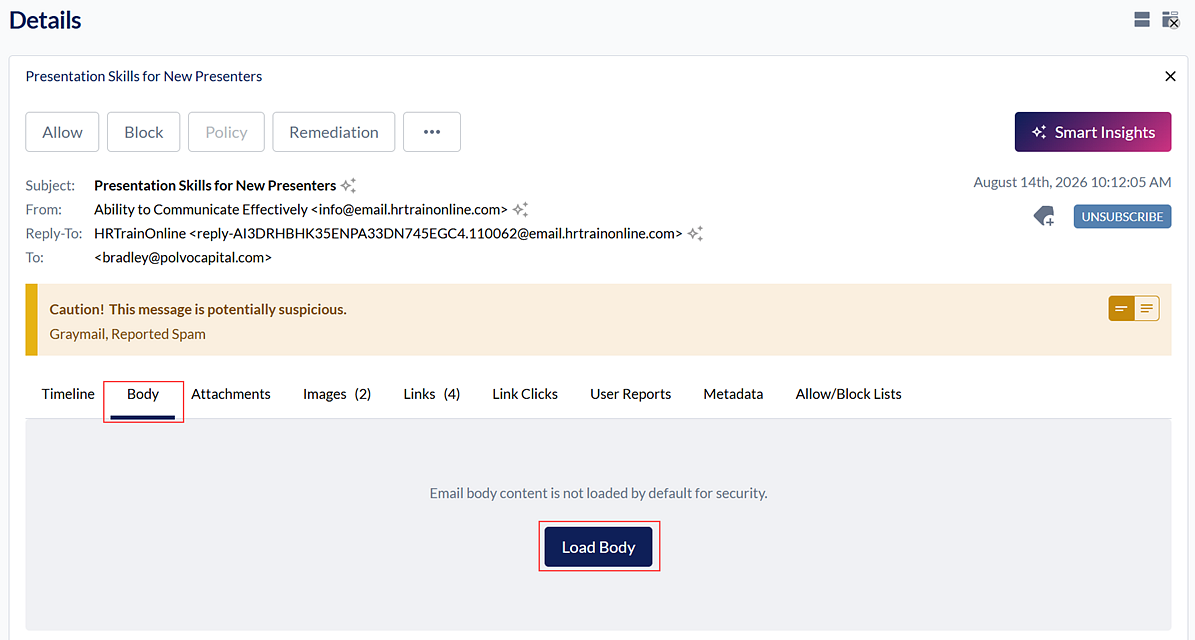
Symptoms
Load Body button is unresponsive for all messages.
Load Body button is unresponsive for specific messages only.
Clicking Load Body results in a white screen or an error message.
Email body does not display after clicking Load Body.
Causes
Insufficient permissions: The INKY admin account does not have the required INKY role or a supported Microsoft 365 (M365) or Google Workspace role to retrieve message bodies.
API integration not configured: The required API integrations, such as Microsoft Graph Application Programming Interface (API) with delegated access, are not enabled in the INKY Admin Center.
Browser or session issue: A cached session, browser extension, or expired login is preventing the body from loading.
Message not available: The email has been deleted, quarantined, altered by an external security tool, or is outside the retention window.
Resolution steps
To resolve this issue, complete the following steps:
Verify account permissions.
a. Confirm the INKY admin account has one of the following INKY roles: Viewer, Analyst, Policy Admin, or Super Admin.b. Confirm the account also holds one of the following roles:
M365: Global Administrator, Exchange Administrator, Security Administrator, Security Operator, Security Reader, Global Reader, Compliance Administrator, or Compliance Data Administrator.
Google Workspace: Super Admin, or Delegated Admin with Security Investigation Tool privilege.
c. If permissions were recently changed, re-consent and re-authorize INKY access in the Admin Center.
Confirm API integrations are enabled.
a. Navigate to Admin Center > API Access.
b. Click the applicable tab: Microsoft Graph API Access or Google API Access.
c. In the Domain & Directory Access section, verify that access has been granted. If it has not, follow the on-screen instructions to grant access.
d. Verify that Delegated Access to Tenant is enabled. If it is disabled, enable it.
Rule out browser and session issues.
a. Log out of the INKY portal and log back in.
b. Try a different browser or open an incognito or private window.
c. Clear your browser cache and disable any script-blocking extensions.
d. Confirm your session is active and has not expired.
Check message availability.
a. Confirm the email still exists in the user's mailbox and has not been deleted, quarantined, or altered by an external security tool.
b. If the message is outside the retention window or only metadata was retained, INKY cannot retrieve the body.
Escalate if the issue persists.
a. If Load Body is unresponsive for all messages, the cause is likely a permissions, API, or session issue.
b. If Load Body is unresponsive for specific messages only, the cause is likely a retention or message availability issue.
c. If you see an error message or white screen, capture the exact error text.
d. Escalate to Kaseya Support with the following information:
- The exact error message or description of the behavior.
- The affected user account.
- Whether the issue affects all messages or specific messages only.
Tips and tricks
To quickly narrow down the cause, test Load Body on several messages from different dates and senders. If all messages fail, focus on permissions and API configuration first. If only older messages fail, the retention window is the most likely cause. If the issue is intermittent, a session or browser problem is most likely. Log out, clear the cache, and log back in before re-testing.
Related articles
Was this helpful?
Still need help? Ask the team