Run an Email Log Search in Google Workspace
Google Workspace's Email Log Search shows you exactly what happened to a message as it moved through your email system. When emails go missing, land in spam, or users report delivery problems, the email logs tell you where the message went and why.
Written By Matt Sywulak
Last updated 12 months ago
When you need email logs
Use Email Log Search when troubleshooting delivery issues with INKY support or investigating mail flow on your own. The logs show whether messages reached INKY for analysis, which routing rules applied, and where Google ultimately delivered the message. This information is critical when diagnosing missing emails or suspected phishing that wasn't caught.
Run a basic search
Log into the Google Admin console at admin.google.com/ac/emaillogsearch with your admin account. You'll land directly on the Email Log Search page.
Search using the sender's email address, recipient's email address, or the message ID from the email headers. For most troubleshooting scenarios, searching by sender and recipient gives you what you need. The message ID provides the most precise results when you're tracking a specific email.
Google searches the last 30 days of email logs by default. You can narrow the date range if you know when the message arrived, which speeds up searches in busy environments.
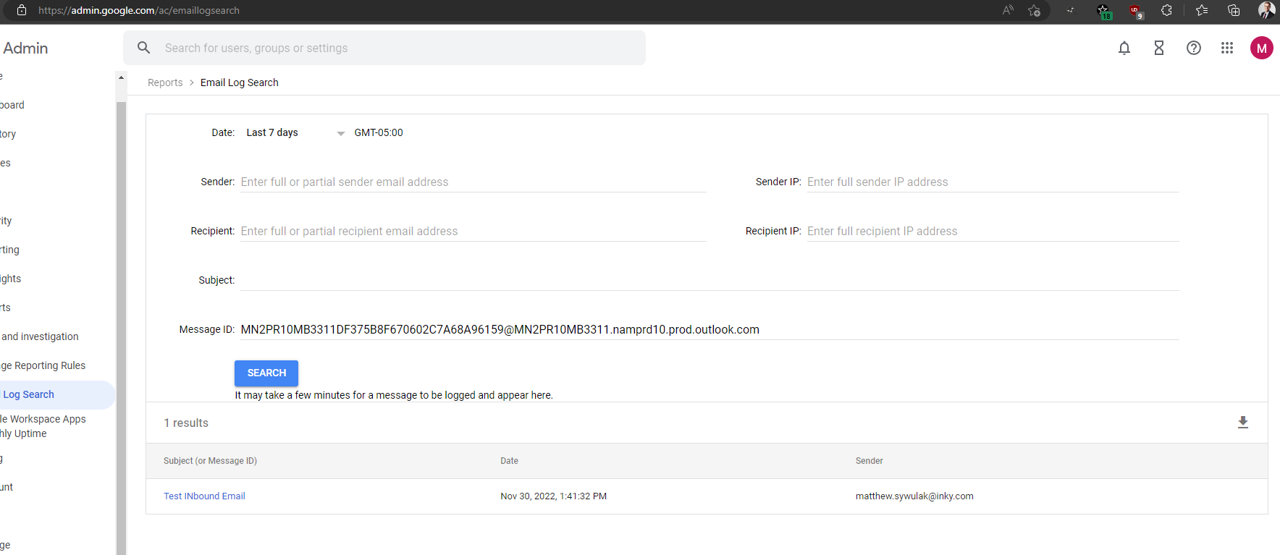
Capture the results
When you find the message in the search results, click on it to expand the full details. Take a screenshot of the entire output panel - this captures all the delivery information, routing decisions, and status codes that INKY support needs to diagnose issues.
The expanded view shows the complete message path including sender authentication results (SPF, DKIM, DMARC), spam classification, routing through external systems, and final delivery status. Make sure your screenshot includes all of these details from top to bottom.
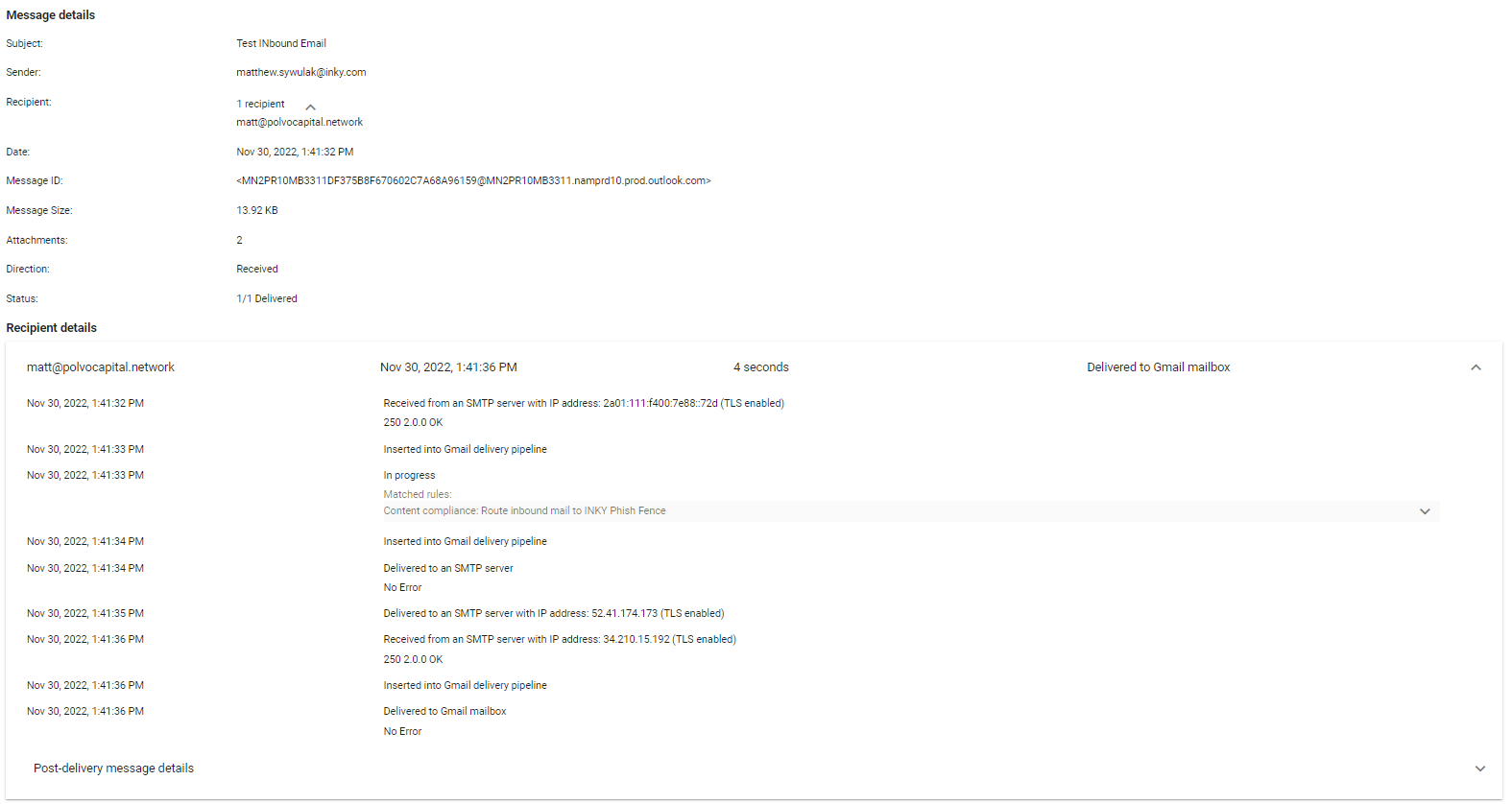
Understanding the log output
Google's email logs show several key pieces of information. The top section displays basic message details like subject, sender, recipient, and timestamp. Below that, you'll see authentication results showing whether the sending domain passed security checks.
The most important section shows the message disposition - whether Google delivered it normally, marked it as spam, or sent it to an external service. For INKY-protected organizations, you should see routing to INKY's mail servers as part of the delivery path.
Look for entries showing the message being sent to or received from external servers. INKY processes messages through external routing, so you'll see the message leave Google Workspace for analysis and return after INKY evaluates it.
What INKY support needs
When contacting INKY support about a Google Workspace delivery issue, provide screenshots of the complete email log entry. The logs show whether the message reached INKY, what security checks occurred, and how Google handled delivery afterward.
INKY support specifically looks for routing information showing the message path through INKY's systems and any spam or threat classifications that Google or INKY applied. If something went wrong, these details reveal exactly where in the process things broke down.
Reading routing information
Messages in INKY-protected Google Workspace environments follow a specific path. You should see the message being routed to INKY's mail servers, then received back from INKY after analysis. Google's logs show these external hops with IP addresses and server names.
If you don't see external routing to INKY in the logs, the message bypassed INKY analysis. This usually indicates a mail routing configuration issue or an exception rule that prevented INKY from scanning the message.
Google Workspace vs Microsoft 365
Google's Email Log Search is simpler than Microsoft 365's Message Trace but provides less detail. You won't see the granular transport rule execution that M365 shows, but you will see the final routing decisions and delivery status.
The logs clearly show spam classifications and authentication failures, which helps identify why legitimate messages might be blocked or why phishing emails got through. Google's interface updates immediately, whereas M365 message traces can take a few minutes to populate for recent messages.
Troubleshooting with email logs
If messages aren't reaching INKY for analysis, check whether the logs show external routing to INKY's servers. Missing external hops means your mail routing configuration isn't sending messages to INKY properly.
For false positives where legitimate mail was blocked, the logs reveal which system made the blocking decision - Google's spam filter before INKY saw it, INKY's analysis, or Google's filter after INKY processed it. This tells you where to adjust sensitivity settings.
When messages disappear completely, the logs show whether Google rejected them at the edge, quarantined them, or delivered them to an unexpected destination like a group address or alternative inbox.
Search tips for complex investigations
You can combine search parameters to narrow results in busy environments. Search for both sender and recipient together when tracking specific conversations. Use date ranges to focus on when the issue occurred rather than searching all 30 days of logs.
For bulk investigations like checking whether an entire phishing campaign reached your users, search by sender domain or subject keywords. This reveals patterns in how threats are being handled and whether any slipped through INKY's protection.
Still need help? Ask the team