Bypass INKY in Google Workspace
Written By Matt Sywulak
Last updated 12 months ago
The authenticated email bypass list exempts automated messages from trusted sources from INKY bannering. Use this for check-in notices, ticketing systems, or newsletters that don't need security warnings.
Critical: Messages must pass DMARC authentication (either SPF or DKIM) to bypass INKY. Unauthenticated email will still be analyzed regardless of bypass rules.
Create the Bypass List
Navigate to: Google Admin Console > Apps > Google Workspace > Settings for Gmail > Routing > Manage address lists
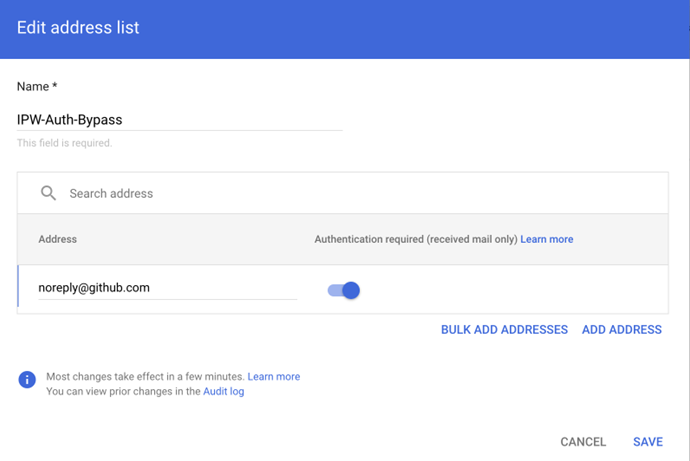
Select: ADD ADDRESS LIST
Name: IPW-Auth-Bypass
Add addresses: Enter sender addresses to bypass (e.g., noreply@github.com, alerts@jira.example.com)
Keep "Authentication required" selected - This ensures only legitimate messages from these addresses bypass INKY
Apply to Mail Routing
Navigate to: Apps > Google Workspace > Settings for Gmail > Compliance > Content compliance
Edit: "Route inbound mail to IPW" (your existing INKY routing rule)
Select: Show options
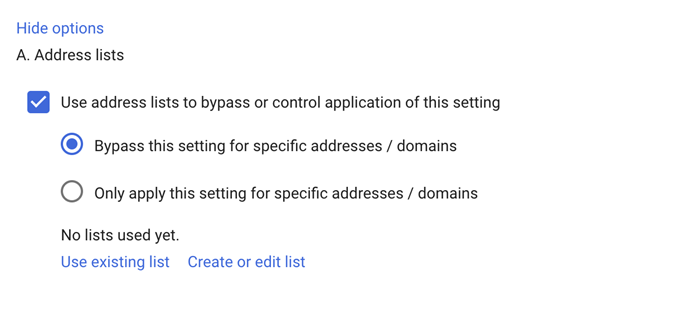
Enable: "Use address lists to bypass or control application of this setting"
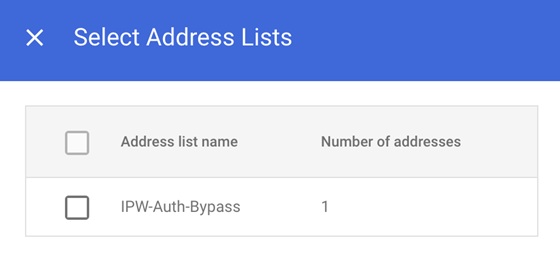
Choose: Use existing list > IPW-Auth-Bypass
Save
Key security note: The authentication requirement protects against spoofing. Even if you add a sender to the bypass list, messages failing authentication still get analyzed.
Best practice: Review your bypass list quarterly to remove outdated automated senders.
Still need help? Ask the team