Resolving Google Calendar email bounce errors in INKY
Written By Eric Heller
Last updated About 2 months ago
Google generates calendar-related email, such as invites, updates, and cancellations, differently from standard email. When INKY modifies one of these messages, Google's mail system can reject it and return a bounce, an automated reply from a mail server stating that a sent email failed to reach the recipient. This article explains why Google Calendar email is affected, and how to configure INKY so these messages deliver normally.
Symptom
A Google Calendar invite, update, or cancellation processed by INKY fails to deliver. The sender receives a bounce message similar to “Undelivered Mail Returned to Sender.” This most often affects calendar invites, updates, and cancellations sent to external attendees.
Causes
Google sends calendar-related emails using:
Special email headers
Unique sender formats
Embedded calendar payloads, such as text/calendar content or ICS attachments
Message formats that may not include traditional clickable links
Calendar invites are highly sensitive to modification. If INKY rewrites links or inserts banners or other markup into these messages, Google may reject the modified email and generate a bounce notification.
INKY processes all inbound and outbound mail, depending on your configuration. The INKY features most likely to trigger this issue are:
Email markup and banner insertion
Link rewriting (URL protection)
Resolution steps
Prevent INKY from modifying Google Calendar emails while keeping other INKY protections active for the rest of your mail flow. Choose one of the following procedures based on your environment and preferences. If a procedure resolves the issue, you do not need to complete the remaining procedures.
Disable link rewriting for calendar email
Use this procedure to prevent INKY from rewriting links in messages sent by Google Calendar notification addresses. Link rewriting exceptions allow INKY to skip URL protection for specific sender addresses and destination hosts, which stops Google from rejecting the modified messages.
To disable link rewriting for Google Calendar email:
In INKY, select Admin Center > Markup.
In the Team selector field, select the root organization (building icon) to disable calendar email link rewriting for all teams in your organization, or select a specific team to disable it for that team only.
In the Link Rewriting section, confirm that Rewrite links to enable real-time checks after initial processing is already selected.
Click Edit.
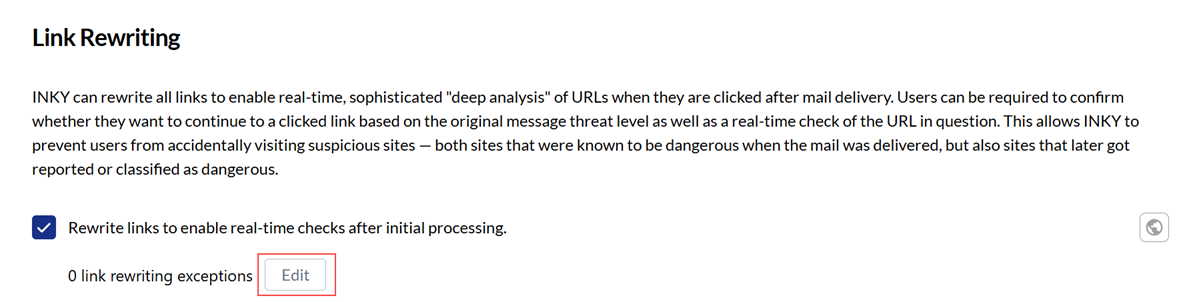
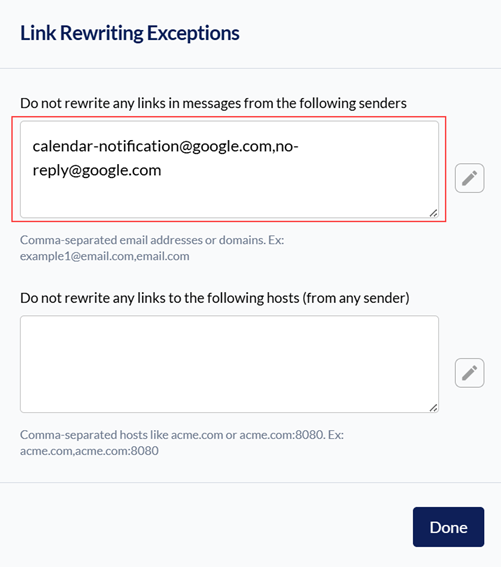
The Link Rewriting Exceptions dialog box is displayed. In the Do not rewrite any links in messages from the following senders field, enter calendar-notification@google.com,no-reply@google.com. Important: Do not enter a space after the comma.
In the Do not rewrite any links to the following hosts (from any sender) field, enter calendar.google.com.
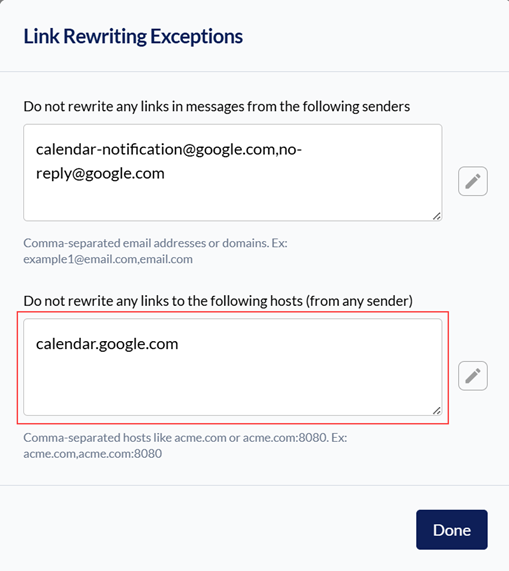
Click Done.
Configure special message type handling for calendar email
Use this procedure to instruct INKY to leave calendar-related messages completely unmodified. The Special Message Types setting applies globally to all meeting requests and calendar notifications, so no message-by-message configuration is needed.
To configure special message type handling for Google Calendar email:
In INKY, select Admin Center > Markup.
In the Team selector field, select the root organization (building icon) to apply the setting to all teams, or select a specific team to apply it to that team only.
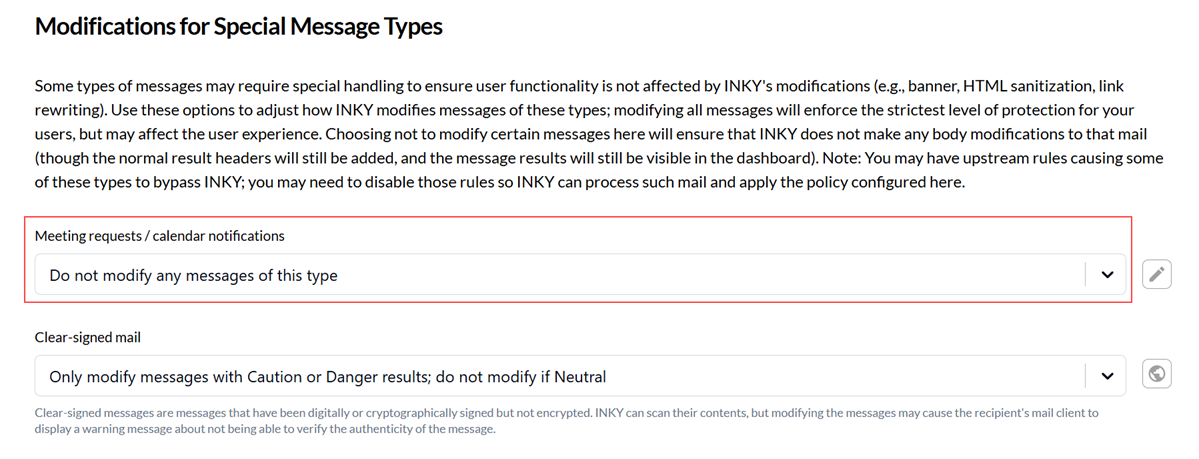
Scroll to the Modifications for Special Message Types section.
In the Meeting requests/calendar notifications drop-down list, select Do not modify any messages of this type.
Click Save Changes.
What not to do
Don't globally disable INKY.
Don't allowlist the entire google.com domain unless required.
Don't rely on users to manually work around blocked or modified calendar invites. Fix the mail flow configuration instead.
What to gather before contacting support
If the options above don't resolve the issue, gather the following before contacting INKY Support:
Review the email tracking or message trace results for the affected message in Google Workspace Admin Console or Microsoft Exchange to identify the cause of the delivery failure, such as an invalid recipient address, SPF, DKIM, or DMARC validation failures, or a mail routing loop.
The .eml file of a failed calendar invite, for further analysis.