Changelog

Follow new updates and improvements to INKY.

INKY Dashboard v1.10.7
New Features

AI Recommendations, now in beta for everyone

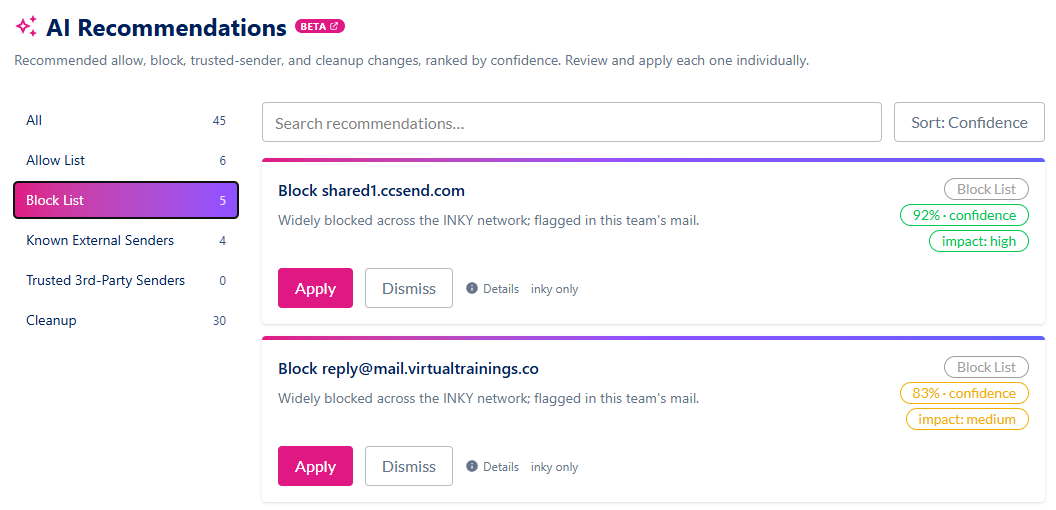
Review suggested allow list, block list, trusted-sender and cleanup changes for your team, and apply the ones you agree with.
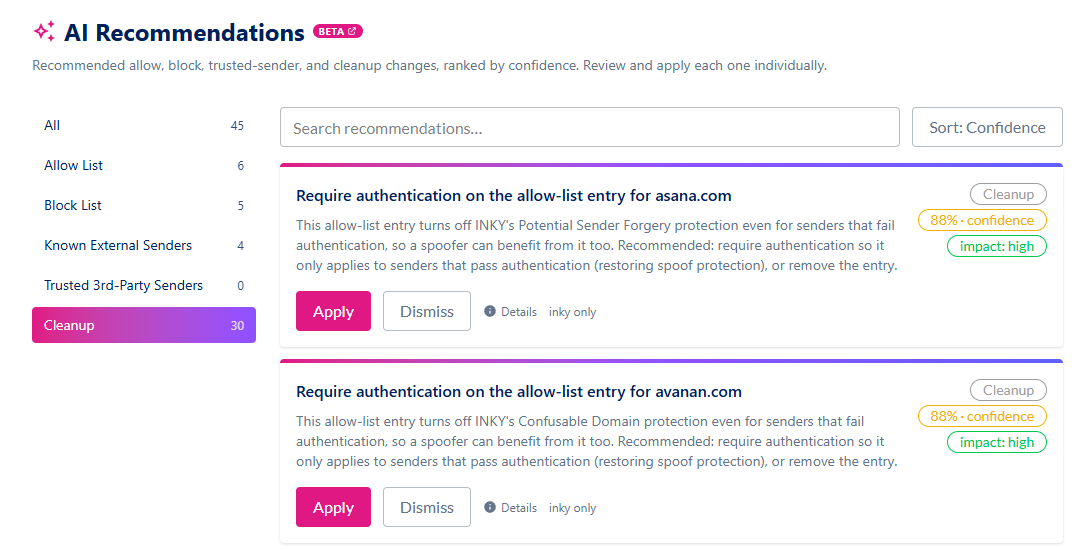
  • A new AI Recommendations page in Settings, just below Summary, lists recommendations built from your team's mail flow, sorted by confidence or impact. They also appear as a tab on the Allow List and Block List pages, as a "recommended" count on the Known External Senders and Trusted Third-Party Senders sections of Analysis settings, and as a card on the Overview page.

  • Each recommendation says what it would change, why, how confident INKY is, and whether it applies org-wide or to one team. Apply asks you to confirm, then makes the change. Dismiss sets it aside. Nothing is applied automatically.

  • Recommendations come from rule-based analysis of your mail flow. When LLM assistance is on, an LLM reviews them and can only keep, demote or drop a recommendation. Turning off LLM assistance in Analysis settings stops that review.

  • Learn more: AI Recommendations

Improvements

Product compliance you can act on

Spot teams whose product is not covered by your subscriptions, and get straight to fixing them.
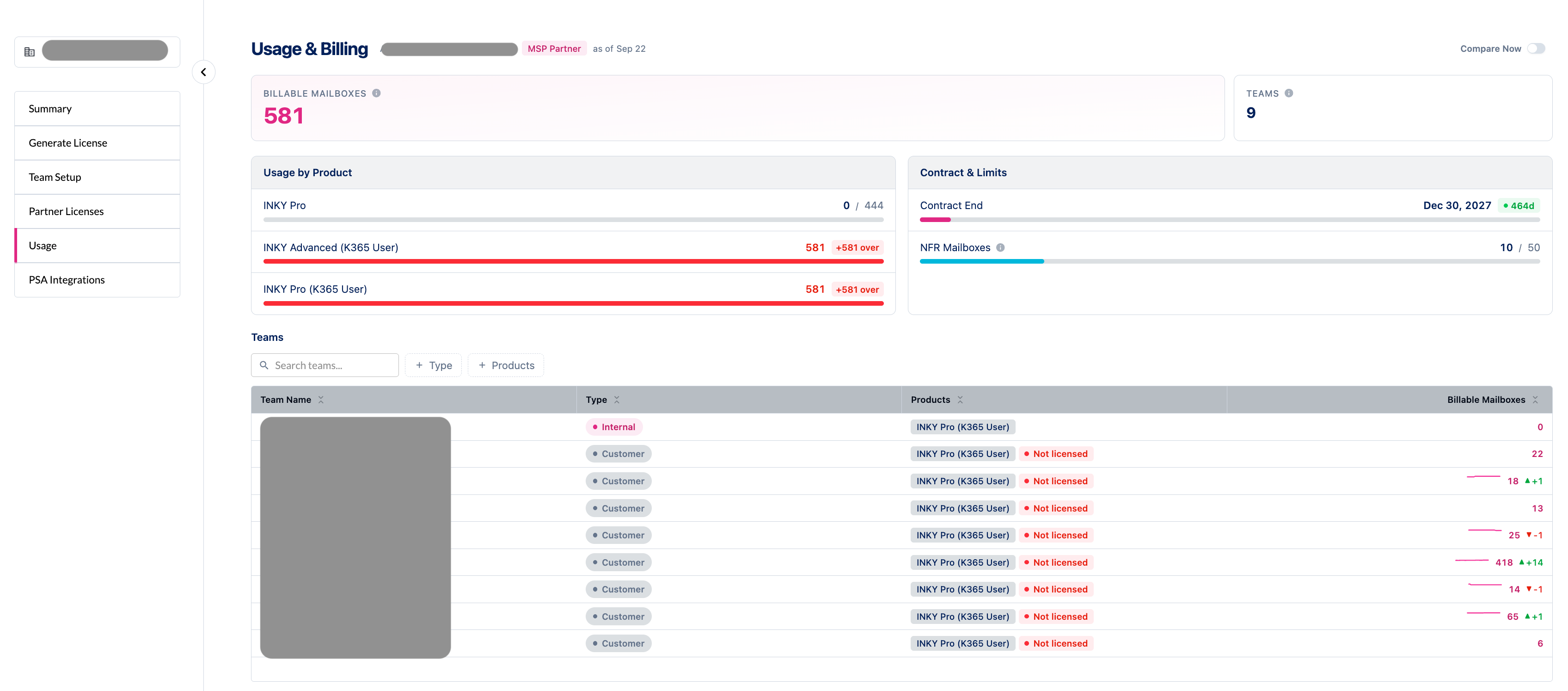
  • On the Summary page, a team whose product is not covered shows a red warning icon in the Products column, in place of a red check.

  • The "Product assignments need attention" notice is now red, with a Review Products button that opens the Usage page. The button is shown to partner admins. Other admins still see the notice.

  • Your own team is now marked "Not licensed" on the Usage page and in Partner Center when its product is not covered, matching the banner at the top of the dashboard.

  • Your own team's products are managed by INKY, so the Usage page, Partner Center and the notices now say to contact your Kaseya Account Manager to change them, in place of a products form you could not use.

  • Learn more: Usage & Billing Dashboard for Partners

Faster page loads for accounts with many teams

Pages open without waiting for the full team list.

  • The dashboard now restores your selected team straight away and loads the team list in the background. On accounts with many teams, pages could previously wait up to 30 seconds for that list before showing anything.

  • The team selector shows that it is still loading until the list arrives, and then works as before.

Clearer product choices when setting up a team

The product form now says which products you can select, what your own team's free NFR allowance covers, and what each unavailable option needs.
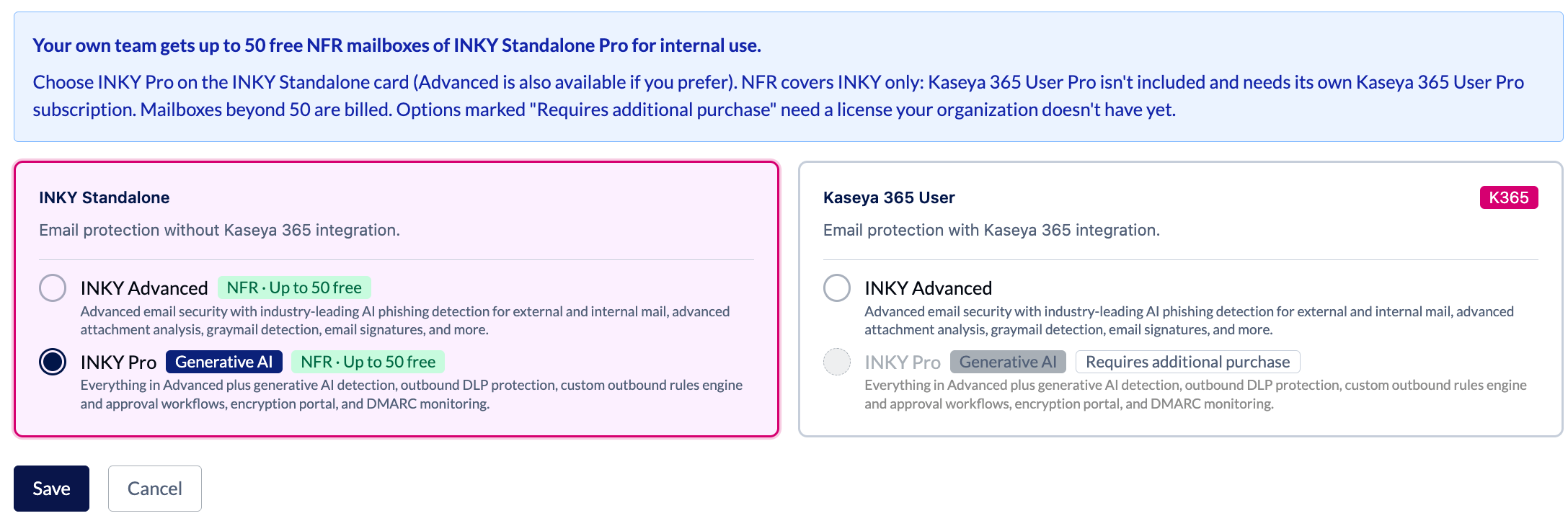
  • On your own team, a note above the product cards says you get up to 50 free NFR mailboxes of INKY Standalone Pro for internal use. It also says NFR covers INKY only (Kaseya 365 User Pro needs its own Kaseya 365 User Pro subscription) and that mailboxes beyond 50 are billed. INKY Advanced and INKY Pro on the INKY Standalone card are both marked "NFR Β· Up to 50 free".

  • Your own team's product form now opens on INKY Standalone Pro, the tier NFR covers. If your organization has Kaseya 365 User Pro, it opens on that as before.

  • Each option that needs a license your organization doesn't have yet is marked "Requires additional purchase", and a note above the cards explains what that means. This applies wherever you choose products: the Summary page, the Usage page, team import and license generation.

  • Choosing INKY Standalone on your own team no longer asks you to confirm skipping Kaseya 365, since NFR covers it.

Negate a whole group of outbound rule conditions

Write a rule that applies when a combination of conditions does NOT match.

  • The condition builder has a negation toggle on the border of the condition group. Turn it on and the rule applies when the combined conditions do not match, rather than when they do. The group is outlined and marked while negation is on.

  • It is available in workflow rules and in the Additional Conditions of the burst, dangerous links, and spam and phishing detectors used by Account Takeover detection.

  • Individual conditions can still be negated on their own, as before.

  • Learn more: Configure Workflow Rules

Clearer account takeover enforcement messages

Tell at a glance what INKY did with a message, what an admin decided, and where it ended up.

  • The message table in an expanded enforcement on the Threat Center Outbound Protection tab now has three separate columns. ATO Result is what the enforcement rule did (Quarantined, Discarded or Delivered). Action is the admin decision: Approve and Reject while a message waits, then Approved, Denied, or Expired if no one decided in time. Status is where the message finally ended up.

  • A message whose approval window expired with no decision is counted as Discarded.

  • On narrow screens each message is shown as a card of labelled values instead of a clipped table row.

  • Learn more: Using the Threat Center Page

Fixes

Usage & Billing

  • An account whose subscription has ended now says so. The Contract & Limits panel shows Ended with a No subscription badge, where it previously disappeared and the page looked like an account that had never bought anything. Learn more: Usage & Billing Dashboard for Partners

  • Compare Now finishes. It often stopped checking after its first attempt and never showed current usage until it was turned off and on again. It now keeps checking until the comparison is ready, and says so if it is taking longer than usual.

  • Product names in the teams table line up, with the licensing badge after the name, and the comparison strip no longer changes height when a comparison comes back with no changes.

  • Teams with no licensing record, such as older trials, no longer show a "Licensing unknown" pill or a red icon on the Usage page, in Partner Center, or on the Summary page.

Kaseya 365 confirmation

  • The dialog asking you to confirm a product selection without Kaseya 365 no longer appears when Kaseya 365 was not available to choose. It previously opened on every submit for partners whose license does not include it, with no way forward except Continue Anyway. It now appears only when you passed up an option you could have selected, on the Usage page, the Summary page, team import, and license generation.

Threat Center

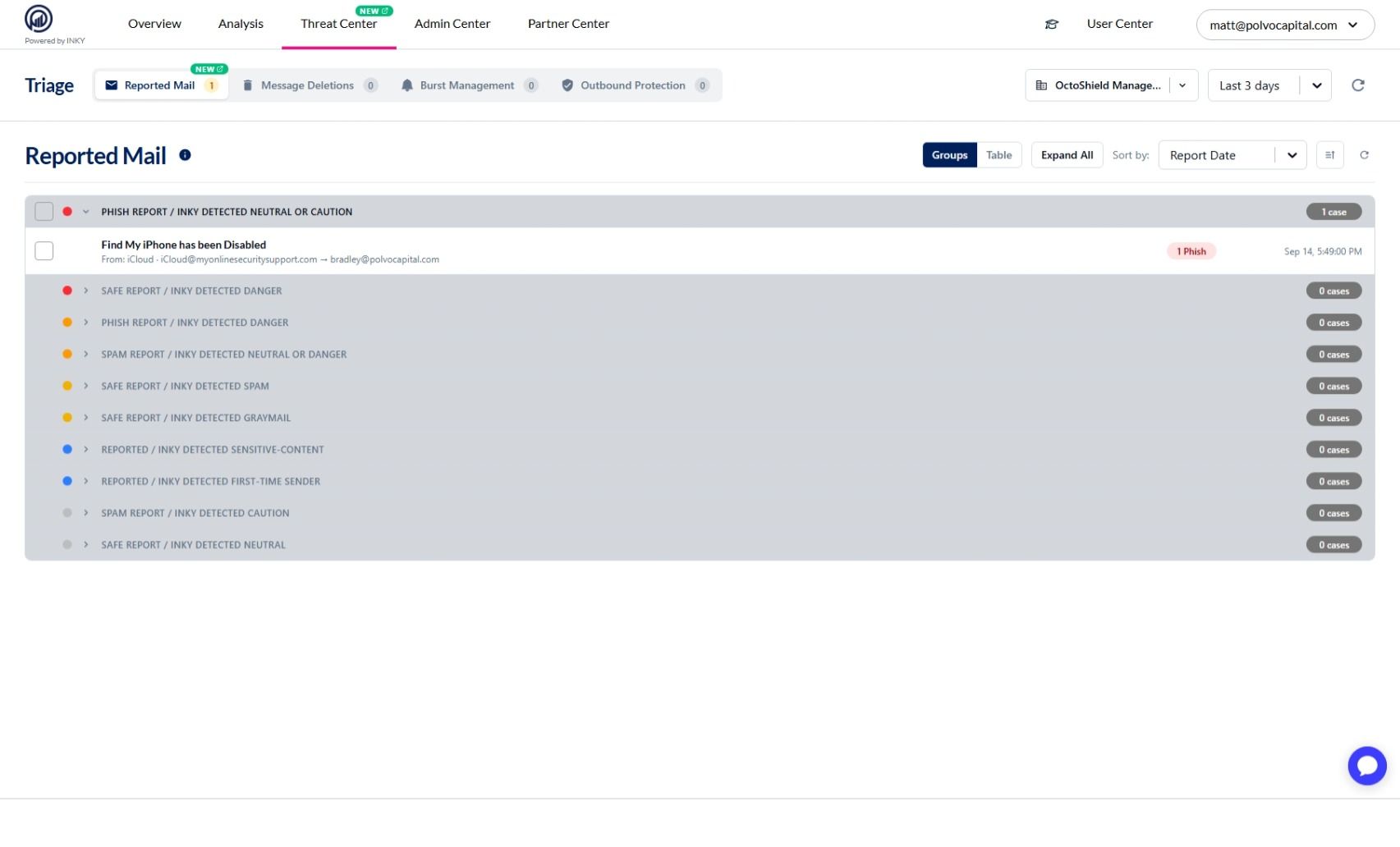
  • The Threat Center page heading says Threat Center. It still read Triage, the page's former name, although the navigation and browser tab had already changed.
NewImprovedFixed

INKY Dashboard v1.10.3

New Features

Threat Center is out of beta

Review and act on the mail that needs attention, from one page.

  • Threat Center is generally available. It brings the queues that need a decision into one place β€” reported mail, in-flight message deletions, burst activity, and account takeover enforcements β€” each with a live count in the tab bar so you can go straight to the one that needs work.

  • It was previously called Triage; the name changed in an earlier release and the tabs are unchanged.

  • Learn more: Using the Threat Center Page

Reported Mail is on for every team

See what your users reported, grouped by message, and act on the whole group at once.

  • Reported Mail was enabled team by team while it rolled out. It is now available to all teams as the first tab in Threat Center.

  • Reported emails are grouped by message rather than listed one report at a time, so a message several people reported is one row you act on once.

  • Learn more: Reported Mail

Account Takeover detection is out of beta

Spot a compromised account by the way it starts sending, and act before it reaches your customers.

  • Account Takeover (ATO) detection is generally available. It scores outbound mail from each of your users on three signals β€” message bursts, dangerous links, and spam or phishing content β€” and puts a user into enforcement mode when their score crosses a risk level you have configured.

  • While a user is in enforcement, their outbound messages are delivered, quarantined or discarded according to the action you set for that risk level, and your ATO enforcement approvers are notified so they can review the messages and release the user.

  • Learn more: Account Takeover (ATO) Detection

Improvements

Clearer, more accurate LLM Assistance settings

Understand exactly what the setting governs and where your content goes.

  • The Analysis section formerly named "Smart Insights" is now "LLM Assistance", which is what the setting has always governed. It covers Smart Insights deep dives, a closer look at borderline messages, and review of AI Recommendations.

  • The description now names the managed LLM service used, states that requests are processed in the region your tenant is deployed in, and notes that US and EU tenants are served by separate INKY instances.

  • It also makes clear that turning LLM assistance off leaves the rest of detection running: machine learning, computer vision, sender profiling, and URL and attachment analysis are unaffected.

  • Learn more: Smart Insights feature guide

Fixes

Teams and team selection

  • Your team selection survives a slow start. After a deployment, the first lookup of your teams can take longer than usual while the service warms up, and an empty answer used to be indistinguishable from β€œyou administer exactly one team”. Every page then showed your team name as fixed text with no way to change it, and the team you had chosen was replaced with your default team. A lookup that fails is now recognized as a failure: the picker stays usable, the team you had selected (or linked to) is found through search instead of being discarded, and the lookup is retried. Learn more: Switching Teams & Time Ranges

  • Home no longer returns to your default team after a failed lookup. It used to drop a remembered team that the lookup did not list, and a failed lookup lists nothing.

  • Picking a team found through search no longer fails to take effect. The selection is resolved from the search results, not from the full team list alone.

Outbound rules

  • Saving a rule the server rejected used to close the editor as though it had worked, and a failed clone quietly refetched the list. Both now report the failure in place and leave your work on screen.

  • An empty "This team's rules" heading no longer renders on teams that have no rules of their own.

Reports and navigation

  • Clicking a source or a user on the Graymail report now opens a list of that sender's graymail. It used to filter on the sender's address alone, so it returned everything they had ever sent.

  • The User Center dropdown no longer opens underneath the Observations Quick Search bar, and the "Message List" tab no longer paints over the open search menu.

Sign-in and account

  • A slow sign-in no longer shows a "couldn't load your account" notice beside a working dashboard. The notice used to stay for the rest of the session, on every page. This mostly affected partner logins, where the account lookup slows down as the number of teams grows.

  • Opening group management without the necessary permission now says permission is missing, instead of returning a server error page.

Trials and imports

  • A customer onboarded during a partner's evaluation no longer sees that partner's trial view. Trial state is now read from the team's own state, so nobody sees a setup band or a countdown for an evaluation they had no part in.

  • The Partner Center licenses page recovers on its own when a Graphus match goes stale. It used to stop with an import error.

NewImprovedFixed

INKY Dashboard v1.9.7

New Features

Search in Reports & Dashboards

Find a report or dashboard by name instead of scrolling the catalogue.

  • A search box now sits at the top of the Reports and Dashboards marketplace.

  • Type any part of a name to narrow the list as you go.

  • Useful once your catalogue has grown past a screenful, or when you know what you want and don't want to hunt for it.

To, Cc and Bcc on a delivered message

See exactly how each recipient was addressed on a message INKY delivered.

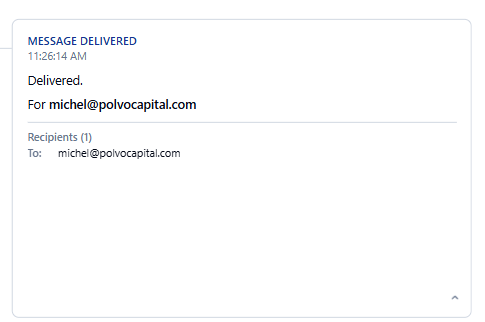
  • Expand the Delivered card on a message's timeline and recipients are now grouped by the header that carried them β€” To, Cc, and Bcc.

  • Recipients on the envelope but in neither the To nor the Cc header are shown as Bcc.

  • Sections with no recipients are left out, and a long list scrolls in place rather than stretching the card.

Enhancements

Account Takeover settings, reorganized

Configure the signals that drive Account Takeover detection in one place, whether or not you use ATO enforcement.

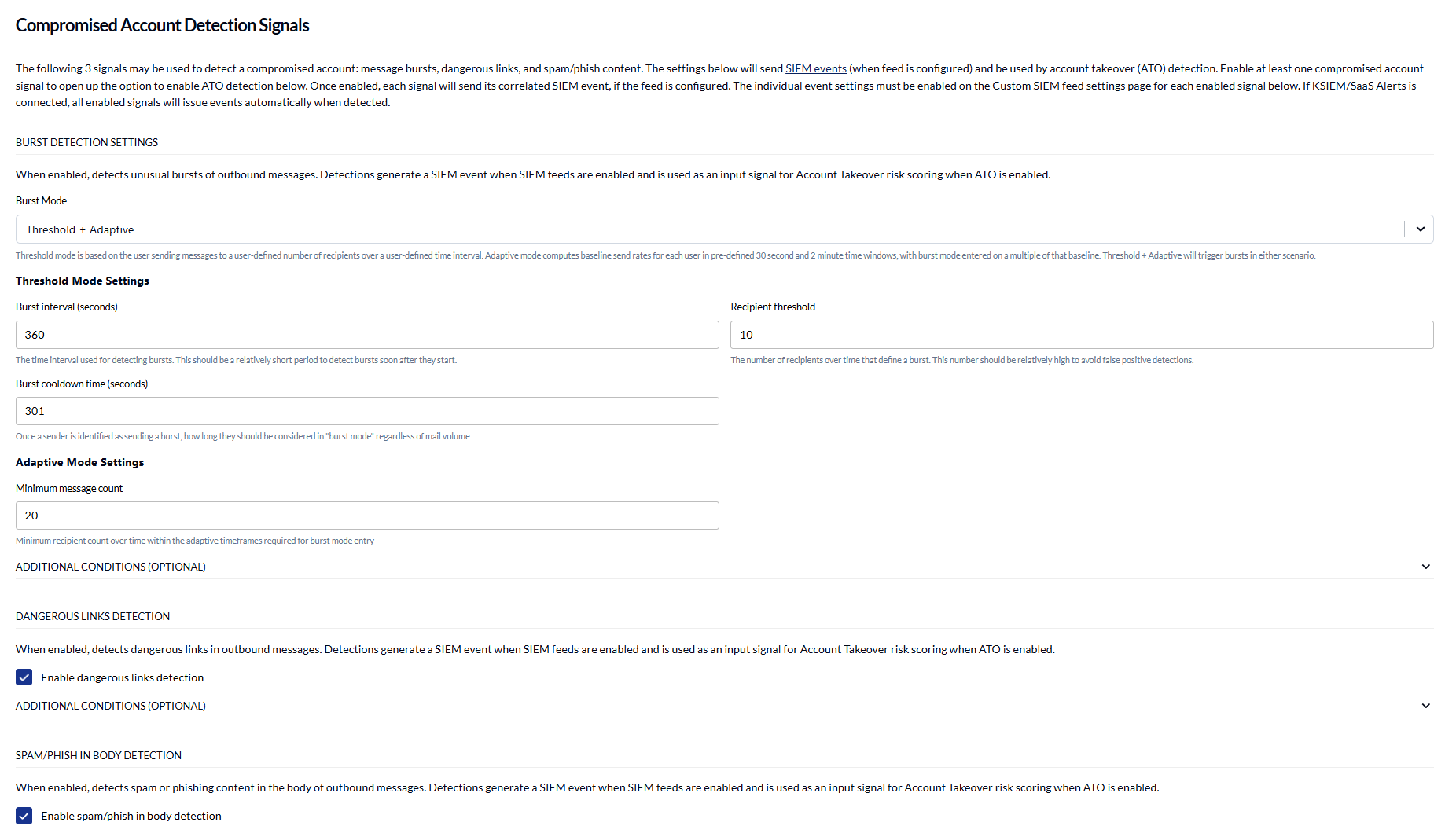
  • Burst, dangerous link, and spam/phishing detection are now grouped in a Compromised Account Detection Signals section, above the Account Takeover box rather than buried inside it. The section stays open, with only Additional Conditions collapsed.

  • The section is available to teams that only feed these signals to a SIEM, and the wording changes to match whether ATO risk scoring is switched on.

  • Enable Account Takeover Detection is now unavailable until at least one signal is enabled, because ATO has nothing to score without one.

Learn more about Account Takeover (ATO) Detection.

See what Account Takeover will actually do

Know the enforcement action every risk level will take, including the ones you haven't configured.

  • When some risk levels are mapped and others aren't, an Unconfigured Risk Levels summary now shows what the unmapped ones will do: fall back to the nearest configured level below, or to the Deliver default if there isn't one.

  • Turning ATO on with no risk mappings at all now warns you on the page and again when you save, since every detection would take the default Deliver action.

  • Choosing Discard for a risk level now says what that means for the sender: the message stays in their Sent folder with nothing to show it was never delivered.

Learn more about Account Takeover (ATO) Detection.

Releasing a user from enforcement

Act on a held user's mail knowing exactly how much is still waiting.

  • The Release User dialog now loads the enforcement's messages, so Approve and Reject show how many messages are still quarantined rather than a bare label.

  • Both options switch off once nothing is left to act on, and a summary shows what has already been approved or rejected against what remains.

  • Choosing Reject now warns that rejected messages are discarded permanently and cannot be recovered.

Learn more about the Threat Center page.

Outbound rule conditions explain themselves

Understand what a condition matches without leaving the rule editor.

  • Checkbox conditions now carry an info popover describing what they match.

  • Outbound burst prevention explains what preventing a user is for, not only what the setting does.

Learn more about configuring workflow rules.

Clearer account and setup messages

Get told what is actually happening at the points that used to be vague.

  • A suspended team's administrators are now told what to do about it, and each stage of suspension has its own wording instead of one notice that asserted a lockout that hadn't happened.

  • Granting API access now says up front that it opens a Microsoft sign-in.

  • Redeeming a licence no longer claims to need Microsoft admin consent, which it never did.

Keyboard and screen reader support

Navigate the console without a mouse.

  • The main navigation can now be operated from the keyboard; previously it responded to the mouse only.

  • Radio buttons now carry accessible names, so screen readers announce what each option is.

Performance

A faster Threat Center

Open the Threat Center on a busy team without waiting on the list to settle.

  • Each collapsed enforcement row used to fetch its full message list just to show a count β€” one request per row, every time the page loaded and again whenever you came back to the tab.

  • Message counts and last-message times now come from the enforcement list itself, and a row's messages are fetched only when you open it.

  • Moving between pages no longer rebuilds the console shell, so the header, navigation and team selector stay put instead of being torn down and redrawn on every navigation.

Learn more about the Threat Center page.

Fixes

  • Outbound approvers list β€” a rule with more than one approver overlapped the rows beneath it. Rows now grow with the approver count, showing up to three approvers and a "+x more".

  • Burst direction selector β€” the control was narrower than its own "Outbound" label, which rendered truncated.

  • Message list β€” a team whose mail INKY hadn't started processing was told its filters matched nothing, rather than that no mail had arrived yet.

  • Overview β€” the page painted empty charts over data it had never fetched. It now waits until it can answer, and an empty team with no top term is no longer reported as a failed query.

NewImprovedFixed

Earlier updates