Observations
Observations is INKY's detailed email analysis view. Every email INKY processes appears here with complete threat intelligence, delivery routing, and remediation options.
Written By Matt Sywulak
Last updated 7 months ago
Location: Analysis > Observations Observations - INKY
Message List
Filtering
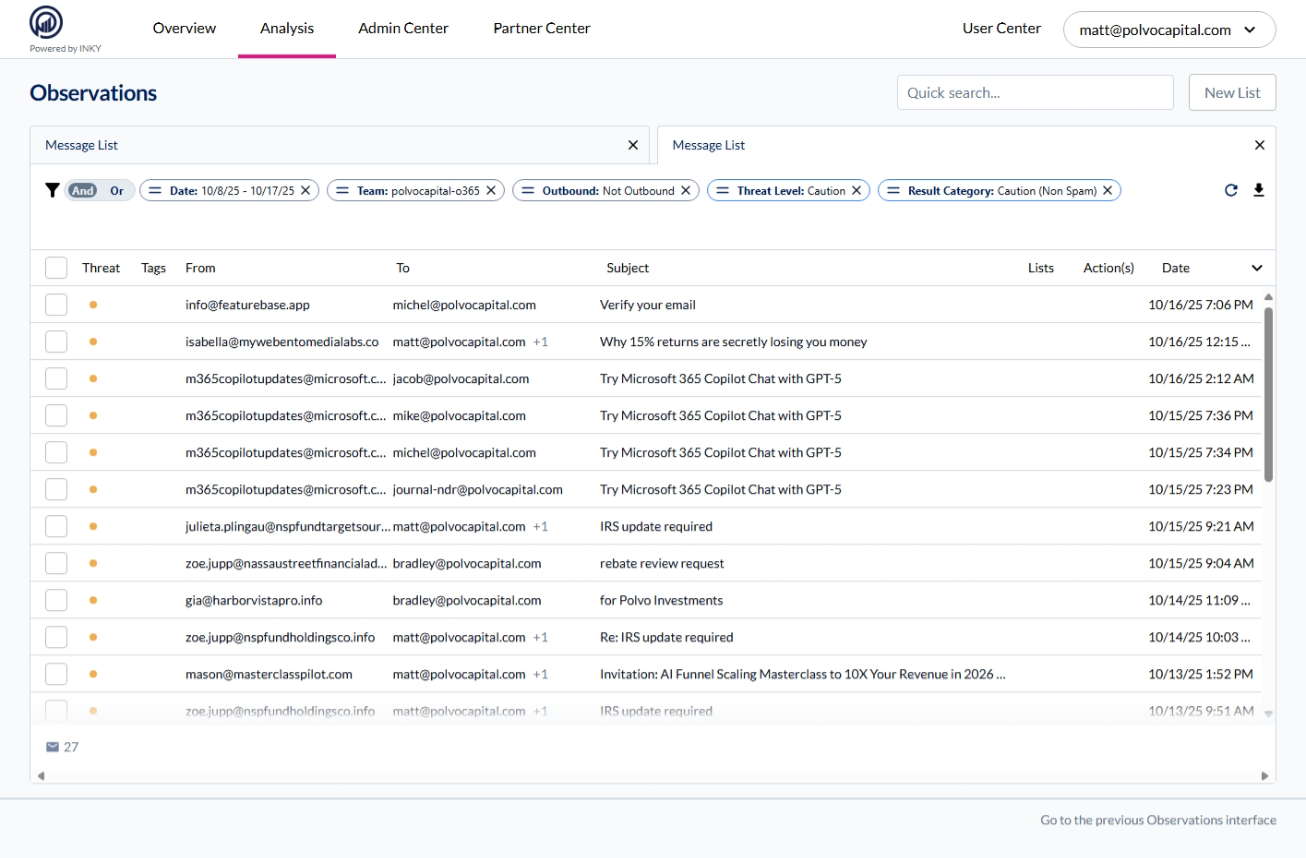
Filter Bar - Combine multiple filters using AND/OR logic. Click X to remove filters.
Quick Search - Find by sender, recipient, subject, or domain.
New List - Save current filters for recurring investigations.
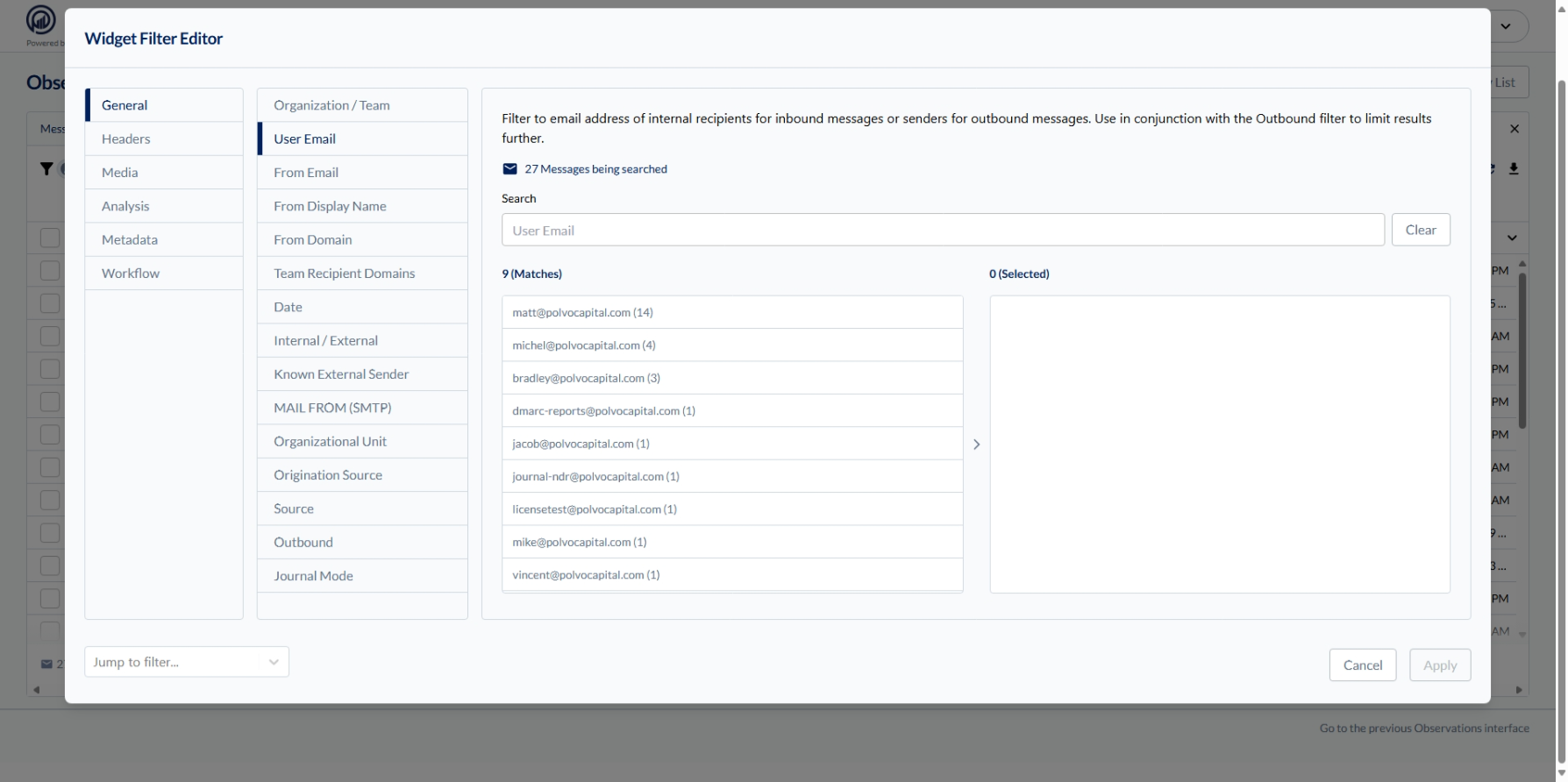
General Filters
Header Filters
Media Filters
Analysis Filters
Metadata Filters
Note: Results depend on previously applied filters. Result counts appear in parentheses.
Message Columns
Threat - Color-coded dot (yellow = Caution, red = Danger, gray = Neutral)
Tags - Visual indicators for special processing or flags
From - Sender email address
To - Recipient email (shows +1, +2, etc. for multiple recipients)
Subject - Email subject line
Lists - Which allow/block lists matched this email
Note: The Lists column shows which policies would apply to a message, not whether they were actually triggered. After creating an allow list for a domain, all past emails from that domain will show the allow list icon.
Action(s) - Automated actions taken (quarantine, delivery, modification)
Date - When INKY processed the email
Click any row to open the Details panel.
Details Panel
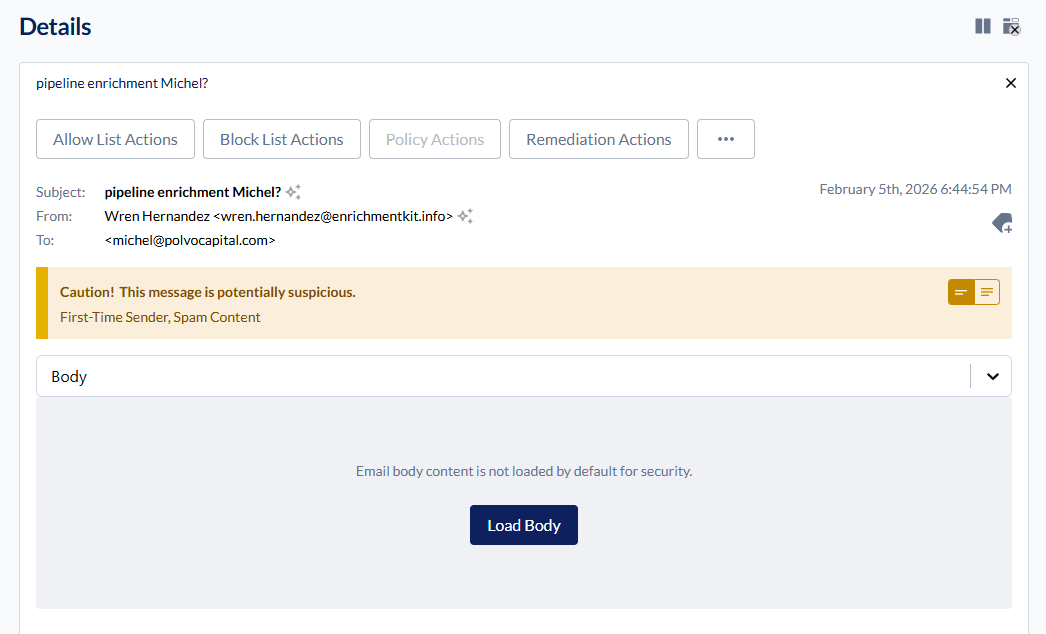
Shows complete analysis for selected email(s). Switch between emails using tabs at the top. Select multiple messages for bulk actions.
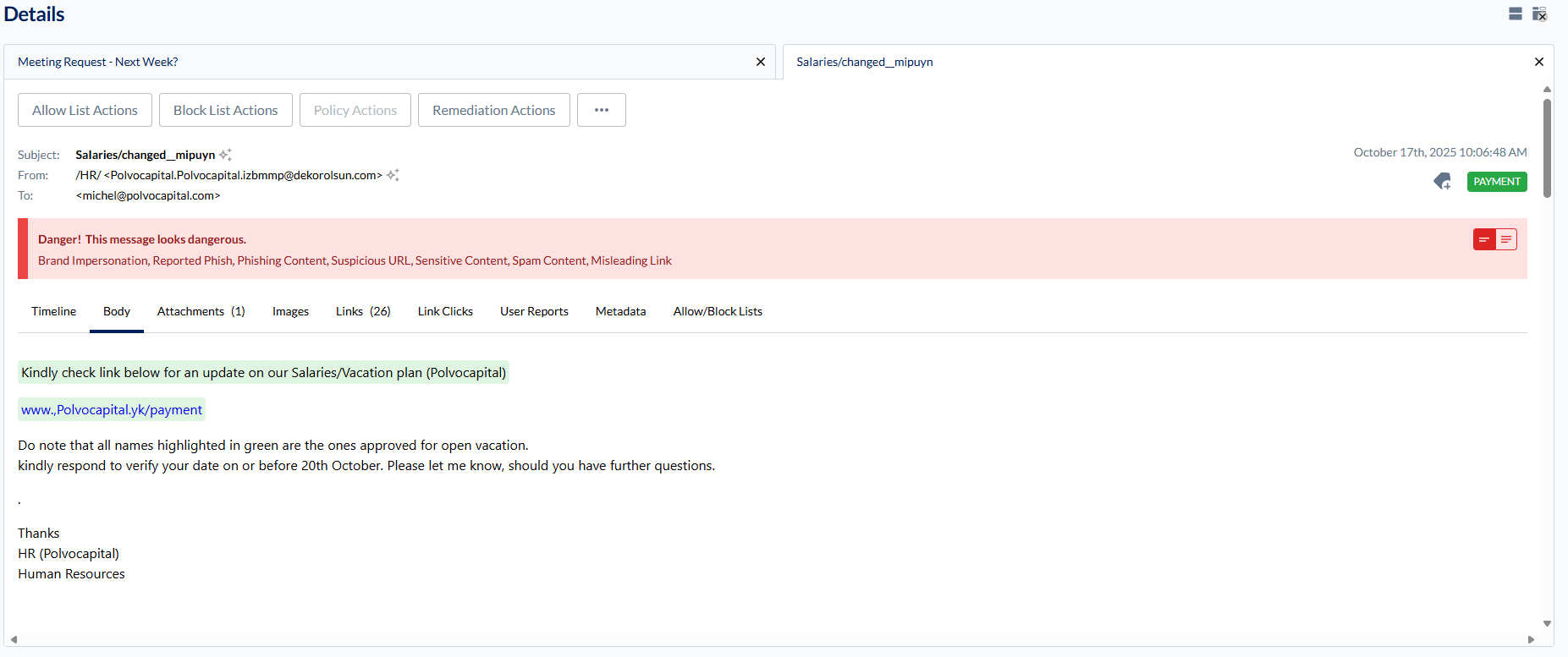
Action Buttons
Analysis Tabs
Note: Email body content requires explicit action to load as a security enhancement. This protects administrators from potential risks when analyzing malicious emails. The body content is fetched only when you click the Load Body button and is not automatically loaded when switching between observations.