INKY Dashboard v1.10.7
New Features
AI Recommendations, now in beta for everyone
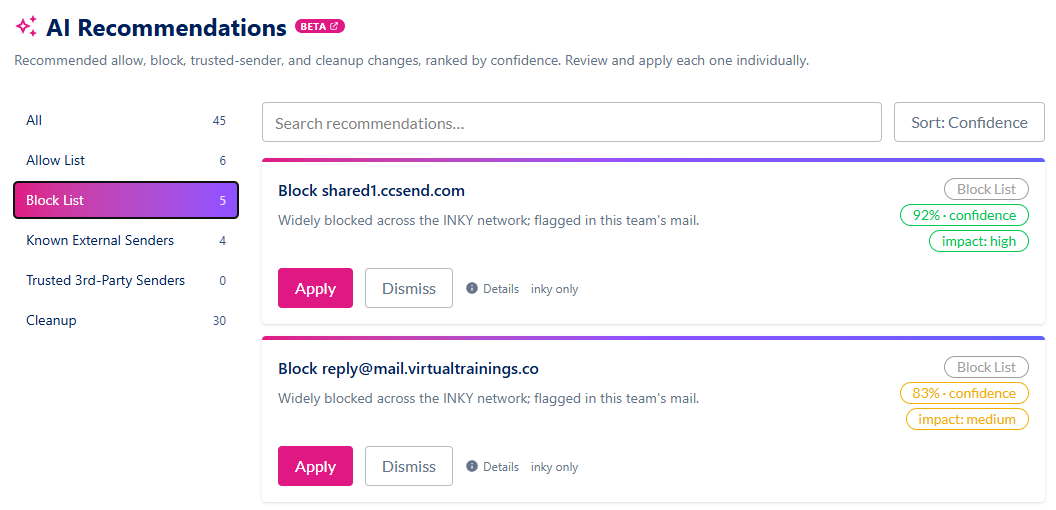
Review suggested allow list, block list, trusted-sender and cleanup changes for your team, and apply the ones you agree with.
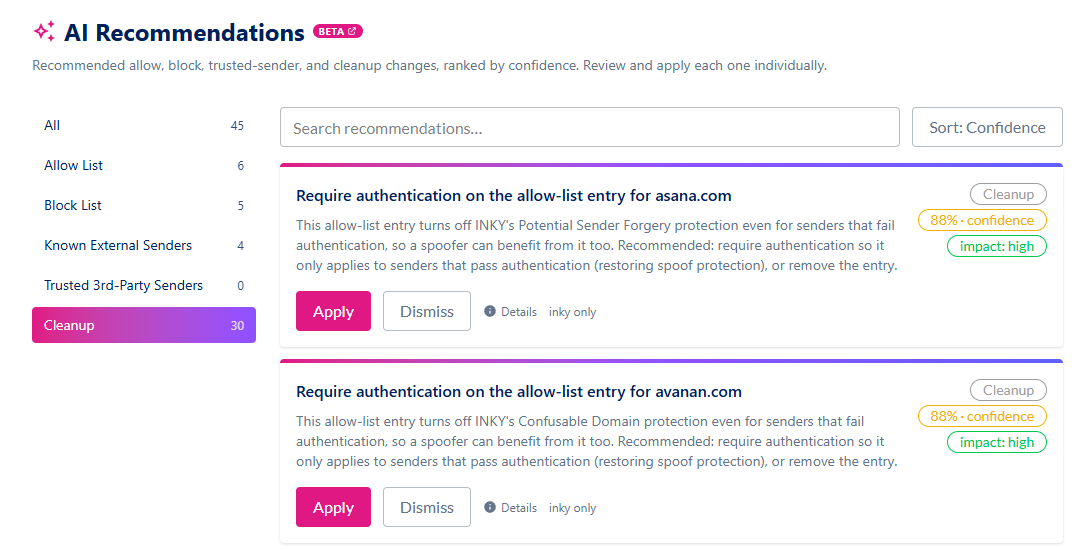
A new AI Recommendations page in Settings, just below Summary, lists recommendations built from your team's mail flow, sorted by confidence or impact. They also appear as a tab on the Allow List and Block List pages, as a "recommended" count on the Known External Senders and Trusted Third-Party Senders sections of Analysis settings, and as a card on the Overview page.
Each recommendation says what it would change, why, how confident INKY is, and whether it applies org-wide or to one team. Apply asks you to confirm, then makes the change. Dismiss sets it aside. Nothing is applied automatically.
Recommendations come from rule-based analysis of your mail flow. When LLM assistance is on, an LLM reviews them and can only keep, demote or drop a recommendation. Turning off LLM assistance in Analysis settings stops that review.
Learn more: AI Recommendations
Improvements
Product compliance you can act on
Spot teams whose product is not covered by your subscriptions, and get straight to fixing them.
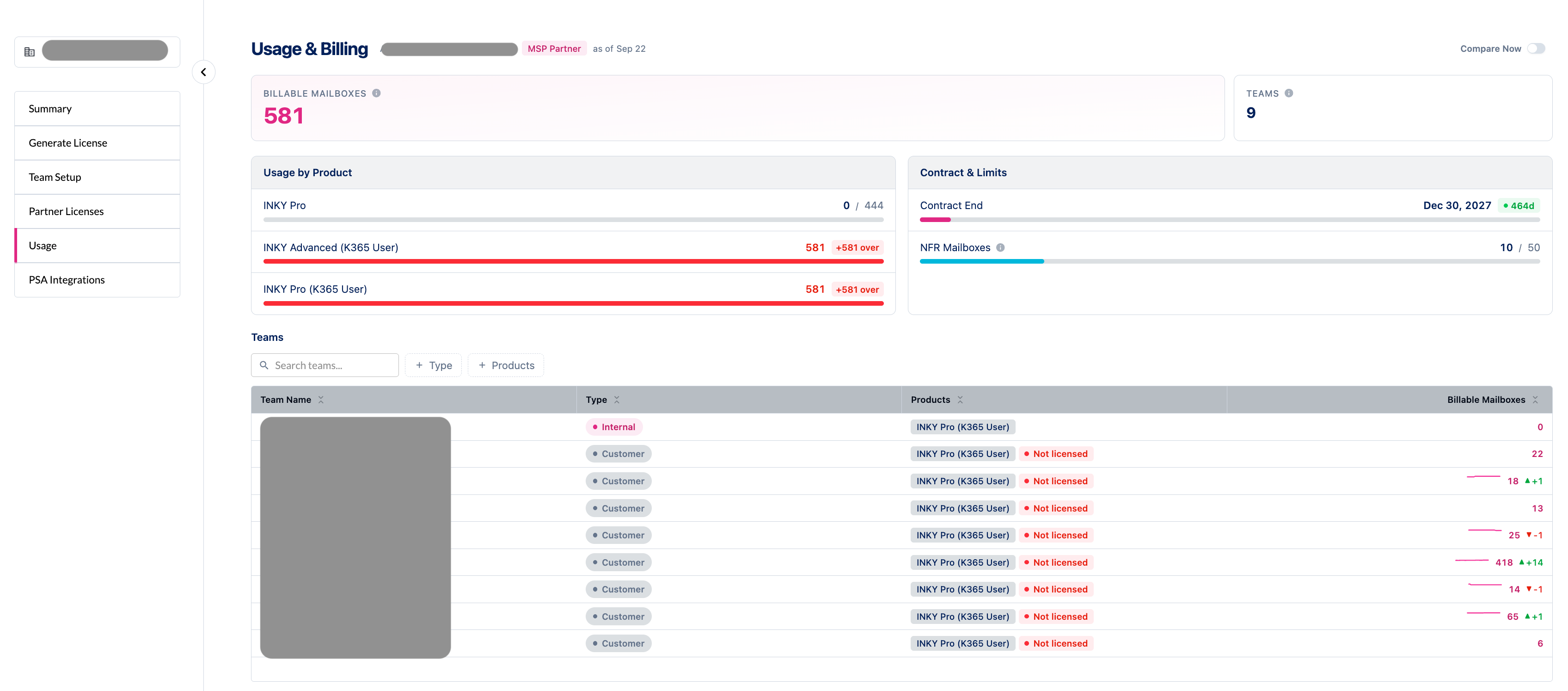
On the Summary page, a team whose product is not covered shows a red warning icon in the Products column, in place of a red check.
The "Product assignments need attention" notice is now red, with a Review Products button that opens the Usage page. The button is shown to partner admins. Other admins still see the notice.
Your own team is now marked "Not licensed" on the Usage page and in Partner Center when its product is not covered, matching the banner at the top of the dashboard.
Your own team's products are managed by INKY, so the Usage page, Partner Center and the notices now say to contact your Kaseya Account Manager to change them, in place of a products form you could not use.
Learn more: Usage & Billing Dashboard for Partners
Faster page loads for accounts with many teams
Pages open without waiting for the full team list.
The dashboard now restores your selected team straight away and loads the team list in the background. On accounts with many teams, pages could previously wait up to 30 seconds for that list before showing anything.
The team selector shows that it is still loading until the list arrives, and then works as before.
Clearer product choices when setting up a team
The product form now says which products you can select, what your own team's free NFR allowance covers, and what each unavailable option needs.
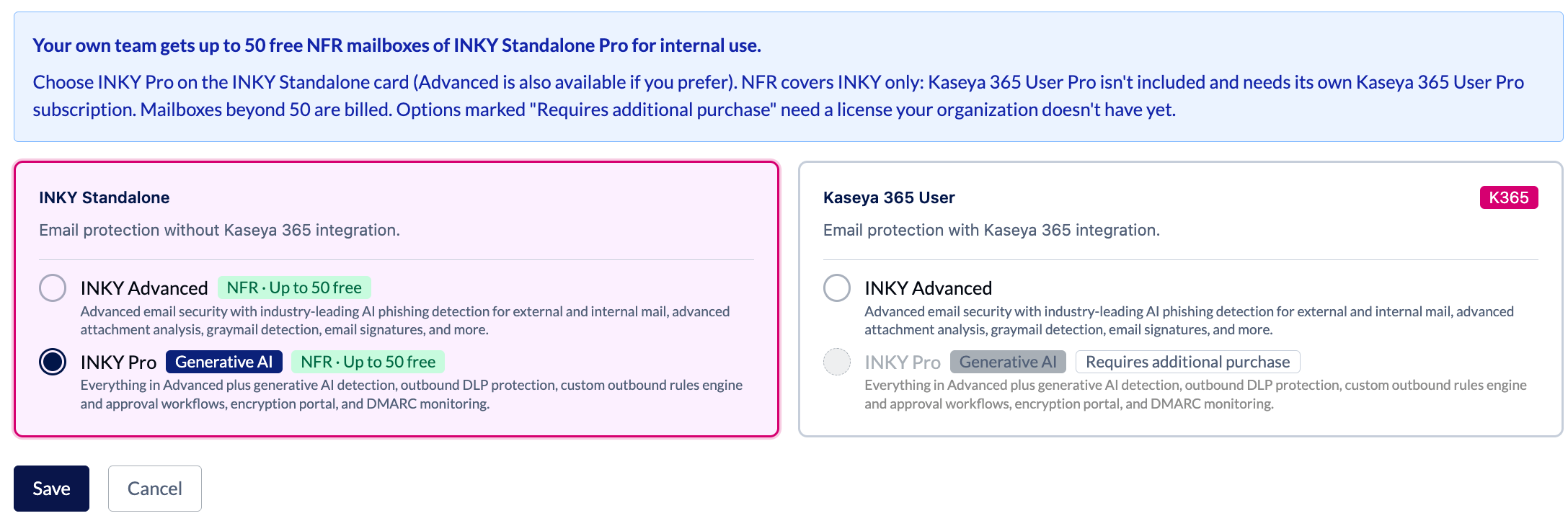
On your own team, a note above the product cards says you get up to 50 free NFR mailboxes of INKY Standalone Pro for internal use. It also says NFR covers INKY only (Kaseya 365 User Pro needs its own Kaseya 365 User Pro subscription) and that mailboxes beyond 50 are billed. INKY Advanced and INKY Pro on the INKY Standalone card are both marked "NFR · Up to 50 free".
Your own team's product form now opens on INKY Standalone Pro, the tier NFR covers. If your organization has Kaseya 365 User Pro, it opens on that as before.
Each option that needs a license your organization doesn't have yet is marked "Requires additional purchase", and a note above the cards explains what that means. This applies wherever you choose products: the Summary page, the Usage page, team import and license generation.
Choosing INKY Standalone on your own team no longer asks you to confirm skipping Kaseya 365, since NFR covers it.
Negate a whole group of outbound rule conditions
Write a rule that applies when a combination of conditions does NOT match.
The condition builder has a negation toggle on the border of the condition group. Turn it on and the rule applies when the combined conditions do not match, rather than when they do. The group is outlined and marked while negation is on.
It is available in workflow rules and in the Additional Conditions of the burst, dangerous links, and spam and phishing detectors used by Account Takeover detection.
Individual conditions can still be negated on their own, as before.
Learn more: Configure Workflow Rules
Clearer account takeover enforcement messages
Tell at a glance what INKY did with a message, what an admin decided, and where it ended up.
The message table in an expanded enforcement on the Threat Center Outbound Protection tab now has three separate columns. ATO Result is what the enforcement rule did (Quarantined, Discarded or Delivered). Action is the admin decision: Approve and Reject while a message waits, then Approved, Denied, or Expired if no one decided in time. Status is where the message finally ended up.
A message whose approval window expired with no decision is counted as Discarded.
On narrow screens each message is shown as a card of labelled values instead of a clipped table row.
Learn more: Using the Threat Center Page
Fixes
Usage & Billing
An account whose subscription has ended now says so. The Contract & Limits panel shows Ended with a No subscription badge, where it previously disappeared and the page looked like an account that had never bought anything. Learn more: Usage & Billing Dashboard for Partners
Compare Now finishes. It often stopped checking after its first attempt and never showed current usage until it was turned off and on again. It now keeps checking until the comparison is ready, and says so if it is taking longer than usual.
Product names in the teams table line up, with the licensing badge after the name, and the comparison strip no longer changes height when a comparison comes back with no changes.
Teams with no licensing record, such as older trials, no longer show a "Licensing unknown" pill or a red icon on the Usage page, in Partner Center, or on the Summary page.
Kaseya 365 confirmation
The dialog asking you to confirm a product selection without Kaseya 365 no longer appears when Kaseya 365 was not available to choose. It previously opened on every submit for partners whose license does not include it, with no way forward except Continue Anyway. It now appears only when you passed up an option you could have selected, on the Usage page, the Summary page, team import, and license generation.
Threat Center
The Threat Center page heading says Threat Center. It still read Triage, the page's former name, although the navigation and browser tab had already changed.