Organization Advanced Block List rules
One table of Advanced Block List rules across an organization and its teams, with a per-team mode for inherited rules. Beta.
Written By Matt Sywulak
Last updated About 2 hours ago
Overview
Organization Advanced Block List rules let an organization own a block list rule and apply it to every team beneath it. You write a rule once instead of repeating it on every team, and each team can still run it in a different mode.
Organization Advanced Block List rules are a beta feature, and INKY turns them on per organization. If the Advanced Block List page for your organization still shows a separate list for each team, organization rules are not on for it yet.
For rule conditions, match types and modes in general, see Advanced Block List.
The Matching Rules table
Select a team or an organization, open Settings, then Advanced Block List. The page shows one table, Matching Rules.
With an organization selected, the table lists the organization's own rules and the rules of every team beneath it. Rules that belong to a child team are marked with a child team icon.
With a team selected, the table lists the team's own rules and the rules it inherits from its organization. Inherited rules are marked with an organization icon.
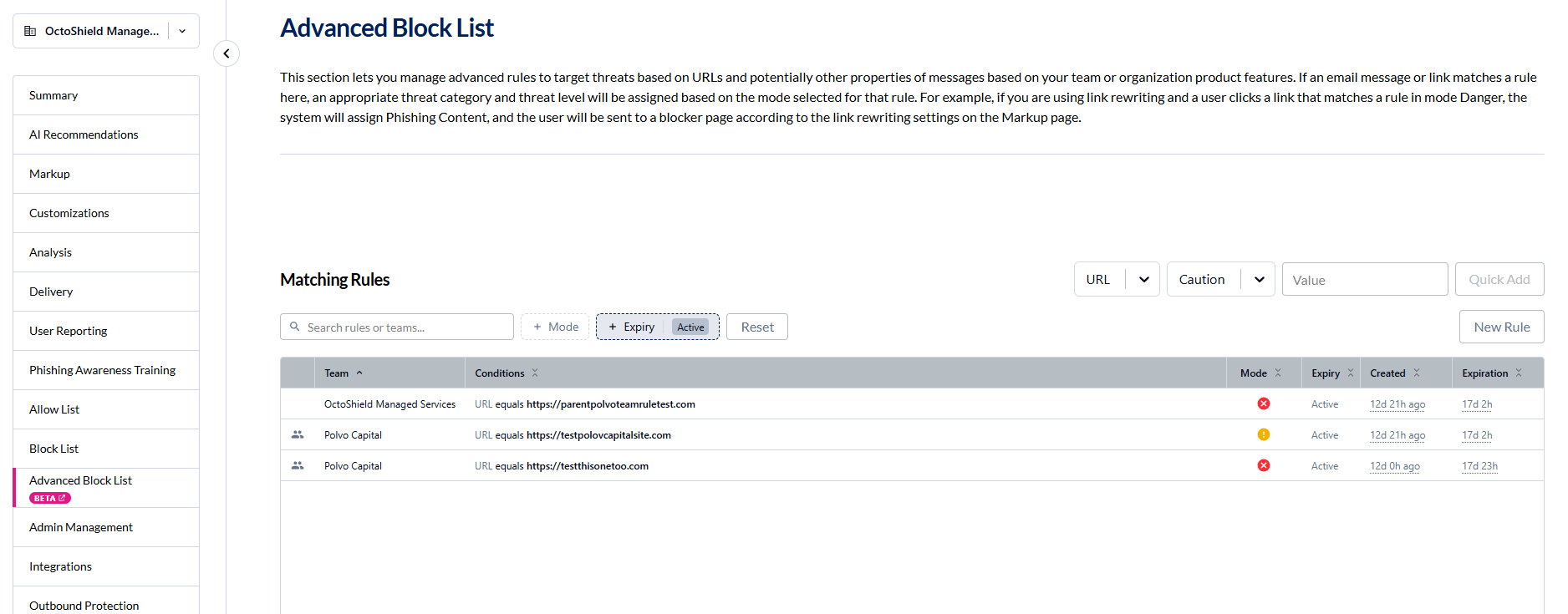
The columns are Team, Conditions, Mode, Expiry, Created and Expiration. You can sort by any of them and resize them. On a narrow screen each rule is shown on two lines instead.
Above the table:
Search rules or teams narrows the table as you type.
Mode filters by Danger, Caution or Disabled.
Expiry filters by Active, Expiring Soon or Expired. The table opens on Active.
Reset clears the search and filters.
Adding a rule
A rule belongs to whichever team or organization is selected when you add it. Add it with an organization selected and every team beneath the organization inherits it.
Quick Add creates a rule with one condition. Choose what to match, choose Caution or Danger, enter the value, then select Quick Add.
New Rule opens the full rule form, for rules with several conditions or other match types.
INKY asks you to confirm before it adds, edits or deletes a rule. For an organization rule, the confirmation says how many teams it applies to.
Working with a rule
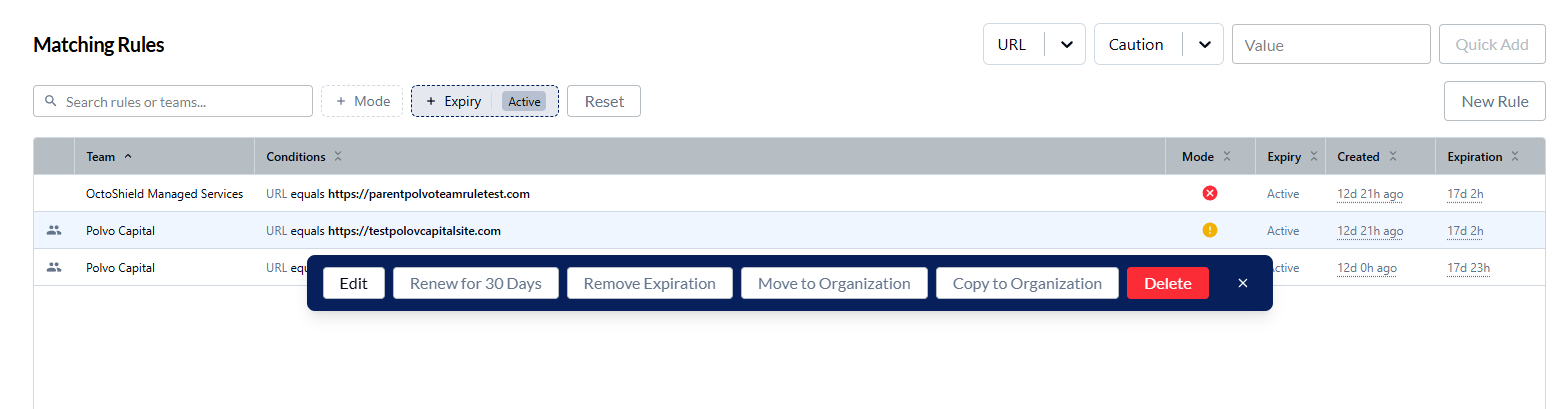
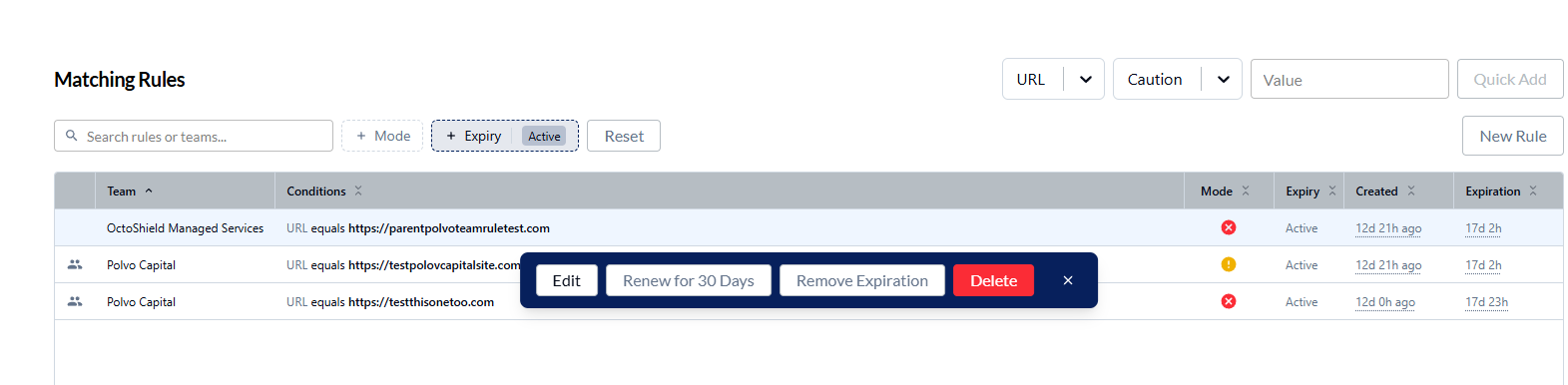
Select a rule in the table. The actions you can take appear in a bar beside the selected row. Which actions appear depends on who owns the rule and on your permissions. If there is nothing you can do with a rule, no bar appears.
Edit opens the rule form. You can edit a rule from its own row. An inherited rule is edited on the organization that owns it.
Renew, Add Expiration and Remove Expiration change when the rule expires. Add and Remove appear only where your settings allow rules without an expiration.
Delete removes the rule.
Override Mode appears on inherited rules. See the next section.
Running an inherited rule in a different mode for one team
A team cannot edit a rule it inherits, but it can run that rule in a different mode.
Select the inherited rule, then select Override Mode.
The dialog names the organization the rule belongs to and its mode there. Choose Danger, Caution or Disabled. Disabled switches the rule off for this team only.
Select Save.
A pin beside the mode icon marks a rule whose mode a team has overridden. Its tooltip reads "Parent mode is overridden". Hover over the mode icon to see the mode in effect for the team and the organization's own mode.
To go back, open Override Mode again and choose Inherit from organization. The team then follows the organization's mode, including later changes to it.
With an organization selected, a team's override is listed as its own row under that team, so you can see which teams differ from the organization and change them from one place.
Moving a team's rule to the organization
With an organization selected, select a rule that belongs to one of its teams, then select Move to Organization. The organization becomes the owner of the rule, and every team beneath it inherits it.
Copy to Organization, where it is offered, creates the organization's own copy and leaves the team's rule in place.
Expiry
The Expiry column shows whether a rule is Active, Expiring Soon or Expired. A rule is Expiring Soon in the last days before its expiration date, 8 days by default. Expiration shows the date, or "Never expires".
Permissions
What you can change follows your permissions on the selected team. Changing the mode of an inherited rule for a team needs permission to modify that team's Advanced Block List. Rules you can see but not change show no actions.
Was this helpful?
Still need help? Ask the team