Product Compliance Banner
Learn what the product compliance banner means and how to clear it.
Written By Matt Sywulak
Last updated About 2 hours ago
A banner at the top of the dashboard tells you when a team is assigned an INKY product that your Kaseya subscriptions don't cover.
What it means
The banner appears on every dashboard page when one or more of your customer teams is assigned a product you aren't licensed for. It tells you how many teams are affected:
3 of your teams are assigned a product not covered by your subscriptions.
It can also appear for your own MSP team:
Your own team is assigned a product not covered by your subscriptions.
When both apply, one sentence covers them:
3 of your teams are assigned a product not covered by your subscriptions, and so is your own team.
If you manage more than one partner account, the count covers all of them.

How to fix it
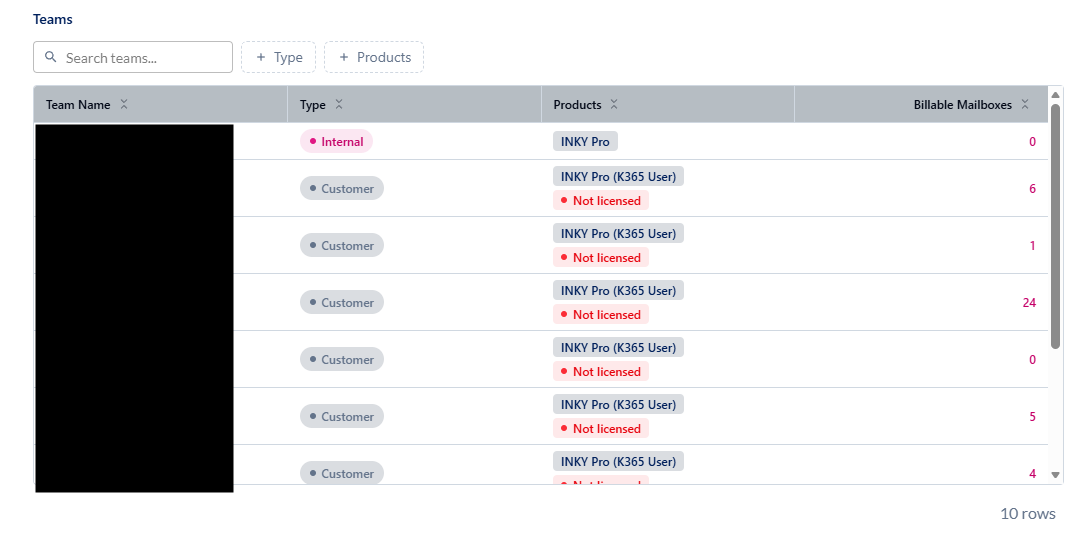
Click Review Products in the banner. This opens Partner Center > Usage, where each affected team is marked Not licensed.
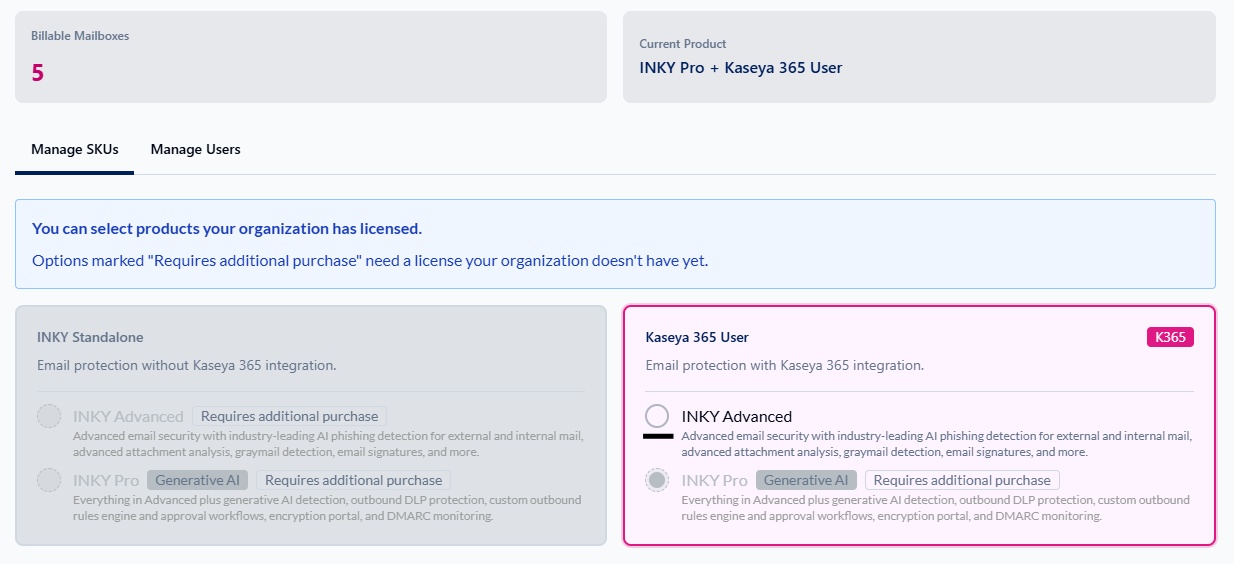
Change each flagged team's product to one you're licensed for or contact your Kaseya Account Manager to add the license.
Your own team's products are managed by INKY. If your own team is flagged, contact your Kaseya Account Manager to change its product or add the license.
Good to know
After you change a product, the banner clears within a few minutes as you move around the dashboard (changing pages or returning to the browser tab), or right away if you reload the page.
Going over the 50 not-for-resale (NFR) seats on your own team doesn't trigger this banner. That overage shows on the NFR usage meter instead, which turns red, with a tooltip saying the extra mailboxes are charged.
Still need help? Ask the team