Banner Customization
INKY's banners use standard language for consistency, but administrators can customize branding, links, and display behavior.
Written By Matt Sywulak
Last updated 12 months ago
Important: You cannot change core banner warning text globally. INKY's standard language is designed for effectiveness across all customers. You can add supplemental context for specific threat categories.
Banner Display Options
Control how much information appears directly in banners versus behind a "Details" link.
Detail levels:
Minimal - Show threat category names only
Micro- No threat category information
Verbose - Threat Category Name and description
Visual options:
Position links inside or outside colored background
Add threat level icons (left side)
Add custom logo (right side)
Use color in Neutral banners to differentiate Internal/Known External from other External senders
Configure in Markup Settings - INKY
Banner Inclusion Controls
Choose which banner types appear for different mail categories.
For Trusted 3rd Party/Internal mail:
Include all banners (Neutral, Caution, Danger) - default
Suppress Neutral only
Suppress Neutral and Caution (not recommended)
For External mail:
Include all banners (Neutral, Caution, Danger) - default
Suppress Neutral only
Suppress Neutral and Caution (not recommended)
Option: Always include "Report This Email" link even when banners are suppressed
Configure in Markup Settings - INKY
Special Message Types
Control how INKY processes meeting requests, calendar invitations, and digitally signed mail to balance security with functionality.
Meeting requests / calendar notifications:
Modify all messages (strictest protection)
Modify Caution and Danger
Only modify Danger-level messages (recommended)
Never modify (may miss threats)
Clear-signed mail:
Modify all messages (default)
Modify Caution and Danger
Only modify Danger-level messages
Never modify
Note: Modifying clear-signed mail may trigger signature verification warnings in some email clients
Opaque-signed and encrypted mail:
Modify all messages (default)
Modify Caution and Danger
Only modify Danger-level messages
Never modify
Note: These messages are wrapped in PKCS#7 containers. Modifications may cause rendering issues in some clients
Configure in Markup Settings - INKY
Language Localization
Set default language for banner text and landing pages (Report This Email, Details, link blocking pages).
Supported: 35+ languages
How it works: All users are modified to use the language selected
Important: Changing language settings may affect outbound banner removal. Contact support before changing.
Configure in Markup Settings - INKY
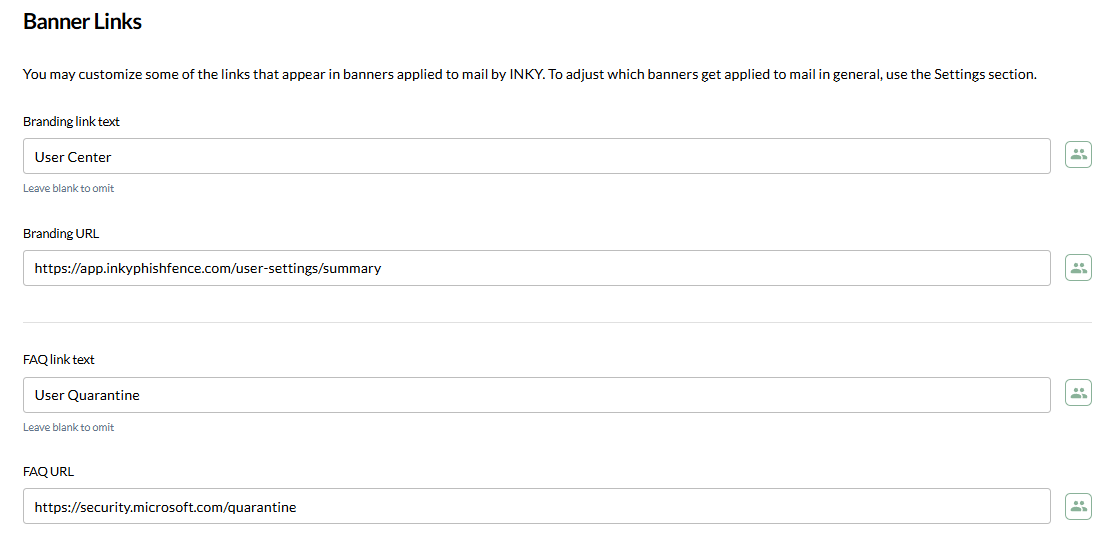
Banner Links
Customize clickable links in all banners.
Branding link - Change "Protected by INKY" text and URL
FAQ link - Modify help link text and URL
Configure in Customizations - INKY
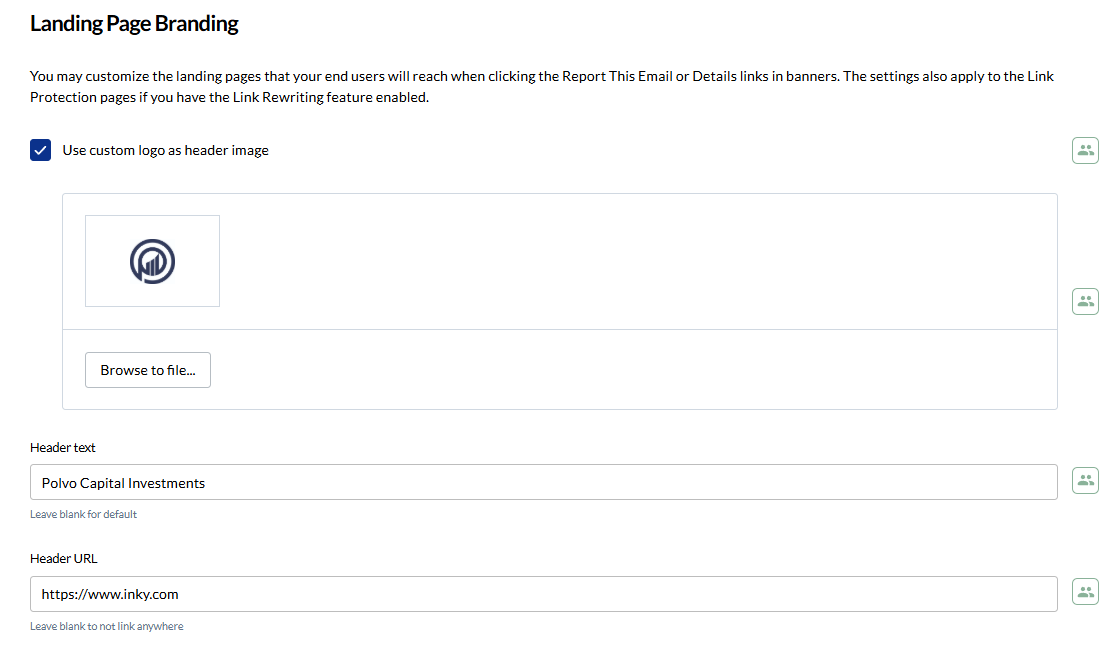
Landing Page Branding
Customize pages users see when reporting emails or confirming link clicks.
Logo - Upload organization logo
Header text - Add custom messaging
Header URL - Link to security resources
Configure in Customizations - INKY
Quick Action Links
Enable one-click reporting buttons directly in banners.
Users report phishing or false positives without leaving their inbox. Reports go to administrators and improve detection.
Configure in User Reporting - INKY
Review Quick Action Reporting Links - INKY for more information.
Context for Specific Categories
Add custom explanatory text for specific threat detections.
Available for:
First-Time Sender
Internal Name Spoof
Sensitive Content (password, financial, COVID-19)
Configure in Analysis - INKY or Customizations - INKY
Still need help? Ask the team