Quarantine Features
Written By Matt Sywulak
Last updated 9 months ago
How INKY Routes Mail
INKY analyzes every email and adds headers that instruct your downstream infrastructure (Microsoft 365 or Google Workspace) where to deliver messages. INKY doesn't directly quarantine or move mail - it provides routing instructions through headers.
Delivery Buckets (Recommended Settings):
Quarantine Analysis
Quarantine message previews now include full INKY analysis even for messages quarantined by Microsoft before reaching INKY's processing pipeline.
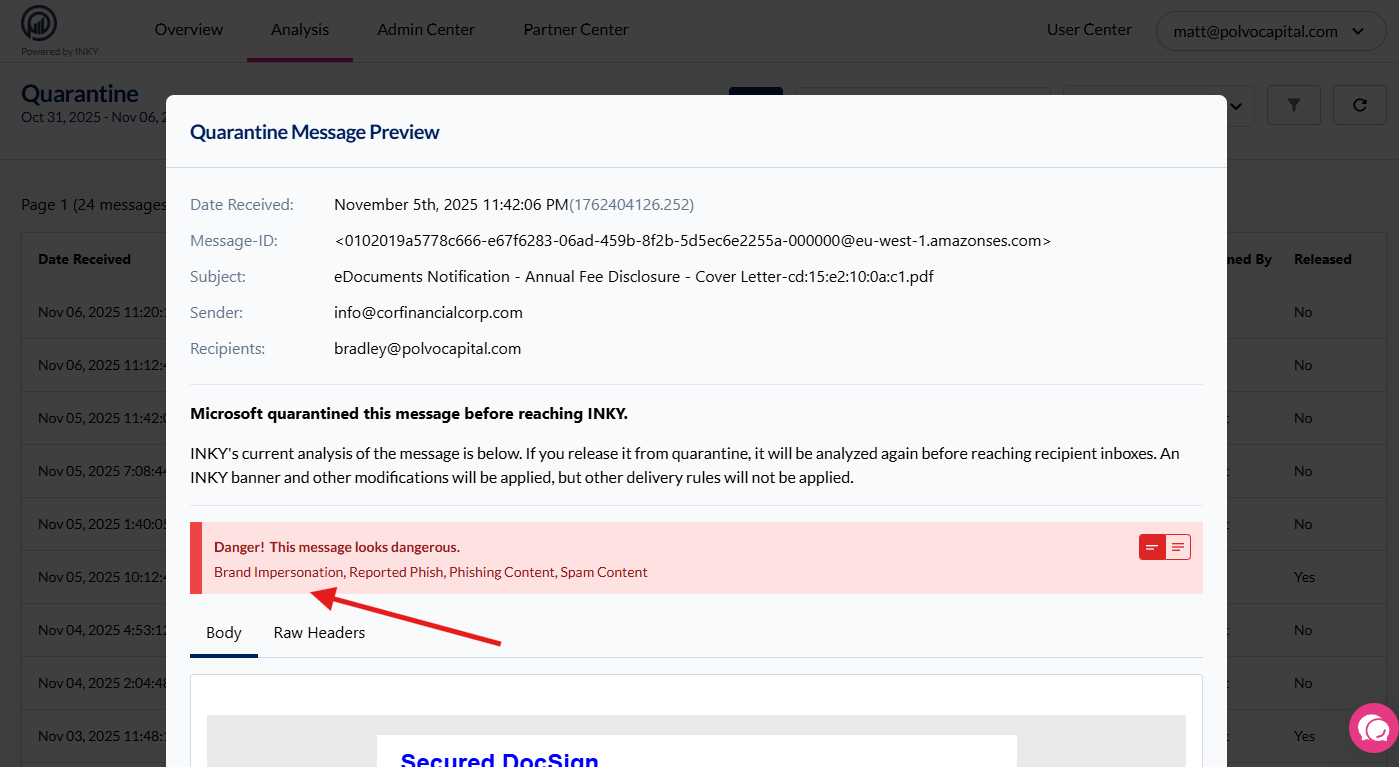
What's New: When previewing quarantined messages, administrators now see:
INKY's threat analysis - Complete banner breakdown showing detected threats
Threat categories - Sensitive Content, First-Time Sender, Spam Content, etc.
Microsoft quarantine context - Clear indicator when Microsoft quarantined before INKY
Message body preview - View actual message content alongside analysis
Multiple view tabs - Body, Raw Headers, and Attachments
How It Works: When you release a message from quarantine, INKY analyzes it before delivery and displays what banner would appear if released. This gives administrators visibility into INKY's assessment even for upstream-quarantined messages.
Key Benefit: Make informed release decisions by understanding exactly what threats INKY detects, even when Microsoft caught the message first.
Quarantine Auto-Release
INKY can automatically review emails quarantined by Microsoft and release messages it identifies as likely false positives, reducing administrative overhead. Available for M365 tenants only.
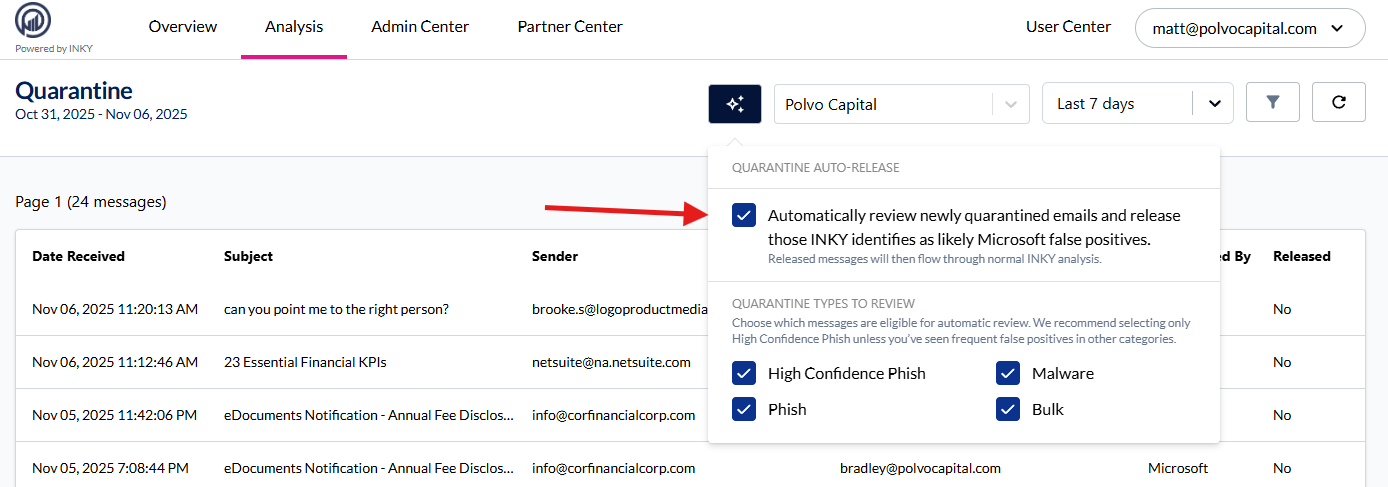
How It Works: When enabled, INKY periodically reviews messages in Microsoft's quarantine. If INKY's analysis determines a quarantined message is legitimate (likely a false positive), it automatically releases the message to the user's inbox with appropriate INKY banner protection.
Important: This feature works with messages Microsoft quarantined based on INKY's header instructions or Microsoft's own filtering.
Configuration Options:
Enable Auto-Release: "Automatically review newly quarantined emails and release those INKY identifies as likely Microsoft false positives"
Released messages flow through normal INKY analysis before delivery.
Quarantine Types to Review: Select which Microsoft quarantine categories INKY should evaluate:
High Confidence Phish - Messages Microsoft flagged as definite phishing
Phish - Messages flagged as potential phishing
Malware - Messages quarantined for malware
Bulk - Bulk mail quarantined by Microsoft
Recommendation: Enable High Confidence Phish and Phish review unless you've seen frequent false positives in other categories.
How to Configure:
Navigate to https://app.inkyphishfence.com/quarantine
Click the Star Icon
Enable "Automatically review newly quarantined emails"
Select quarantine types to review
INKY begins automated review on next scan cycle
End-User Quarantine Management
INKY analyzes mail and adds headers that tell your downstream infrastructure (Microsoft 365) where to deliver messages based on threat level. Users manage quarantined messages through Microsoft's security portal.
How INKY Delivery Routing Works: INKY doesn't directly quarantine mail - it adds headers based on analysis results that Microsoft uses for routing:
Standard Delivery Buckets:
Neutral/Caution (Non Spam) → Inbox
Caution (Spam/High Confidence Spam) → Junk Folder
Danger (Phish/Malware/High Confidence) → Admin Quarantine
Trusted 3rd Party/Internal → Inbox (regardless of threat level)
How Users Access Quarantine: Users receive quarantine digest notifications from Microsoft or can directly access quarantined messages at: https://security.microsoft.com/quarantine
Release Options:
Junk Folder Messages:
Users can move to inbox themselves
No admin involvement needed
Admin Quarantine (Phishing/Malware):
Users can request release (creates admin ticket)
Admin reviews and approves/denies
Released messages get INKY banner protection
What Users See: Microsoft's quarantine interface shows:
Subject, sender, and date
Quarantine reason (Spam, Phish, etc.)
Release/Request Release button based on permissions
Preview option for safe viewing
Admin Controls: Configure user permissions in Microsoft Defender portal > Email & collaboration > Quarantine policies. Options include:
Allow/block self-release
Enable release requests
Set digest frequency
Control preview permissions
Key Point: INKY analyzes all released messages before delivery, adding appropriate banners regardless of who initiated the release.
Still need help? Ask the team