INKY Email Assistant Explained
INKY's color-coded banners appear directly in emails to warn users about phishing threats. Think of them as traffic signals for email security: red means danger, yellow means caution, blue shows trusted external contacts, and gray provides neutral context.
Written By Matt Sywulak
Last updated 12 months ago
What Banners Do
When INKY analyzes an email, it inserts a colored banner at the top of the message before delivery. Users see these banners in their normal inbox, right where they read email. The banner explains what INKY found.
Important: Banners are removed when users forward or reply to messages. This prevents external recipients from seeing your internal security warnings and allows INKY to rescan forwarded emails for internal mail protection. This design supports user privacy and ensures continuous protection on internal communication paths.
Who Sees Banners
All INKY users see banners in their email client (Outlook, Gmail, mobile apps). Banners work across all devices without requiring any software installation on user computers or phones. The warnings appear as part of the email HTML, so they display everywhere email displays.
Administrators configure banner behavior globally and can adjust thresholds for allow and block lists. Banner colors are determined automatically by threat categories and cannot be customized.
The Four Banner Colors
Red Banner (Danger)
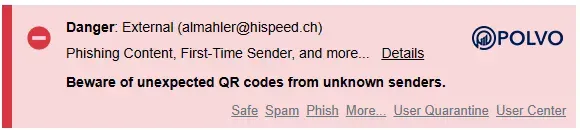
Red banners mark highly dangerous emails that pose immediate threats to your organization. These are confirmed or highly likely phishing attacks, malware, or fraud attempts.
What triggers red banners:
Known phishing campaigns from threat intelligence feeds
Malware detected in attachments
Severe sender authentication failures (DMARC reject policy violated)
Confirmed CEO fraud or executive impersonation
High confidence phishing indicators
Links to known malicious websites
QR codes from suspicious or unknown senders
Abused services (compromised legitimate platforms)
There are two levels of danger banners:
Danger (Phish or Malware) - Messages identified as dangerous that may contain spam-related threat details, but other threat indicators are significant enough to classify as dangerous.
Danger (High Confidence Phish or Malware) - Messages that match exact known threat profiles that have been previously reported or confirmed malicious.
What users should do: Delete the email immediately without clicking links or opening attachments. If the email appears legitimate, report it to IT using the Quick Action Reporting Link instead of interacting with the message directly.
Example from real INKY banner:
Yellow Banner (Caution)
Yellow banners indicate suspicious emails that aren't confirmed threats but show warning signs. These require user judgment and caution before taking action.
What triggers yellow banners:
Graymail - Bulk, promotional, or marketing emails
Spam Content - Messages classified as spam by Microsoft 365, Google Workspace, or INKY's spam engine
First-Time Sender - Someone who has never emailed you before
Display name spoofing - Sender name doesn't match email address
Lookalike domains - Similar but incorrect domains (microsoftt.com instead of microsoft.com)
Suspicious links or redirectors - URLs that appear questionable
Urgency language - Social engineering tactics pressuring immediate action
Unusual requests - Unexpected requests from known contacts
Sender authentication issues - SPF, DKIM, or DMARC failures
GenAI-detected intent - AI identifies suspicious intent patterns (Professional/Advanced bundles)
There are multiple levels of caution banners:
Caution (Non Spam) - Suspicious indicators unrelated to spam content
Caution (Spam) - Messages containing spam-related threat details
Caution (High Confidence Spam) - Known or very likely spam content with other possible threat details
What users should do: Proceed with extreme caution. Verify the sender through a different communication channel before taking any action. Don't click links or provide information without confirmation. For graymail and marketing emails, consider unsubscribing if unwanted.
Example from real INKY banner:

Blue Banner (Known External)
Blue banners identify authenticated external senders that your organization has designated as trusted business contacts. This banner provides confidence that the sender is legitimate.
What triggers blue banners:
Sender is on your organization's Known External Sender list
Email passes authentication (SPF, DKIM, DMARC)
Authenticated messages from team domains (automatically recognized)
Frequent legitimate business contacts you've explicitly trusted
What users should do: Proceed normally. These are trusted external contacts. However, users should still exercise normal email caution and verify unusual requests even from known contacts.
Example from real INKY banner:

Important note: INKY also provides additional protection for confusable domains related to Known External Senders. For example, if you mark inky.com as a Known External Sender, INKY will flag lookalike domains like lnky.com more aggressively.
Gray Banner (Neutral)
Gray banners provide context about external senders without indicating any security threat. These are informational markers for mail that passed all security checks.
What triggers gray banners:
External senders (emails from outside your organization)
Low-risk external contacts
Messages that passed authentication and security analysis
Informational context when external sender warnings are enabled
What users should do: Proceed normally. Gray banners simply indicate the email came from outside your organization. This is informational context, not a warning.
Example from real INKY banner:

Banner Anatomy
Every banner contains these elements:
Warning Icon - Visual indicator (🚫, ⚠️, 🛡️) that matches the severity
Severity Label - DANGER, CAUTION, Known External, or External
Sender Information - Email address of the sender
Threat Categories - Specific reasons why INKY flagged this email (e.g., "Phishing Content, First-Time Sender")
Reporting Links - Quick Action links to report the email (configurable)
GenAI Intent Labels (Professional & Advanced)
For organizations with INKY Professional or Advanced bundles, GenAI analyzes email intent to identify social engineering tactics. These intent labels appear in the administrator dashboard for threat analysis but are not directly visible to end users in banners. Instead, the GenAI intent detection drives the threat categories that users see in their banners.
GenAI Intent Labels (Admin View Only):
Ultimatum - Email pressures recipient with urgent demands or threats
Payment Request - Unexpected payment demands, fake invoices, or financial requests
Credential Request - Attempts to obtain usernames, passwords, or login information
Service Disruption - Fake notifications about suspended accounts or interrupted services
Cold Email - Suspicious re-engagement attempts from senders with no recent contact history
Support Line - Potential tech support scams offering help with non-existent problems
Link-Heavy - Excessive or suspicious links that don't match the email's stated purpose
Nudge - Subtle prompts designed to elicit a response from the recipient
These intent labels help administrators understand attack patterns and refine policies. The resulting threat categories (like "Phishing Content" or "Suspicious Links") appear in user-facing banners, giving users actionable information without overwhelming them with technical details.
Common Threat Categories Users See
Users typically see these threat categories in their email banners. Most are caution-level warnings that help users make informed decisions:
First-Time Sender - Email from someone who has never contacted you before
Possible Spoofed Internal Sender - External email using a name similar to someone in your organization
Spam Content - Message classified as spam by Microsoft 365, Google Workspace, or INKY's spam engine
Graymail - Bulk, promotional, or marketing email from legitimate companies
Reported Spam - Previously reported by other users as spam
Suspicious Link - URLs that appear questionable or don't match sender reputation
QR Code - QR code detected in email (requires caution with unknown senders)
High-danger categories like confirmed phishing or malware are typically quarantined before reaching user inboxes, so users rarely see danger-level banners. When they do appear, they indicate serious threats requiring immediate attention.
Understanding Graymail
Graymail is bulk, promotional, or marketing email that isn't malicious but may clutter inboxes. Unlike spam (unsolicited junk), graymail comes from legitimate companies you may have subscribed to.
Graymail appears in yellow caution banners because it's not a security threat, but it's flagged to help users manage their inbox. INKY Professional and Advanced bundles include enhanced graymail detection and delivery options (like routing to a Graymail folder).
Examples of graymail:
Newsletter subscriptions
Promotional emails from retailers
Automated notifications from services
Marketing campaigns from legitimate businesses
Transactional emails (order confirmations, shipping updates)
Users should report unwanted graymail using the "Report This Email" link and selecting "Graymail" or use Quick Action Links to manage it themselves. This creates a personal preference without requiring administrator intervention. INKY empowers users to self-manage subjective categories like marketing email, reducing the need for admin support.
When Emails Don't Appear
Banners should appear on all emails that pass through INKY. If users aren't seeing banners, there may be a configuration issue. Common reasons emails might not reach inboxes:
Email matches your block list and was quarantined
Message exceeded configured block threshold (Danger level) and was sent to Admin Quarantine
Known malware was detected and the email was blocked
Confirmed phishing campaigns were identified and quarantined
Mail flow routing isn't directing email through INKY
If users aren't seeing banners on their emails, this indicates a problem. Check mail flow configuration to ensure emails are being processed by INKY. Banners are a core feature and should be present on all analyzed email.
Administrators can review quarantined messages in the Admin Quarantine and release false positives if needed.
Banner Best Practices
Train users on banner meanings - Conduct awareness sessions showing examples of each banner color with real messages from your environment
Encourage reporting - Make it easy for users to report suspicious emails with Quick Action Reporting Links in banners
Don't ignore yellow banners - Many successful phishing attacks came with yellow warnings that users ignored. Caution means verify, not ignore.
Verify before acting - If an email with a yellow banner requests urgent action, confirm through a different communication channel (phone, Slack, in-person)
Review false positives - If legitimate emails consistently get yellow banners, work with your INKY administrator to tune policies or add senders to the Known External list
Trust red banners - If you see a red banner, don't try to determine if it's legitimate. Report it to IT and let them investigate. INKY rarely false-positives on red banners.
Use blue banners strategically - Add frequent business partners to the Known External Sender list to reduce banner fatigue while maintaining security
Reporting Problems
If users encounter issues with banners:
Legitimate emails constantly get yellow banners - Administrator should add sender to allow list or Known External Sender list. For subjective categories like spam and graymail, users can also maintain their own personal allow lists through the "Report This Email" page by marking messages as "Safe" or "Not-Spam/Not-Graymail" (requires authentication)
Suspicious emails have no banners - May be a gap in detection. Report to IT for analysis and check if mail is routing through INKY
Banner text is confusing - Administrators can add custom context text for specific threat categories including Internal Name Spoof, and Sensitive Content categories (Password, Financial, COVID-19). However, admins cannot fully customize all banner wording. Custom text appears as additional context within the banner to help users understand the specific threat
Banners don't display properly - Check email client compatibility or report rendering issues to INKY support
Too many false positives during Learning Mode - Normal during first 30 days. After Learning Mode completes, accuracy improves significantly
Still need help? Ask the team