Smart Insights feature guide
Written By Matt Sywulak
Last updated 17 days ago
Smart Insights Overview
Smart Insights is an AI-powered analysis feature that provides a second opinion on email security threats. When you review suspicious emails in your Inky dashboard, Smart Insights uses a large language model (LLM) to deliver deeper, contextual analysis, including risk assessment, trickiness rating, and detailed explanations, to help you make more informed security decisions.
Smart Insights is enabled by default. It is governed by a per-team switch called LLM Assistance, which covers every INKY feature that uses an LLM. Administrators can turn it off to keep a specific team's email from being sent to an LLM, if internal policy or compliance requires it.
Smart Insight will be available on INKY PRO plans only.
Data handling
Message content may be sent to a managed LLM service (Amazon Bedrock) for evaluation. US and EU tenants are served by separate INKY instances.
Message content is not used to train INKY's or any third party's models.
The switch covers every INKY feature that uses an LLM, not just Smart Insights: deep dives, a closer look at borderline messages, and review of AI Recommendations. Turning it off keeps that team's mail from being sent to an LLM at any phase of analysis.
Key benefits
Deeper understanding: Goes beyond pattern matching by evaluating the email’s context, intent, and meaning.
Natural language explanations: Provides clear, human-readable insights about why an email may be risky.
Contextual analysis: Considers the complete picture, including sender reputation, message content, intent, and technical indicators.
Risk indicators: Identifies suspicious elements like urgency tactics, unusual requests, or hidden content.
How Smart Insights works
To access Smart Insights, select Analysis > Observations and open any inbound message. A Smart Insights button (dark blue-to-fuchsia gradient with sparkle icon) appears in the action bar. Click it to open the Smart Insights panel for that message.
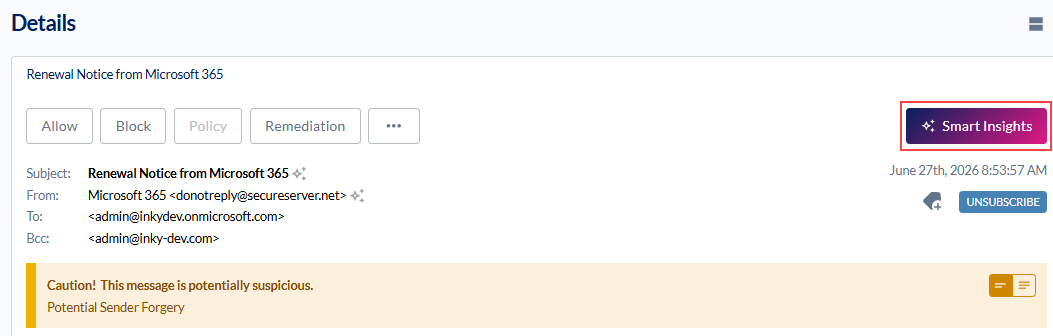
When Smart Insights analyzes your email, the panel may display relevant elements such as:
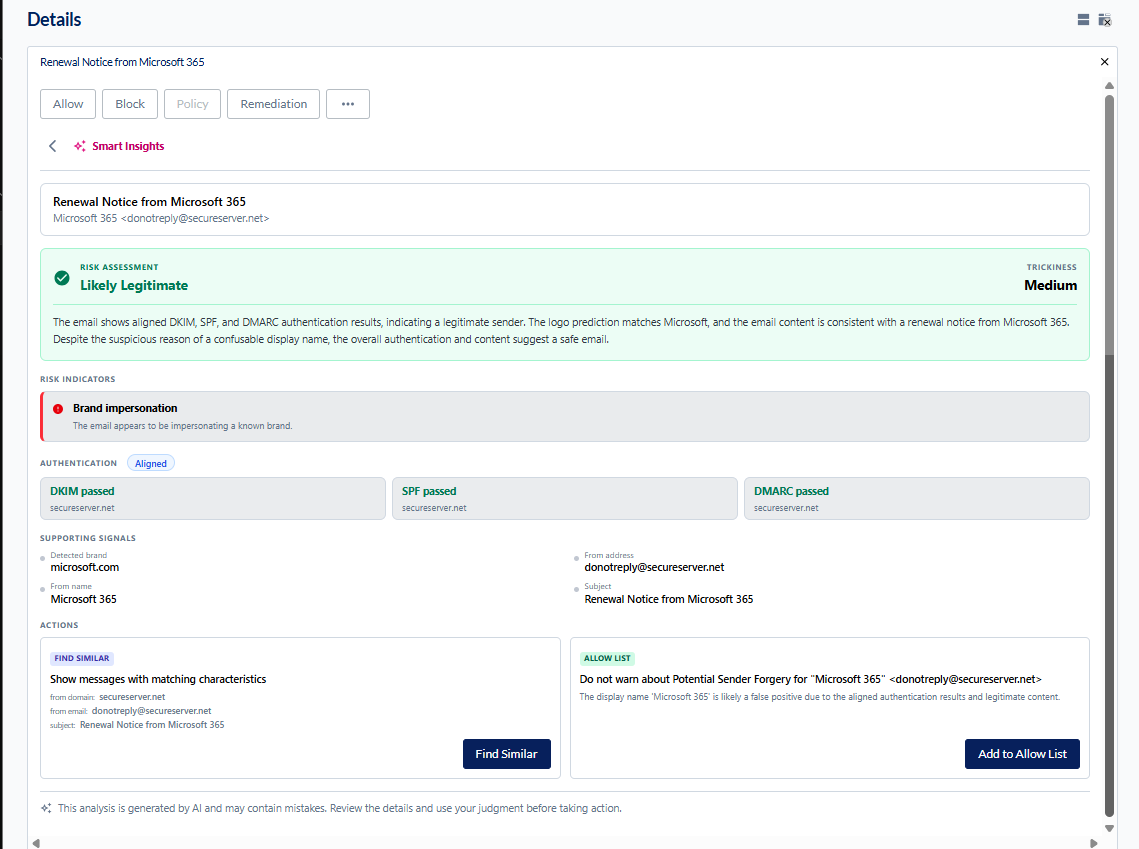
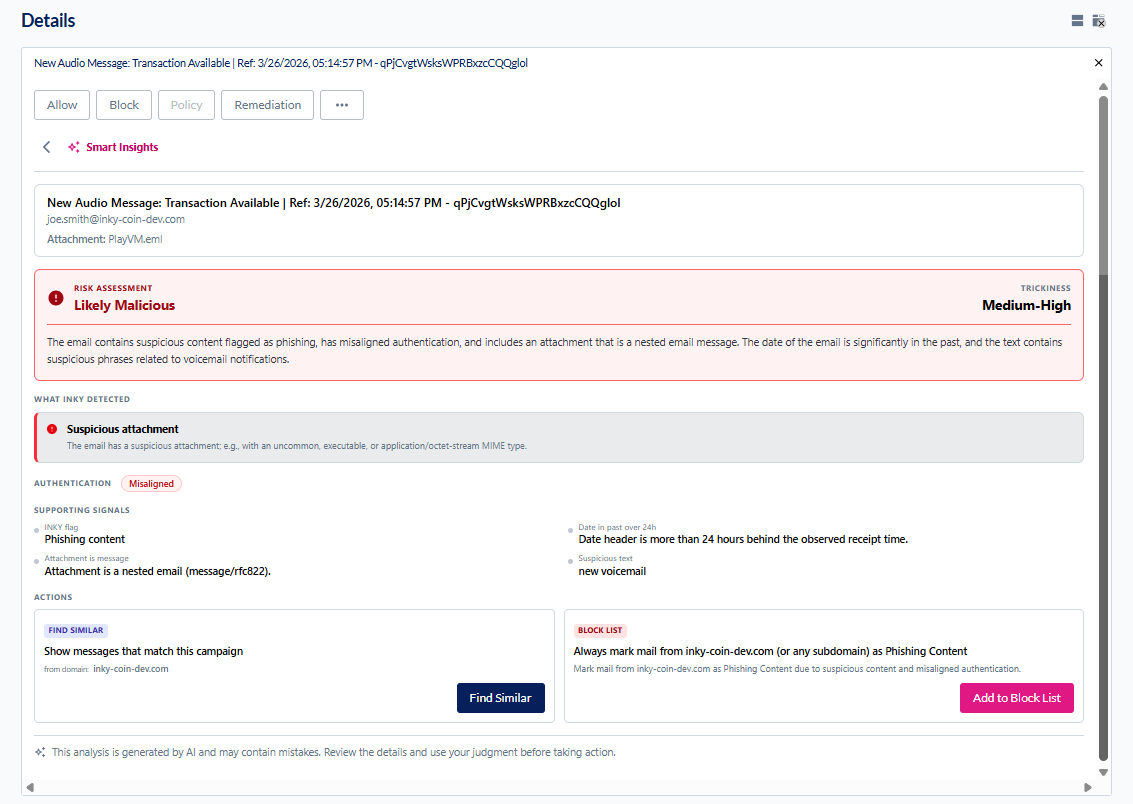
Risk Assessment: Verdict on email safety (Likely Legitimate, Suspicious, or Likely Malicious).
Trickiness Rating: How sophisticated the attack attempt appears (ranges vary per email, such as Low, Medium, Low-Medium, Medium-High, or High).
Explanation: AI-generated narrative explaining why the email received that verdict.
Risk Indicators: Specific suspicious elements detected (for example, newly registered domain, hidden text, phishing content).
Supporting Signals: Technical lower-level details and heuristics that fired during analysis.
Authentication: Email authentication results (Aligned or detailed status).
Actions: Find Similar (identifies related messages with matching characteristics) and Allow/Block List options (add sender to allow or block list).
Likely Legitimate example
Likely Malicious example
When to use Smart Insights
Smart Insights is most valuable when:
You're investigating an email that seems slightly off but you're not completely sure.
You received a message from an unfamiliar sender that appears legitimate but requests action.
An email passed INKY’s initial checks, but you want additional confidence before trusting it.
You need to explain to users why a message was flagged as suspicious.
Important Notes
Smart Insights is AI-generated and may occasionally make mistakes. It should be used as a supplementary analysis tool alongside your security team's judgment.
This feature uses advanced AI to analyze message content. The feature can be enabled or disabled per organization through your admin settings.
Smart Insights may not be available for old unreported emails.
Turning LLM assistance on or off for a team
LLM assistance is enabled by default for your organization, and Smart Insights is one of the features it covers. To change this setting:
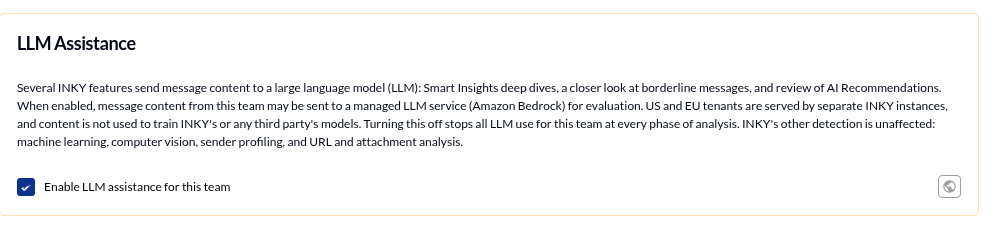
On the top navigation bar, select Settings > Admin Center > Analysis > LLM Assistance.
Clear the Enable LLM assistance for this team check box to turn LLM assistance off.
If you don't see the setting: LLM assistance requires the Kaseya INKY Pro Base entitlement. A team only shows the LLM Assistance section when it's entitled. At the organization level the section always appears, with a note that it requires INKY Pro, so you can set policy that applies to the teams which are entitled.
When LLM assistance is disabled: INKY's standard threat detection continues normally for that team's inbound email. Phishing detection, spoofing checks, banner insertion, and all other INKY features operate as usual. Turning LLM assistance off removes every LLM-powered layer for that team, not only Smart Insights: the deep dive, the closer look INKY takes at borderline messages, and the LLM review pass over AI Recommendations. The Smart Insights button on the Observations page will appear grayed out for this team's messages, and AI Recommendations continue to be generated by rule-based analysis without an LLM review. Disabling affects analysis depth but does not affect INKY's email protection.
When LLM assistance is enabled: message content from this team may be sent to a managed LLM service (Amazon Bedrock) for evaluation. US and EU tenants are served by separate INKY instances, and content is not used to train INKY's or any third party's models. Turning it off keeps this team's mail from being sent to an LLM at any phase of analysis. INKY's other detection is unaffected: machine learning, computer vision, sender profiling, and URL and attachment analysis.
Inheritance
LLM assistance follows INKY's standard policy inheritance. If it is turned off at an organization level, child teams inherit the opt-out unless it is overridden at the team level.
Still need help? Ask the team