Applying an Allow or Block List Entry to All Teams
Copy an existing Allow or Block List entry up to the organization so it applies to every team — current and future — instead of just one.
Written By Nathan McCurley
Last updated 3 months ago
Short version
An Allow or Block List entry added under a single team applies only to that team. To make it apply to every team in your organization, open the entry and use Copy to Organization. This creates a copy of the entry at the organization level, where it applies to all current and future teams. The original team-level entry stays in place.
Before you start
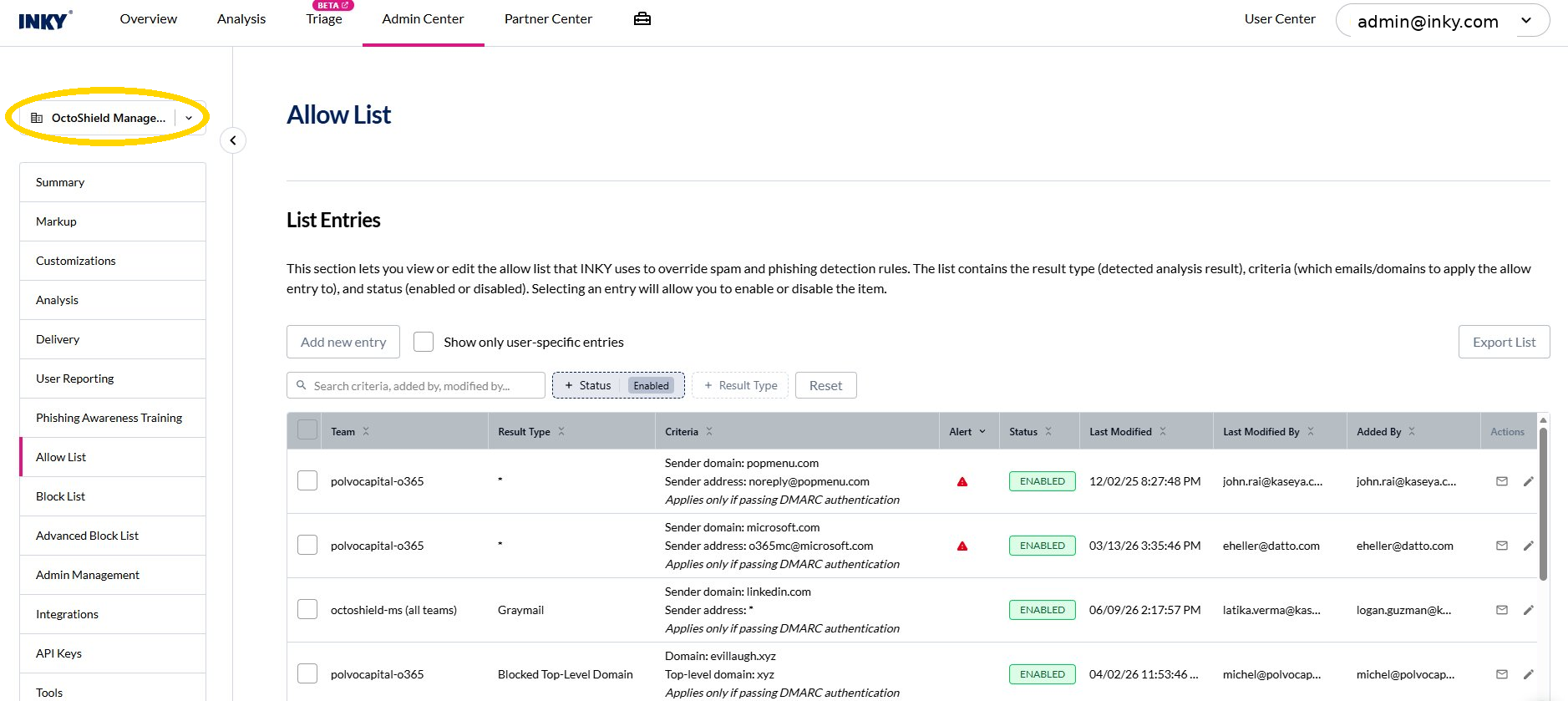
Make sure you're viewing the organization, not a single team — you'll see the building icon next to the organization name in the top-left selector.
Step 1 — Locate the entry to elevate
Open the list that holds the entry:
Admin Center > Allow List
Admin Center > Block List
Find the entry you want to apply organization-wide. The Team column shows the single team it currently belongs to. Use the Search box or the Status and Result Type filters to narrow the list if needed.
Step 2 — Select the entry and choose Edit
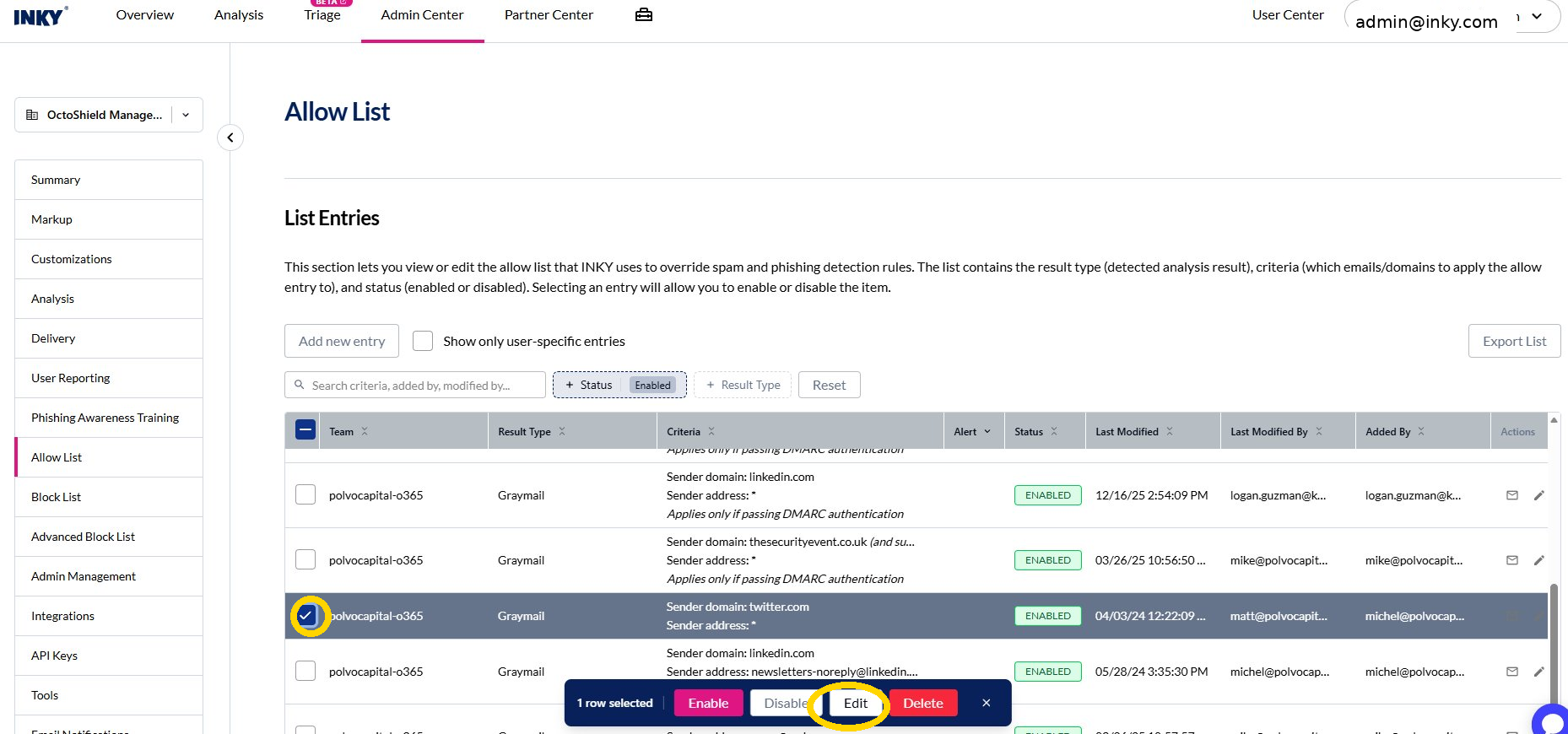
Check the box next to the entry you want to elevate. The 1 row selected action bar appears at the bottom of the list. Select Edit.
Step 3 — Open Copy to Organization
The Allow List Entry Info window opens, showing the entry's team, result type, criteria, and history. Select Copy to Organization in the top-right corner.

Step 4 — Confirm the number of teams affected
The Copy Entry to Organization confirmation appears and shows how many descendant teams the change will affect (for example, 11 descendant teams). Select Copy to Organization to confirm.

Step 5 — Done
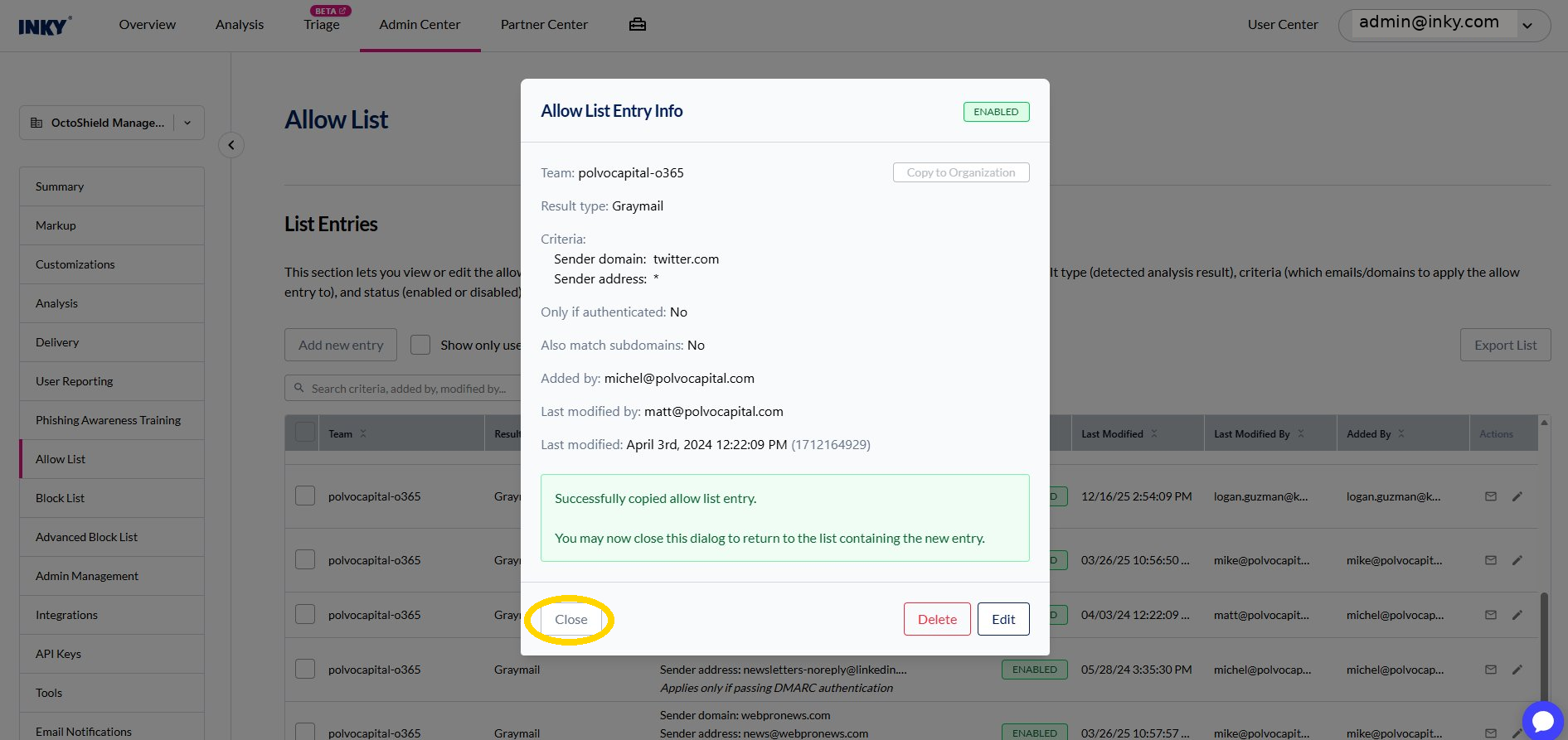
A success message confirms the entry was copied. Select Close to return to the list, where the new organization-level entry now appears.
The entry now applies to all current and future teams created under this organization.
Good to know
This is a copy, not a move — the original team-level entry stays in place. The new entry lives at the organization level and shows (all teams) next to the team name in the Team column.
The same steps work for both the Allow List and the Block List.
Questions?
If the copied entry isn't showing as organization-wide or isn't taking effect on a child team, reach out to Support and we'll help you trace it.