DMARC Monitoring
Written By Eric Heller
Last updated About 2 hours ago
NAVIGATION Analysis > DMARC Monitoring
PERMISSIONS Admin role required
REQUIREMENTS DMARC Monitoring is available only with INKY Pro
Overview
Domain-based Message Authentication, Reporting & Conformance (DMARC) is an email authentication protocol that protects your domain from spoofing and phishing by ensuring only authorized senders can send mail on your behalf. When a sender fails DMARC validation, INKY treats them as unauthorized, even if they appear on an Allow List.
INKY's DMARC Monitoring solution collects the aggregate reports that receiving mail servers generate based on your DMARC record, then aggregates and analyzes that data in an intuitive dashboard. This empowers administrators to quickly identify issues, confirm legitimate sending sources, and maintain domain integrity.
In INKY, DMARC plays an integral role in several features:
Allow Lists: DMARC authentication is recommended for safer allow listing. It blocks spoofed emails from matching your allow list by requiring SPF or DKIM validation of the FROM header. You can manage Allow List DMARC settings in the Admin Center. See Allow List Overview.
Block Lists: DMARC authentication also applies to block list entries to improve security.
Known External Senders: Only senders who pass SPF/DKIM/DMARC authentication receive the "Known External" blue banner, signaling trusted, verified external contacts to users.
Third-party senders: If a service sending mail on your behalf is properly authenticated with SPF/DKIM/DMARC for your domain, INKY honors that automatically without extra configuration.
DMARC Monitoring Page
The DMARC Monitoring overview page provides a centralized view of domain authentication status and reporting. Each domain displays its current DMARC, SPF, and DKIM configuration.
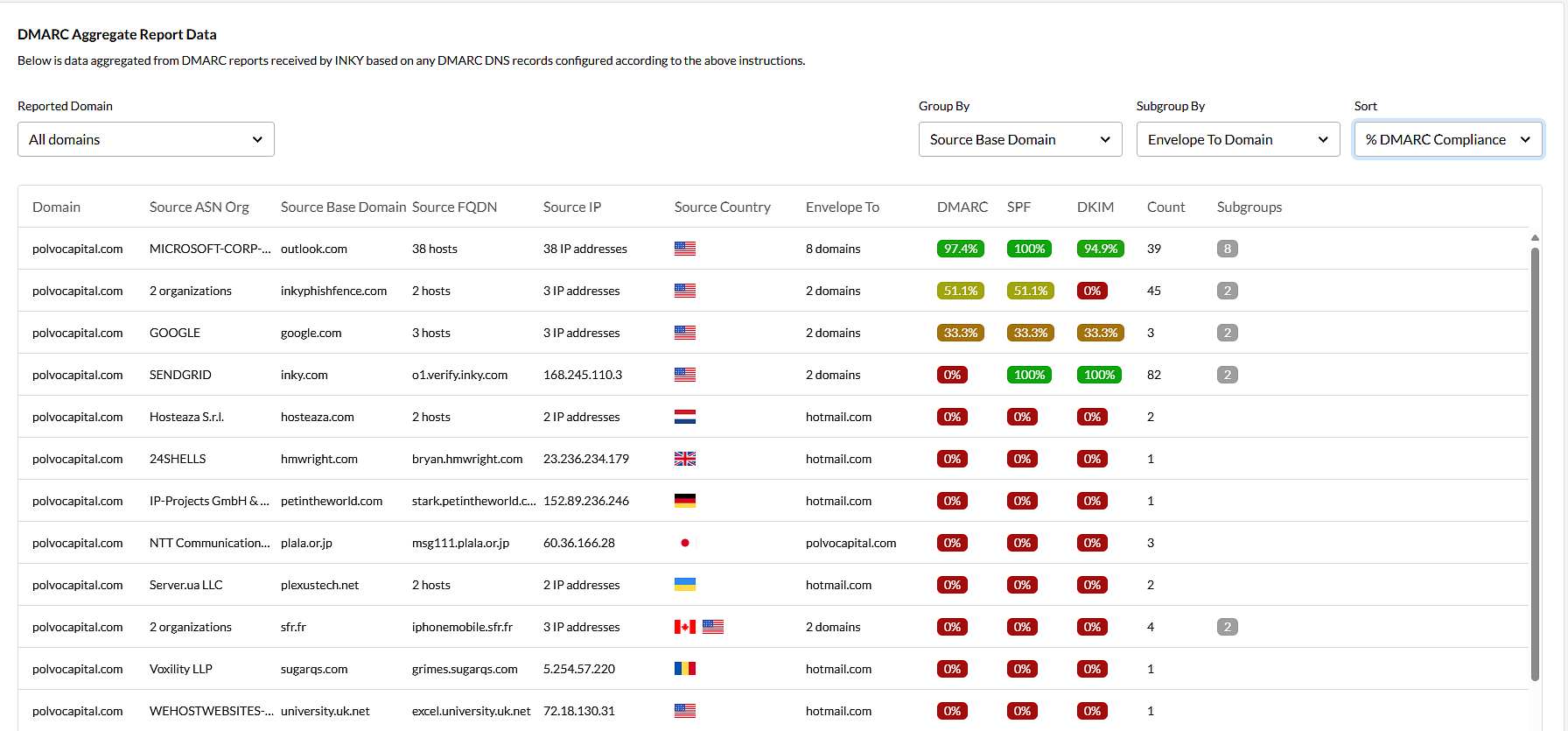
The DMARC Aggregate Report Data dashboard displays report data aggregated from DMARC reports received by INKY based on any DMARC DNS records configured.
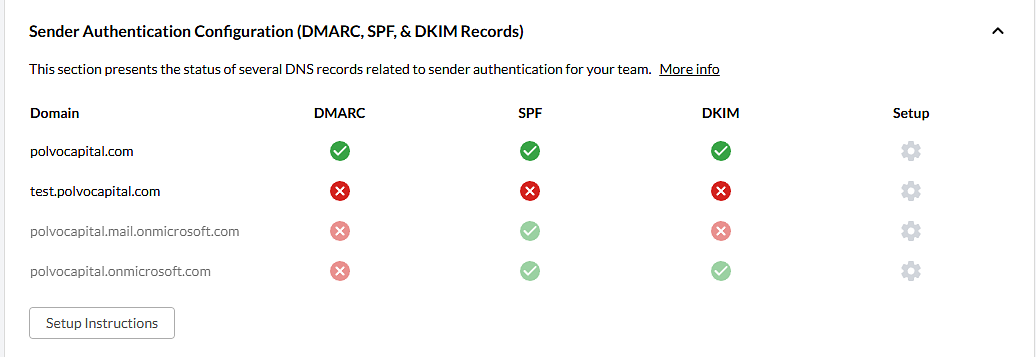
Sender Authentication Configuration Section
This section displays the authentication configuration for all domains in your organization, including DMARC, SPF, and DKIM records. If the section is collapsed, click the ^ icon to expand it.
Your domains may already appear in the list and be awaiting configuration.
Each domain displays its current DMARC, SPF, and DKIM status. Do not be concerned if some checks are not yet passing. After you configure a DMARC record, synchronization can take up to 24 hours. In addition, the DKIM status will not change to Passed until the first DMARC report is received.
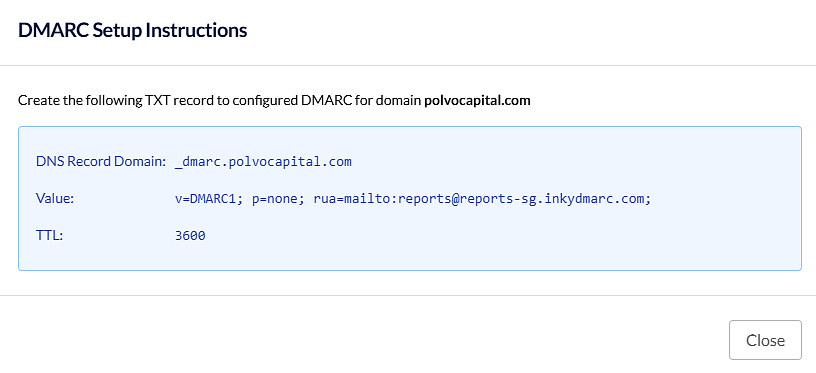
DMARC Setup Instructions Panel
Displayed when the Cog icon is selected for a domain. Provides the DNS record information needed to enable DMARC reporting to INKY.
How to…
FAQ
How does DMARC work with Allow Lists in INKY?
When DMARC authentication is enabled for an Allow List entry, INKY only matches that entry if the sender passes DMARC validation, meaning SPF or DKIM authenticates for the FROM header. This prevents attackers from spoofing allowed domains and gaining unauthorized access through the Allow List.
Should I always enable DMARC authentication for Allow List entries?
Yes, it is recommended to enable DMARC authentication for Allow List entries unless you specifically need to allow unauthenticated email. By default, DMARC authentication is selected when adding entries to the Allow List from the message view.
What happens if a sender does not pass DMARC?
If a sender does not pass DMARC, even if they are on your Allow List, their email will not be treated as allowed. DMARC authentication applies to both Allow List and Block List entries to improve overall security.
How long does it take for DMARC reports to appear in INKY?
It may take up to 24 hours after completing DNS configuration to receive DMARC aggregate results, depending on DNS propagation, sending habits, and aggregate report timing. DKIM status will not turn green until after the first DMARC report is received.
Can I keep my existing reporting address and also add INKY?
Yes. DMARC allows multiple addresses in the RUA section if they are separated by a comma. You can add INKY's reporting address alongside your existing address without removing it. Only replace your existing address if you no longer need reports sent there.