Editing Allow and Block List Entries
Modify existing entries to fix mistakes or adjust authentication settings. You can change everything except the result type.
Written By Matt Sywulak
Last updated 10 months ago
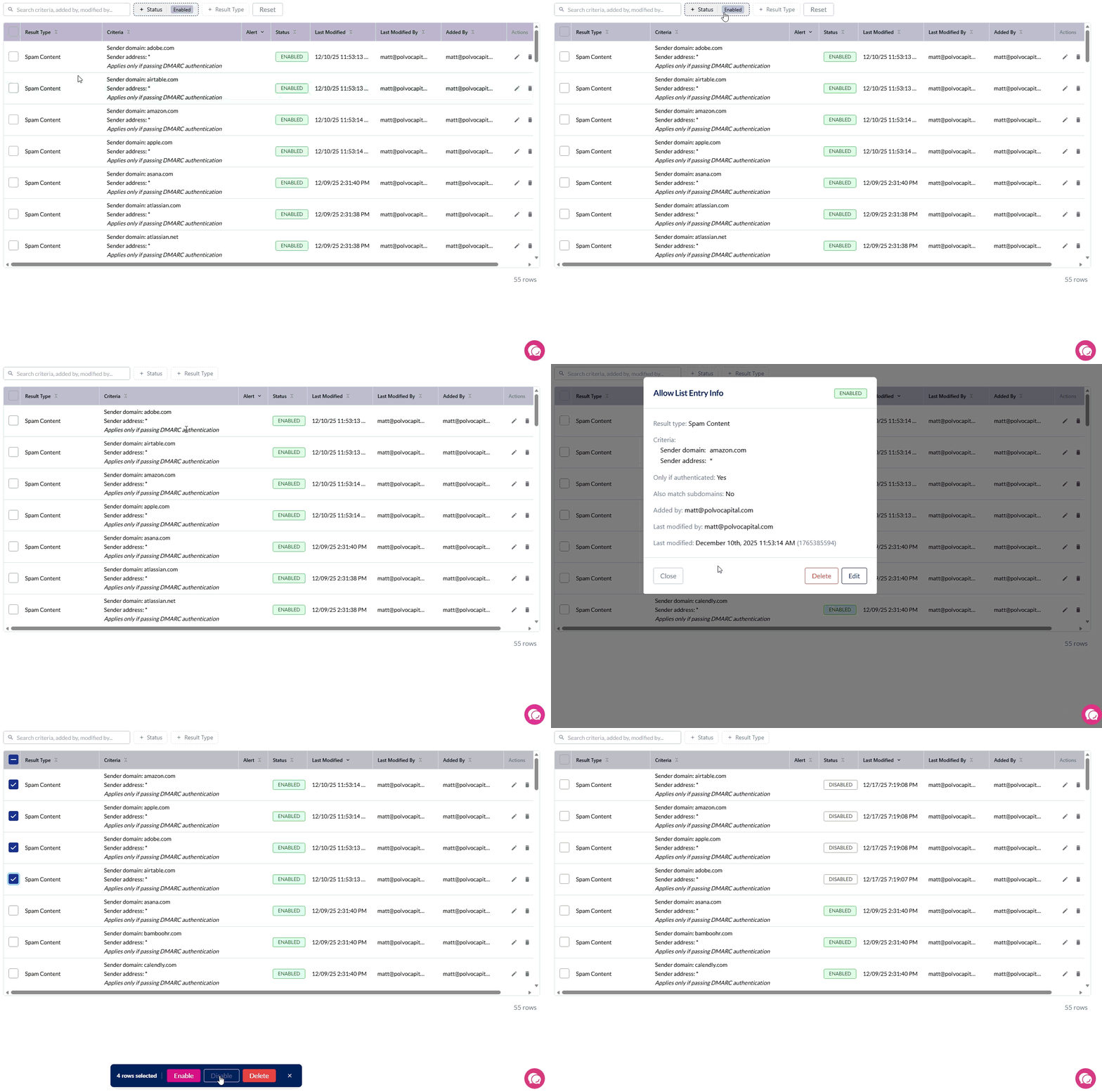
Finding Entries to Edit
Use the filter options at the top of the Allow or Block List to find specific entries:
Status filter — Filter by Enabled or Disabled entries
Result Type filter — Filter by the warning type (Spam, Phishing, First-Time Sender, etc.)
User Email filter — Find entries that apply to a specific user
Edit Process
Admin Center > Allow List or Block List
Select the entry
Select More Info
Select Edit
What You Can Change
Criteria:
Sender email address (fix typos)
Domain name (fix misspellings)
Options:
DMARC authentication requirement
Subdomain matching
User-specific targeting (convert team entry to user entry)
What you cannot change:
Result type (delete and recreate entry instead)
Converting to User-Level Entry
In edit view:
Add email address in "User's Email address" field
Save changes
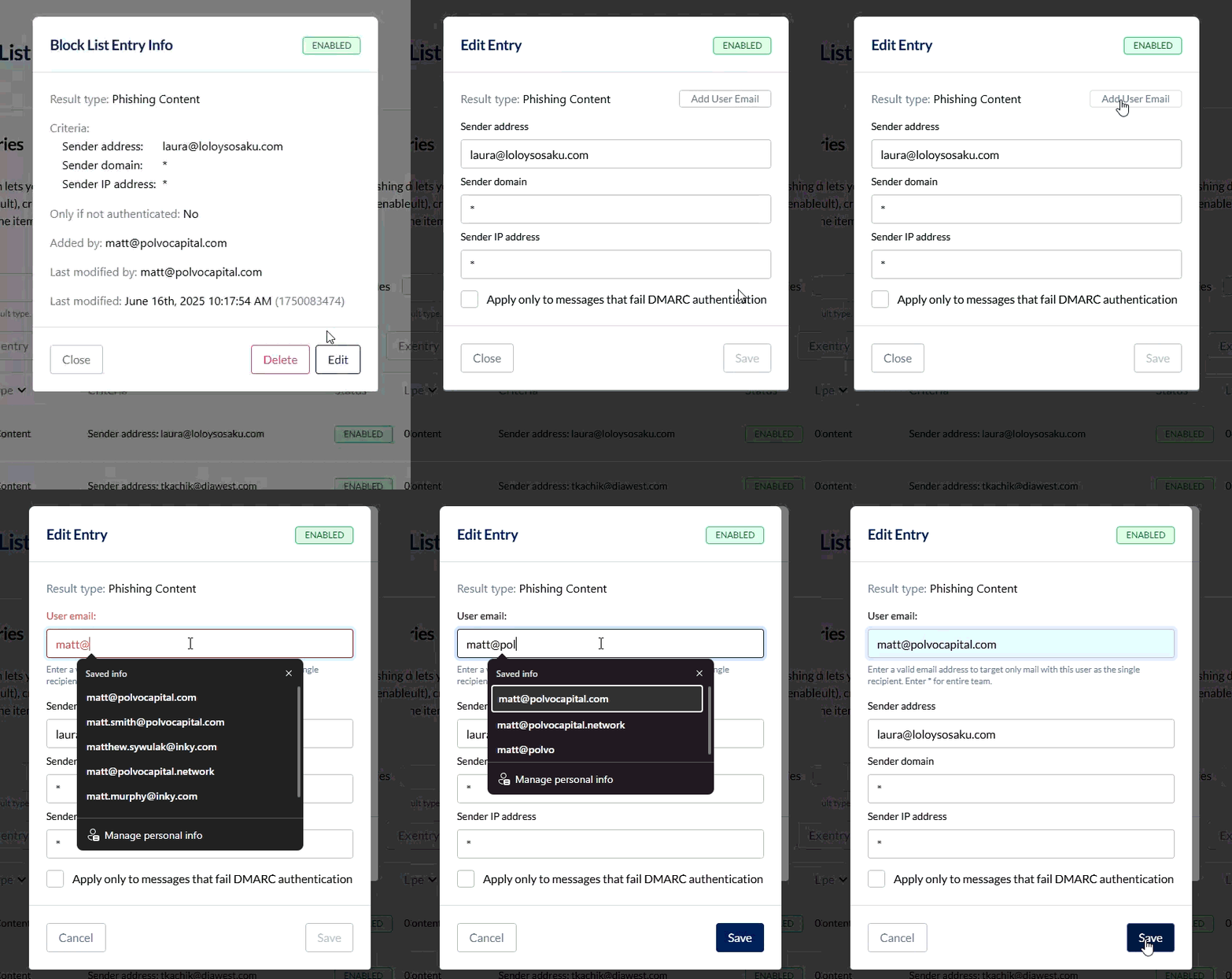
This converts a team-level entry that applies to everyone into a user-specific entry that applies to only that user.
Note: User-level entries require separate management.
Bulk Enable/Disable
For managing multiple entries at once, use bulk operations instead of editing individually:
Select multiple entries using checkboxes
Choose Enable Selected or Disable Selected from the actions menu
A progress indicator shows the operation status
Tip: The system skips entries already in the desired state, making bulk operations efficient for large lists.
Deleting Entries
To delete:
Select the entry
Select More Info
Select Delete
Permanently removes the entry. Use when the entry is no longer needed.
Disabling vs. Editing vs. Deleting
Disable: Keeps entry but stops it from matching (can re-enable later)
Edit: Changes entry parameters while keeping it active
Delete: Permanently removes entry
Use disable when: Testing whether an entry causes issues, or temporarily suspending a rule
Use bulk disable when: Testing whether multiple entries cause issues
Use edit when: Entry has wrong criteria but correct purpose
Use delete when: Entry is no longer needed
Still need help? Ask the team