User Signature Visibility
Written By Matt Sywulak
Last updated 11 days ago
NAVIGATION Admin Center > Email Signatures > Users
PERMISSIONS Super Admin, Signature Manager
BEFORE YOU BEGIN Signature profiles must be configured and users assigned to them before working with user signatures. For more information, see the articles Getting Started with Email Signatures and Profiles & Deployment Strategies.
Overview
User Signature Visibility is an administrative feature in Inky that gives you a centralized view of every user's email signature status and profile assignment. Use this feature to audit which signature profile applies to any user, verify whether users have opted in or personalized their signature, and preview exactly what a user's signature looks like in outbound mail.
How it works
The Email Signatures page includes a Users tab that displays the User Signatures table. The table lists all users in your environment with a summary of their signature configuration. Selecting any row opens a detail view for that user, showing their full profile assignment, opt status, personalized fields, and a rendered preview of their signature.
User Signatures table
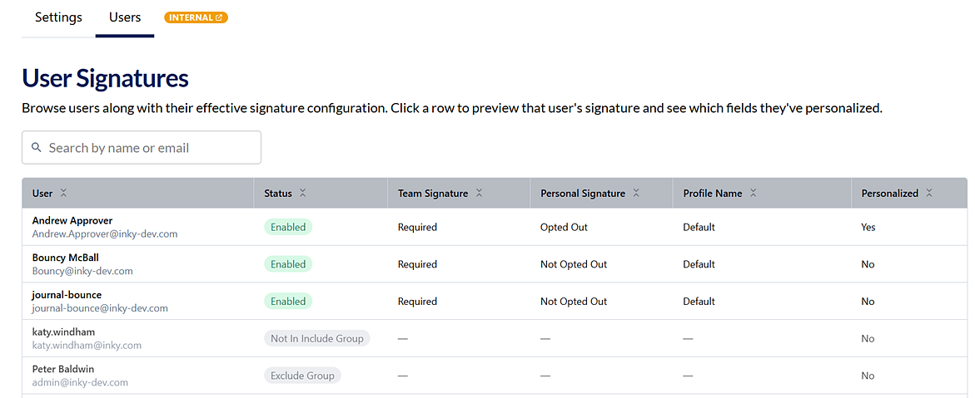
The User Signatures table, found under the Users tab on the Email Signatures page, lists every user in your Inky environment alongside a snapshot of their current signature configuration. You can search for a specific user or scroll through the list.
User detail view
Clicking anywhere on a user’s row opens a detailed view of their individual signature settings.
This includes the full breakdown of how their signature is configured, including which fields have been personalized, if any, and what value the directory provides versus what the user has entered.
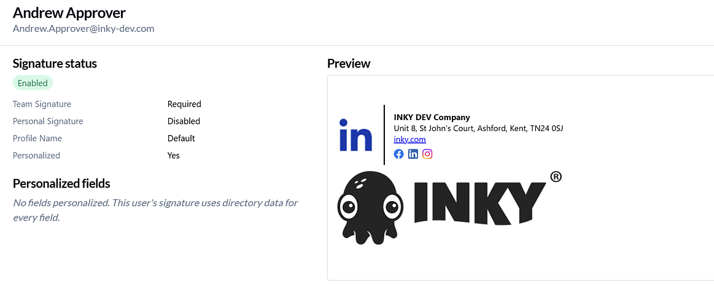
The following information from the User Signatures table is included in detail view:
User name, email address
Signature status
Team Signature
Personal Signature
Profile Name
Personalized
Personalized fields
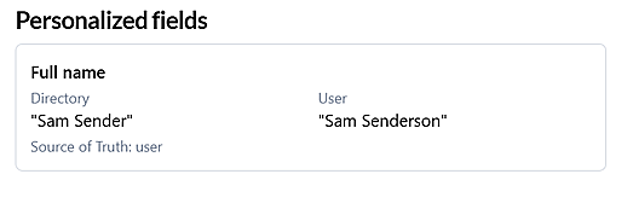
If the user modified their signature, details are shown here. This example shows that the user modified the Full name retrieved from the directory.
Preview
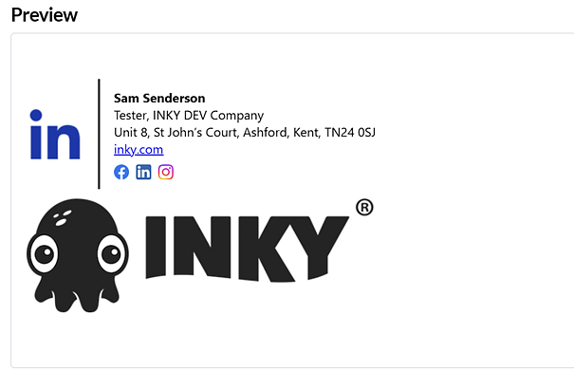
Preview shows exactly what the user's signature looks like in outbound emails, including any values they have personally overridden.
How to...
View a user's signature status
To confirm what signature a specific user is receiving, complete the following steps:
Navigate to Admin Center > Email Signatures.
Click the Users tab.
Search for the user by name or email address, or scroll through the list.
Review the user’s data for an at-a-glance summary.
Click anywhere on the user's row to open the detail view.
FAQ
Why can't I see a user's signature on the Users page?
The user may be in the Inky Exclude Group, or no signature profile has been assigned to them. Users in the Exclude Group do not receive any Inky features, including email signatures. Exclusion applies to Inky as a whole. You cannot exclude a user from signatures only. If the user should be receiving a signature, confirm they are in the Inky Include Group and are matched to an active signature profile.
A user is in two profile assignment groups. Which profile do they receive?
Users can be matched to only one profile at a time. The profile that appears highest in the priority order takes precedence. Signature profiles are evaluated top-down. The first profile in the list whose assignment criteria match the user is applied. To change which profile takes priority for users who qualify for multiple profiles, reorder the profiles list so the intended profile appears higher.
A user's signature preview shows unexpected values. Why?
The user may have personalized one or more signature fields, overriding the directory value. When a user personalizes a field, for example, changing how their name appears, that value overrides what the directory provides. Click the user's row on the Users page to open the detail view and check the Personalized fields section. The detail view shows the directory value and the user-entered value side by side.
What is a Signature Manager and what can they access?
A Signature Manager is a role that grants full access to signature settings without access to Inky's security and phishing detection features. Signature Managers can create, edit, and manage signature profiles and view the Users page, but they cannot access phishing detection data, threat analysis, or any other Inky security settings. This role is useful when a non-security team member, such as someone from marketing, needs to manage signature templates independently.