Signature Styling & Formatting
Control the visual appearance of email signatures across your organization. Set fonts, colors, width, and formatting options that apply to all profiles.
Written By Matt Sywulak
Last updated 2 months ago
What It Does
Control the visual appearance of all signatures with global styling options. These settings affect fonts, colors, spacing, and formatting across your entire organization.
Available in: Email Signatures add-on (all INKY bundles)
Configuration Location
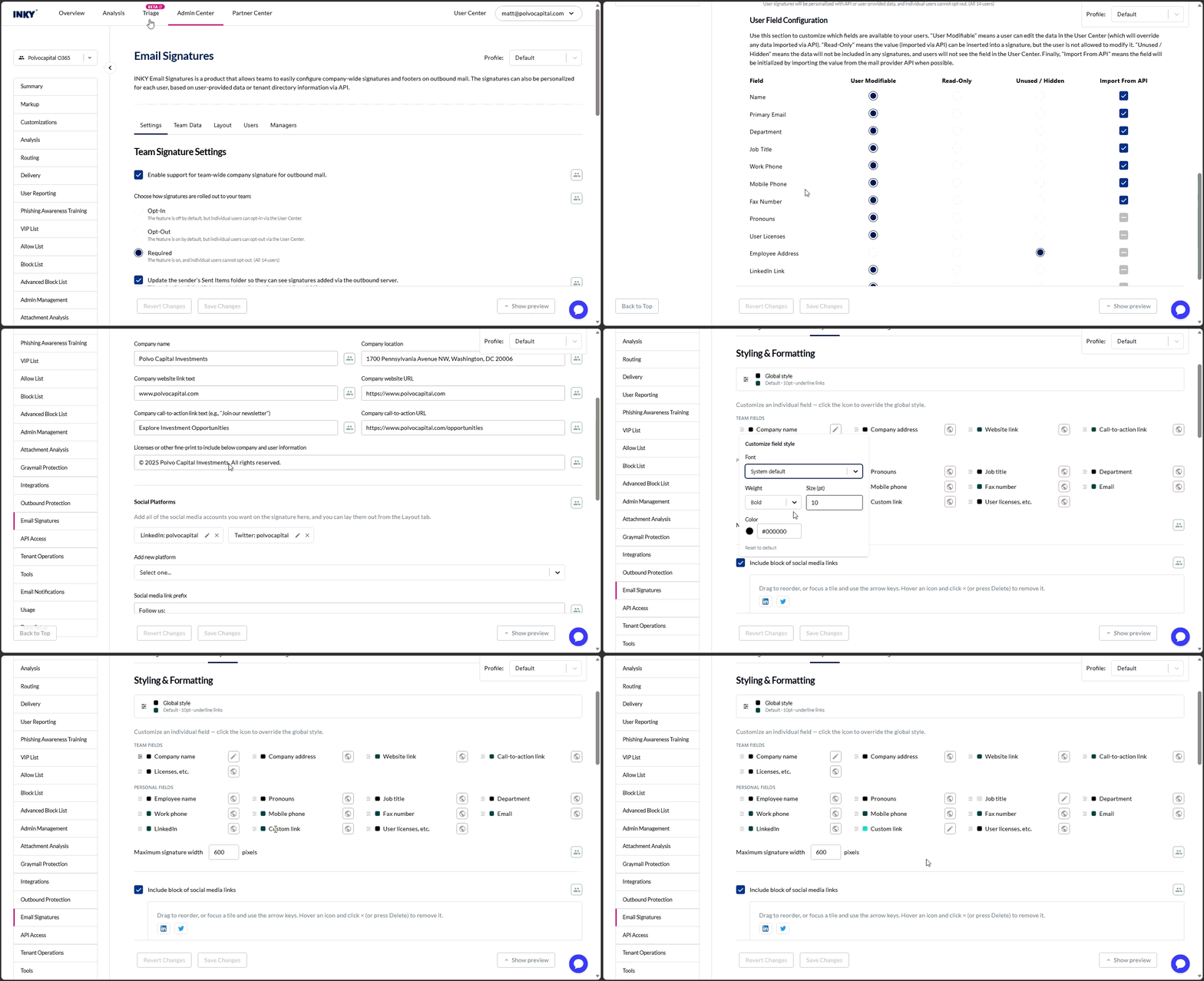
Navigate to Admin Center > Email Signatures, then open the Layout tab and find the Styling & Formatting section.
The signature editor is organized into tabs — Settings, Team Data, Layout, Users, and Managers. Styling lives on the Layout tab. A live preview docks to the bottom of the editor and refreshes as you make changes; you can also float it or open it in a separate window.
Global styling applies across all fields unless overridden per field (see below).
Global Style and Per-Field Overrides
Styling starts from a single Global style — a font family, font size, text color, link color, and an "underline links" option that every field inherits by default. Open it from the adjustments icon at the top of the Styling & Formatting section.
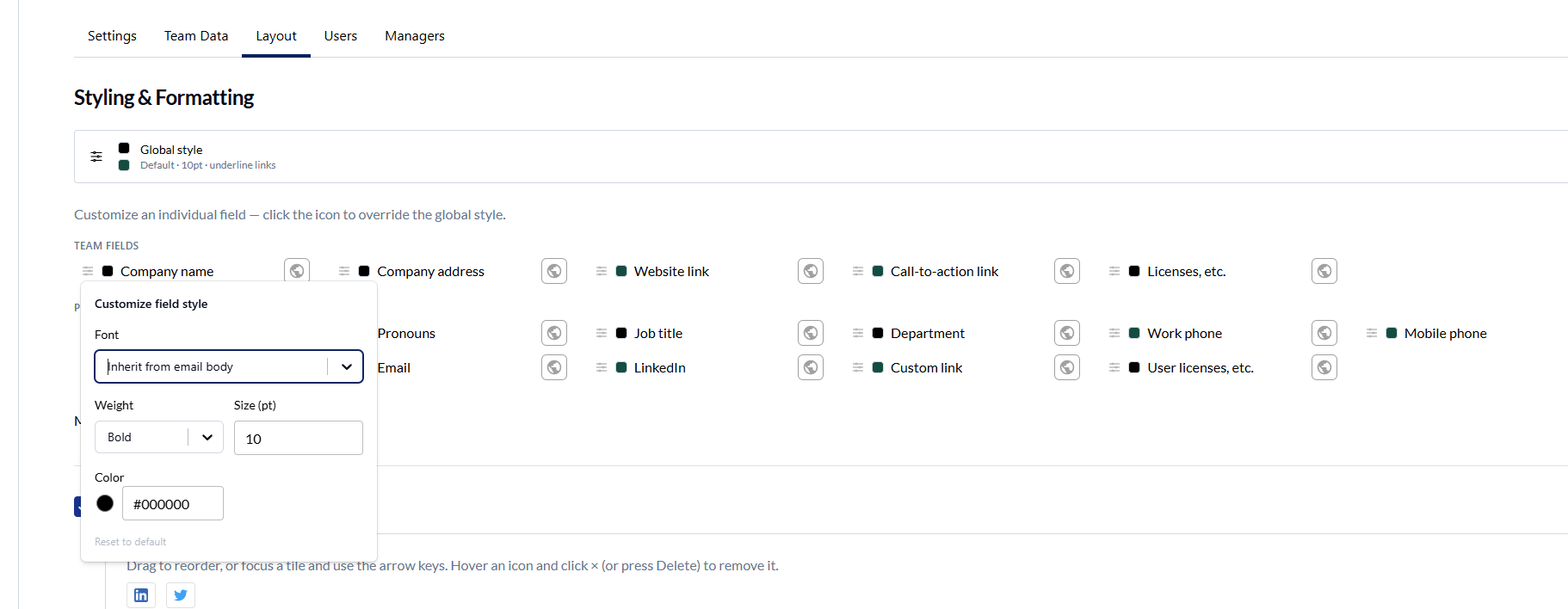
Below the global style, fields are grouped into Team fields and Personal fields. You can override the style of any individual field — click the icon on a field row to open Customize field style, which offers:
Font — grouped Sans-serif / Serif / Monospace options, plus "Inherit from email body"
Weight — Regular or Bold
Size (pt) — 7pt to 14pt
Color — with a quick color swatch on the row for color-only changes
Only the properties you change are applied; anything you leave alone keeps inheriting the global style. Use Reset to default to clear a field's overrides. When user signatures are disabled, personal fields appear dimmed with a note that their styles apply once user signatures are enabled.
The Team fields group includes the signature footer text and the mandatory disclaimer. Both are styled the same way as any other field and inherit down the team hierarchy, so you no longer need hand-authored HTML to control how they look.
Styling Options
Font Size
Control text size for signature details.
Best practice: Use 11-12pt for optimal readability across devices.
Font Family
Choose a font for your signature text.
Best practice: Stick to sans-serif fonts (Arial, Helvetica, Verdana) for email signatures. They render consistently across all email clients.
Text Color
Set default color for signature text.
Best practice: Use dark colors with sufficient contrast for readability. Avoid pure black (#000000)—use dark gray (#333333) for a softer look.
Link Color
Set color for clickable links (email addresses, websites, phone numbers).
Best practice: Use blue (#0066CC) or your brand color. Ensure links are visually distinct from regular text.
Name Bolding
Make the user's name appear in bold.
Best practice: Enable for emphasis. Helps recipients quickly identify who sent the email.
Link Underlining
Control whether links display with underlines.
Best practice: Enable for accessibility. Underlined links are more recognizable, especially for color-blind users.
Maximum Signature Width
Limit signature width in pixels to ensure proper display on all devices.
Recommended widths:
600px (maximum, default) - Full desktop width
450px (best fit) - Balanced for all devices
320px (minimum) - Mobile-optimized
Best practice: Use 450-500px for best compatibility across desktop, tablet, and mobile devices.
Vertical Separator
Add a visual divider between logo image and signature text.
Best practice: Use 1-2px width in a subtle color (#CCCCCC or brand color). Provides visual separation without overwhelming the design.
Phone Number Prefixes
Customize the display labels for phone numbers.
Customizable prefixes:
Work phone: Default "W:" (e.g., W: 555-123-4567)
Mobile phone: Default "M:" (e.g., M: 555-987-6543)
Fax number: Default "F:" (e.g., F: 555-111-2222)
Best practice: Keep prefixes short (1-2 characters or one emoji). Long prefixes consume valuable space in signatures.
Troubleshooting
Colors Look Different
Some email clients adjust colors for dark mode
Test in multiple clients
Use hex codes, not RGB or color names
Signature Too Wide on Mobile
Reduce maximum width to 400-450px
Test on actual mobile devices
Phone Number Formatting Issues
Avoid complex HTML in prefixes
Keep prefixes simple for best compatibility
Still need help? Ask the team