Update End-User Email Signature Information
Your organization uses INKY to automatically add professional signatures to your outbound emails. This page lets you personalize your signature with your current contact information.
Written By Matt Sywulak
Last updated About 1 month ago
What This Page Does
Controls the personal information that appears in your email signature—your name, job title, phone numbers, and other contact details. When you send email, INKY automatically adds your signature using the data you've entered here.
When to Update Your Signature Data
Update your information whenever:
You get a new job title or change departments
Your phone number changes (work, mobile, or fax)
You want to add pronouns to your signature
You move to a different office or work location
Your LinkedIn profile URL changes
You notice outdated information in your email signatures
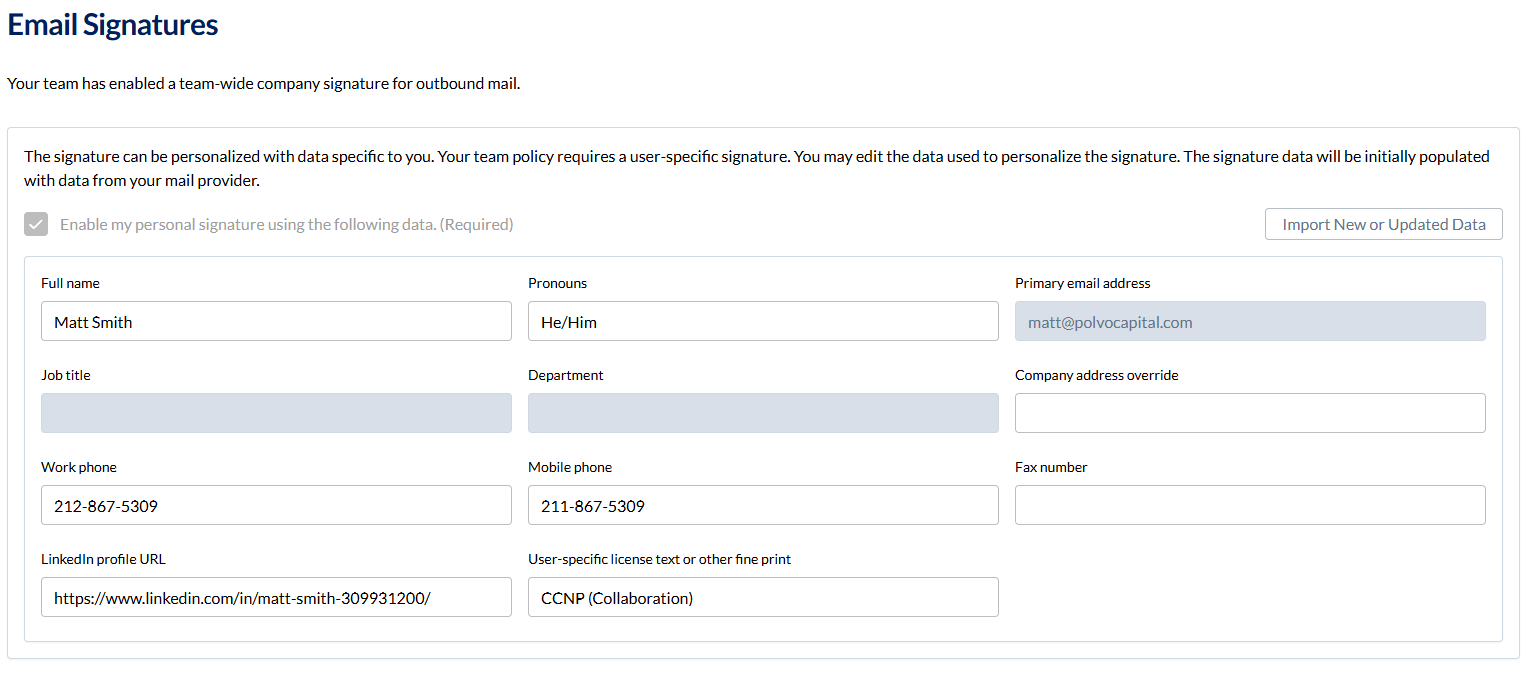
How to Update Your Signature
1. Import Your Latest Directory Data (Recommended First Step)
Click Import New or Updated Data to automatically pull your current information from your organization's directory (Microsoft 365 or Google Workspace).
This ensures you start with the most recent data your IT team has on file.
What gets imported:
Full name
Email address
Job title
Department
Work phone
Mobile phone (if available in directory)
2. Review and Edit Your Information
Check each field and make any necessary corrections or additions:
Full name – How your name appears in signatures (e.g., "Sarah Chen" or "Sarah J. Chen")
Pronouns – Optional. Appears after your name (e.g., "she/her" or "they/them")
Primary email address – Usually imports automatically; change only if you primarily send from a different address
Job title – Your current role (e.g., "Senior Account Manager")
Department – Your team or division (e.g., "Sales - West Region")
Company address override – Only fill this out if you work in a different office than your organization's default address. Leave blank to use the standard company address.
Work phone – Your direct office line with extension if applicable (e.g., "+1 555-0123 x456")
Mobile phone – Your business mobile number (optional but recommended for client-facing roles)
Fax number – Only if your role requires it (most users leave this blank)
LinkedIn profile URL – Your full LinkedIn URL (e.g., "https://www.linkedin.com/in/sarahchen")
Make sure your profile is public or connections can view it
Use your custom LinkedIn URL if you've set one up
User-specific license text or other fine print – Special legal disclaimers, certifications, or notices specific to you
Example: "Licensed Real Estate Agent - CA DRE #01234567"
Example: "FINRA Registered Representative"
Leave blank if you don't need custom legal text
3. Preview Your Signature
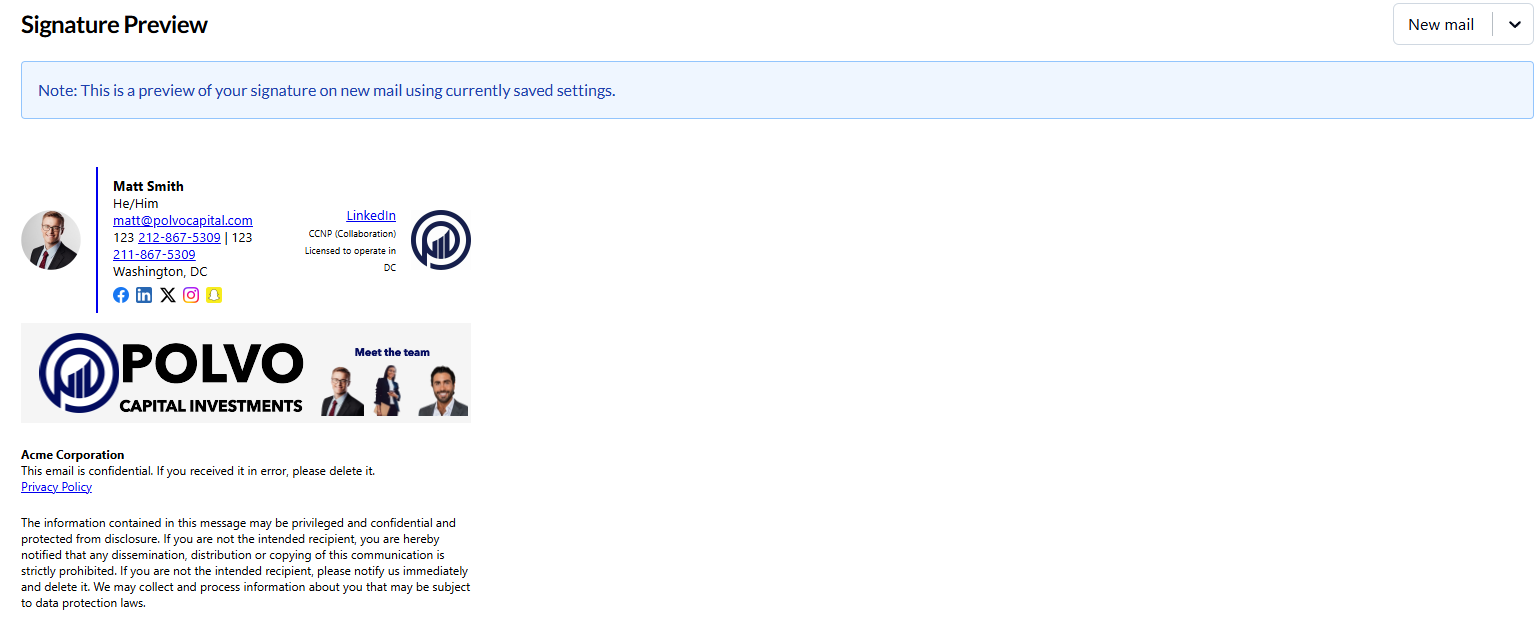
Scroll down to Signature Preview to see exactly how your signature will look in new emails.
The preview updates in real-time as you edit fields. Use this to check:
Spelling and formatting
Phone number formatting
All information displays correctly
4. Enable and Save
Make sure "Enable my personal signature using the following data" is checked.
If this is unchecked, your emails will not include a signature (or will use a generic one without your personal details).
Click Save when finished.
What Happens After You Save
Immediate effect: Your next outbound email will include your updated signature.
No retroactive changes: Previously sent emails keep the old signature. Only new emails going forward use your updated information.
Frequently Asked Questions
Q: Do I have to fill out every field?
No. Only fields with data will appear in your signature. If you leave "Fax number" blank, it won't show up.
Q: What if some of my information is wrong after importing?
Just edit the fields directly on this page. Your changes override what's in the directory. However, the next time you click "Import," it will pull fresh data again.
Q: Can I use a personal mobile number instead of my work number?
Yes, but check your organization's policy first. Some companies prefer work numbers only in signatures.
Q: Why is "Enable my personal signature" required?
Your organization has a signature policy that requires all outbound emails to include a signature. You can customize the data, but you must keep signatures enabled.
Q: How do I remove my signature entirely?
You can't disable it if your organization requires signatures. Contact your IT admin if you have a specific reason to opt out.
Q: Can I add custom content like awards or certifications?
Yes, use the "User-specific license text or other fine print" field for professional certifications, licenses, or required disclosures.
Q: Will my signature work with encrypted emails?
Yes, signatures are applied before encryption.
Q: What if I send from multiple email addresses or aliases?
Your signature uses the data from this page regardless of which alias you send from. The "Primary email address" field is just for reference.
Q: How often should I update this?
Whenever your information changes. Many users check it quarterly or after any role change.
Q: Can I have different signatures for different recipients?
No, you have one signature that applies to all your outbound mail. Your admin team controls signature layouts and any specialized rules.
Troubleshooting
Problem: Import button doesn't work or shows an error
Your directory data might not be syncing properly. Contact your IT team—they may need to update your information in Microsoft 365 or Google Workspace first.
Problem: Signature not appearing in sent emails
Check that "Enable my personal signature" is checked and you clicked Save. If it's still not working:
Try sending a test email to yourself
Check your Sent Items folder to confirm the signature is there
Contact IT support if signatures still aren't appearing after 5 minutes
Problem: Preview looks correct but sent email looks different
The preview shows how your signature appears in HTML email clients. Some recipients using plain-text email or older clients might see a simplified version. This is normal.
Problem: Information I updated isn't showing in new signatures
Wait 1-2 minutes after saving for changes to take effect
Clear your browser cache and reload the page
Check that you clicked Save after making changes
Try importing data again, then re-entering your custom information
Problem: My pronouns or LinkedIn URL don't appear in the signature
Your organization's signature layout might not include these fields. Your admin team controls which fields appear in the final signature design. You can still enter the data here—it will display if your org enables those fields in the future.
Problem: My email address does not appear in the signature, even though the organization's signature layout includes the email address field.
Check whether the email address field color has been customized to a color that is difficult to see, such as white. Adjust the color as needed to ensure the field is visible.
Still Need Help?
Contact your IT team or email support with:
A screenshot of this settings page
Description of what's not working
A copy of a sent email showing the signature issue
Still need help? Ask the team