User Profile Photos
Add personalized headshots to email signatures by pulling profile photos directly from your Microsoft 365 or Google Workspace directory.
Written By Matt Sywulak
Last updated 12 months ago
Enable Profile Photos
Check "Use Directory API Access to include a user's profile photo" to automatically include headshots in signatures. Photos appear only when available in your directory—if a user has no profile photo, the signature displays without it.
Crop user photo to a circle: Enable this option to display headshots as circular images instead of squares. Circular photos create a modern, professional appearance and work well alongside company logos.
Maximum user photo height: Set the photo height in pixels to control image size. Smaller values (50-80px) create subtle, professional signatures. Larger values (100-150px) make photos more prominent. Keep mobile compatibility in mind—oversized photos can dominate small screens.
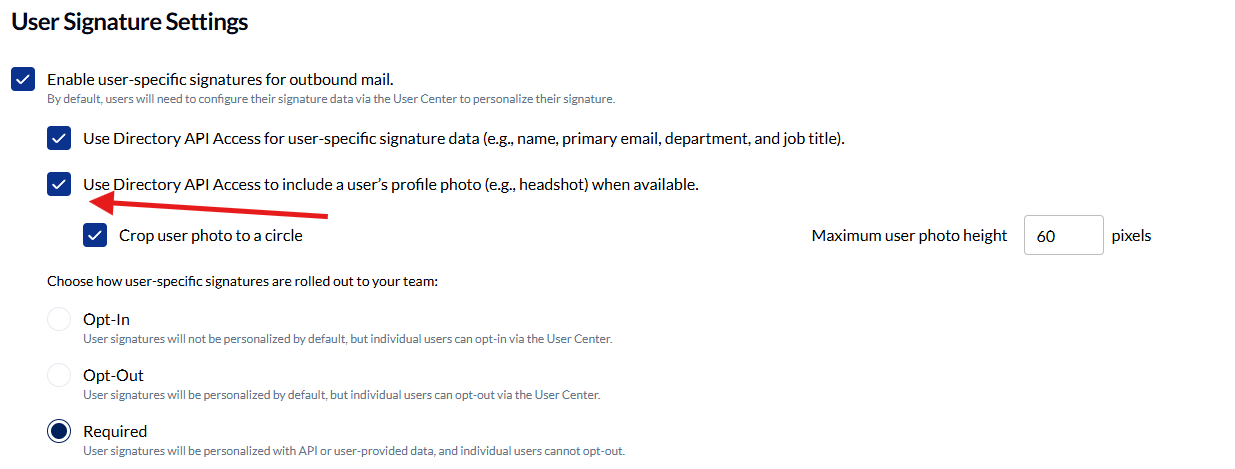
Image Placement
Control where logos and user photos appear relative to your signature text. These settings only apply to layouts that include image elements (configured in earlier steps).
Logo Position
Left of company and user details: Places your company logo on the left side with contact information to the right. This is the traditional business signature layout.
Right of company and user details: Positions the logo on the right side with text on the left. Use this for visual balance or when your logo design works better on the right.
User Photo Position
Opposite logo: Places the user photo on the opposite side from the company logo. For example, if the logo is on the left, the photo appears on the right. This creates a balanced, symmetrical signature with branding on one side and personal identity on the other.
Override logo: Replaces the company logo with the user's profile photo. Use this when personal identity is more important than company branding (common in consulting, coaching, or personal service industries). The logo won't display in signatures when this option is selected.

Best Practices
Photo quality: Ensure directory photos are professional headshots with good lighting and neutral backgrounds. Low-quality photos diminish signature professionalism.
Consistent sizing: Use the same maximum height across your organization for visual consistency. 60-80 pixels works well for most signatures.
Logo vs. photo priority: For corporate communications, place the logo prominently and keep photos smaller. For personal brands or client-facing roles, consider larger photos or the "Override logo" option.
Mobile testing: Preview signatures on mobile devices. Photos can overwhelm small screens if set too large.

Still need help? Ask the team