Installing INKY for your organization's own team
Installing INKY for your organization’s own team is a great way to become familiar with INKY’s features and deployment strategies. The key procedures include generating a license and installing INKY in your email platform.
Written By Eric Heller
Last updated About 2 months ago
Generating a license
On the top navigation bar, click Admin Center.

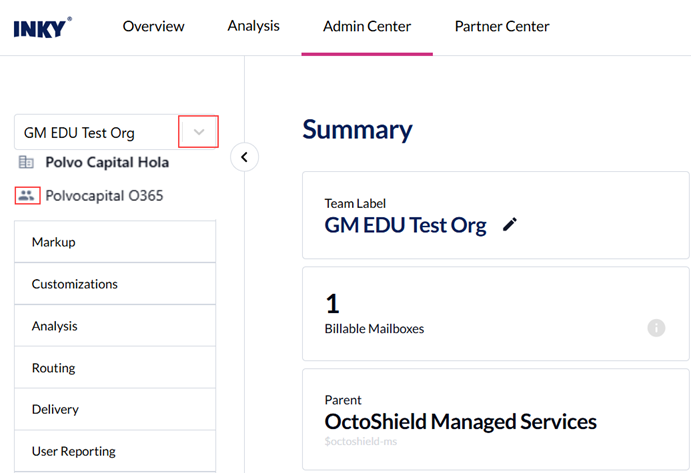
In the Organization drop-down list, select the name of your organization that has the people icon next to it. This is your organization’s team.
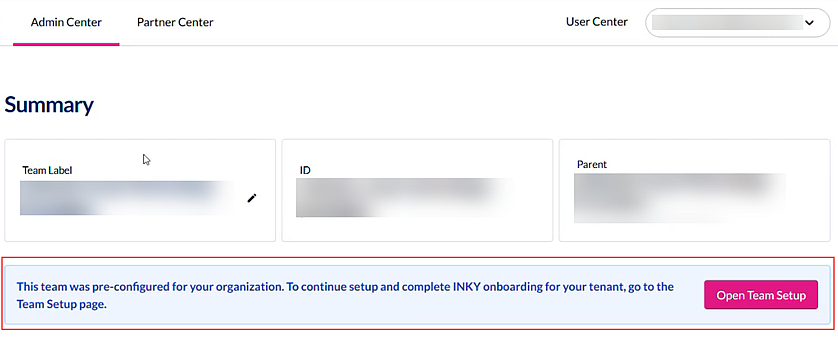
The banner indicates the team was pre-configured for your organization. Click Open Team Setup.
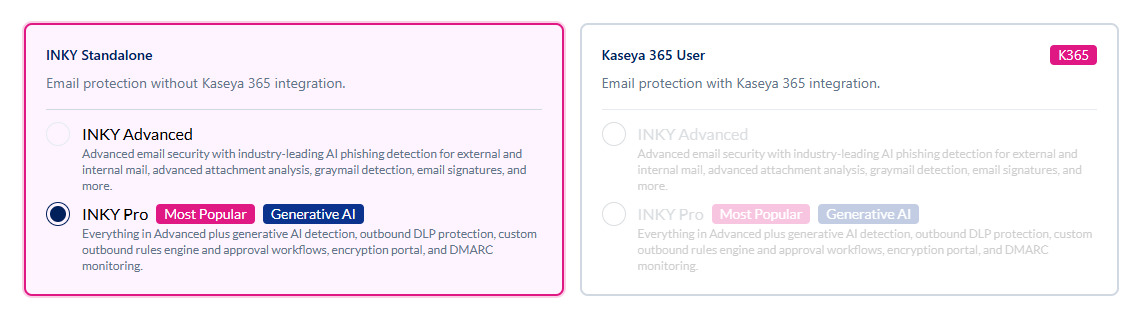
Choose the applicable email security package. In the Kaseya 365 User card, INKY Pro is selected by default.
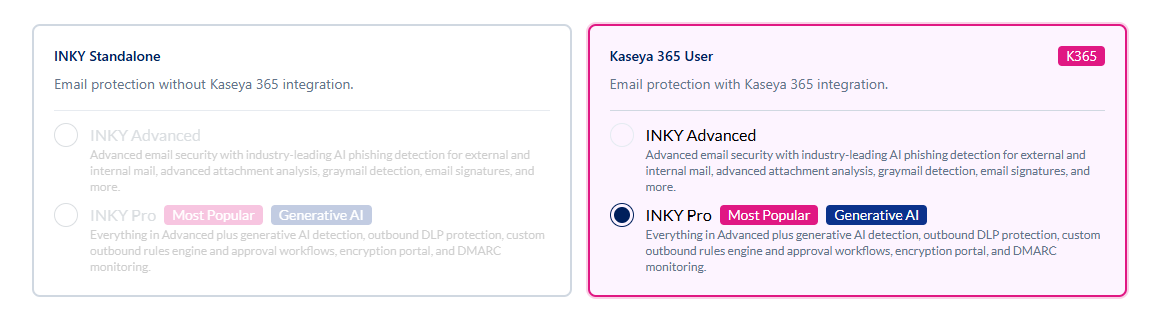
IMPORTANT: If this package does not match your organization’s subscription, be sure to select the correct email security package. Billing is based on the security package selected.
If your organization purchased an INKY Standalone subscription:a. Hover over the INKY Standalone subscription card and click to select it.
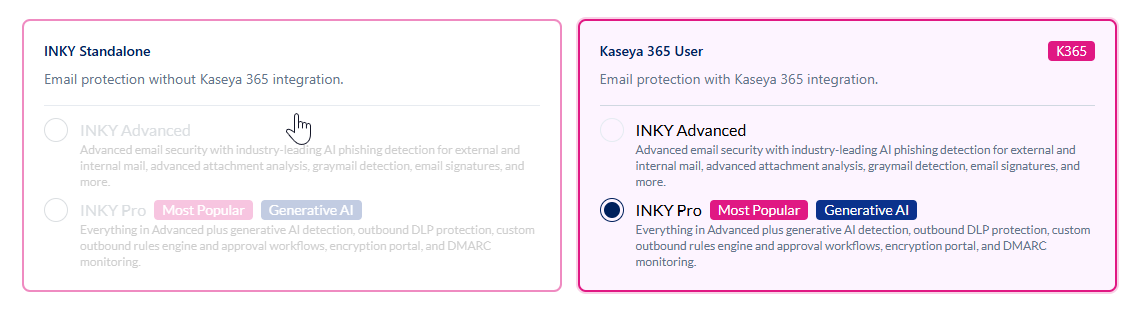
b. INKY Pro is selected by default. If your organization has purchased an INKY Advanced subscription, select INKY Advanced.
Choose your organization’s email platform and complete the following fields:
Domain: Enter the primary domain for this installation. For Microsoft, the correct domain is the one ending with onmicrosoft.com. For Google, enter the default domain. INKY automatically detects and protects additional domains on the same tenant.
Tenant Administrator Email: The administrator must belong to the same tenant as the domain entered above. The administrator’s email address is used for authentication during setup.
Note: Team Label and Team ID are already pre-configured.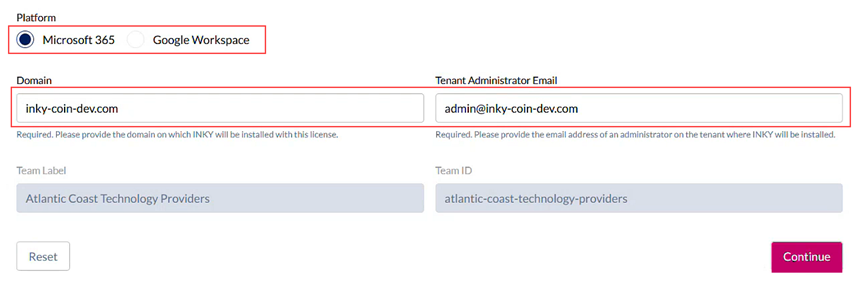
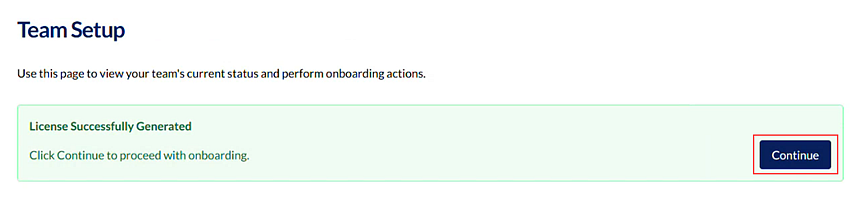
Click Continue. The license is generated. Click Continue.
In the License Redemption section, click Redeem.
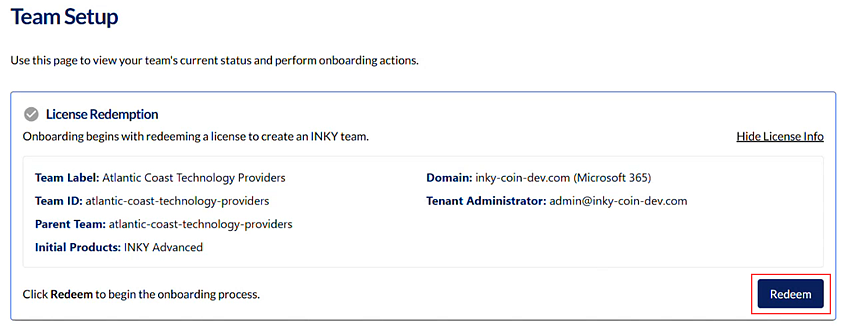
Redeeming the license creates the INKY team for your organization.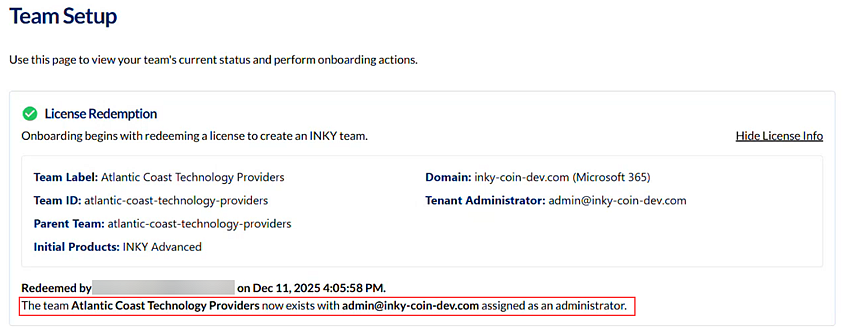
Installing INKY in your email platform
Next, you will install INKY in your email platform by performing the tasks described in each section. When you complete a section, the checkmark preceding the section name will appear green.
Sections
API Access: INKY requires admin consent to access Microsoft 365/Google Workspace applications to keep your team protected.
Team Configuration: INKY needs to know all the domains that send and receive mail on your team so it can analyze and relay mail correctly.
Installation: The installation process updates your mail tenant with rules and other configuration changes required to route mail through INKY for analysis.
Note: Installation may take some time.
Important: If you are installing INKY for Google Workspace, after completing the sections above, you must complete the steps in the Google Workspace Setup guide.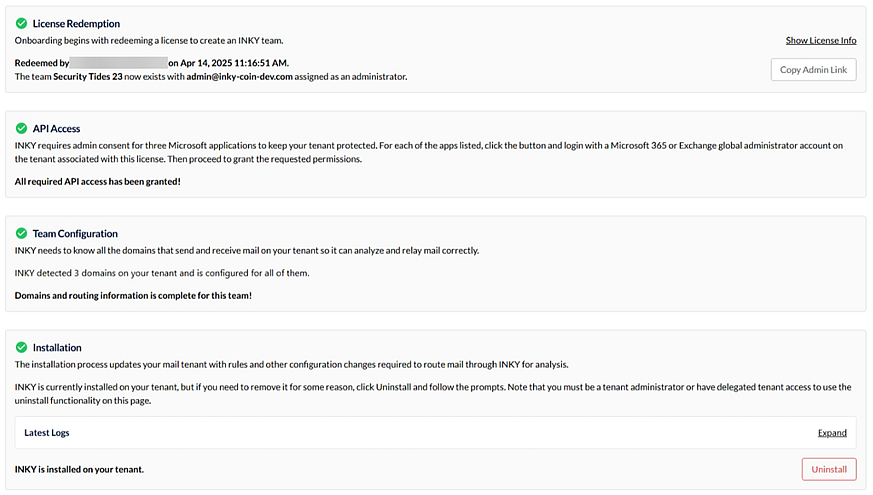
Important: If you installed INKY for Microsoft 365, log into INKY and in the Microsoft Permissions requested dialog box, select Consent on behalf of your organization and click Accept.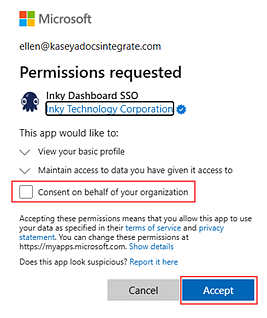
Still need help? Ask the team