Logging into INKY
Written By Eric Heller
Last updated 8 months ago
The steps for logging into INKY differ based on whether your organization has a Kaseya 365 User subscription or has a INKY standalone subscription.
Kaseya 365 User subscription
With this subscription, you access INKY using your Kaseya 365 single sign-on credentials.
Log into KaseyaOne.
In the My Modules section, click the INKY tile.
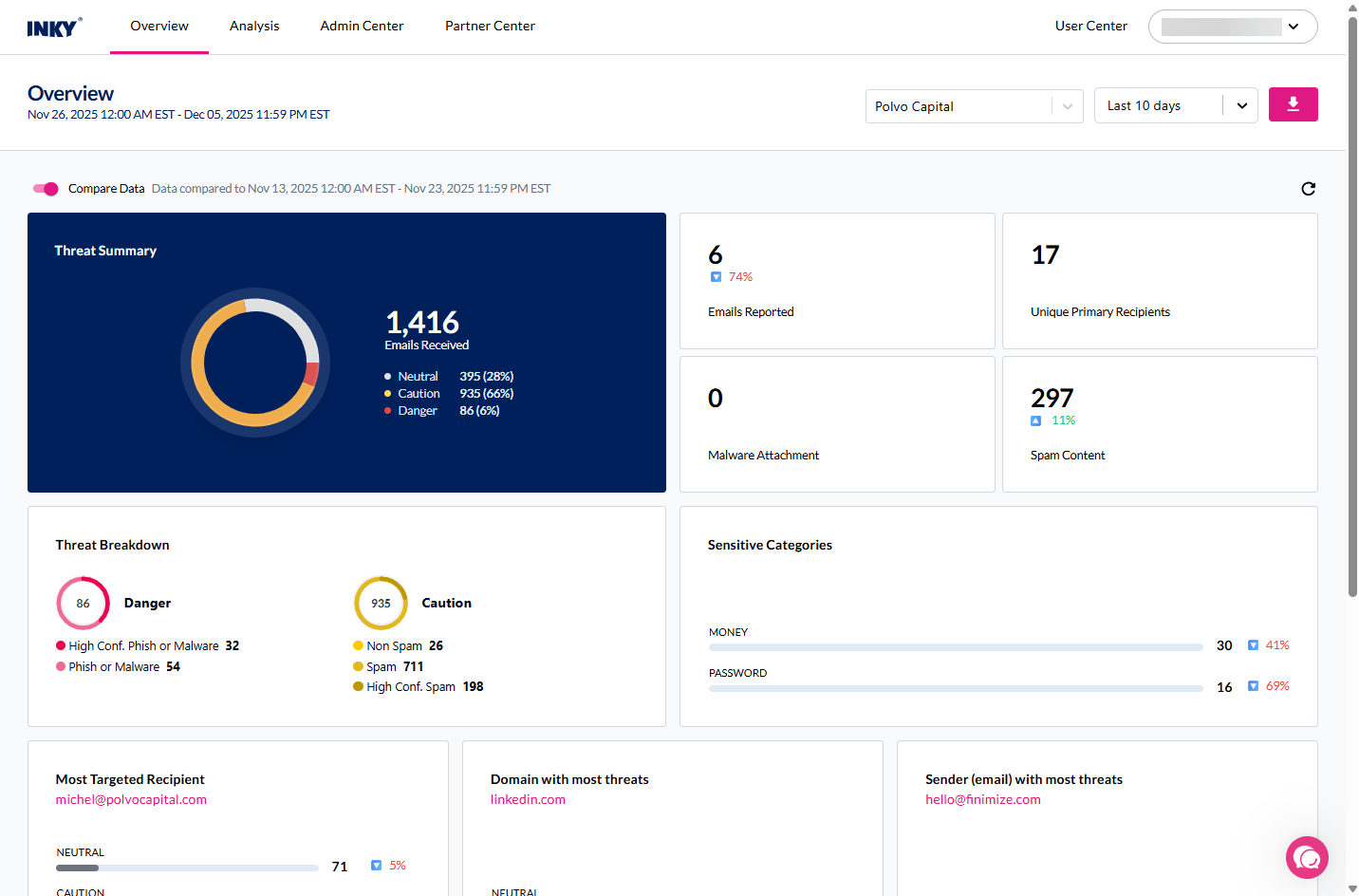
The INKY Overview page is displayed.
Standalone INKY subscription
With this subscription, you are required to access INKY using your Microsoft 365, Google Workspace, or KaseyaOne credentials.
In your browser, navigate to https://app.inkyphishfence.com/overview or sign-in directly from KaseyaOne INKY Module here: https://one.kaseya.com/login (You can skip step 2 if you do).
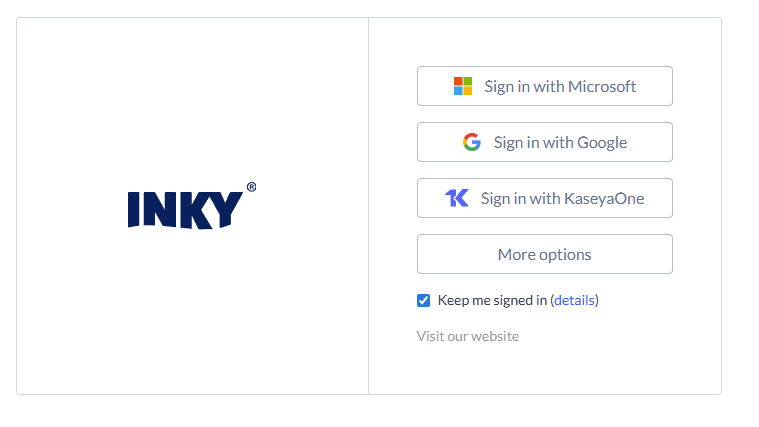
In the INKY card, click Sign in with Microsoft or Sign in with Google. Optionally, check the Keep me signed in box to maintain your session for an extended period without needing to re-authenticate.
The INKY Overview page is displayed.
Session Management
Keep me signed in
When logging into INKY with a standalone subscription, you can select the Keep me signed in checkbox on the login screen. This option allows you to remain logged in for an extended period without needing to re-authenticate frequently.
Session expiration warnings
Before your session expires, INKY displays a warning modal to alert you. This gives you time to save your work and choose whether to extend your session.
After your session expires, the dashboard automatically refreshes to prevent stale data from remaining on screen. You will need to log in again to continue working.
Still need help? Ask the team