Disable Graphus Prior to INKY Install
Written By Matt Sywulak
Last updated 8 months ago
Disable Graphus on any team before enabling INKY to prevent duplicate processing. If both products analyze the same emails, Graphus may flag INKY-modified messages as false positives.
Two methods are available to disable Graphus:
Disable Graphus from INKY Dashboard (Preferred)
Partners can disable Graphus directly from the INKY dashboard using two different ways.
During Team Setup
During the Team Setup process, just before the Install you’ll be prompted for Install Prerequisites. One of those is to Disable Graphus.
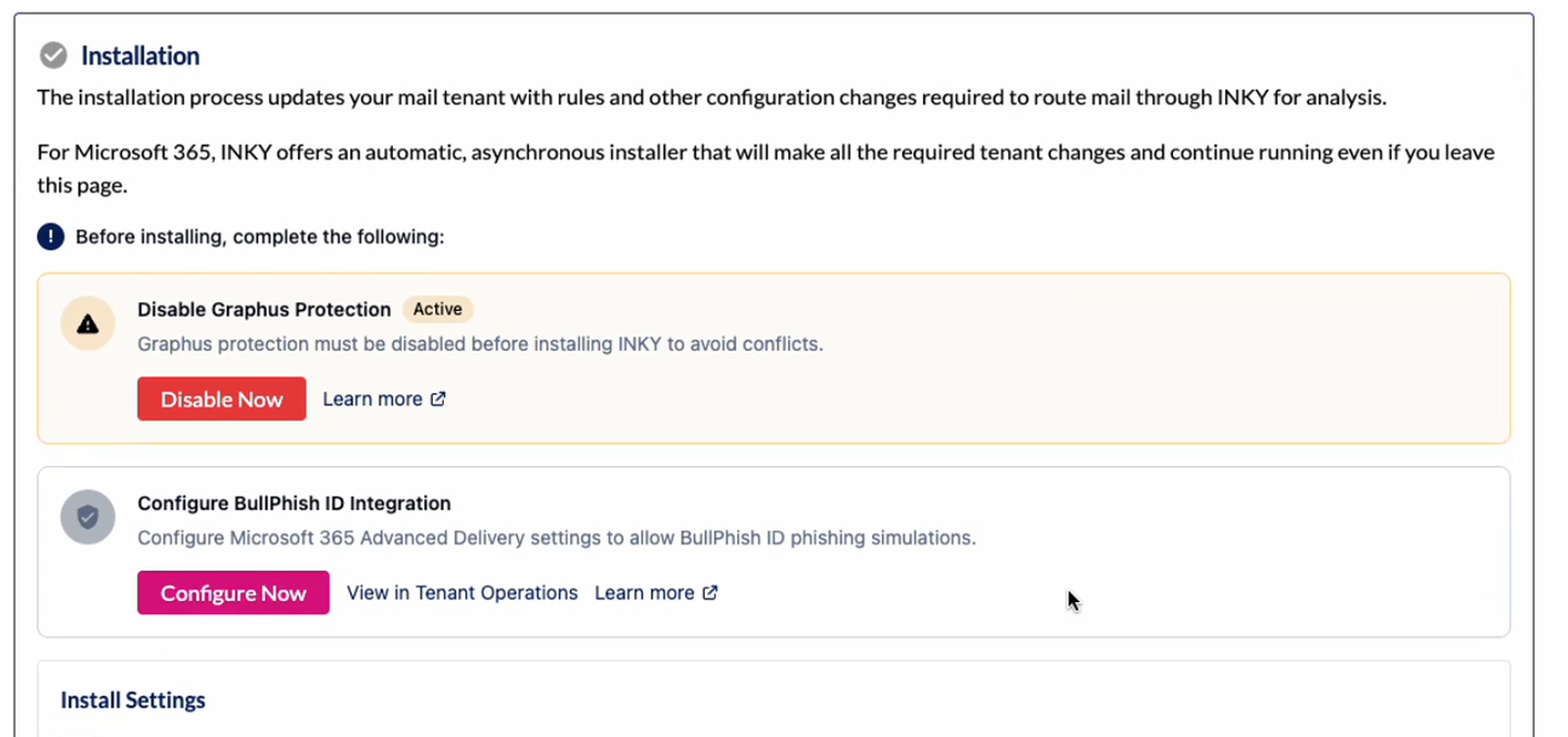

If you don’t want to disable Graphus initially you can skip this step and configure BullPhish if necessary. Then you could follow the option just below to disable Graphus from the Partner License section.
Partner License Import Teams Tab
On the Import Teams tab in the Partner License section, you’ll see an option to Disable a Graphus team if not already disabled. Once you disable, INKY cannot re-enable Graphus, however you’ll still have access to your Graphus tenant so you could re-enable there.
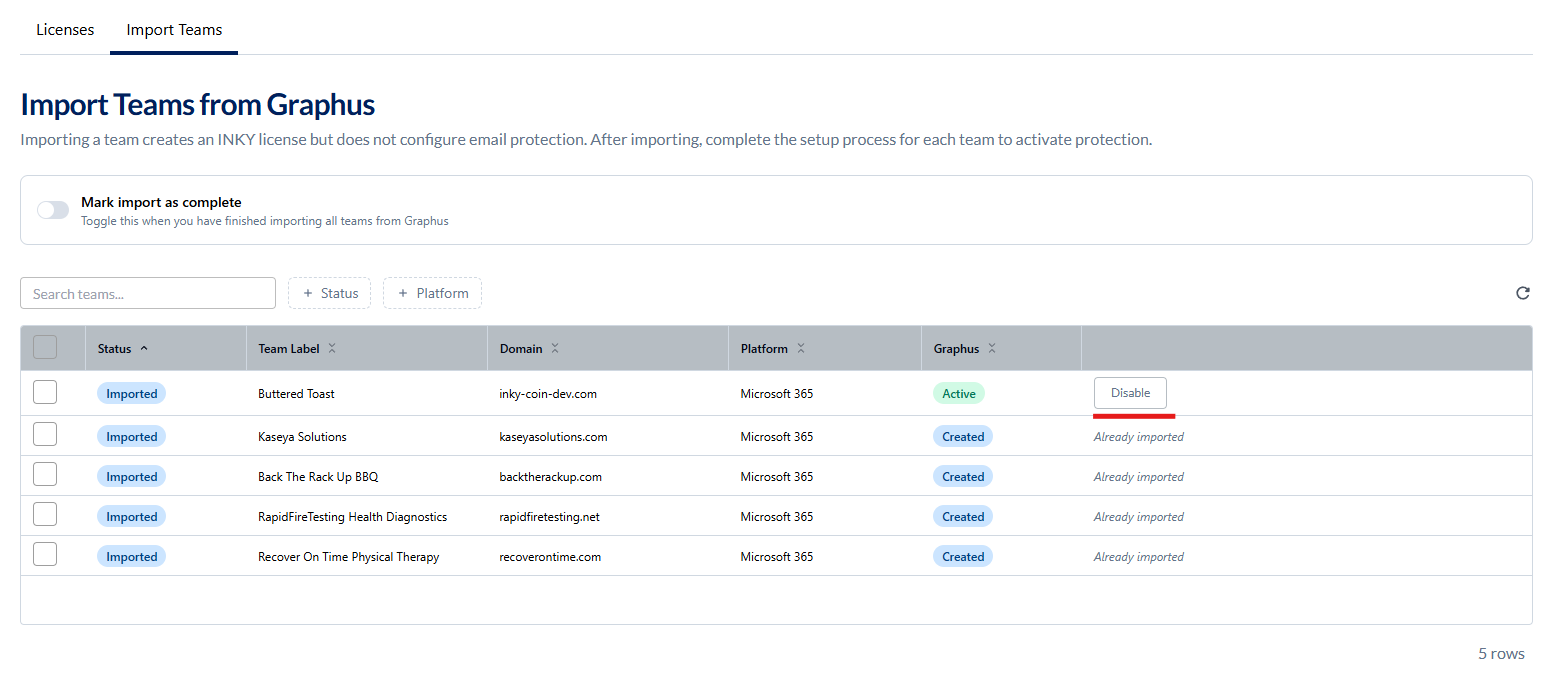
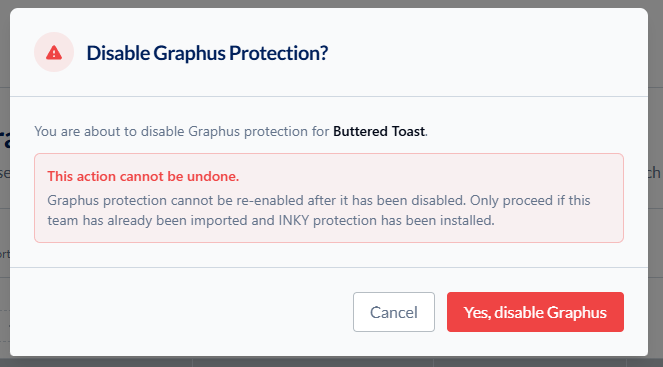
Note: This option is only available to partners whose account is associated with a matching Kaseya Salesforce ID. If you don't see the Graphus status or disable option, use the manual method below or this doesn’t apply to you.
Disable Graphus Manually (Alternative Method)
If you don't have access to the dashboard method, or prefer the direct approach:
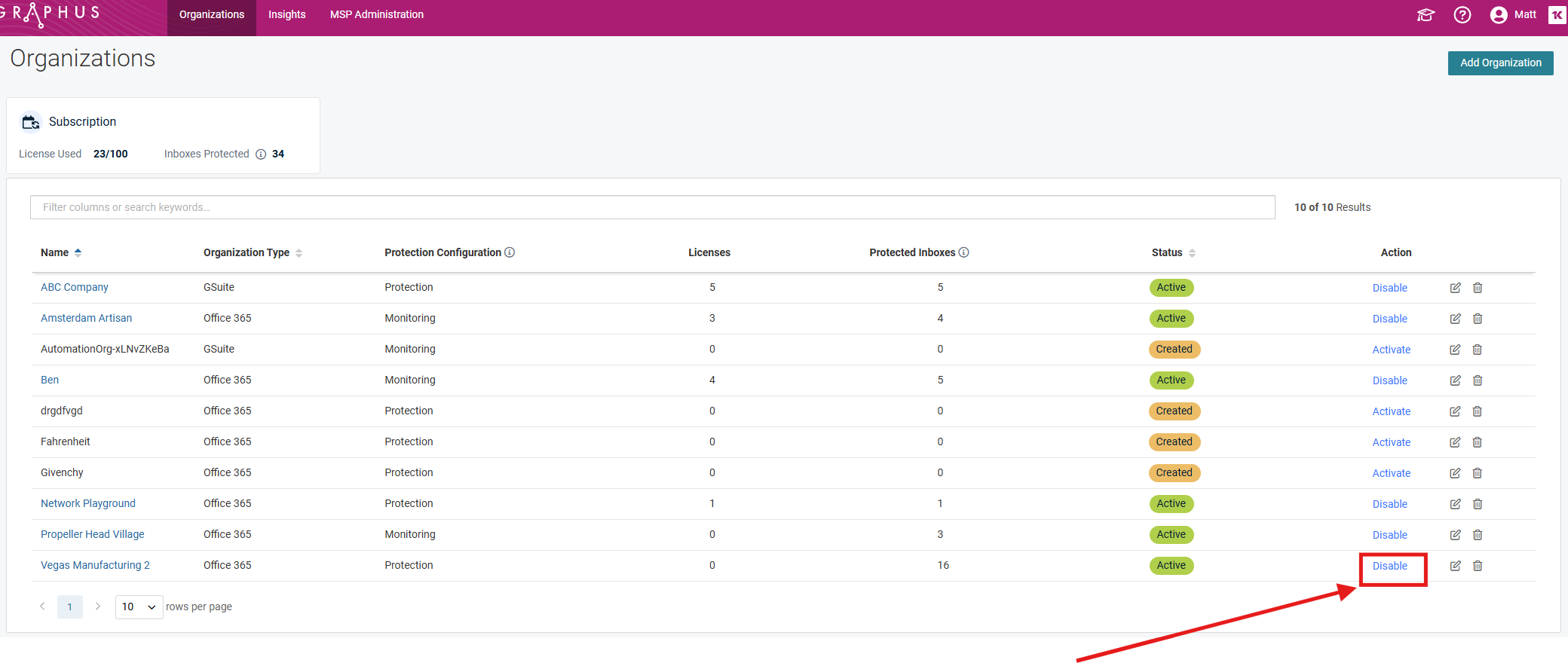
Go to Partner Organizations: https://cloud.graph.us/partnerOrgs
Find the team getting INKY and click Disable in the Action column
Next Steps
Finish the full Team Setup process. For detailed setup instructions, see:
Still need help? Ask the team