Import Lists from Graphus
Import your existing allow lists, block lists, VIP lists, and analysis lists from Graphus to INKY during migration.
Written By Matt Sywulak
Last updated 8 months ago
After importing teams from Graphus, you can import your existing security lists to preserve your email protection policies. This includes allow lists, block lists, VIP lists, and analysis lists.
Availability: List import options only appear for teams that have been imported from Graphus. If your team wasn't migrated from Graphus, you won't see these import options.
Partner Center: Import Lists Tab
MSPs can import Graphus allow lists for their managed organizations through Partner Center.
Accessing the Import Lists Tab
Navigate to Partner Center in the INKY dashboard
Click the Import Lists tab (next to Import Teams)
Select a team from the dropdown to view its available Graphus lists
Importing Allow Lists
Select the entries you want to import using the checkboxes
Click Import Selected to import only chosen entries, or Import All for the complete list
Review the confirmation dialog and click Confirm
Warning: Allow list entries are aggressive rules that bypass INKY protection. Only import entries you're confident should skip security analysis.
After a successful import, the list refreshes automatically to show the updated entries.
Admin Center: Import from Settings Pages
Organization administrators can import lists directly from the relevant settings pages in Admin Center.
Importing Block Lists
Go to Admin Center → Block List
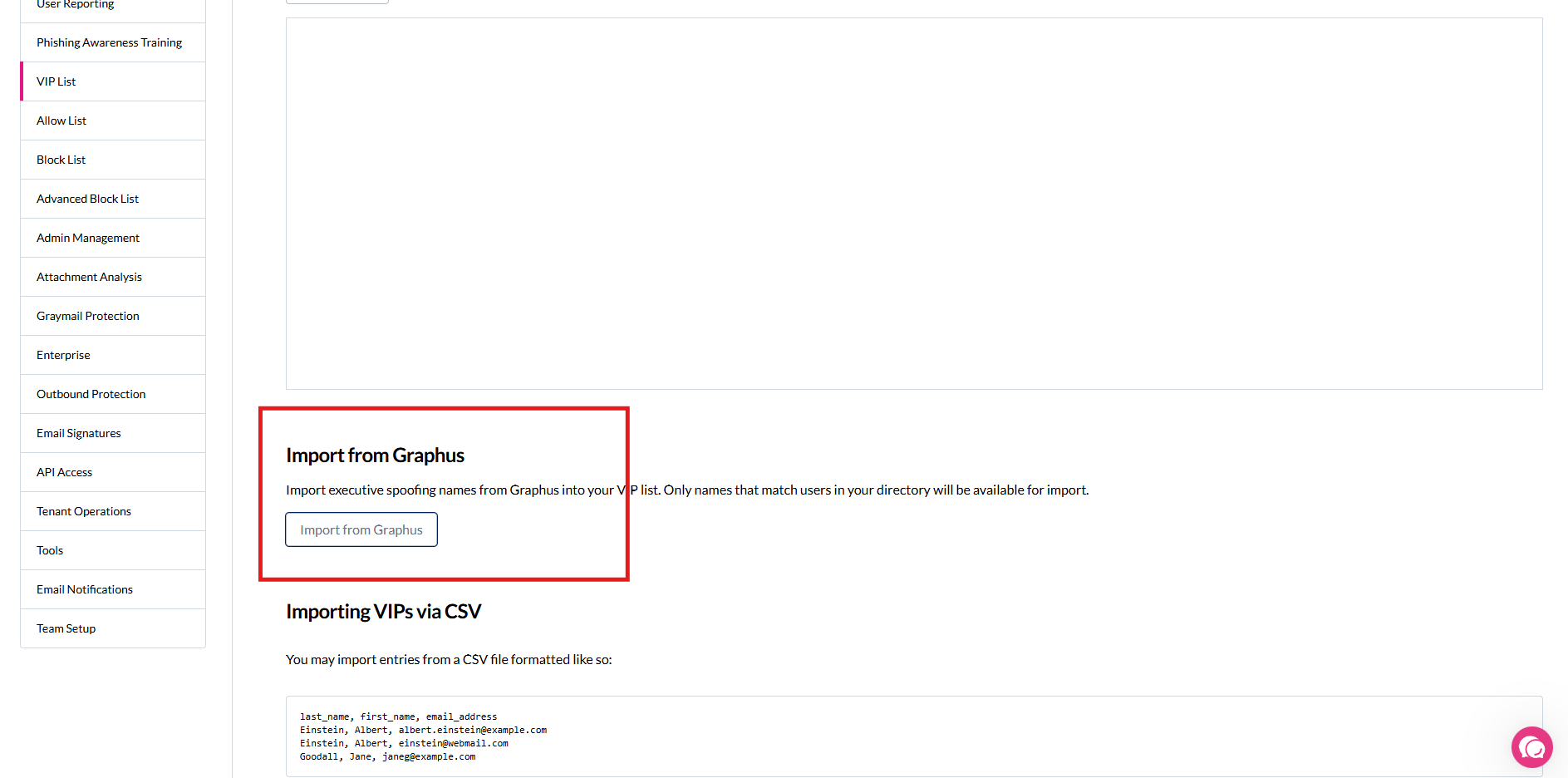
Look for the Import from Graphus section
Select entries to import and click Import Selected
Confirm the import in the dialog
Importing VIP Lists
Go to Admin Center → VIP List
Look for the Import from Graphus section
Select VIP entries to import
Click Import Selected and confirm
Email Validation: VIP imports include automatic email validation. Invalid email addresses will be flagged during import to ensure data quality.
Hiding Import Tools
After you've finished importing all your lists, you can hide the import tools:
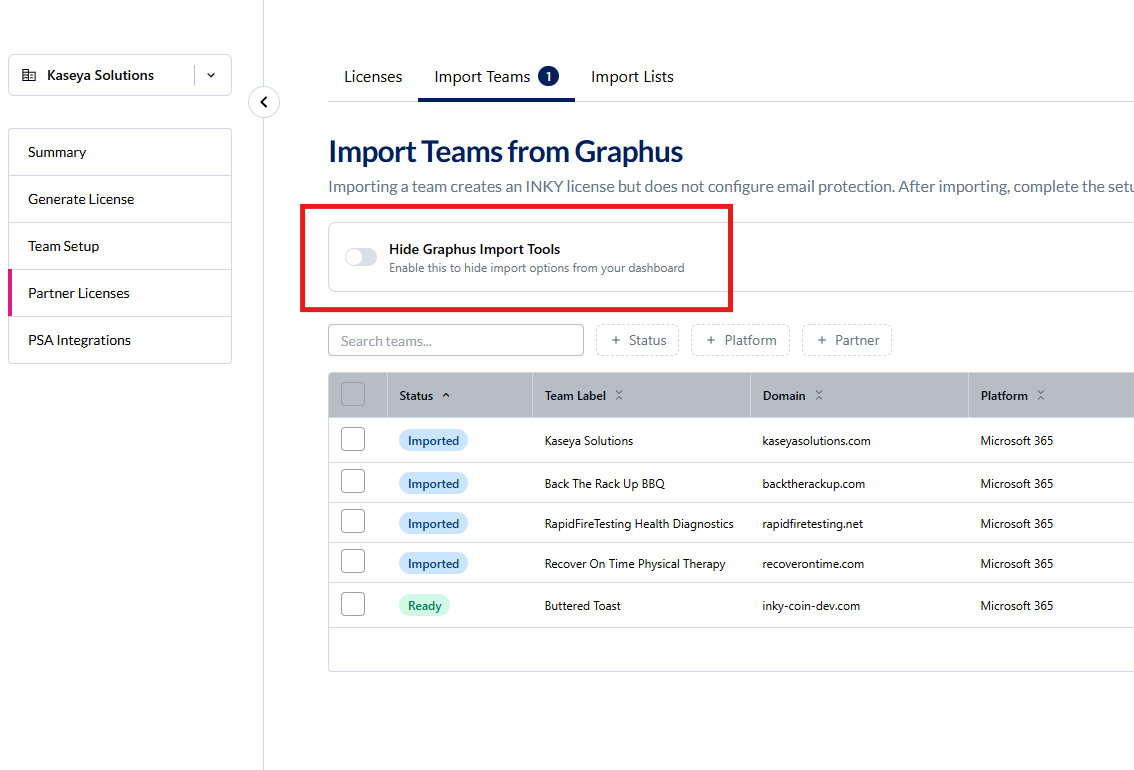
Partner Center
Navigate to the Import Lists or Licenses tab
Toggle Hide Graphus Import Tools to hide all import-related tabs
To show them again later, toggle the switch back on from the Licenses tab
Admin Center
Import sections in Admin Center settings pages are only visible for teams imported from Graphus. They will remain available as long as your team has Graphus migration data.
Best Practices
Review before importing: Take time to review each list entry before importing. Some Graphus rules may not be needed in INKY.
Import selectively: Use the checkbox selection to import only the entries you need rather than importing everything.
Validate VIP emails: Pay attention to email validation warnings during VIP import to ensure all addresses are correct.
Test after import: After importing lists, send test emails to verify your protection policies work as expected.
Troubleshooting
Import options not showing
List import options only appear for teams that were imported from Graphus. If you don't see the import sections, verify that your team was migrated from Graphus.
Import failed with error
Check the error message and retry. Common issues include network timeouts or temporary API errors. If the problem persists, contact INKY support.
Entries not appearing after import
Refresh the page after importing. If entries still don't appear, check that the import completed successfully without errors.
Still need help? Ask the team