Allow BullPhish ID simulations through Microsoft 365 (backup method)
Written By Matt Sywulak
Last updated About 3 hours ago
The recommended way to get BullPhish ID simulations to your users is the BullPhish ID integration, which delivers them directly to each recipient's inbox through INKY. See Integration: BullPhish ID & INKY.
This article covers the backup method: Microsoft 365 Advanced Delivery settings that let phishing simulation emails through security filtering when they're sent as regular email. Set this up even if you use the integration, because simulations are sent as regular email when:
The BullPhish ID integration isn't enabled for your organization yet. It's currently in beta.
INKY can't deliver a message directly, for example because a team is missing Domain & Directory Access or Remediation Access. BullPhish ID then falls back to regular email for that recipient.
These settings also cover INKY PhishTest simulations. You can apply them automatically from the INKY dashboard or manually in Microsoft 365.
Automated Configuration (Recommended)
INKY can automatically configure Microsoft 365 Advanced Delivery settings for BullPhish ID and INKY PhishTest simulations. This method is faster and ensures correct configuration.
Access the Configuration Tool
The BullPhish prerequisite configuration is available in two locations:
Team Setup Flow: When setting up a new team with BullPhish ID or PhishSim licenses
Tenant Operations Page: https://app.inkyphishfence.com/settings/tenant-operations
Configure M365 Advanced Delivery Settings
When you configure Advanced Delivery Settings, INKY will:
Check your current Microsoft 365 Advanced Delivery configuration
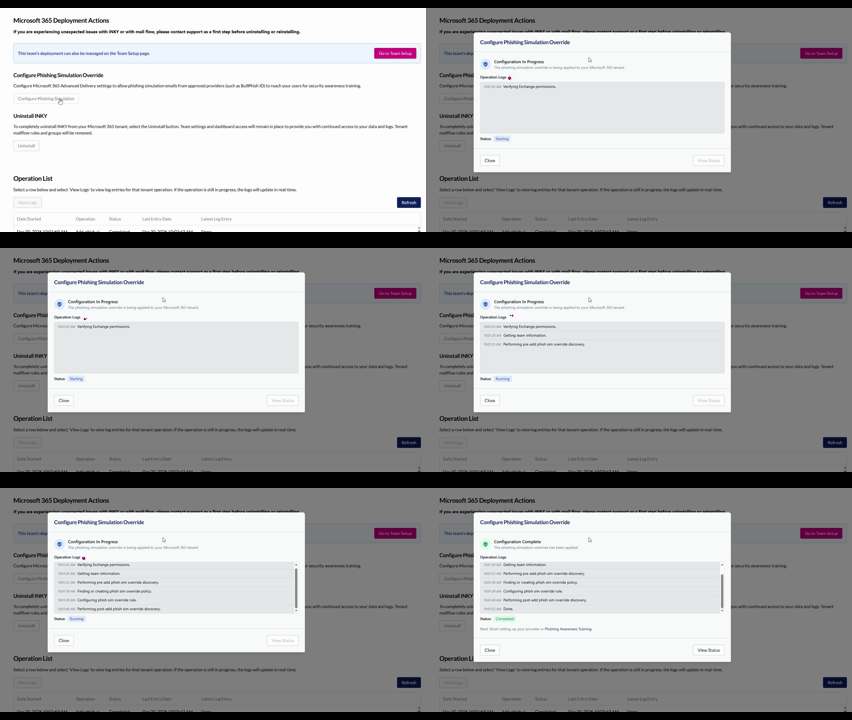
Display a modal showing which settings need to be added or updated
Provide real-time operation logs as the configuration is applied
Monitor Configuration Progress
The modal displays live status updates for each operation:
Pending: Operation queued but not yet started
In Progress: INKY is currently configuring the setting
Complete: Setting successfully applied
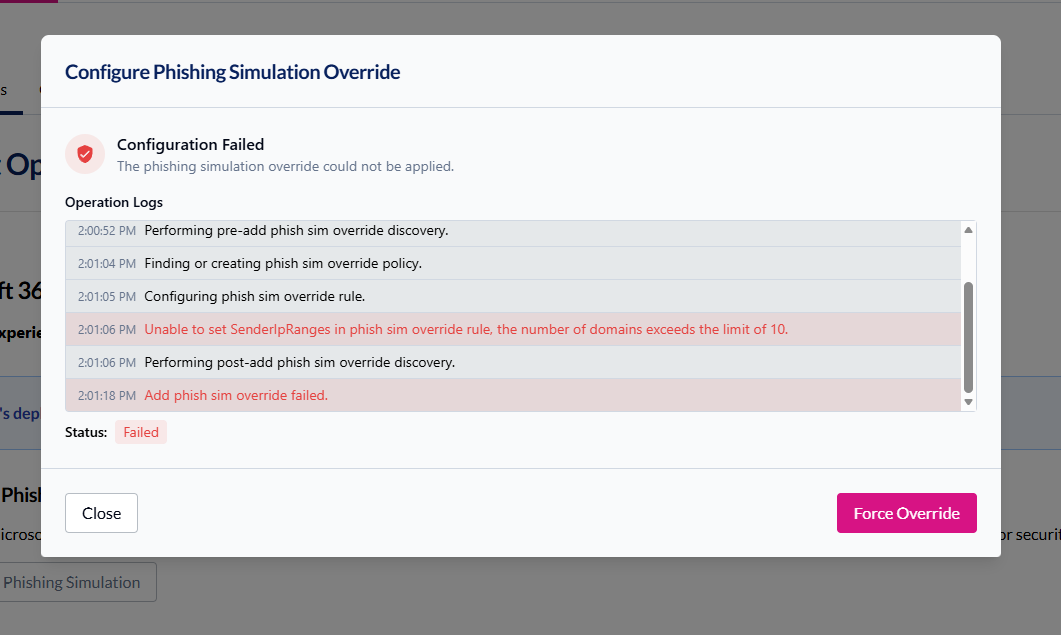
Failed: Error occurred (view logs for details)
The operation logs provide detailed information about each step, making it easy to troubleshoot any issues.
Force Override Existing Configuration
If there are settings in the Microsoft PhishSim configuration already then you may need to force the INKY/Bullphish configuration.
When to use Force Override:
You’re given the Force Override Option
You have too many IP address or domains already configured in Microsoft
Note: Force override will replace existing settings. If you want to manually resolve you can use the manual configuration below.
Manual Configuration
If you prefer to configure Advanced Delivery settings manually, or if your organization requires manual M365 changes, follow these steps:
Microsoft 365: Go to Advanced Delivery Settings and add:
INKY
IPs:
100.24.129.5,3.132.222.232,100.21.157.149Domain:
phishtest.inkyphishfence.com
BullPhish ID
IPs:
34.237.252.20,168.245.13.192Domain:
bullphish.com
Note: When configuring manually, double-check all IP addresses and domains for accuracy. Any typos will prevent simulation emails from bypassing security filters.
Was this helpful?
Still need help? Ask the team