Getting Started
Team Setup lets you generate licenses, onboard new customers, and manage INKY deployments for Microsoft 365 and Google Workspace environments—all from one unified dashboard.
Written By Matt Sywulak
Last updated 6 months ago
What You Can Do
Team Setup centralizes the entire deployment lifecycle:
Generate licenses for new customers with the right product bundles and add-ons
Onboard Microsoft 365 or Google Workspace
Monitor setup progress across all customer teams
Manage existing deployments without contacting INKY Support
All setup tasks happen in one place—no switching between multiple sites or authentication sessions.
Generating Licenses
Partners with appropriate permissions can create new licenses at: Generate License or for the EU here.
Choose Your Bundle
INKY Advanced
Complete inbound and internal protection
AI-powered phishing detection, computer vision, zero-day malware analysis
Link rewriting, banner warnings, advanced graymail detection
Email signature management
Included with Kaseya 365 User
INKY Pro
Everything in Advanced, plus:
Generative AI intent analysis
Outbound DLP detection and dangerous reply protection
Email encryption portal
DMARC monitoring
Custom outbound rules and approval workflows
Platform Selection
Choose the email platform your customer uses:
Microsoft 365 - Includes Office 365 and Exchange Online
Google Workspace - Gmail business accounts
Migrating from Graphus? Kaseya partners can use the bulk import wizard in Partner Center to migrate Graphus customers to INKY. See the Graphus to INKY collection for detailed instructions.
Required Information
All Platforms
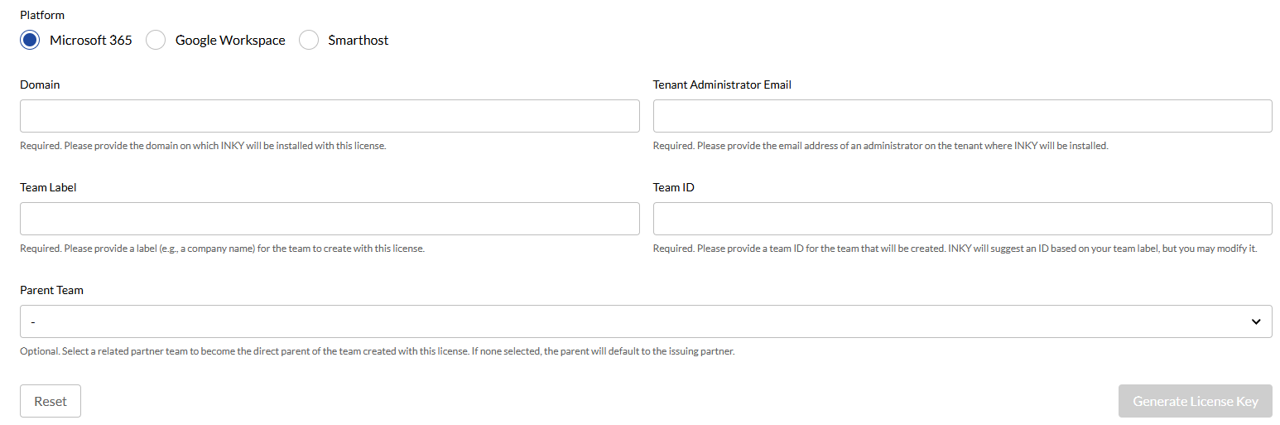
Domain The primary domain for this installation. INKY automatically detects and protects additional domains on the same tenant.
Tenant Administrator Email Must belong to the same tenant as the domain above. Used for authentication during setup.
Team Label Friendly name for this customer (typically the company name).
Team ID Auto-suggested based on your label. You can customize it for organizational purposes.
Parent Team (optional) Choose a parent partner team for hierarchy. Defaults to the issuing partner if not selected.
After License Generation
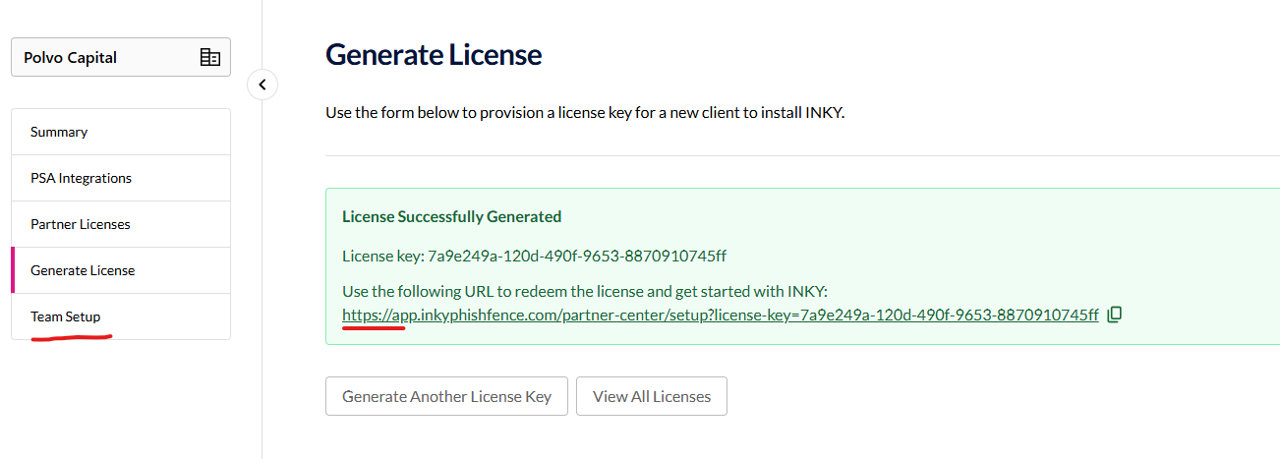
Once you generate a license, you'll see a confirmation page with a direct link to the Team Setup page. From there, the Settings Summary page displays a Setup Status section that tracks your email routing configuration across four sequential phases. You can also access any team's setup progress from the Team Setup section in the dashboard sidebar.
[Screenshot: Settings Summary page showing the Setup Status 4-phase card grid, with at least one phase in a non-complete state]
Setup Status Phases
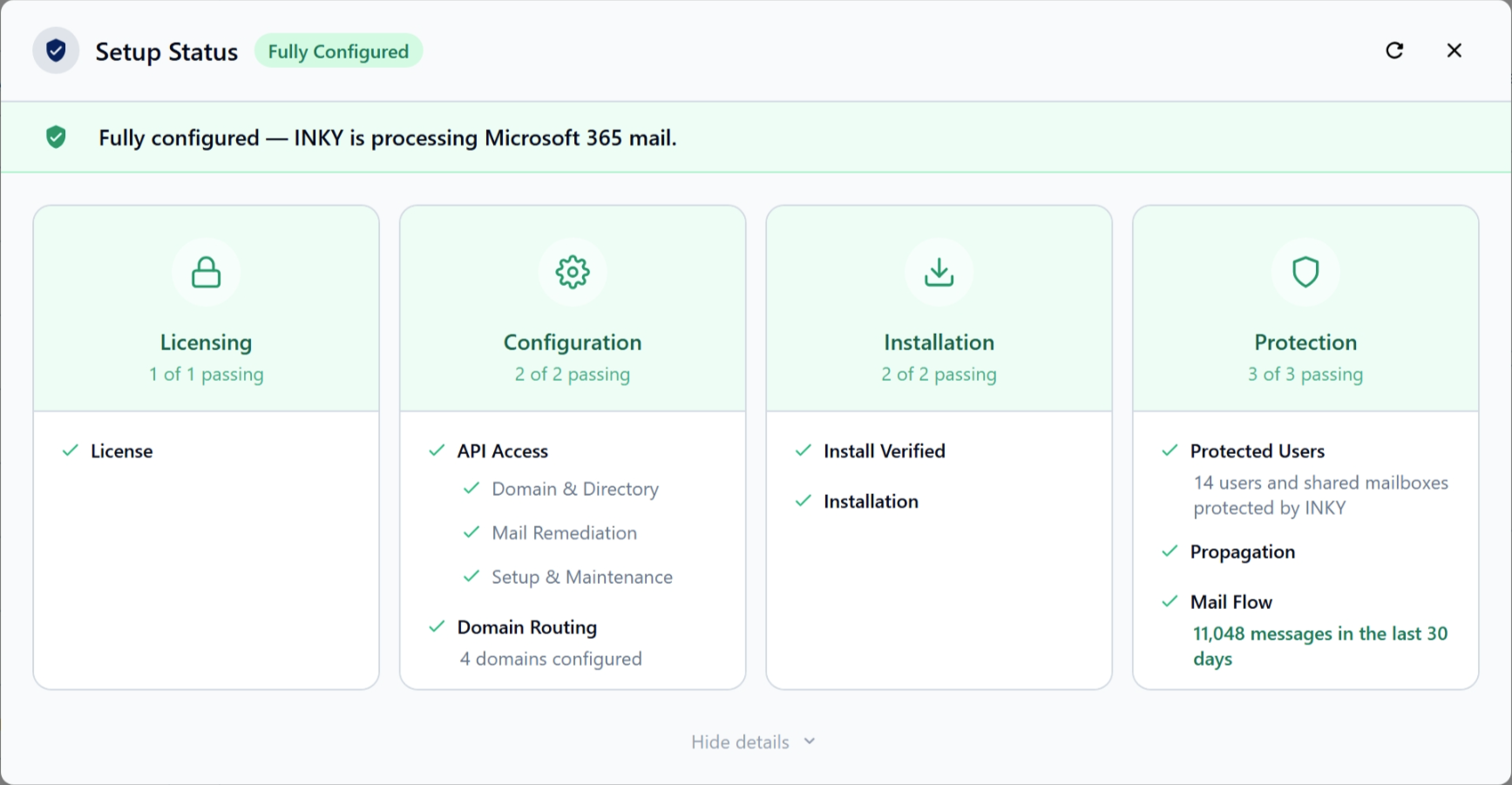
The Setup Status section presents four phases as a horizontal card grid. Each card shows the current state of that phase—complete, in progress, or failing. Failing phases expand automatically to surface details and provide action links for remediation.
Phase 1 — License: Confirms the license has been generated and is associated with the correct team.
Phase 2 — Integration: Verifies that INKY has been granted the necessary permissions on the email platform (Microsoft 365 or Google Workspace).
Phase 3 — Mail Routing: Confirms that inbound mail is flowing through INKY. The protected user count and mail detection window update dynamically as routing is detected.
Phase 4 — Protection Active: Confirms that INKY is actively processing and analyzing email for the team.
The page refreshes automatically and displays a countdown timer between checks. Once all four phases are complete and the team is fully configured, polling stops.
License Redemption by Platform
The redemption process varies by platform. Follow the appropriate guide for your customer's environment:
Each guide walks through platform-specific authentication, mail routing, and verification steps.
Still need help? Ask the team