How to Open an INKY Encrypted Email
A guide for anyone who has received a secure message from someone using INKY Email Encryption.
Written By Nathan McCurley
Last updated 5 months ago
What you'll see
Someone sent you a message containing sensitive information. To protect it, the sender used INKY, a secure email platform. Instead of sitting in your inbox like a regular email, the message lives in a secure portal that only you can open.
Opening the message takes three short steps and about a minute. You don't need to install anything, create an account, or remember a password.
Is this a phishing email? It's a fair question — encrypted message notifications can look unfamiliar. The screenshots below show what the legitimate INKY notification emails look like. If anything you receive doesn't match — wrong sender, strange URL, urgent pressure to act — don't click. Contact the sender by phone or a known email address to confirm.
Quick reference
The whole process in three steps:
Open the first notification email and click View Encrypted Message.
On the sign-in page, click Sign in with email.
Open the verification email from Inky Encryption and click View Your Encrypted Message — same browser as Step 2.
Read and reply from inside the portal.
Step by Step Process
Step 1: Open the first notification email
You will receive an email in your inbox from the person who sent you the secure message. It will look like this:
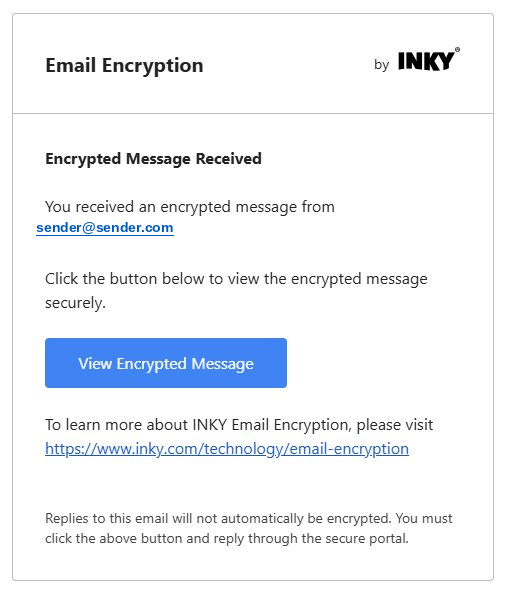
What to look for:
From: The actual person who sent you the message (not a generic 'noreply' address)
Subject/header: 'Email Encryption by INKY'
Blue button labeled: View Encrypted Message
Important: Do not reply to this notification email by hitting Reply in your inbox — your response will not be encrypted and will not reach the sender securely. You must click the button and reply through the portal (covered in Step 3 below).
Can't find the email? Check your spam or junk folder.
Step 2: Click "View Encrypted Message" and sign in
Clicking the blue button opens INKY's secure portal in your web browser. You will see a sign-in page like this:
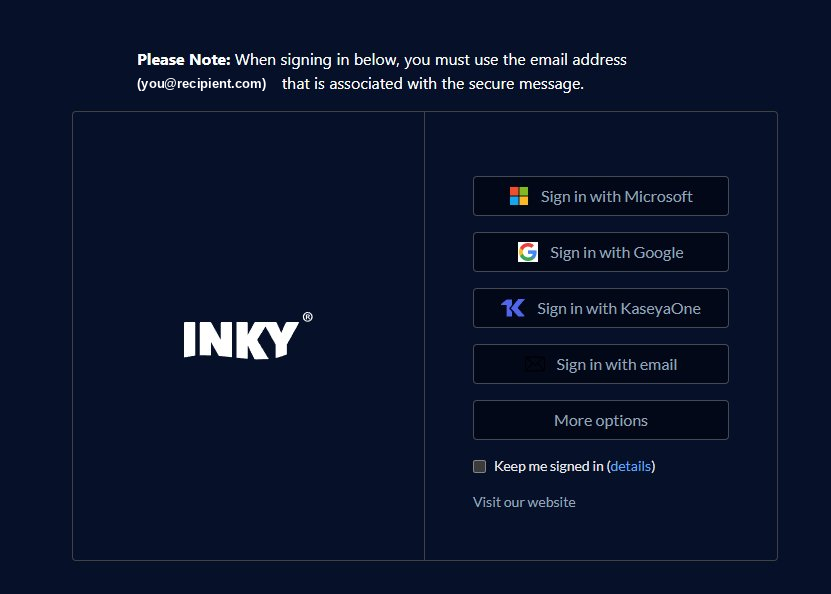
Use "Sign in with email"
This is the recommended option for everyone. It works the same way for all recipients, regardless of what email provider you use.
To use it:
Click Sign in with email.
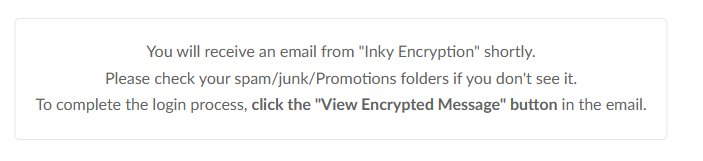
You'll see a confirmation page letting you know INKY is sending you a verification email:
What about the other sign-in options?
You may also see buttons for Microsoft, Google, or KaseyaOne. These can work if you have an account with that provider matching the email address the message was sent to — but they don't always work reliably:
Not every sender enables those options, so they may not appear for every message you receive.
Even if you have a Microsoft or Google account, your organization may block third-party single sign-on for security reasons, causing the sign-in to fail.
The account you sign in with has to exactly match the address the message was sent to. If your work email is on Microsoft 365 but the message was sent to your personal Gmail, those won't match.
Bottom line: when in doubt, use 'Sign in with email.' It works for everyone, every time.
Step 3: Open the verification email and read your message
Within a minute or two, you will receive a second email — this time from 'Inky Encryption' (technical address: noreply@portal.inkyphishfence.com). It will look like this:
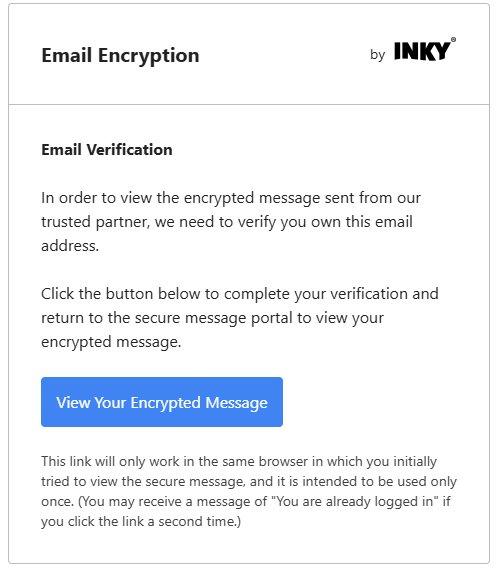
Notice this email is different from the first one:
From:
Inky Encryption <noreply@portal.inkyphishfence.com>— not your original senderSubject/header: 'Email Verification'
Blue button labeled: View Your Encrypted Message
Click the blue View Your Encrypted Message button to complete sign-in. The portal will open in your browser and show your message:
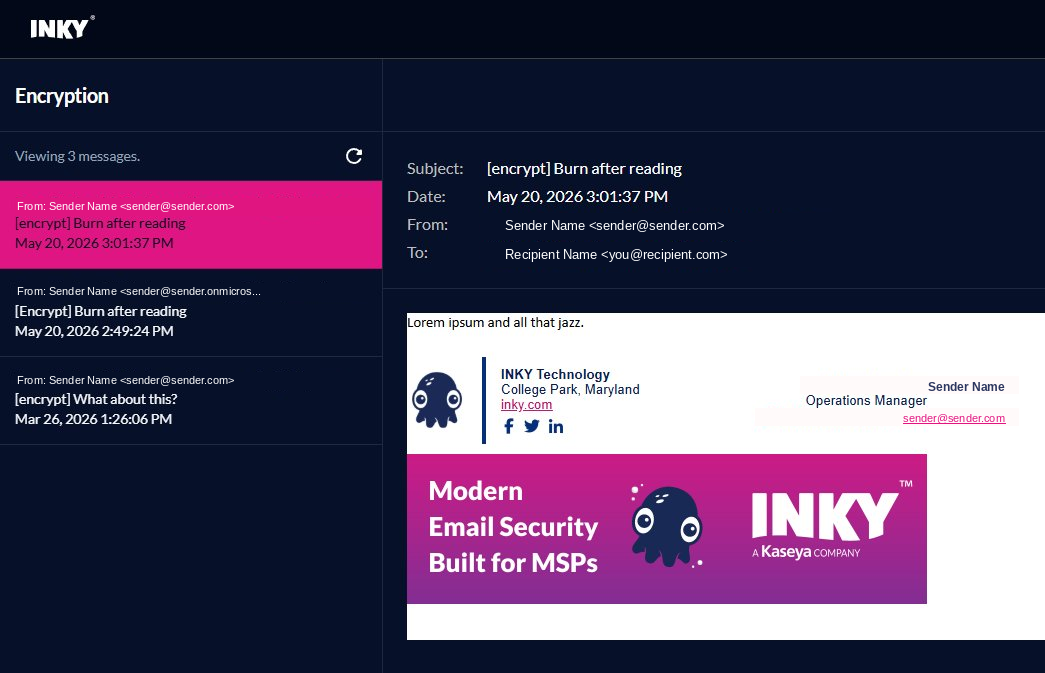
The portal has two sections:
Left side: A list of all encrypted messages you've received. If this is your first encrypted message, you'll see just one entry here. If you've received others in the past, they remain accessible — click any one to read it.
Right side: The currently selected message. You'll see the subject, date, sender, recipient, and the message body, along with any attachments.
You may notice subject lines that include [encrypt] or [Encrypt] in brackets — that's the keyword the sender uses to trigger encryption. It's expected; you don't need to do anything about it.
Two things to know about the verification link: (1) It only works in the same browser you used in Step 2 — if you clicked 'Sign in with email' on your desktop but tried opening the verification email on your phone, the link won't work. Open it on the same device. (2) It is intended for one-time use. If you click it a second time, you may see a message saying 'You are already logged in' — that's expected, just go back to the portal tab in your browser.
Can't find the verification email? Check your spam, junk, or Promotions folder — it sometimes lands there. You can also have your IT team allow-list noreply@portal.inkyphishfence.com to prevent this in the future.
Bookmark the portal: You can return to your encrypted messages anytime at https://app.inkyphishfence.com/encryption. You'll need to sign in again (using the 'Sign in with email' flow), but the portal will show all your past encrypted messages from any sender.
Replying to an encrypted message
Once the portal is open, you can read the message, view attachments, and reply if needed.
Always reply from inside the portal using the Send Secure Reply button. Your response (and any attachments you include) will be encrypted automatically.
Do NOT reply by hitting Reply on the original notification email in your inbox — that goes to INKY's infrastructure, not back to the sender, and is not encrypted.
Working on mobile
The whole process works on phones and tablets too. Open the notification email in your mobile email app, tap View Encrypted Message, and INKY's portal opens in your phone's browser. No app installation is required.
Mobile tip: Because of the same-browser requirement for the verification link in Step 3, open both notification emails on the same device. If you start on your desktop, finish on your desktop. If you start on your phone, finish on your phone.
Frequently asked questions
I clicked the link but nothing happens, or I get an error.
First, try a different web browser — Chrome, Edge, Firefox, and Safari all work, but some browser extensions or strict privacy settings can interfere. If you're on a corporate network, your company's firewall or security software might be blocking INKY. Contact your IT support team and let them know you're trying to access a message at a URL containing portal.inkyphishfence.com.
I never got the verification email.
Wait a minute or two — it can be slightly delayed. If it still hasn't arrived, check your spam, junk, or Promotions folder. Gmail in particular often filters it. If you still don't see it, go back to the sign-in page and click 'Sign in with email' again to request a fresh one.
The verification link doesn't work — it gives me an error.
The most common cause is using a different browser than the one you started in. The link only works in the same browser where you clicked 'Sign in with email.' Go back to the sign-in page in your original browser, request a new verification email, and click the link from that same browser.
I clicked the verification link twice and now it won't work.
The link is meant to be used only once. If you click it a second time, you'll get a message like 'You are already logged in.' Look for the original tab in your browser where the portal opened — your message should be there. If you closed it, request a new verification email by going back to the sign-in page and clicking 'Sign in with email' again.
I tried Sign in with Microsoft (or Google) and it failed.
This is a common issue. The Microsoft and Google sign-in options require the account you're signing in with to exactly match the email address the message was sent to, and your organization must allow third-party sign-on. If those conditions aren't met, the sign-in fails. Go back to the sign-in page and use Sign in with email instead — it works in every case.
I don't see the message in the portal — it says I have no messages.
Make sure you're signing in with the exact same email address the message was sent to. If the sender CC'd you at one address but you're trying to sign in with another, INKY won't show you the message. Sign out, go back to the original notification email, click the button again, and sign in with the address listed in the To/CC line.
Can I save the message to my computer for later?
You can print the message to PDF from the portal using your browser's print function. Attachments can also be downloaded. Keep in mind that once you save the content outside the portal, it's no longer encrypted — store it somewhere secure.
How long will the message be available?
The sender's organization sets a retention policy for encrypted messages. If you need long-term access, save the content (or print to PDF) while you have it open. If the message has expired and you need it again, contact the original sender and ask them to resend it.
Do I need to create an INKY account or set a password?
No. INKY never asks you to create an account or set a password. The verification email is how you prove you own the address — that's the only authentication needed. If you ever see a page that looks like INKY but is asking you to create an account or enter a password, stop and check the URL is on a domain containing inky.com or inkyphishfence.com. If it isn't, you may be looking at a phishing page.
Is this safe? Can INKY read my message?
The message is encrypted with 256-bit encryption and only the intended recipient (you) can open it through the portal. INKY's role is to authenticate that you are who you say you are; the content is encrypted in transit and at rest in INKY's infrastructure.
Who can I contact for help?
If you're having trouble opening a message from someone, contact the sender first — they can resend or confirm the message details. For technical support, contact your own IT team if you're at a workplace, or reach out to the original sender's organization for assistance.
Quick reference
The whole process in three steps:
Open the first notification email and click View Encrypted Message.
On the sign-in page, click Sign in with email.
Open the verification email from Inky Encryption and click View Your Encrypted Message — same browser as Step 2.
Read and reply from inside the portal.
Was this helpful?
Still need help? Ask the team