How to Search for Emails
This guide covers common scenarios for finding specific emails in INKY.
Written By Matt Sywulak
Last updated 10 months ago
Where to Search
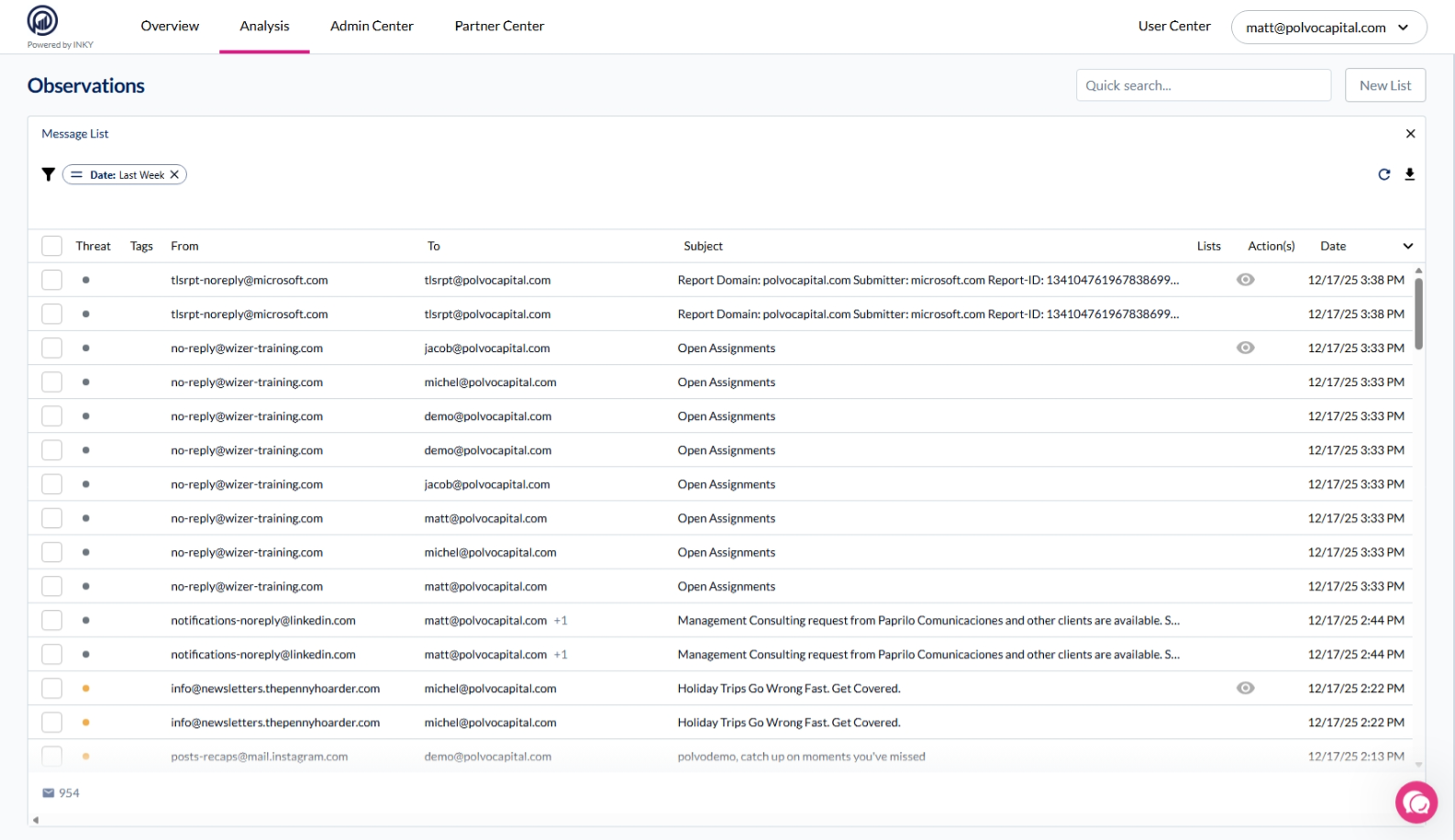
Observations Page: Navigate to Analysis > Observations for quick searches with pre-configured filters.
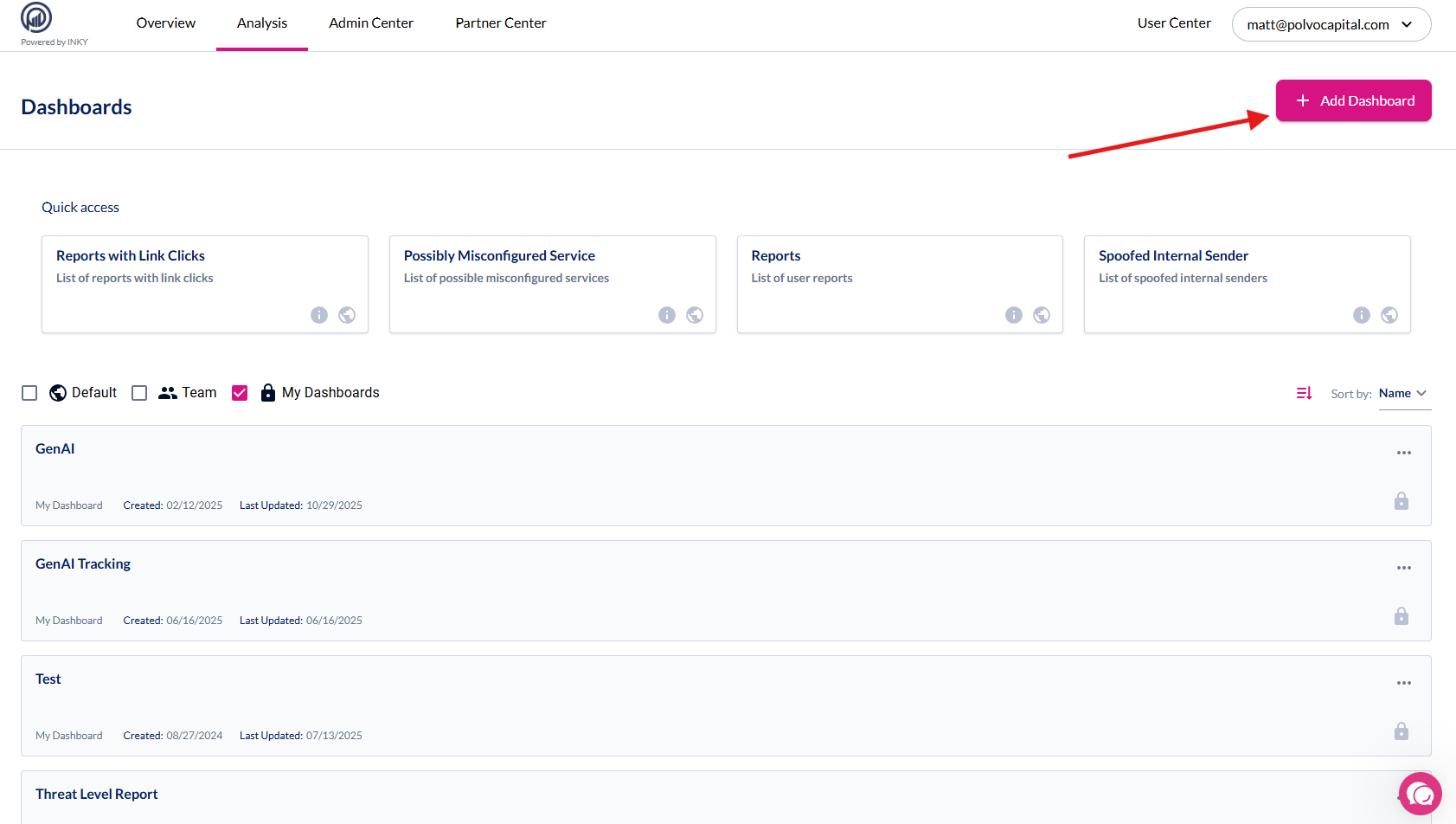
Custom Dashboards: Navigate to Analysis > Custom Dashboards > Create a custom dashboard
Common Search Tasks
Find a Specific Email You Already Know About
Scenario: You have a Message ID, subject line, or other identifier from a support ticket or alert.
Steps:
Go to Analysis > Observations
Click the Quick Search input
Paste your value — Quick Search auto-detects the type:
Message ID →
messageidEmail address →
from_emailoremailSubject text →
subject
Press Enter
Tip: Message ID is the fastest way to find a single email if you have it.
Find All Emails from a Sender
Scenario: A user reports suspicious emails from a specific address or domain.
Steps:
Go to Analysis > Observations
Open the Filter Editor
Select General category
Add one of these filters:
from_email— Exact sender address (e.g.,john@example.com)from_domain— All emails from a domain (e.g.,example.com)from_display_name— Search by display name (e.g., "John Smith")
Enter the value and apply
Tip: Use from_domain when investigating a potentially spoofed domain across multiple senders.
Find Emails to a Specific Recipient
Scenario: You need to see all emails a specific user received.
Steps:
Open the Filter Editor
Select General category
Add the
emailfilterEnter the recipient's email address
Apply the filter
Combine with: processed_date to narrow to a specific time range.
Find Emails by Threat Level
Scenario: You want to review all high-risk emails from the past week.
Steps:
Open the Filter Editor
Select Analysis category
Add the
threat_levelfilterSelect the threat level:
0-1 = Safe/Neutral
2-3 = Caution
4-5 = Danger
Add
processed_datefilter and set to "Last 7 days"Apply filters
Quick alternative: Use Quick Search presets — click Danger Threat for immediate results.
Find Reported Emails (Phishing, Spam, or Safe)
Scenario: You want to review what users have reported.
Quick method:
Go to Analysis > Observations
Click Quick Search
Select Reported Phish, Reported Spam, or Reported Safe
Advanced method (more control):
Open the Filter Editor
Select Metadata category
Add filters:
report_label— Filter by report type (Phish, Spam, Safe)reported_by— Filter by who reported itreport_status— Filter by status (Open, Resolved)
Apply filters
Find Emails with Suspicious Attachments
Scenario: You have an attachment hash from a threat intel feed, or want to find emails with specific file types.
By attachment hash:
Open the Filter Editor
Select Media category
Add
attachment_hashfilterPaste the SHA256 hash
Apply
By attachment properties:
Add
attachmentsfilterSet criteria:
Filename — Search by name (e.g., "invoice")
Filetype — Select type (e.g.,
.exe,.zip)Size — Filter by size (e.g., >= 5 MB)
Apply
Quick alternative: Click Has Attachments in Quick Search to see all emails with attachments.
Find Emails with Link Clicks
Scenario: You need to identify users who clicked links in potentially malicious emails.
Steps:
Go to Analysis > Observations
Click Quick Search → Select Link Clicks
Or with more detail:
Open the Filter Editor
Select Metadata category
Add filters:
link_clicks— Messages where links were clickedlink_click_alert_lvl— Filter by alert level of clicked links
Apply
Tip: Combine with threat_level to prioritize dangerous emails with clicks.
Find Emails for a Specific Team
Scenario: You're investigating emails for a particular department or team.
Steps:
Open the Filter Editor
Select General category
Add
teamidfilterSearch for and select the team
Apply
Tip: Organization-level teams (prefixed with $) let you filter across multiple sub-teams.
Find Emails Within a Date Range
Scenario: You need emails from a specific time period.
Steps:
Open the Filter Editor
Select General category
Add
processed_datefilterChoose mode:
Relative — "Last X days/hours/minutes"
Specific — Select start and end dates
Apply
Presets available: Today, Yesterday, This Week, This Month, Six Months
Note: Maximum lookback is 180 days.
Combining Filters
Filters stack — each additional filter narrows your results. Common combinations:
Quick Search vs Filter Editor
Filter Editor
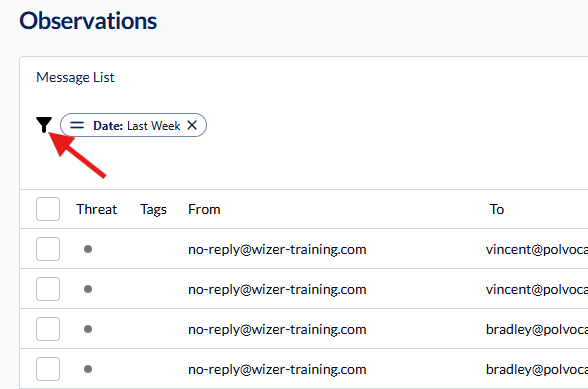
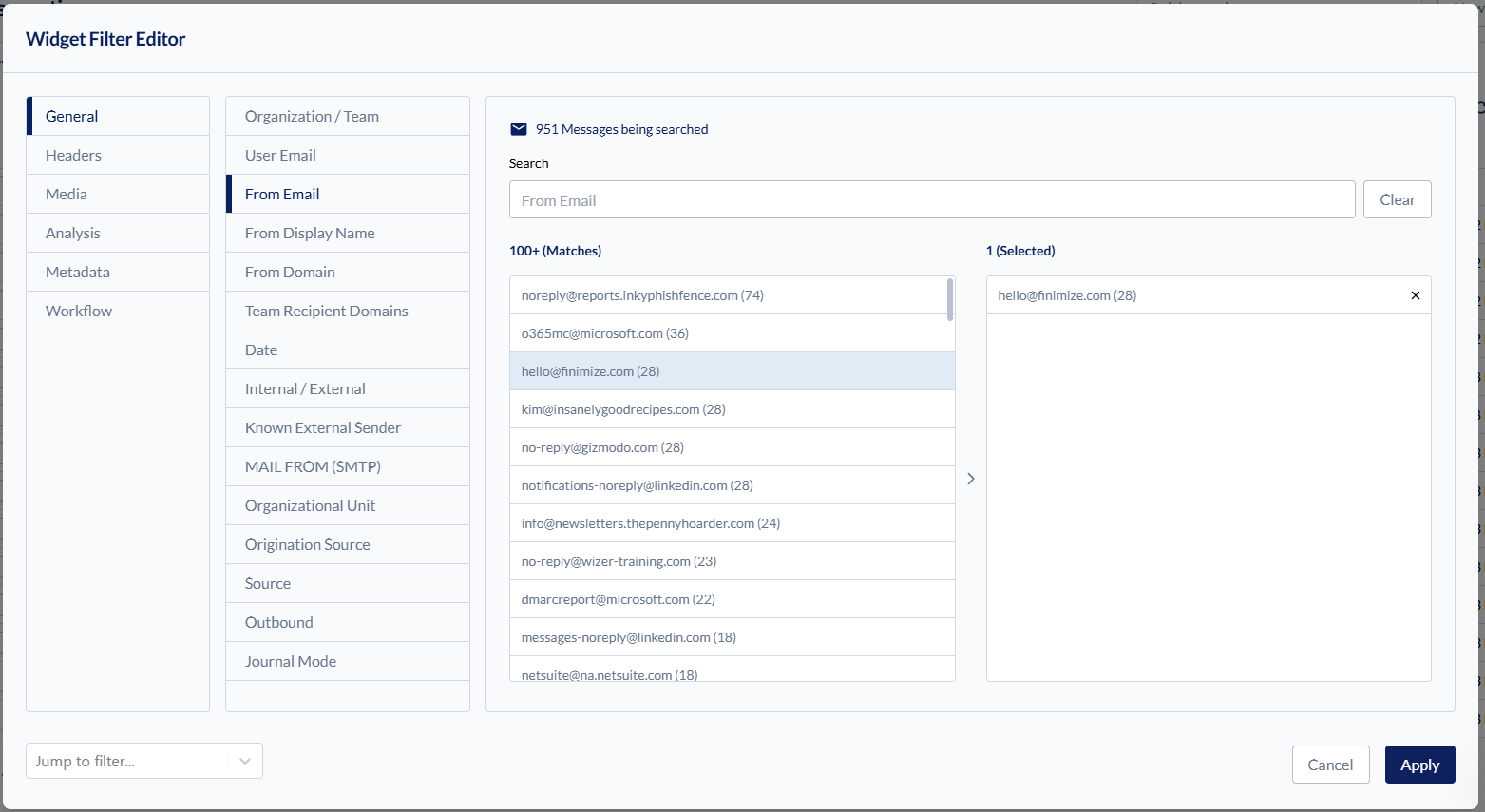
The Filter Editor is found on many components — it drives filtering across all aspects of Custom Dashboards and is how Quick Search applies its filters.
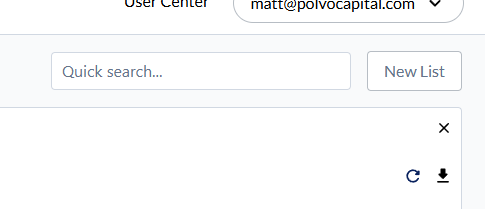
Quick Search Filters
Note: Quick Search Filters are only found on the Observations page.
Preset Filters
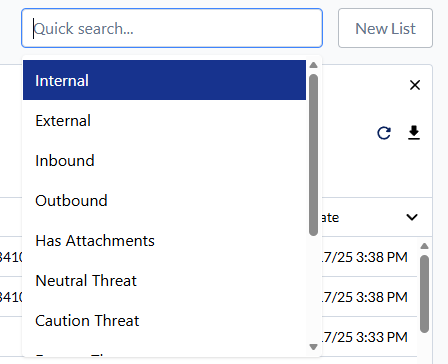
When you click the Quick Search input, you'll get the following options to select:
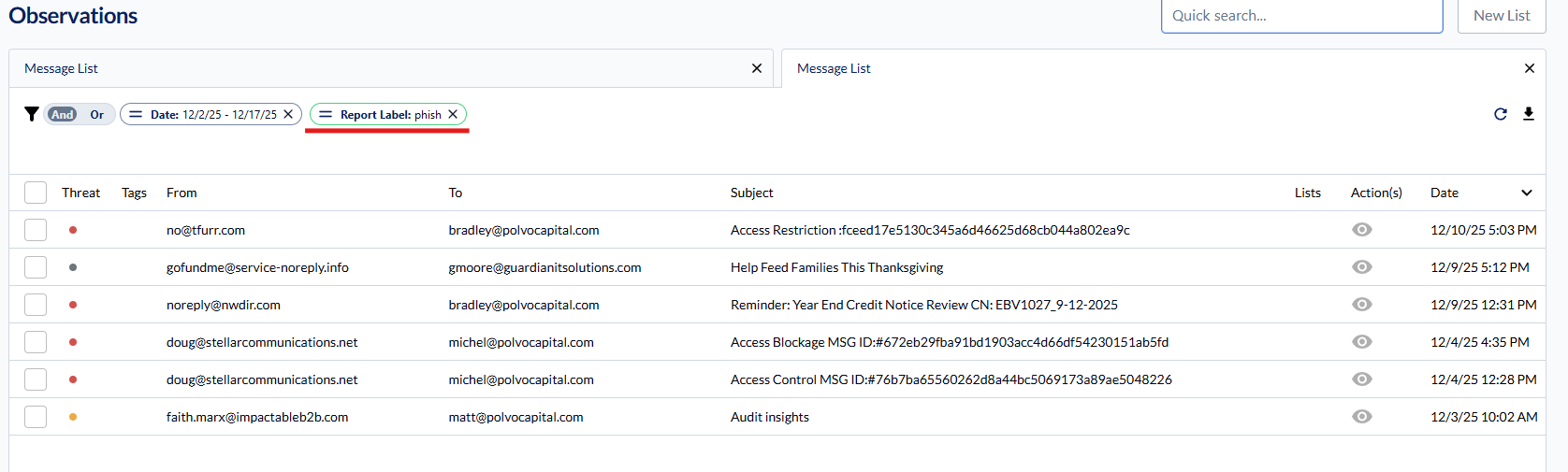
Once you select one of these options, it immediately filters based on that condition. For example, selecting Reported Phish returns a list with Last Week and Report Label: Phish pre-selected.
Search by Value
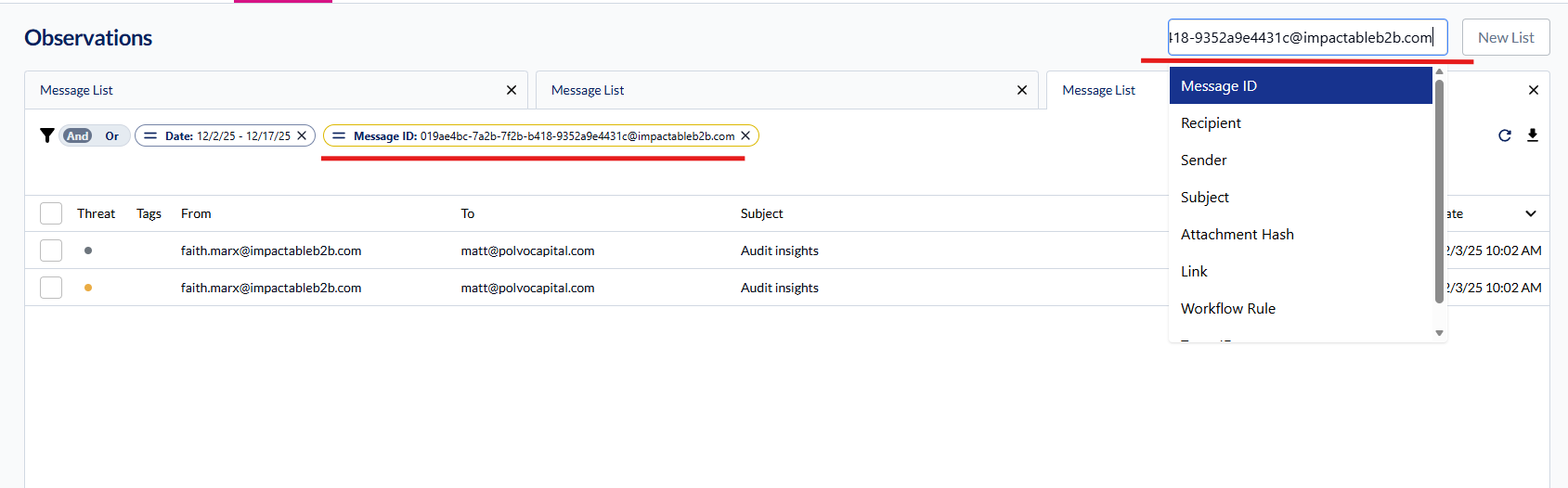
If you click the Quick Search input and paste a value, you can search by that value based on the corresponding option selected:
Example: If you have a Message ID from an email you're searching for, copy it, paste it into the input, and hit Enter — it will automatically select Message ID as the search type.
Filter Editor Categories
The full Filter Editor organizes 74 filters into 6 categories:
Input Types
Different filters use different input methods:
Filter Reference
General Filters
Headers Filters
Media Filters
Analysis Filters
Metadata Filters
Workflow Filters
Filter Behavior Notes
Date Filter
Supports relative mode (X days/hours/minutes ago) and specific mode (calendar picker)
Maximum lookback: 180 days
Presets: Today, Yesterday, This Week, This Month, Six Months
IP Filters
Segmented input for each octet (0-255)
Supports pasting full IP addresses
Provides suggestions from backend data
Attachments Filter
Filename: Text search
Filetype: Dropdown selection
Size: Slider (0-100 MB) with >= or <= operators
Links Filter
URL mode: Search by URL prefix
Domain mode: Search by domain name
Still need help? Ask the team