Adjust Billable Users in Google Workspace
Learn how to control which users are counted for billing in Google Workspace using Include groups.
Written By Matt Sywulak
Last updated 9 months ago
In Google Workspace environments, INKY uses an Include group to control which users count toward your bill. This group is created automatically during INKY installation.
How It Works
During installation, INKY creates a Google Group (typically named something like "INKY Protected Users" or similar) that controls which users are protected and billed. Only members of this group receive INKY protection and count toward your bill.
To adjust your billable users, simply add or remove members from this group.
Managing Your INKY Group
Find Your INKY Group
Go to the Google Admin Console
Navigate to Directory → Groups
Search for your INKY group (check your installation documentation for the exact name)
Add Users to Protection
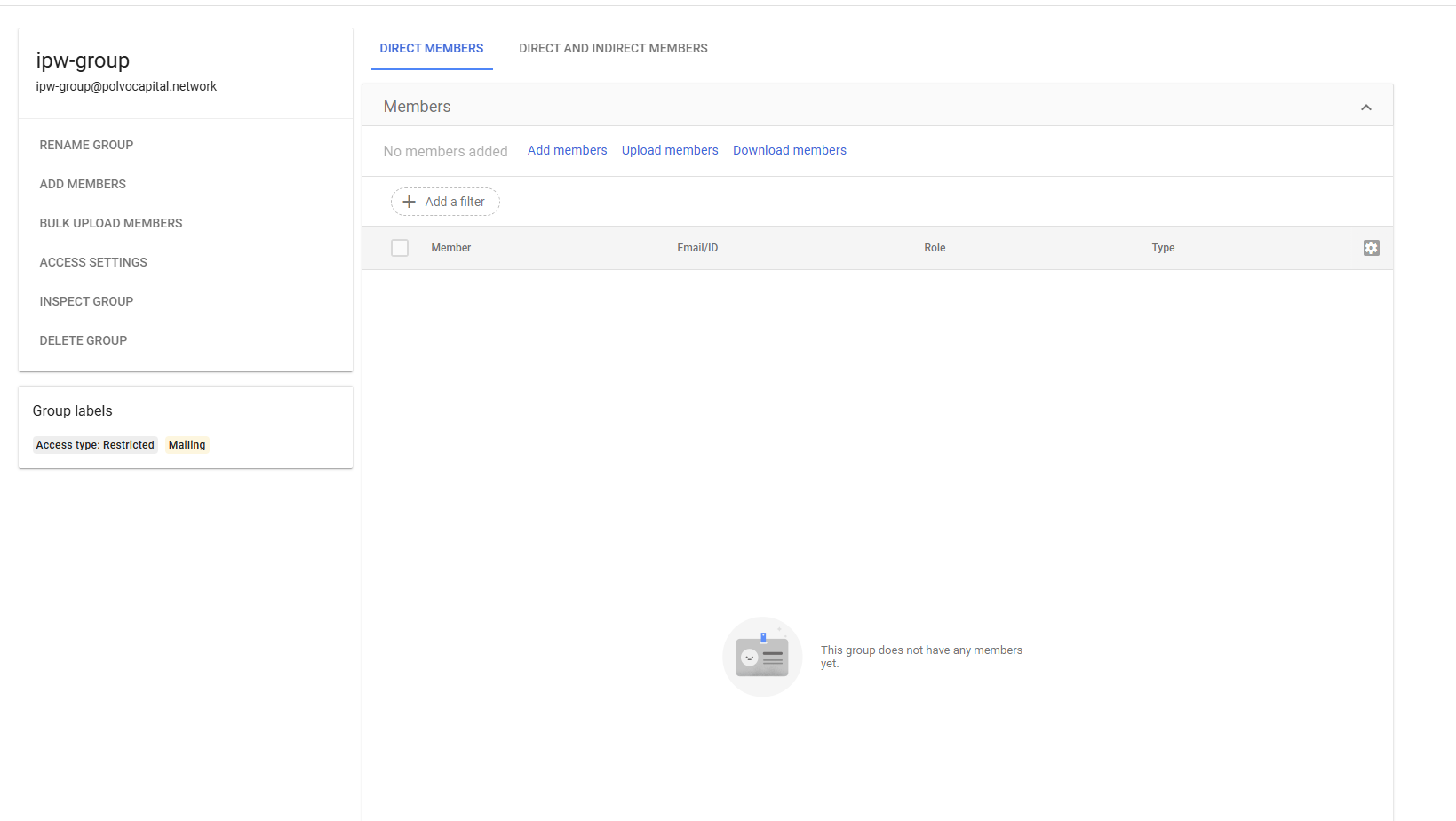
Open your INKY group
Click Members
Click Add members
Add the users you want INKY to protect
Click Add
Remove Users from Protection
Open your INKY group
Click Members
Select the users you want to remove
Click Remove members
Important Notes
Timing: Changes to group membership are recorded overnight. Make changes at least one day before billing snapshots.
No Exclude option: Google Workspace only supports Include groups. To exclude specific users, simply remove them from the INKY group.
Nested groups: Members of nested groups (groups within groups) are typically included, but verify this behavior in your environment.
Shared drives: Shared drive accounts don't have mailboxes and aren't counted.
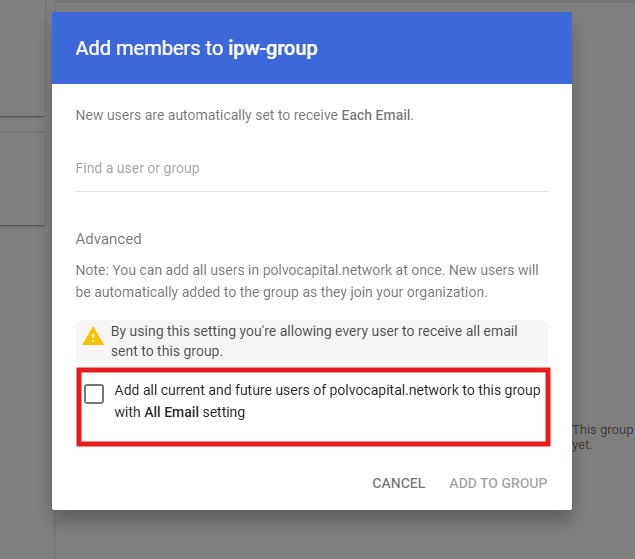
All Email: If you check the All Email settings you will be billed for all users.
Phased Rollout Strategy
Managing the INKY group is ideal for phased deployments:
Phase 1: Add IT department to the group (test internally)
Phase 2: Add additional departments as you expand
Phase 3: Add remaining users for full deployment
This approach lets you control costs while gradually rolling out INKY protection.
Verify Your Configuration
After making changes, verify the user count in the INKY Dashboard:
Wait until the next day for changes to take effect
Go to Dashboard → Overview
Check the Protected Users count
Compare against your Google Group membership count
Related: Understanding INKY Billing
Still need help? Ask the team