Group Management
The Group Management Interface provides direct control over user assignments, group membership, and sync settings for INKY-protected users.
Written By Matt Sywulak
Last updated 7 months ago
What You Can Manage
Include Group - Users protected by INKY email security
Exclude Group - Users exempt from INKY processing
Journal Group - Users configured for journaling functionality
Each group displays total member count and can be set to auto-sync from Microsoft 365 or managed manually.
Interface Overview
The page shows three group cards at the top:
Group type and purpose
Current member count
Unique group ID
Management mode (Auto-sync or Manual)
Below, a searchable user table displays:
User name and email
Current group assignments (checkmarks show membership)
Account status (Active/Other)
User type (User/Shared/Other)
Quick "Add to group" buttons
Managing Users
Add users to groups:
Use search to find specific users by name or email
Click the Select box
Use the floating bar at the bottom to manage the group options.
Confirm addition
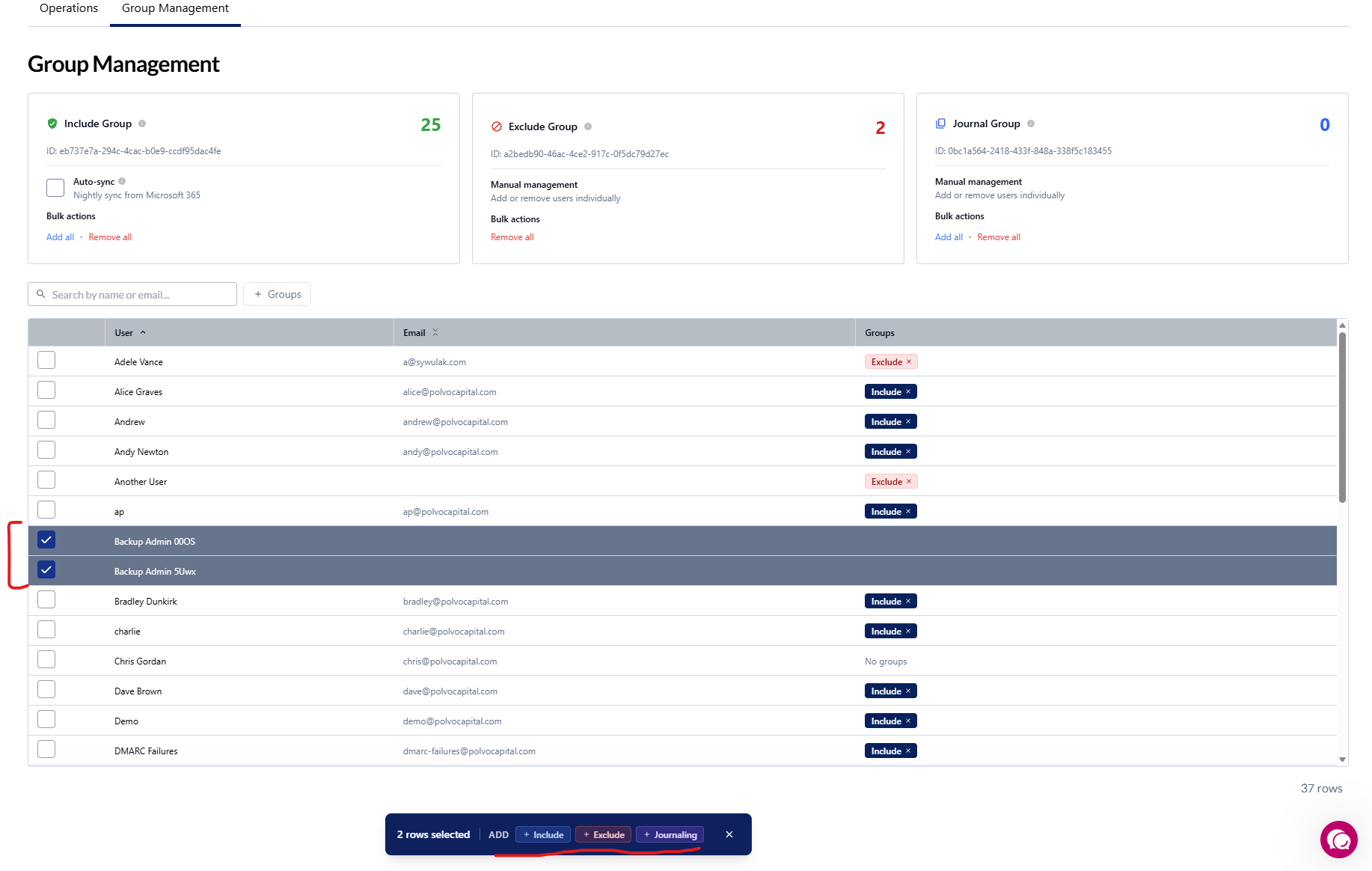
Remove users:
Click user's current group assignment checkmark
Confirm removal
Enable auto-sync:
When Auto-Sync is enabled, you will be UNABLE to manually Add or Remove users to the Include group. INKY will automatically do that for you.
Click gear icon on group card
Enable Auto-sync from Microsoft 365
INKY automatically updates membership based on M365 group changes
Bulk Operations
Modify multiple tenant groups simultaneously using bulk operations (available in Settings > Tenant Operations):
Apply bulk changes:
Select multiple groups using checkboxes in the group list
Click Bulk Modify or similar bulk action button
Configure desired changes in the bulk operations modal
Review selected groups and changes
Confirm to apply changes to all selected groups

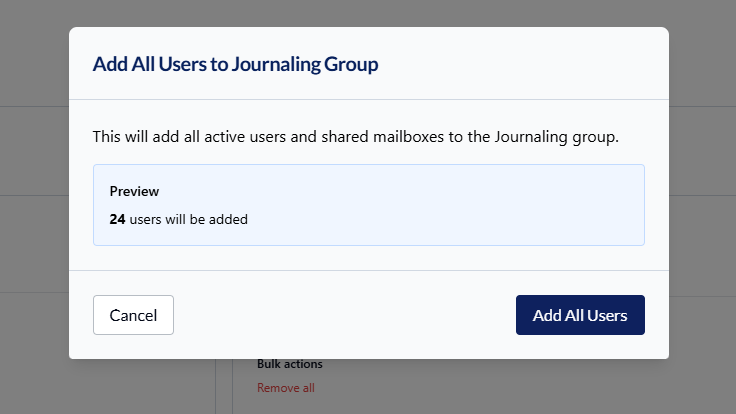
Note: Bulk operations provide a confirmation step to review all changes before applying them. This helps prevent accidental modifications to multiple groups.
Search and Filtering
Use the search bar to find users by:
Name (first or last)
Email address
Advanced filtering:
Security Groups Only - When working with admin group queries, enable this filter to show only security groups, making it faster to find relevant groups for administrative operations
No Groups - Use this filter to find mailboxes that are not assigned to any group (Include, Exclude, or Journal), helping admins quickly identify unassigned mailboxes
Access Requirements
Navigate to Admin Center > Tenant Operations > Group Management
Requires Security Admin role or equivalent permissions.
Directory API Access: Group management operations require proper Directory API configuration. If you encounter errors when managing groups, verify that your Microsoft 365 Directory API access is correctly configured in your tenant settings. Contact your INKY administrator if you need to reconfigure access.
Available in: Both bundles (Microsoft 365 only, requires Groups Migration)
Still need help? Ask the team