Reported Mail
Written By Matt Sywulak
Last updated About 1 month ago
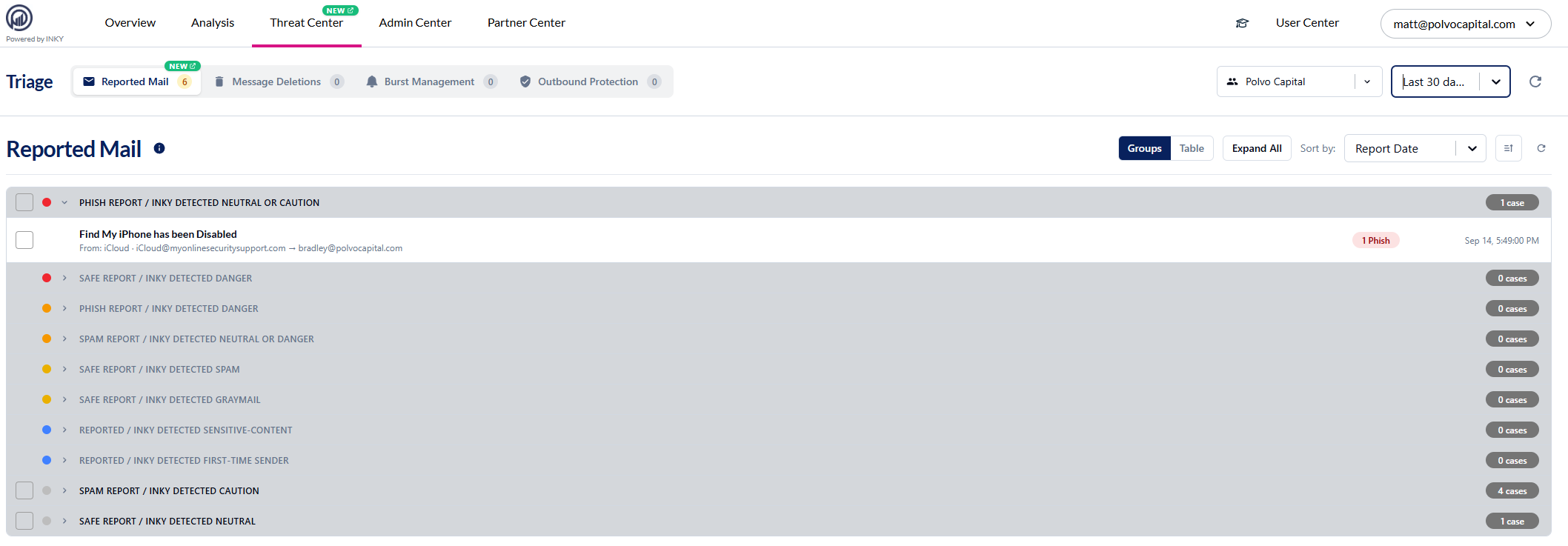
Reported Mail is a queue on the Threat Center page for reviewing the emails your users have reported, seeing how they were reported, and remediating them from one place.
Finding Reported Mail
Open Threat Center from the main navigation, then select the Reported Mail tab. The tab shows a live count of reported messages for the selected team. A team must be selected — with no team selected you'll see "Select a team to view reported mail."
The reported messages table
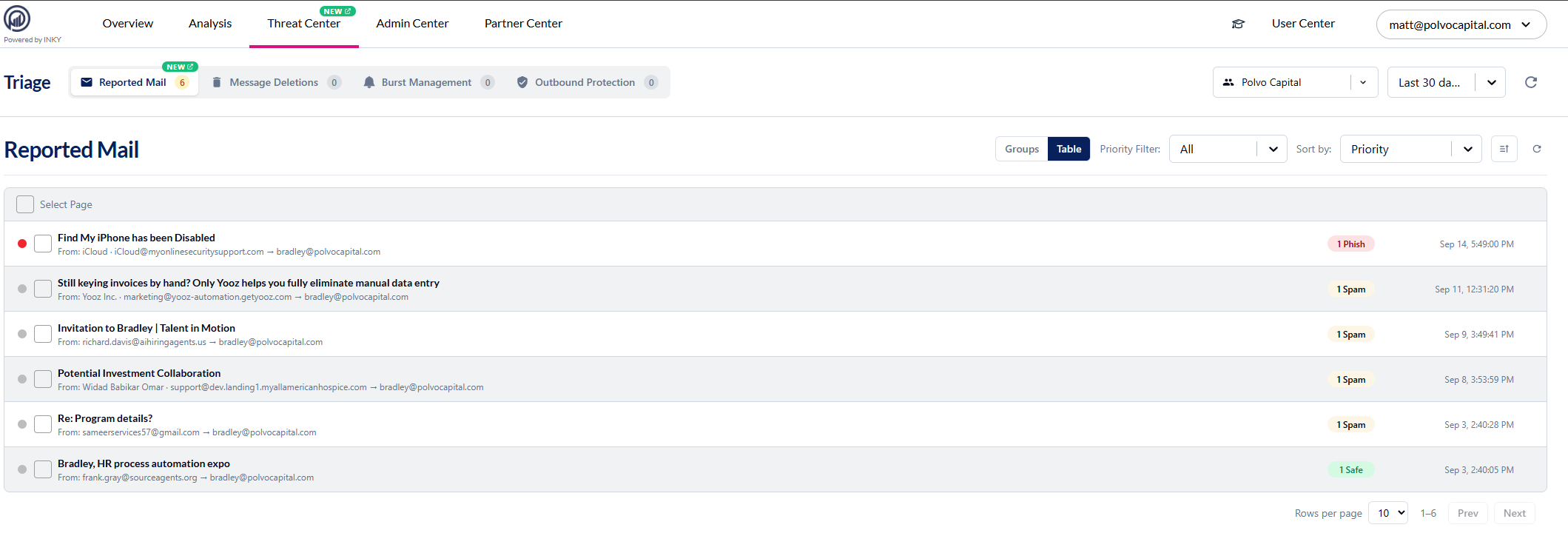
Each row is a reported message. Columns, all sortable:
From — sender display name and email.
To — recipients (up to two shown, then a "+N" overflow).
Subject — shows "(no subject)" when blank.
Report Count — how many times the message was reported, broken out by verdict as badges in the order Safe, Spam, Phish (for example, "2 Phish").
Date — when the message was processed.
The list is sorted by Date (newest first) by default. If there are no reports in the selected time range you'll see "No reported messages in this timeframe."
Reviewing a message
Click a row to open the full message detail. This is the same detail view used elsewhere in INKY — subject, From/To/Cc/Bcc, date, team, result category, delivery target, authentication status, analysis insights, and counts for attachments, images, link clicks, and user reports. If Smart Insights is enabled for the team, you can run its AI deep-dive analysis on the message from here.
Remediating a message
Click Remediate Message at the bottom of the open message to launch the remediation wizard. The steps adapt to the verdict you choose:
Choose a verdict — Safe, Spam, or Phish. A note previews how the message's existing user reports will be reconciled (confirmed or rejected) to match your choice.
Apply actions — select allow-list actions (for Safe) or block-list actions (for Spam/Phish), plus any policy actions. Entries already in place are marked "(already applied)."
Configure entry — for each selected allow/block item, set options like include-subdomains, "Allow only if authenticated" / "Block only if unauthenticated," and (on organization teams) whether to apply the entry to all teams in the org.
Find & delete (Spam/Phish, inbound only) — optionally search recipients' mailboxes and delete the message in the background.
Resolve case — if the message belongs to a case and this is its last open item, optionally resolve the whole case.
Review & confirm — review the summary, then Start Remediation.
Remediation deletes matching messages from mailboxes rather than quarantining them, confirms or rejects the related user reports to match your verdict, applies any allow/block/policy changes you selected, and resolves the case item if the message belongs to one.
Was this helpful?
Still need help? Ask the team