Account Takeover (ATO) Detection
Written By Matt Sywulak
Last updated 16 days ago
Account Takeover (ATO) Detection is an outbound security feature that monitors your users' sending behavior for signs of a compromised email account. When suspicious activity crosses a configured threshold, INKY automatically places the affected user into enforcement mode — quarantining, discarding, or delivering their outbound messages according to your policy while alerting designated approvers to review and act.
ATO Detection is part of Outbound Mail Protection. The settings appear for any team entitled to outbound analysis, and you need the outbound enforcement permission to change them. If you do not see Account Takeover Detection under Settings → Outbound Protection, ask your account team about your team's outbound entitlement.
How it works
INKY continuously scores outbound messages from each sender using three signal types. When a user's cumulative score crosses a threshold, they enter enforcement mode at the corresponding risk level.
Signal types
Risk levels
Signal scores accumulate into one of three risk levels. The score thresholds are fixed — you configure what action INKY takes at each level, not the thresholds themselves.
Enforcement mode
When a user's score crosses a configured threshold, they enter enforcement mode. While in enforcement:
All outbound messages are handled according to the Enforcement Action you configured for their risk level (Deliver, Quarantine, or Discard).
Enforcement stays active for the Time in Force you set (1 hour to 7 days). If new signals above threshold arrive during enforcement, the window resets and extends.
Quarantined messages that an administrator has not manually approved are automatically rejected when enforcement expires.
All administrators listed as ATO Enforcement approvers in Global Workflow Approvers are notified immediately and can review messages and release the user at any time via the Threat Center page.
Configuration
ATO settings are in Settings → Outbound Protection → Account Takeover Detection. Burst, dangerous links, and spam/phishing detection are configured just above it, in the Compromised Account Detection Signals section. Those three signals are what ATO scores.
Step 1: Enable ATO detection
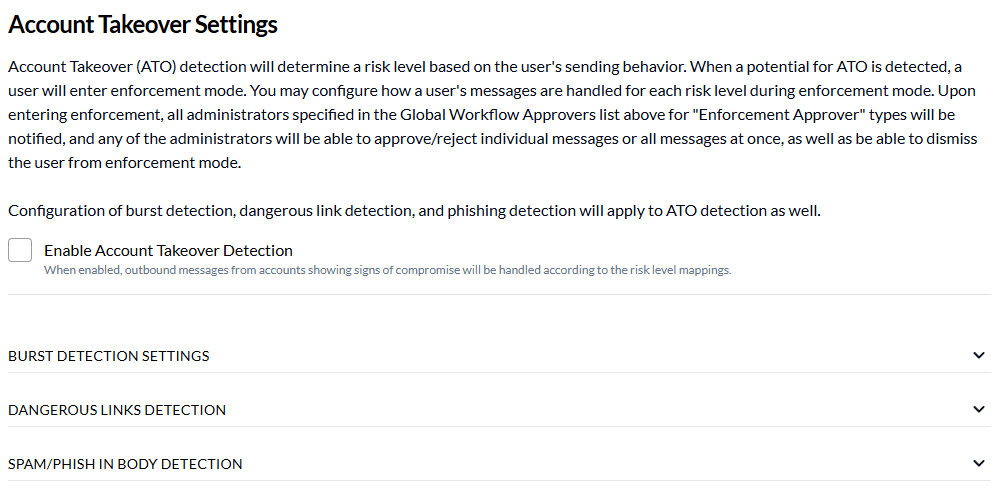
Check Enable Account Takeover Detection. When disabled, outbound messages are unaffected regardless of any risk map entries you have configured.
The checkbox stays unavailable until you turn on at least one signal in Compromised Account Detection Signals. With no signals, ATO has nothing to score. If you switch every signal off while ATO is on, the save button becomes Disable ATO and Save, which turns ATO off as part of saving.
Step 2: Configure risk level actions
Click + Add Low Risk Action, + Add Medium Risk Action, or + Add High Risk Action for each risk level you want to enforce. You can configure Low, Medium, and High independently. A level you leave unconfigured is still enforced. It takes the action of the nearest configured level below it, and reaches the default Deliver action only when nothing is configured below it. When some levels are mapped and others are not, an Unconfigured Risk Levels summary under the Enable checkbox states what each unmapped level does.
If ATO is enabled with no risk levels mapped at all, the page warns you inline and again when you save, because every detection would take the default Deliver action.
For each level, set two options:
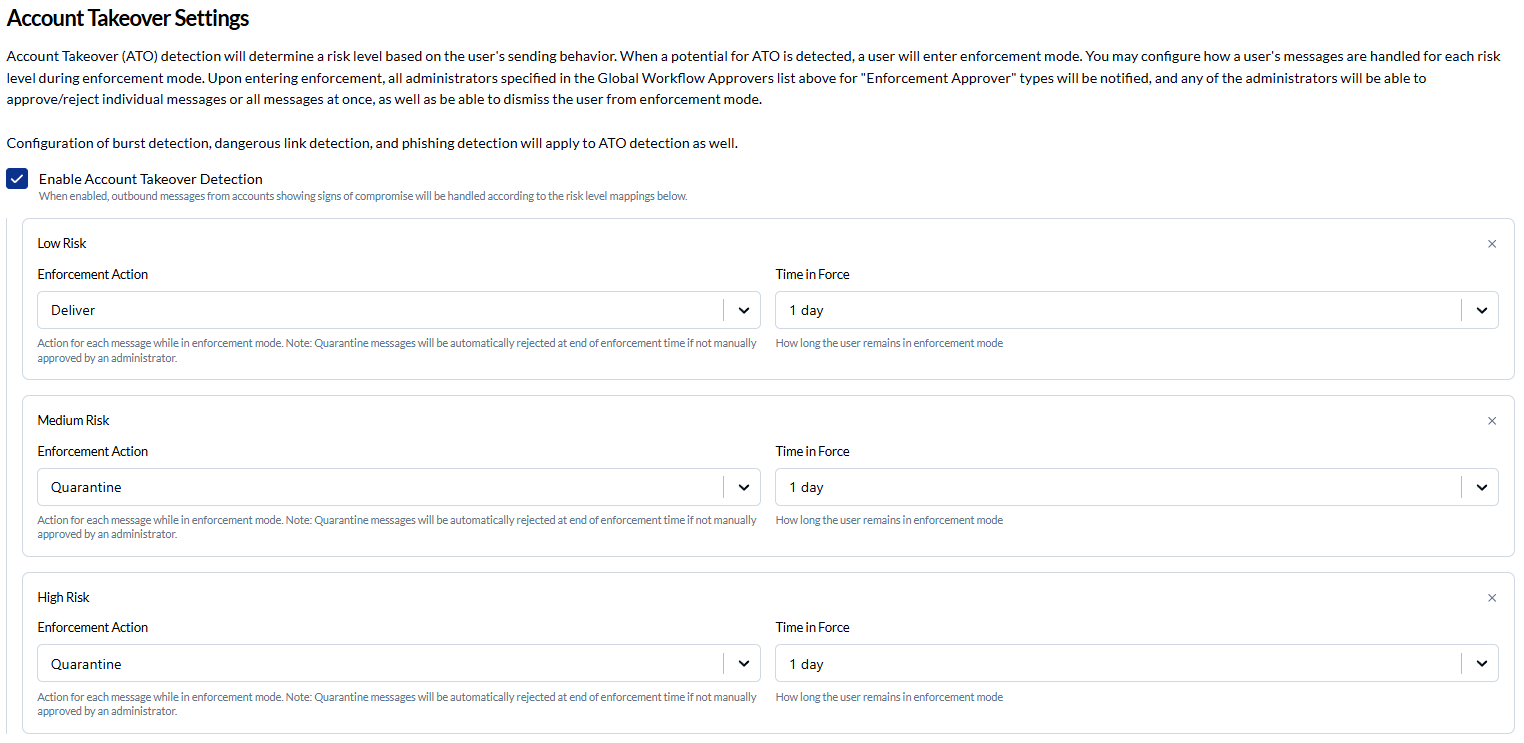
Discard has one consequence worth knowing about. The message still appears in the sender's Sent folder, with nothing to show it was never delivered. On a genuinely compromised account that is usually what you want. On a false positive, the sender has no way to tell their mail did not arrive.
Step 3: Add ATO Enforcement approvers
Administrators who should be notified and able to act on enforcements must be added to Global Workflow Approvers with the type ATO Enforcement.
In Outbound Protection settings, scroll to Global Workflow Approvers.
Click Add Approver, select the administrator, and choose ATO Enforcement as the approver type.
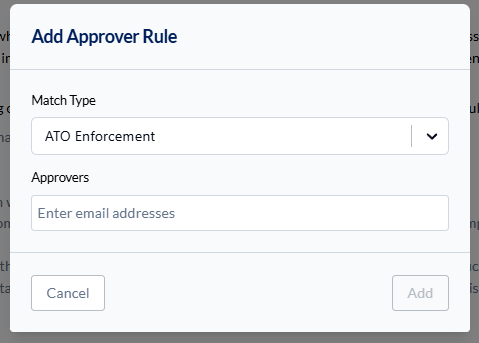
All ATO Enforcement approvers are notified by email when a user enters enforcement and can take action from the Threat Center page.
Signal sensitivity
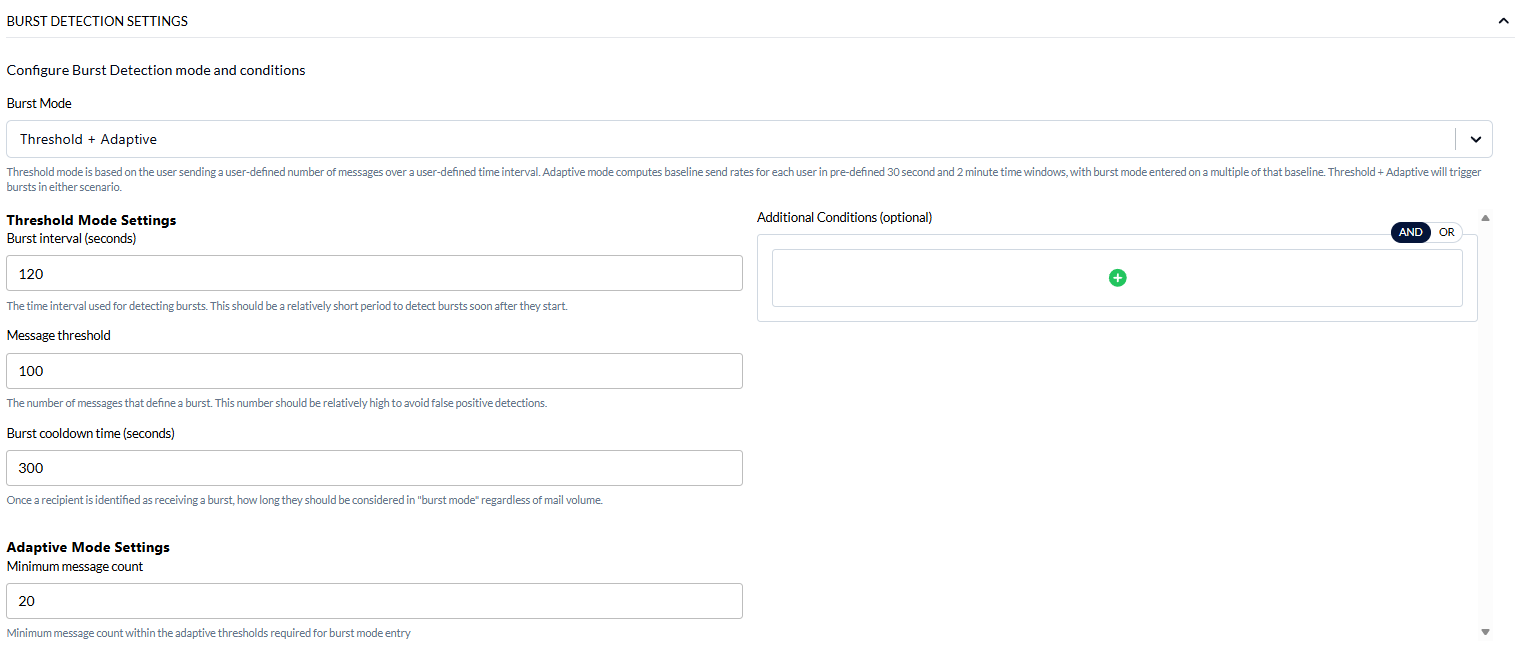
ATO detection uses your existing outbound signal configurations as inputs — it does not have separate sensitivity settings. To tune what triggers ATO, adjust Burst Detection, Dangerous Link Detection, and Spam/Phishing Detection in the Compromised Account Detection Signals section of Outbound Protection. That section is available whether or not ATO risk scoring is switched on, so a team that only forwards these signals to a SIEM can configure them without enabling ATO enforcement.
Enable Dangerous Links Detection

Enable Spam/Phish Body Detection

Permissions
Frequently asked questions
What happens if I haven't configured an action for a detected risk level?INKY uses the action from the nearest configured level below it, and delivers normally only when nothing is configured below. On a team that has configured Low but not High, an unmapped High level enforces the Low action rather than delivering. The Unconfigured Risk Levels summary on the settings page states what each unmapped level does.
Can enforcement be extended automatically?Yes. If new signals above threshold arrive while a user is already in enforcement, the Time in Force window resets from that point, extending the enforcement period.
What happens to quarantined messages when enforcement expires?Any messages still in quarantine that were not manually approved are automatically rejected (discarded).
Does ATO affect inbound email?No. ATO detection is outbound only.
Does ATO use my existing burst and link detection settings?Yes. Your configured Burst Detection, Dangerous Link Detection, and Spam/Phishing Detection settings all feed into ATO scoring.