Troubleshooting an Inactive INKY Status
Written By Eric Heller
Last updated About 2 months ago
INKY may appear as inactive due to incomplete onboarding, a missing role mapping, an inactive subscription, or a portal sync delay. This article describes each cause and the steps to resolve it.
Symptoms
The INKY module shows a status of Inactive.
The INKY module is greyed out in KaseyaOne.
Causes
Portal sync delay: After setup completes, INKY can take up to 48 hours to update its status from Inactive to Active.
Incomplete setup or no mail flow: The INKY onboarding workflow is not fully complete, or no emails have been processed by INKY yet. This can occur even after initial onboarding if mail routing is not configured correctly.
Role mapping not configured: Your KaseyaOne role is not mapped to an INKY role. When set to No Access, INKY appears inactive for your account even if the product is active for other users.
No active subscription: There is no active INKY subscription associated with your account, causing the module to appear inactive or greyed out.
Tenant-specific or backend issue: A backend configuration problem is preventing the status from updating despite all setup steps being correct.
Resolution steps
To resolve this issue, complete the following steps:
Open the INKY module and note the exact status displayed.
Confirm that all four INKY onboarding phases completed successfully.
a. Navigate to Admin Center > Summary.
b. The Status card shows whether INKY is Active or Inactive.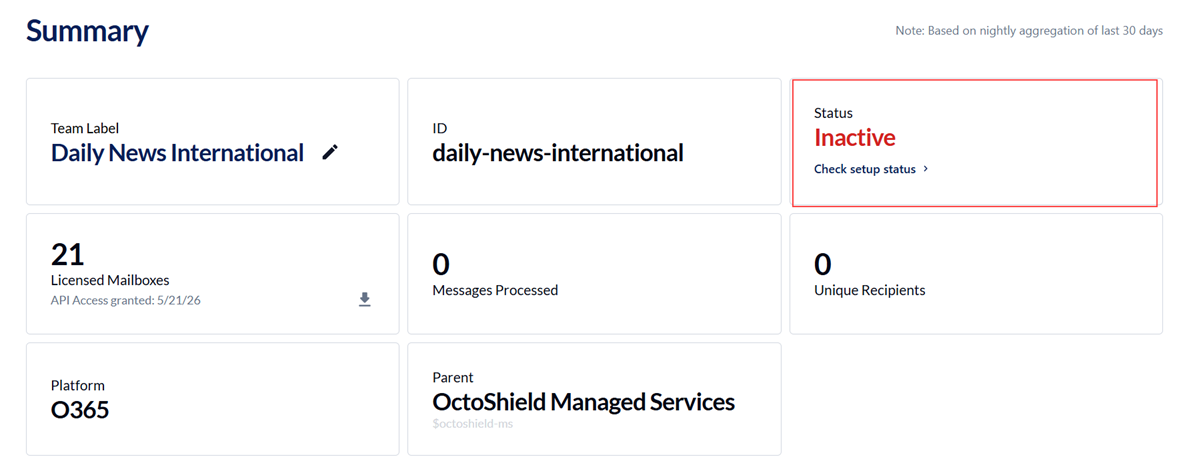
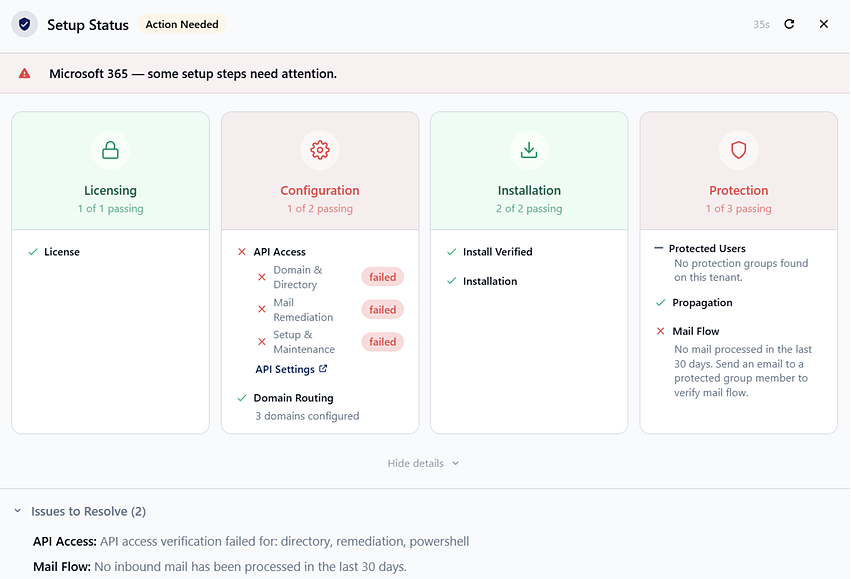
c. Click the Status card to open the Setup Status dialog box. In this example, API Access and Mail Flow have failed, as indicated in the Issues to Resolve section.
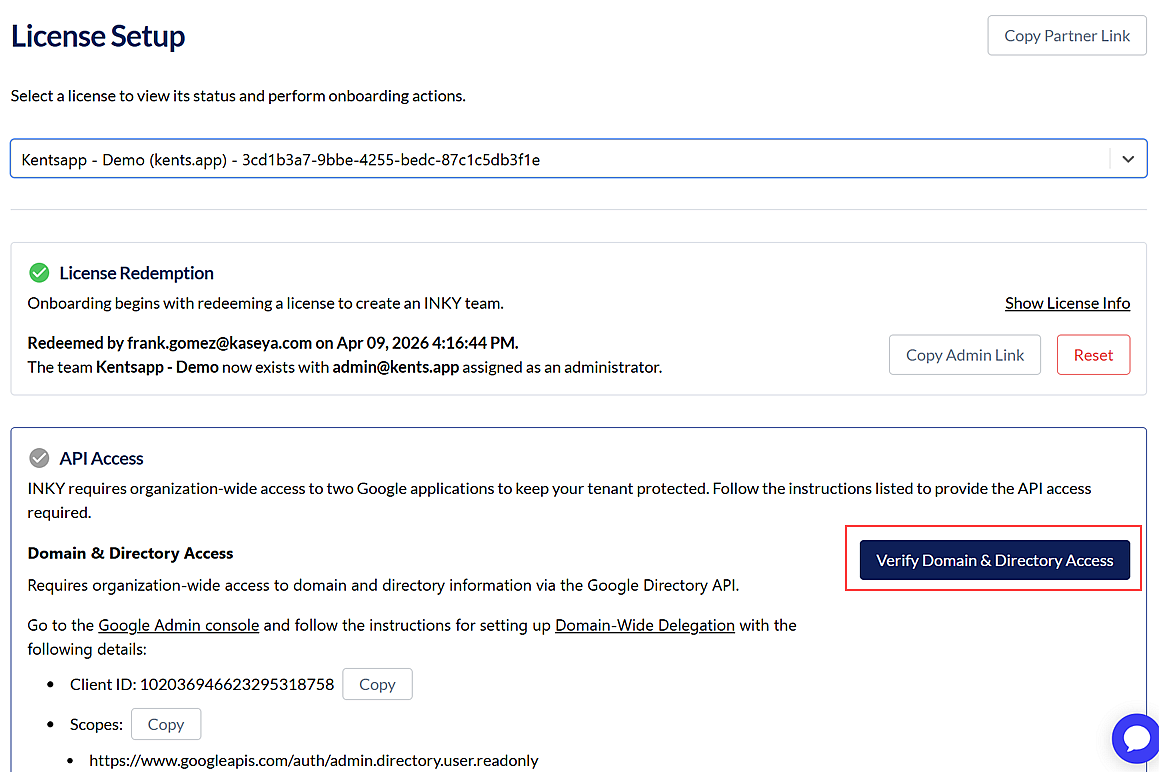
d. If any onboarding steps need to be addressed, select Team Setup and perform the required steps. In this example, API Access needs to be verified.
If all four onboarding phases completed successfully but INKY still shows as inactive, confirm that emails are routing through INKY by running a message trace in Microsoft 365 or Google Workspace. Transport rules related to INKY, such as "IPW Mail for Inky" and "IPW Processed SPAM," indicate INKY's involvement in scanning and processing the message.
If mail flow is confirmed but INKY still shows as inactive, check the role mapping:
a. In the INKY Admin Center, navigate to Admin Center > Admin Management > Admin by KaseyaOne Role.
b. Locate your KaseyaOne role in the list.
c. In the INKY Role dropdown, select the appropriate access level: Viewer, Analyst, Policy Admin, or Super Admin.
d. Click Save.If the INKY module is greyed out regardless of role mapping, contact your Kaseya account manager to confirm that an active INKY subscription is in place.
If setup is complete, mail routing is confirmed, and role mapping is correct, send additional test emails and wait up to 48 hours for the portal to sync and update the status.
If INKY still shows as inactive after 48 hours, gather the following and escalate to INKY/Kaseya Support:
Screenshot of the Team Summary page.
Screenshot of Group Membership.
Screenshot of API Access settings.
Mail trace results from Microsoft 365 or Google Workspace
Tips and tricks
When troubleshooting mail flow, send a test email to an address in your INKY-protected domain and immediately run a message trace. Confirm that the trace shows the message passing through INKY's mail exchange (MX) record rather than going directly to Microsoft 365 or Google Workspace. If the trace shows no INKY hop, the MX records are not pointing to INKY and mail routing must be reconfigured before the Protection phase can complete.
Related articles
/
Was this helpful?
Still need help? Ask the team