Command Palette (Cmd+K)
Written By Matt Sywulak
Last updated 3 months ago
The command palette is a search box you can open from anywhere in the INKY App Dashboard to jump straight to a page, a specific setting, or a common task.
Security and navigation
INKY NAVIGATION: Press Cmd+K (macOS) or Ctrl+K (Windows) from any page in the dashboard.
INKY PERMISSIONS: None. Every admin can open the palette. What the palette lists, however, depends on your role, your permissions, and the team you have selected.
Note: The palette never grants access to anything you couldn't already reach through the menus. It's a faster route to the same places, not a way around your permissions.
About this feature
The command palette gives you one keyboard shortcut that reaches the whole dashboard. Press Cmd+K or Ctrl+K, start typing, and INKY narrows a list of everywhere you can go and everything you can start.
Results are grouped into four sections:
Navigation — the main dashboard pages, such as Overview, Observations, Reports, Triage, and Partner Center.
Search — find a message, or run an M365 message trace.
Actions — start a common task, such as adding a sender to the allow list.
Admin — the Admin Center settings pages, plus the individual settings sections inside them.
Two things make the palette faster than the menus:
It searches by what a setting does, not just what the page is called. Type "QR code" and you'll find the QR Code Detection section on the Analysis page. Type "whitelist" and you'll find the allow list. Type "journaling" and you'll find Routing. You don't need to know which page a setting lives on.
It goes to the setting, not just the page. When you select a settings section, INKY opens that page, scrolls to the section, and highlights it, so you don't have to scan a long page for the control you wanted.
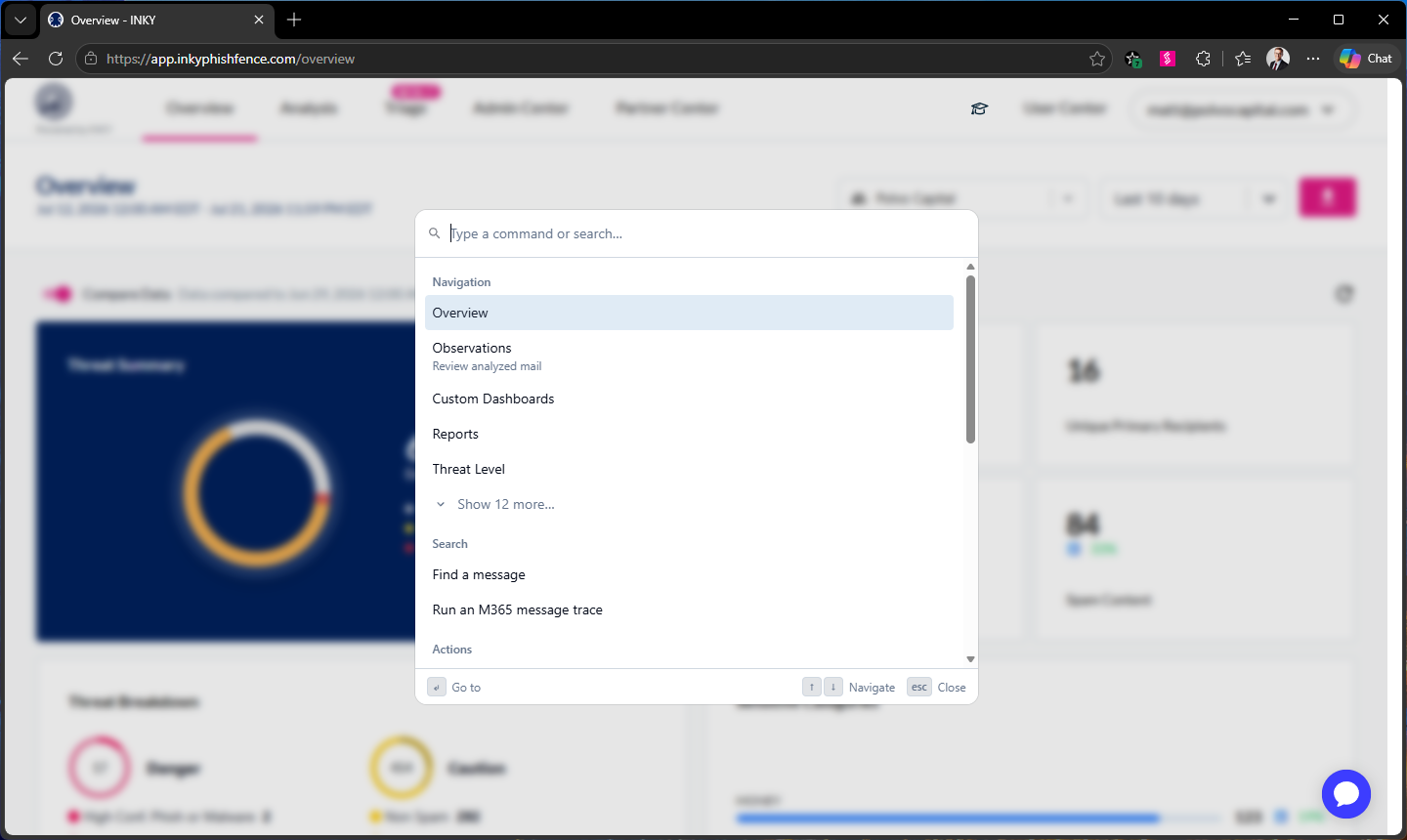
At rest, each group shows its first five entries with a row at the bottom to reveal the rest. As soon as you type, the list re-ranks across every group.
Why your palette may look different
The palette only lists what you can already reach, so two admins looking at the same INKY App Dashboard can see different commands. An entry appears only when all of the following are true for the team you currently have selected:
Your role and permissions allow it. For example, Add a sender to the allow list appears only if you can create allow list entries. Generate a license appears only for partner admins.
Your team's licensing and enabled features include it.
The page is available for the type of team you have selected. Organization-level teams expose a smaller set of settings pages than customer teams do.
Because the list is scoped to the selected team, switching teams changes what the palette offers. If a command in a screenshot or a colleague's walkthrough is missing for you, that's the reason — see the FAQ below.
Use case
The dashboard has a lot of settings, and their names don't always match the words you'd use for them. Someone who wants to stop a warning banner from appearing has to know that banners are configured under Markup. Someone who wants to allow a sender has to know it's called an allow list rather than a whitelist, and then find that page in the menu.
The command palette removes that step. You type the word you'd naturally use, and INKY takes you to the right section — even if the page is named something else entirely.
How to...
Open the command palette
From any page in the dashboard, press Cmd+K (macOS) or Ctrl+K (Windows).
Start typing in the Type a command or search… box.
Press Enter to go to the highlighted result, or click it.
To close the palette without going anywhere, press Esc.
Go to a page
Open the palette.
Type part of the page name, such as
reportsortriage.Press Enter on the result you want.
Find a setting when you don't know which page it's on
Open the palette.
Type what the setting does, in your own words — for example
QR code,whitelist,journaling, orbanner.Look at the muted label to the right of a result: it names the page that section lives on.
Press Enter. INKY opens that page, scrolls to the section, and highlights it.
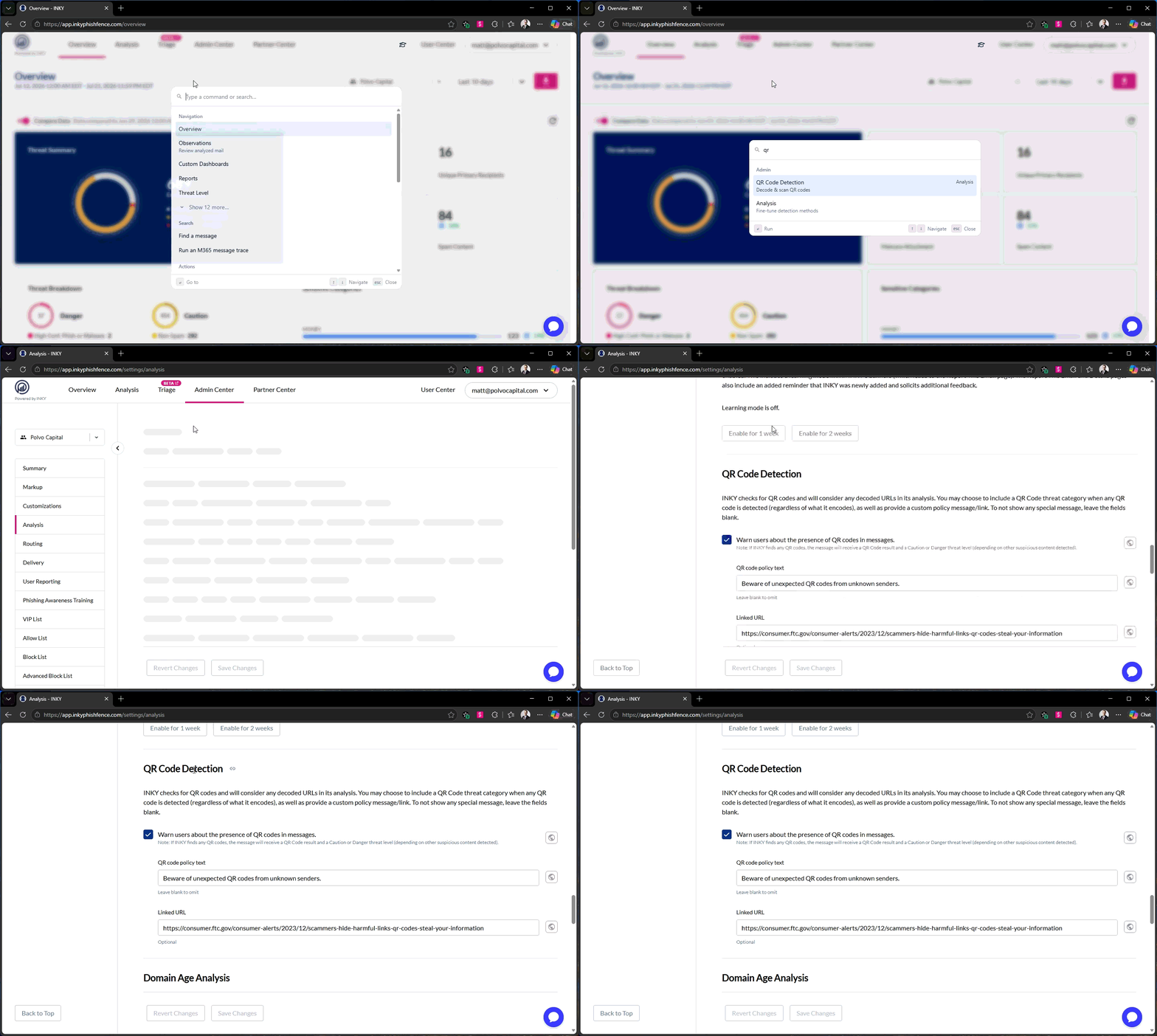
Start a common task
Open the palette.
Type the task, such as
add viporblock sender.Press Enter on the result under Actions.
INKY takes you to the page where the task happens and opens its form for you. You still review and confirm the change there — the palette starts the task, it doesn't complete it.
Use the palette without a mouse
Cmd+K or Ctrl+K opens it.
Up arrow and Down arrow move between results.
Enter goes to the highlighted result.
Esc closes the palette and returns focus to the page.
FAQ
A command I saw in a screenshot doesn't appear for me. Why?
The palette lists only what you can already reach. A missing command usually means your role or permissions don't include it, your team's licensing doesn't include the feature, or the page isn't available for the team you currently have selected. Try selecting a different team first. If you believe you should have access, contact your INKY administrator.
I opened the palette right after signing in and some entries were missing.
Permission-gated commands stay hidden until INKY has confirmed what you're allowed to do for the selected team. They fill in a moment later. If a command you expect still isn't there after the page has finished loading, see the previous answer.
Does it search the contents of my settings, or just page names?
Neither, exactly. It searches the names and descriptions of the settings sections themselves, plus a list of common synonyms — so "whitelist" finds the allow list even though the page never uses that word. It does not search your configured values, such as the specific addresses on your allow list.
Can I search for a specific email or sender from the palette?
Not directly. Find a message takes you to Observations, where you can filter by sender, subject, and other fields. The palette gets you to the search; it doesn't run it.
Does it work on every page?
Yes. The shortcut is available on every page of the INKY App Dashboard once you're signed in.
Nothing matched what I typed.
Try a different word for the same thing, or the name of the feature rather than the action. The palette matches section names, their descriptions, and common synonyms, so plain language usually works better than an exact menu label.
Was this helpful?
Still need help? Ask the team