Scope Outbound Protection Rules to External Recipients in Microsoft 365
Tag external-bound mail with a custom header in Microsoft 365, then key your INKY Outbound Mail Protection (OMP) rules off that header so they only fire on traffic leaving the organization.
Written By Nathan McCurley
Last updated 5 months ago
When You'd Use This
OMP processes outbound mail based on the envelope of the message. Without a way to distinguish recipient scope, an OMP rule that fires on sensitive content applies equally to internal and external recipients — meaning senders are prompted to approve messages going to coworkers, not just messages leaving the organization.
Scoping OMP rules to external recipients lets you:
Require sender approval for sensitive data only when it leaves the organization
Skip internal recipients on the same message
Reduce false-positive approval prompts and user friction
How It Works
The workflow has two halves:
In Microsoft 365, the existing
INKY - Routing - Outbound External Recipientstransport rule gets one additional action: stamp the headerX-Inky-Workflow: outsideonto every external-bound message it processes.In the INKY Dashboard, each Outbound Protection rule that should be scoped to external traffic gets a Workflow Header condition that requires the header value
outside.
Once stamped at the M365 layer, the header travels with the message into OMP. Rules that include the Workflow Header matches outside condition evaluate only external recipients. Internal recipients on the same message are unaffected.
The existing transport rule is modified, not duplicated. No new transport rule is created.
Before You Start
You need:
Exchange administrator access to the Microsoft 365 tenant
INKY Dashboard admin access to edit OMP rules
Confirm the transport rule exists first. Go to Exchange Admin Center → Mail Flow → Rules and look for INKY - Routing - Outbound External Recipients.
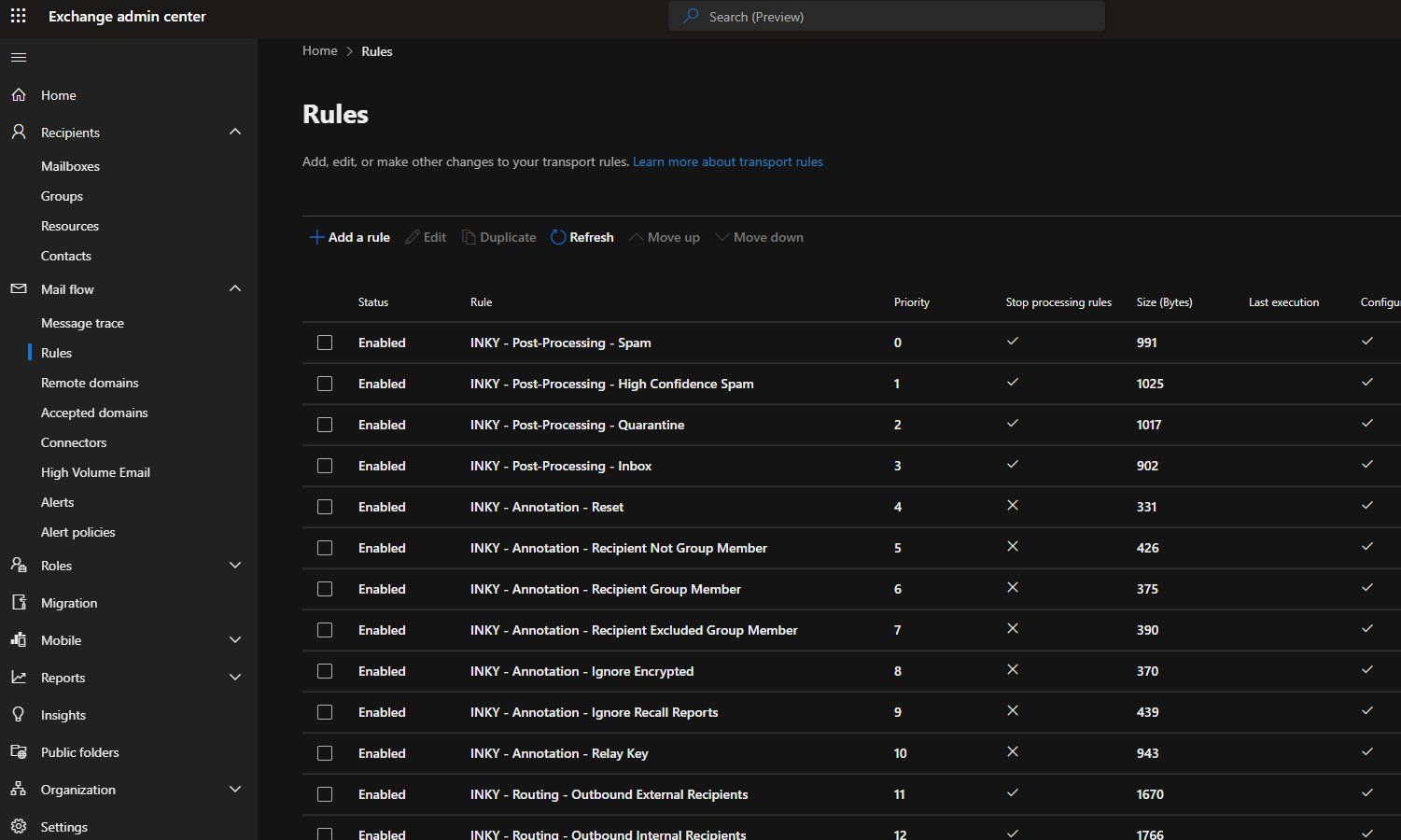
If the rule isn't present, contact INKY Support before continuing. Your tenant may be on an older configuration that needs to be brought up to date.
Part 1: Add the Header in Microsoft 365
Step 1: Open the Rule
Log in to the Exchange Admin Center at https://admin.exchange.microsoft.com/#/transportrules.
Click the rule name INKY - Routing - Outbound External Recipients to open its details panel on the right.
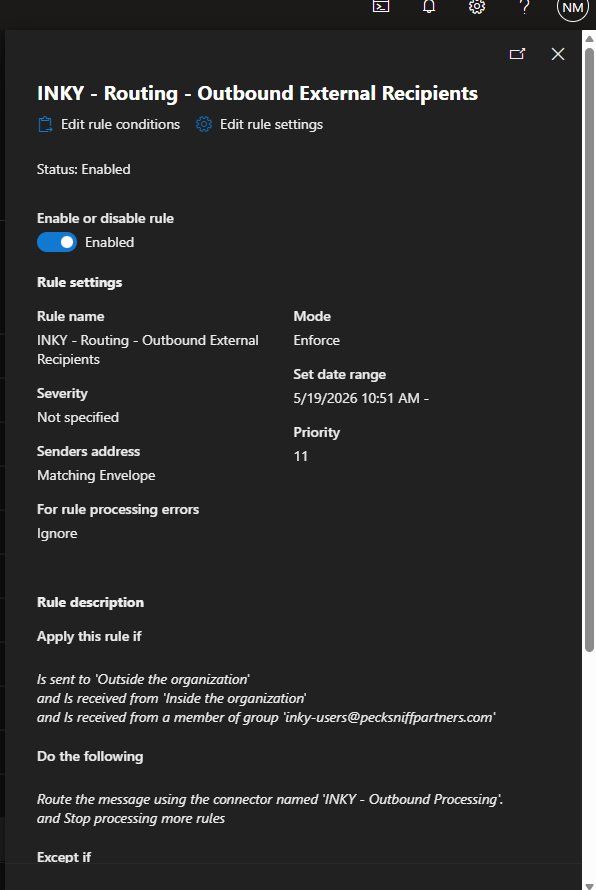
Step 2: Open Rule Conditions
In the details panel, click Edit rule conditions at the top.
The full conditions editor opens, showing the existing Apply this rule if conditions and the Do the following action that routes the message to the INKY - Outbound Processing connector.
Step 3: Add the Set Header Action
In the Do the following section, click the + (plus) button to the right of the existing ‘Do the following’ row to add a second action.
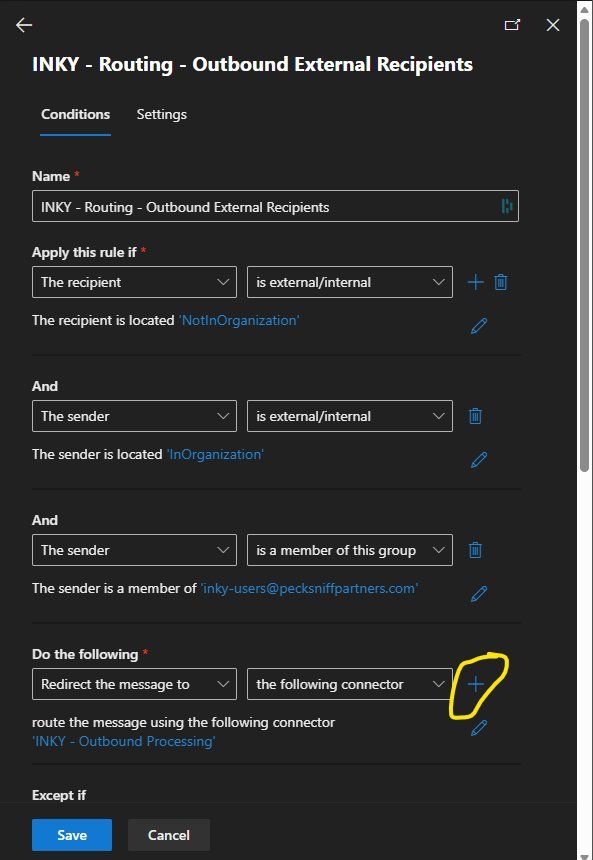
A new ‘Do the following’ row appears below the existing one. Configure it as follows:
First dropdown: select Modify the message properties
Second dropdown: select set a message header
Click the pencil/edit icon to set the header values:
Set the message header:
X-Inky-WorkflowTo the value:
outside
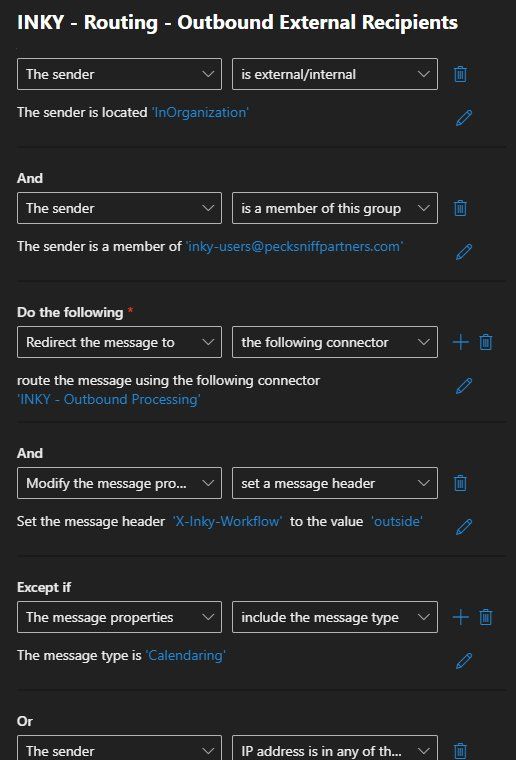
Important: Leave every existing condition, action, exception, and the Redirect the message to action pointing at INKY - Outbound Processing exactly as they were. The header action is added alongside the existing route action, not in place of it.
Step 4: Save
Click Save at the bottom of the editor.
The rule status should remain Enabled and the Priority should remain unchanged.
Part 2: Add the Workflow Header Condition in INKY
With the transport rule stamping the header, every Outbound Protection rule that should only apply to external recipients needs a matching condition.
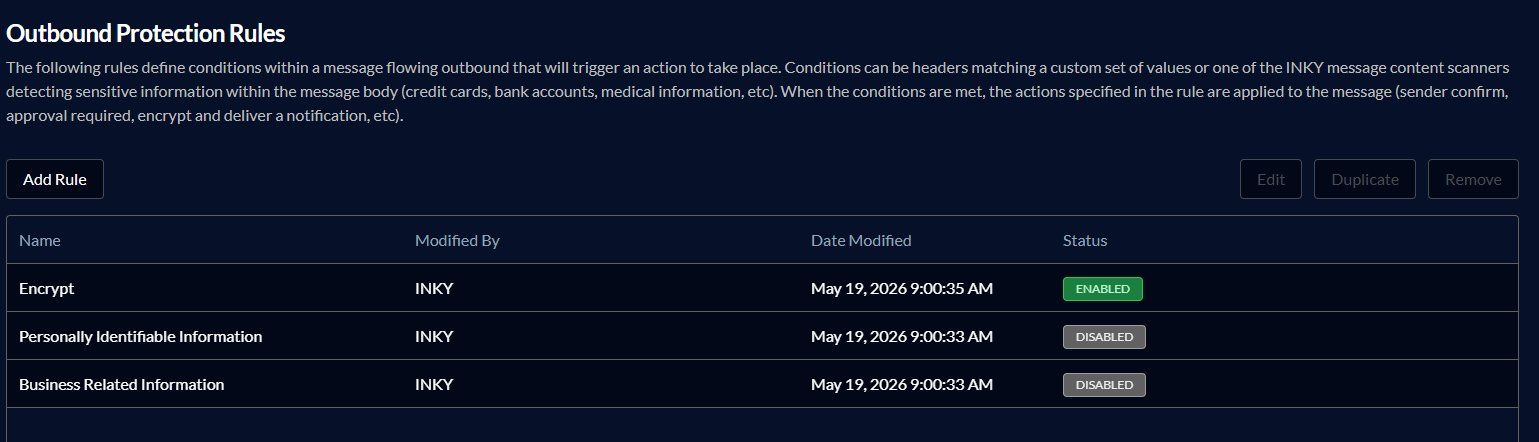
Step 1: Open Outbound Protection Rules
Log in to the INKY Dashboard and go to https://app.inkyphishfence.com/settings/outbound.
Step 2: Edit a Rule
Click the rule you want to scope, then click Edit in the top right.
The Edit Rule editor opens. The Summary section at the top shows the rule's current logic in plain English, which is useful for confirming your changes as you make them.
Step 3: Add the Workflow Header Condition
In the Additional Conditions (optional) section, click the green + button below the existing conditions to add a new condition row.
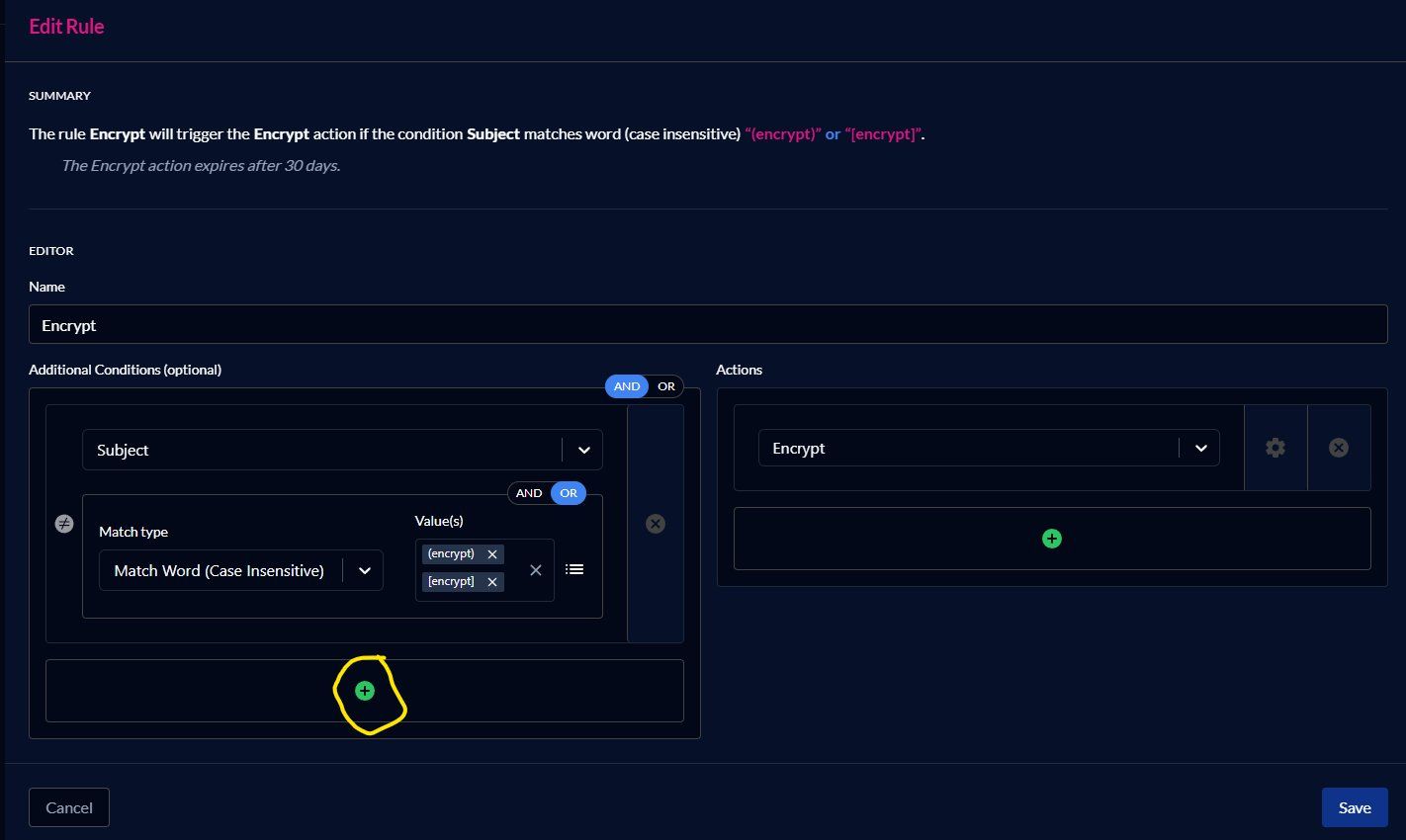
Configure the new condition:
Field: select Workflow Header from the dropdown
Match type: Match Word (Case Insensitive)
Value(s): type
outsideand press Enter to add it as a chip
The join between conditions defaults to AND, which is what you want — the rule should fire only when both the original condition and the Workflow Header condition are true.
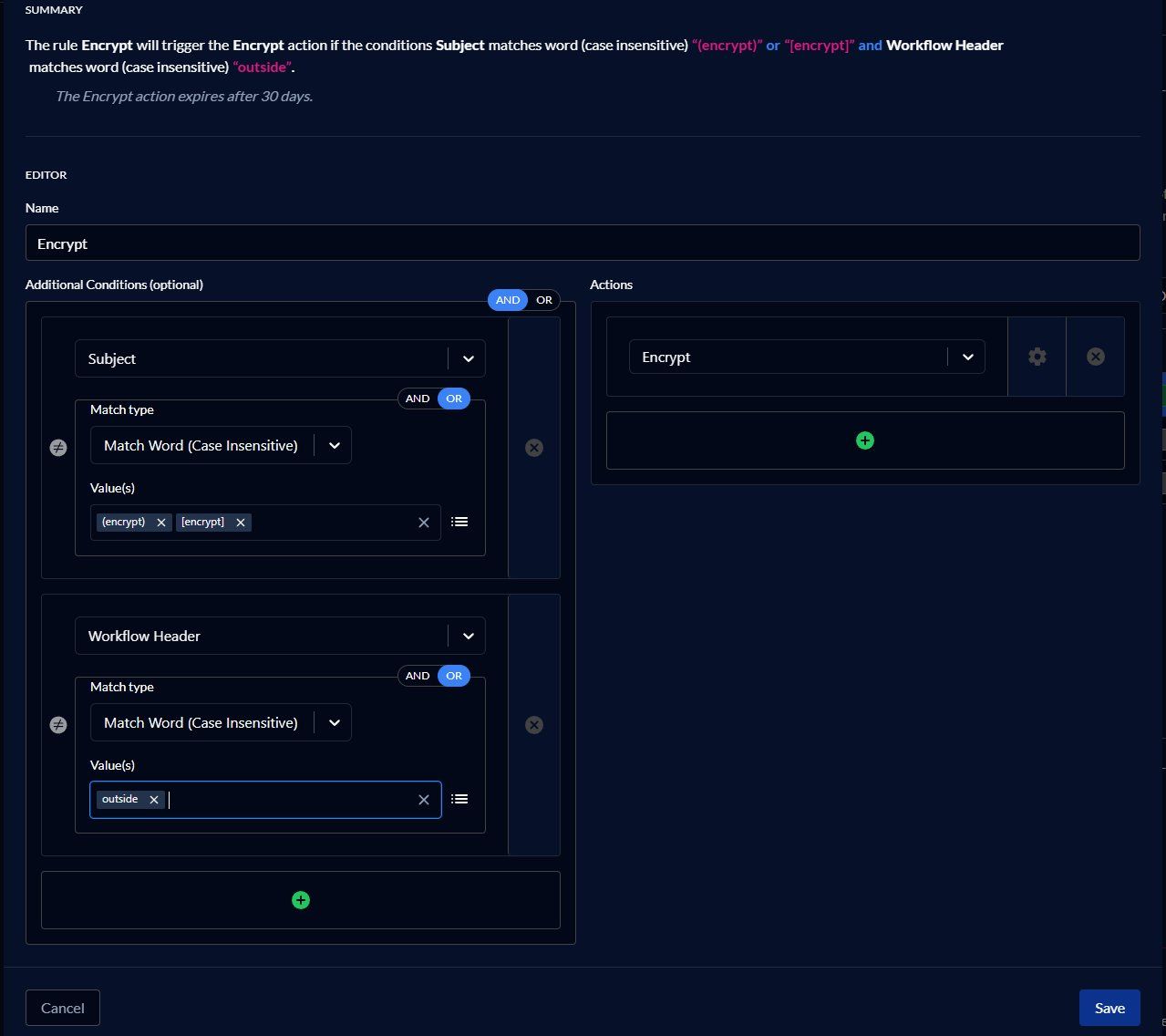
Verify the Summary at the top reflects the new logic. For the Encrypt rule example above, it should now read: The rule Encrypt will trigger the Encrypt action if the conditions Subject matches word (case insensitive) "(encrypt)" or "[encrypt]" and Workflow Header matches word (case insensitive) "outside".
Step 4: Save
Click Save.
Repeat for every Outbound Protection rule that should be scoped to external traffic.
Verify It's Working
Test 1: Header is present on external mail. From a mailbox in the inky-users group, send a test message to an external address (a personal Gmail account works well). Open the message at the external destination and view the full headers (in Gmail: ⋮ → Show original). Confirm the header X-Inky-Workflow: outside is present.
Test 2: OMP fires on external recipients. Send a message to an external recipient that intentionally matches one of your updated OMP rules. The sender should be subject to the rule's action — sender confirmation, encryption, approval, and so on — as expected.
Test 3: OMP skips internal-only recipients. Send the same content only to an internal recipient. The OMP rule should not fire, because the X-Inky-Workflow: outside header is absent on internal-bound mail.
Troubleshooting
The header isn't appearing on external messages. Verify the transport rule is enabled and that the test sender is a member of the inky-users group. Confirm the sender isn't a member of inky-exclude, and that the sending IP isn't one of INKY's own processing IPs (those are excluded by design to prevent reprocessing loops).
OMP fires on internal recipients too. Check that the OMP rule's Workflow Header matches outside condition is joined to the other conditions with AND, not OR. If it's joined with OR, the rule will fire whenever any condition matches, including internal traffic. Verify by reading the Summary at the top of the editor.
OMP doesn't fire on external recipients. Confirm the header is actually arriving on external mail (Test 1 above). If the header is present but the rule doesn't trigger, check that the value spelling matches exactly — outside, lowercase. The condition is case insensitive but a typo will still miss.
Calendar invitations aren't tagged. This is expected. The routing rule has an ExceptIfMessageTypeMatches Calendaring exception, so calendar traffic is excluded from OMP processing entirely.
The transport rule doesn't exist in my tenant. Contact INKY Support. Older deployments may not have the INKY - Routing - Outbound External Recipients rule and will need to be reconfigured before this article applies.
Questions? Contact Support with the team ID with an eml file that did not act as expected from a test send.
Was this helpful?
Still need help? Ask the team