Custom SIEM Feed
Send INKY events to your SIEM or any HTTPS endpoint that accepts JSON.
Written By Matt Sywulak
Last updated About 2 hours ago
The Custom SIEM Feed sends INKY events to your SIEM, or to any other system that accepts JSON over HTTPS, as they happen: analysis results, link clicks, user reports, outbound detections and more.
Security and navigation
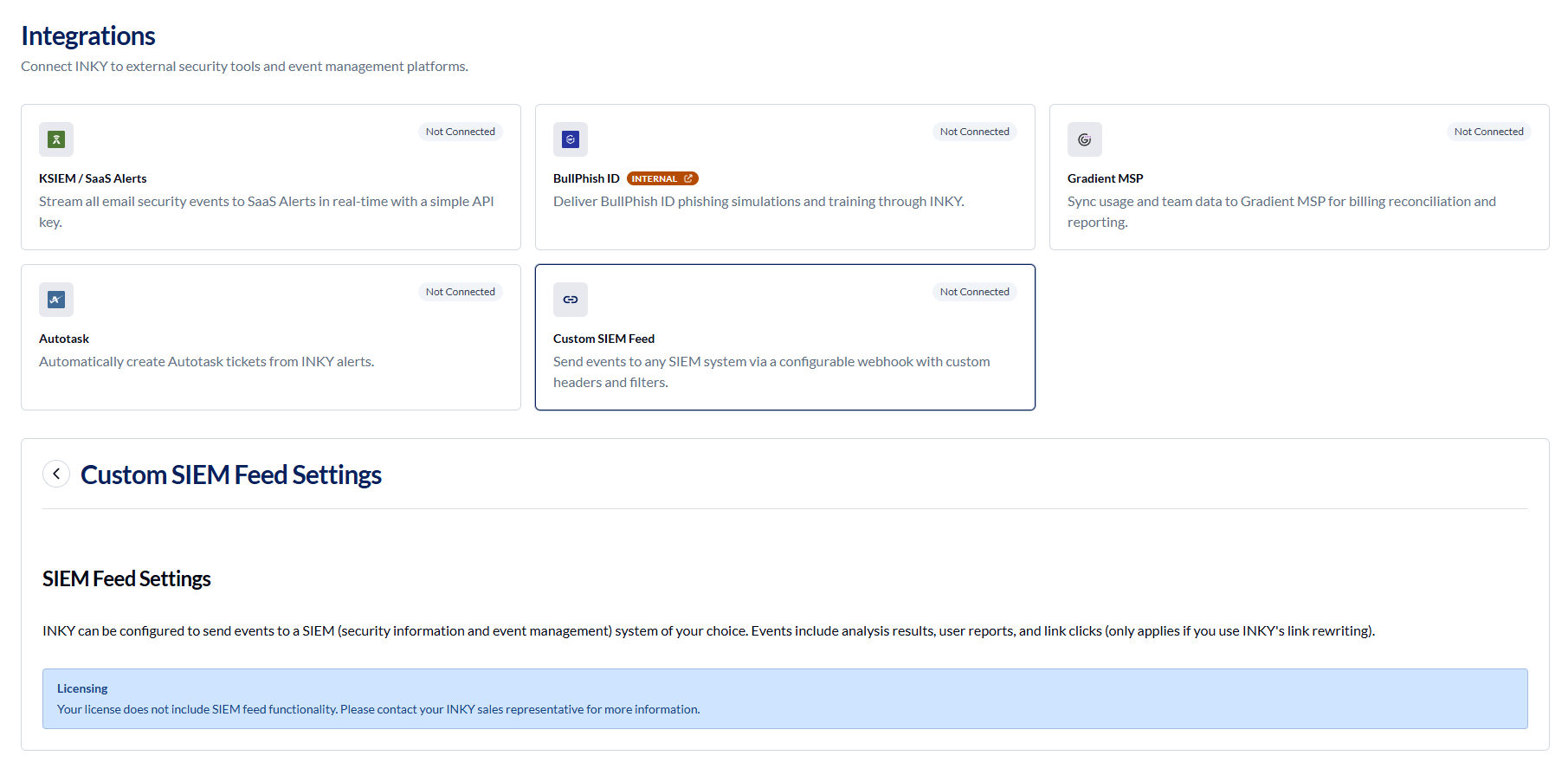
INKY NAVIGATION: Admin Center > Integrations > Custom SIEM Feed.
INKY PERMISSIONS: Super Admin or Policy Admin role required.
SIEM NAVIGATION: Your SIEM's settings for receiving data over HTTPS (often called an HTTP collector, HTTP event collector or webhook input). The name and location depend on your SIEM provider.
SIEM PERMISSIONS: An account in your SIEM that can create an HTTPS input and its access token.
Prerequisites
A license that includes the SIEM feed. INKY Pro includes it; INKY Advanced does not. Some legacy INKY plans include it. Without it, the form says Your license does not include SIEM feed functionality.
An HTTPS endpoint that accepts a POST request with a JSON body, answers within 5 seconds, and can be reached from the INKY addresses below.
If your endpoint only accepts traffic from known addresses, allow the INKY addresses for your region.
United States:
3.231.237.226/32100.24.129.5/323.132.108.44/323.132.222.232/32100.21.157.149/3234.210.15.192/32
Europe:
3.121.161.229/3218.198.39.243/3234.249.87.65/3252.17.160.9/32
About this integration
The Custom SIEM Feed is a one-way integration. INKY sends each event to your endpoint as its own HTTPS POST request with a JSON body, as soon as the event happens. Events are not batched.
INKY does not have a built-in connector for any particular SIEM. Any product that accepts raw JSON over an HTTPS POST works. INKY also creates the access token for Azure Event Hubs for you (see Send events to Azure Event Hubs below).
You choose which events to send:
Organization-level and team-level settings
On a Kaseya organization, you can set up the feed once for the whole organization. Every team in the organization uses those settings unless it sets its own. Each event carries the teamid of the team the message belongs to, so you can tell customers apart in your SIEM.
Events are only sent for teams licensed for INKY Pro. A team on INKY Advanced inherits the settings but sends nothing.
Each setting on the form has a small badge showing whether it is inherited from the organization or overridden on the team. Click the badge to add or remove an override.
How INKY delivers events
INKY waits up to 5 seconds for your endpoint to answer.
If INKY cannot connect to your endpoint, it tries again up to five times, waiting a little longer each time.
If your endpoint answers with an error, or does not answer in time, INKY does not try again.
An event that is not delivered is not queued or sent later. Keep your endpoint available, and use your SIEM's own alerting to spot gaps.
INKY checks your endpoint's certificate unless you turn on Disable SSL certificate validation. That option turns off all certificate checks, so use it only for an endpoint with a self-signed certificate.
Requests are not signed. To prove a request came from your setup, send an access token in a header such as
Authorization.
Use case
Security teams and MSPs watch many tools from one place. Without this integration, INKY's detections, user reports and link clicks stay in the INKY console, and someone has to look there to see them.
The Custom SIEM Feed puts those events in your SIEM next to everything else, so you can alert on them, connect them with other activity (for example, a phishing message, then a click, then a suspicious sign-in) and keep them for as long as your SIEM retains data.
How to...
Set up the feed
Before you start, create an HTTPS input in your SIEM and note its URL and any access token it gives you.
Select Admin Center > Integrations.
In the Team selector, select the team, or the Kaseya organization (building icon) to set it up for every team in it.
Click the Custom SIEM Feed card.
In Webhook URL, enter your SIEM's HTTPS URL.
Under the HTTP headers, click Add Header and enter each header your SIEM needs. Most need an
Authorizationheader with the access token, for exampleAuthorization/Bearer your-tokenorSplunk your-token. Check your SIEM's documentation for the exact format. INKY sendsContent-Type: application/jsonon its own.Only if your endpoint uses a self-signed certificate, select Disable SSL certificate validation.
Under Validate Webhook Configuration, click Validate Now. INKY sends a test event using what is on the screen, saved or not. See Validate the connection below.
Under Customize Your SIEM Feed, select the events to send. None are selected at first, so nothing is sent until you choose.
Optionally, under Inbound Analysis Results and Link Clicks, choose which threat levels to include: all (Neutral, Caution and Danger), Caution and Danger only, or Danger only.
Click Save Changes, then Save Changes again to confirm.
The card now shows Connected.
Note: Validating does not save anything. Changes take effect only after you click Save Changes.
Validate the connection
When you click Validate Now, INKY sends this test event to your endpoint, using the URL, headers and certificate setting currently on the screen:
{ "identifier": "inky-event", "data": { "validation": true }, "teamid": "yourteam", "event_type": "analysis_result"}Its event_type is analysis_result and its data holds only "validation": true, so make sure your SIEM accepts it and does not alert on it.
If it works, you see Success! If not, you see Validation Failed! with the error INKY received. Common errors:
401 Client Error: Unauthorized for url: the
Authorizationheader is missing or wrong, or the token is disabled or lacks access in your SIEM. Check the header name, the format your SIEM expects and the token.Max retries exceeded: INKY could not connect. Usually a firewall is blocking INKY. Allow the addresses listed under Prerequisites, and check the URL and port.
Certificate errors (for example
CERTIFICATE_VERIFY_FAILED): your endpoint's certificate cannot be verified. Use a certificate from a public certificate authority, or, if the certificate is self-signed, select Disable SSL certificate validation.No URL specified.: enter a Webhook URL.
Send events to Azure Event Hubs
INKY can create the Event Hubs access token for you, for example to bring INKY events into Microsoft Sentinel through an event hub.
In Azure, create a shared access policy with Send rights on your event hub, and note its name and key.
In Webhook URL, enter
https://NAMESPACE.servicebus.windows.net/EVENT-HUB/messages, with your Event Hubs namespace and event hub names.Add a header named
Authorizationwith this value, all on one line with no spaces:$SharedAccessSignature,NAMESPACE,EVENT-HUB,POLICY-NAME,POLICY-KEYClick Validate Now, then save.
INKY turns that value into a signed Event Hubs token on each request. If the value does not have all five parts, validation fails with a message showing the expected format.
Set up the feed for a Kaseya organization
Select Admin Center > Integrations.
In the Team selector, select the organization (building icon).
Click the Custom SIEM Feed card. A note at the top confirms that every team in the organization uses these settings unless it sets its own, and that events are only sent for teams licensed for INKY Pro.
Set up the feed as described in Set up the feed. The confirmation shows how many teams the change may affect.
To give one team different settings, select that team, open the card, and click the badge beside a setting to add an override.
Stop sending events
Do either of the following, then click Save Changes:
Clear the selected events under Customize Your SIEM Feed to keep the connection but send nothing.
Clear the Webhook URL. The card then shows Not Connected.
On a team that inherits from an organization, remove the team's overrides to go back to the organization's settings.
Event reference
Every event has the same outer fields:
Fields with no value may be left out. Times are Unix timestamps in seconds (UTC). Treat any field not listed here as optional, and allow for new fields to appear. The examples are shortened.
Inbound analysis result (analysis_result)
data.meta_data describes the message:
data.inky_analysis.suspicious_details holds INKY's verdict:
data.inky_analysis.threat_indicators lists the evidence behind each reason as reason_id, reason_short_code and data. What is in data depends on the reason: for example a URL, the brand impersonated, the observed_domain and the confused_with_domain, or an attachment's filename, size and sha256. Spam and phishing content reasons have no indicators. phishing_test is true when the message is one of your recognized phishing simulations.
{ "identifier": "inky-event", "event_type": "analysis_result", "teamid": "yourteam", "data": { "meta_data": { "dashboard_url": "https://app.inkyphishfence.com/...", "from_email": "billing@example-invoices.com", "internal": false, "internaldate_utc_seconds": 1761487200, "rcpt_to_addresses": [ "jane@example.com" ], "mail_from": "bounce@example-invoices.com", "sender_IP": "203.0.113.25", "helo_string": "mail.example-invoices.com", "message_id": "<abc123@mail.example-invoices.com>", "subject": "Your invoice is overdue", "authenticated_sources": [], "spf_passes": [], "dkim_passes": [], "dmarc_passes": [], "origin": "External", "silent_mode": false, "delivery_target": "Inbox" }, "inky_analysis": { "suspicious_details": { "threat_level": 2, "result_bucket": "DANGER", "reason_titles": [ "Brand Impersonation", "Phishing Content" ], "reason_ids_ordered": [ 4, 15 ], "reason_ids": [ 15, 4 ], "reason_short_codes": [ "brand_impersonation", "phishing_content" ], "short_reasons": [ "brand_impersonation", "phishing_content" ], "reason_htmls": [ "...", "..." ], "SCL": 9, "PCL": 8 }, "threat_indicators": [ { "reason_id": 4, "reason_short_code": "brand_impersonation", "data": { "brand": "Microsoft" } } ] } }}Link click (link_click)
{ "identifier": "inky-event", "event_type": "link_click", "teamid": "yourteam", "data": { "link_data": { "tracking_id": 1203604, "original_url": "http://login.example-phish.com/", "rewritten_url": "https://...", "confirmation_needed": true, "continue_allowed": true, "timestamp": 1761487500, "client_ip": "198.51.100.7", "client_user_agent": "Mozilla/5.0 ...", "alert_level": 2, "alert_reason_html": "..." }, "meta_data": { "dashboard_url": "https://app.inkyphishfence.com/...", "message_id": "<abc123@mail.example-invoices.com>", "rcpt_to_addresses": [ "jane@example.com" ], "threat_level": 2 } }}User report (user_report)
Reports of your recognized phishing simulations are sent too, with data.inky_analysis.phishing_test set to true.
{ "identifier": "inky-event", "event_type": "user_report", "teamid": "yourteam", "data": { "user_data": { "label": "phish", "contact_email": "jane@example.com", "email_verified": true, "comment": "Asked me to sign in to see an invoice", "clicked_link": false, "opened_attachment": false, "client_ip": "198.51.100.7", "client_user_agent": "Mozilla/5.0 ..." }, "meta_data": { "dashboard_url": "https://app.inkyphishfence.com/...", "from_email": "billing@example-invoices.com", "subject": "Your invoice is overdue", "message_id": "<abc123@mail.example-invoices.com>", "rcpt_to_addresses": [ "jane@example.com" ] }, "inky_analysis": { "threat_level": 2, "reason_titles": [ "Brand Impersonation", "Phishing Content" ], "suspicious_details": { "threat_level": 2, "reason_ids_ordered": [ 4, 15 ] }, "threat_indicators": [] } }}Outbound events
Outbound events carry data.meta_data with the message's from_email, subject, message_id, rcpt_to_addresses, internaldate_utc_seconds and dashboard_url. The dangerous link and spam/phish events also include internal, mail_from, sender_IP and helo_string.
{ "identifier": "inky-event", "event_type": "omp_account_takeover", "teamid": "yourteam", "data": { "risk_level": "HIGH", "action": "...", "reasons": [ "..." ], "enforcement_id": "...", "is_new": true, "escalated": false, "meta_data": { "dashboard_url": "https://app.inkyphishfence.com/...", "from_email": "sam@example.com", "internaldate_utc_seconds": 1761487800, "rcpt_to_addresses": [ "someone@example.org" ], "message_id": "<def456@example.com>", "subject": "Updated bank details" } }}Reason codes
These are the numbers in reason_ids, reason_ids_ordered and threat_indicators. The title is in the team's language in events; the number and short code are the same in every language.
A reason INKY cannot map has code -1 and the title Unknown. New reasons are added over time, so handle codes that are not in this list.
FAQ
Why don't I see the Custom SIEM Feed settings?
The form shows only when the selected team's license includes the SIEM feed, or when a Kaseya organization is selected. Otherwise it says Your license does not include SIEM feed functionality. You also need the Super Admin or Policy Admin role. Admins who can read but not change policy settings see the form with its fields turned off.
Validation succeeded, but no events arrive. Why?
Check that you clicked Save Changes. Validating uses what is on the screen and does not save it.
Check that at least one event is selected under Customize Your SIEM Feed. None are selected at first.
Check the threat-level filters. With Danger only, Neutral and Caution messages and clicks send nothing.
On an organization, check that the team's license is INKY Pro. Teams on INKY Advanced send no events.
Are events that fail to arrive sent again later?
No. INKY retries briefly when it cannot connect, but an event that is not delivered is not queued or resent.
Can I send events to more than one SIEM?
Each team has one Webhook URL. An organization and the teams in it can each have their own. To send the same events to more than one system, forward them from your SIEM or from an event hub.
Why did my SIEM receive an analysis_result with "validation": true?
That is the test event INKY sends when someone clicks Validate Now. It carries no message data.
Was this helpful?
Still need help? Ask the team